

Direct embed
Embed Photo Sharing in Your Canva Wedding Website
Canva websites do not accept custom code, but the Canva Embed app takes an iFrame link. Paste your Wedibox iFrame address and the photo sharing widget sits right on your Canva page. Guests upload without leaving your site.
Get Your Free Code See the Steps
Free to start · About 5 minutes · No developer needed
Add Wedibox to Canva in 8 Steps
Follow along in your Canva editor. The whole process takes about 5 minutes.
First, grab your Wedibox embed code
Create your free Wedibox gallery and copy your embed code from the dashboard. It takes about a minute, and the first 50 uploads are free.
-
Log in to Canva
Go to canva.com and click Log in.

-
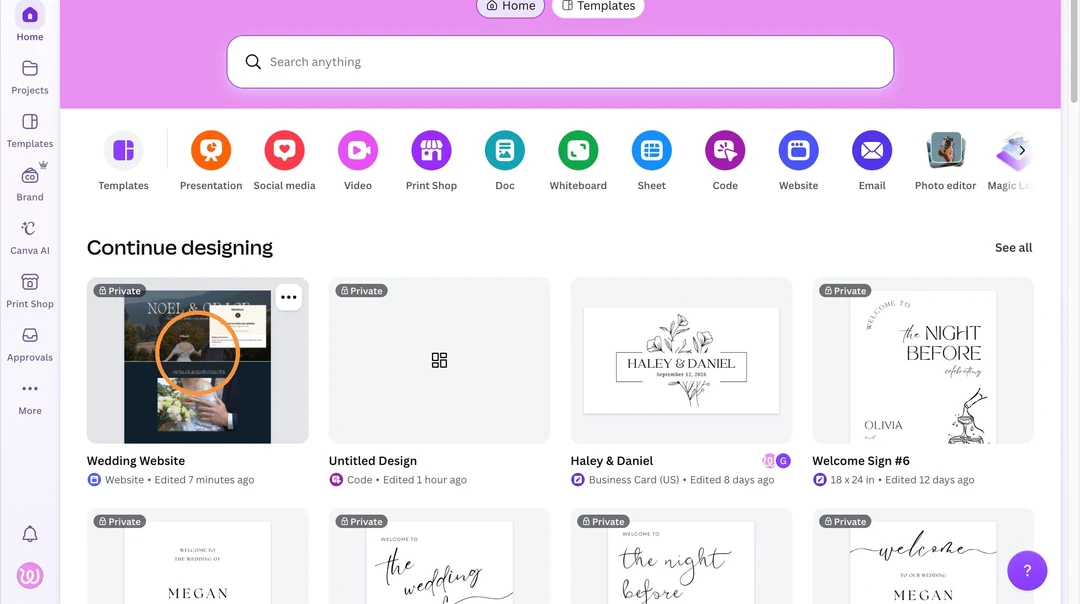
Open your wedding website design
In your Canva home, find your wedding website under Continue designing and open it.
-
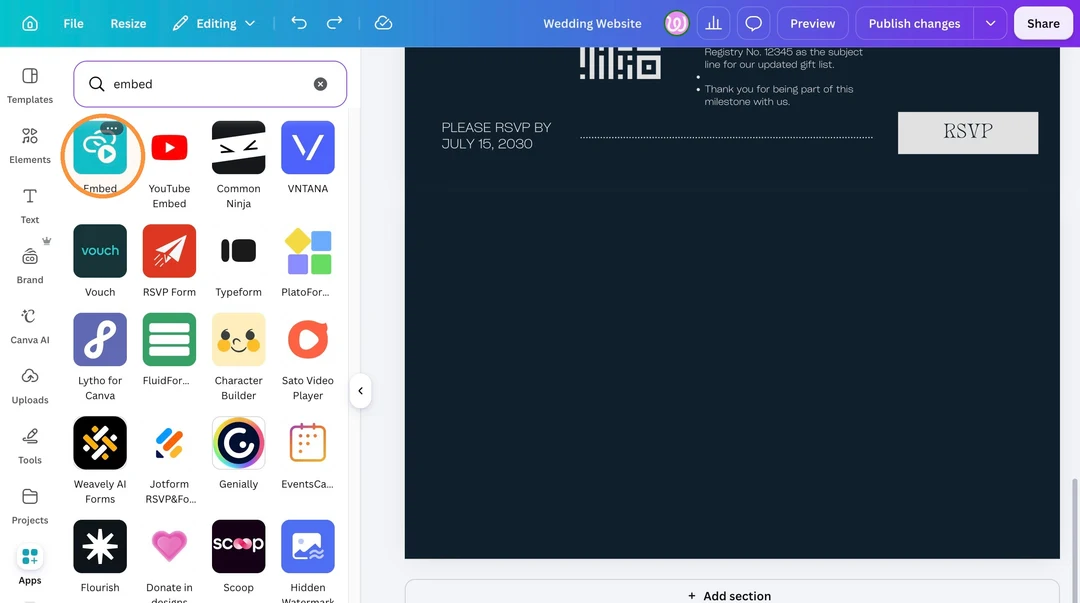
Open the Embed app
Click Apps in the left panel, type embed in the search box, and open the Embed app.
-
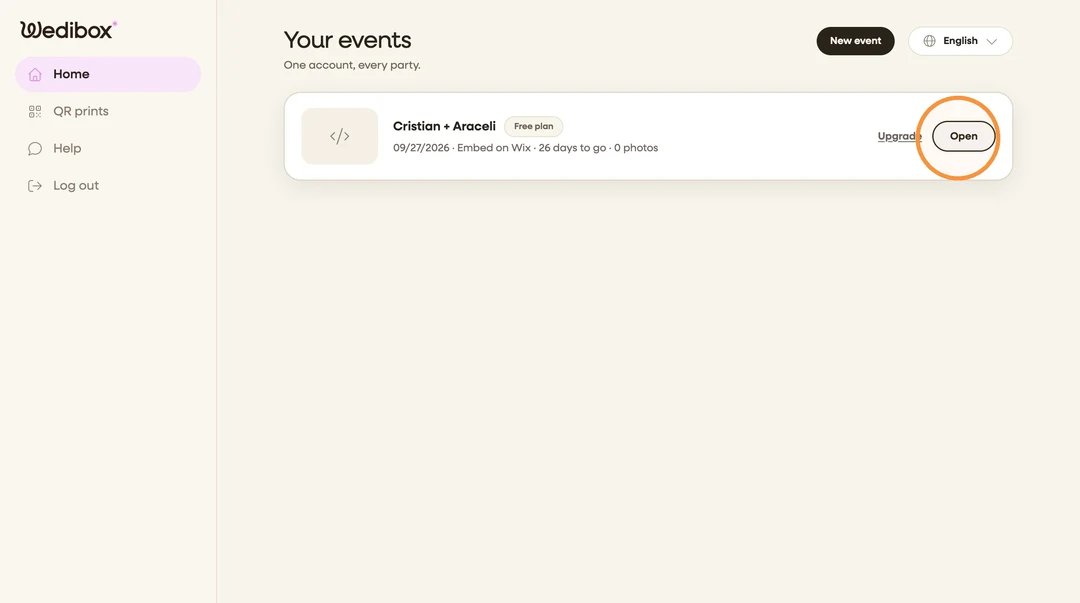
Open your Wedibox dashboard
In a new browser tab, log in to Wedibox and click Open on your event.
-
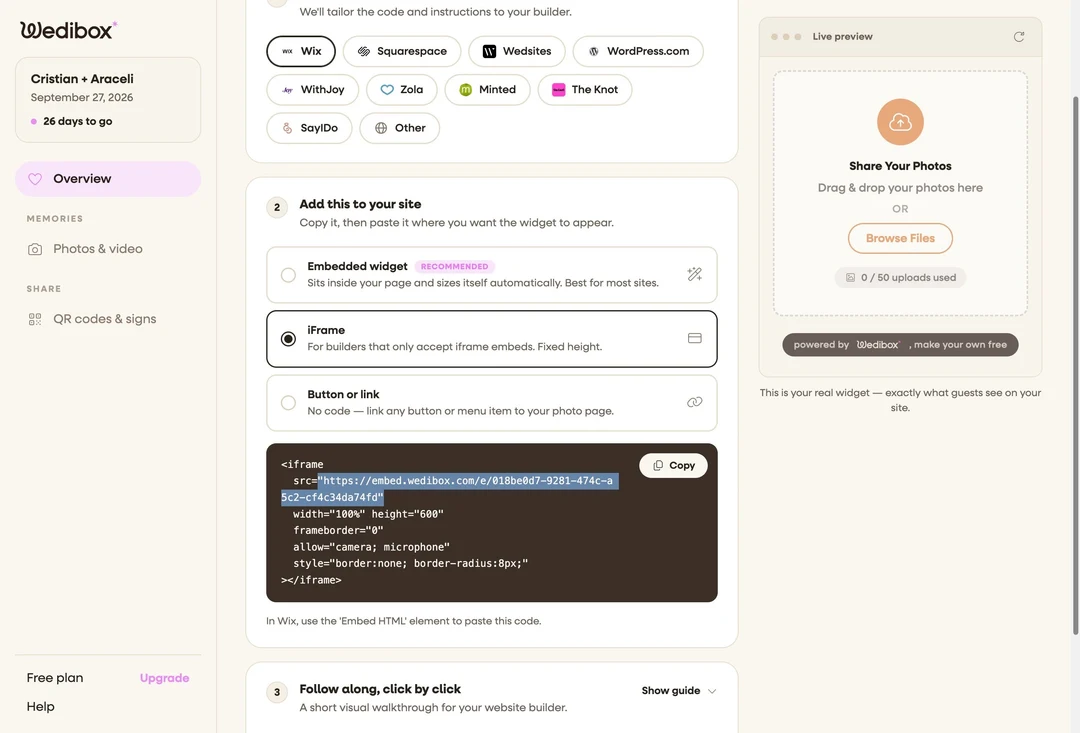
Copy your iFrame link
On the Add to website screen, select iFrame. Copy the web address that comes after src= in the code box.
-
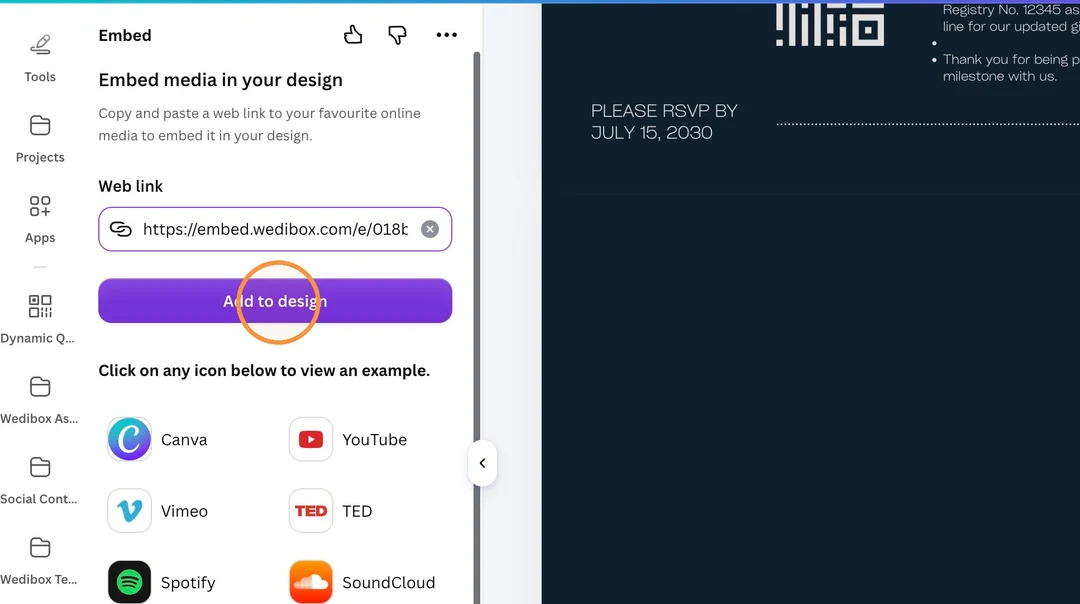
Add the link to your design
Back in Canva, paste the address into the Web link field and click Add to design.
-
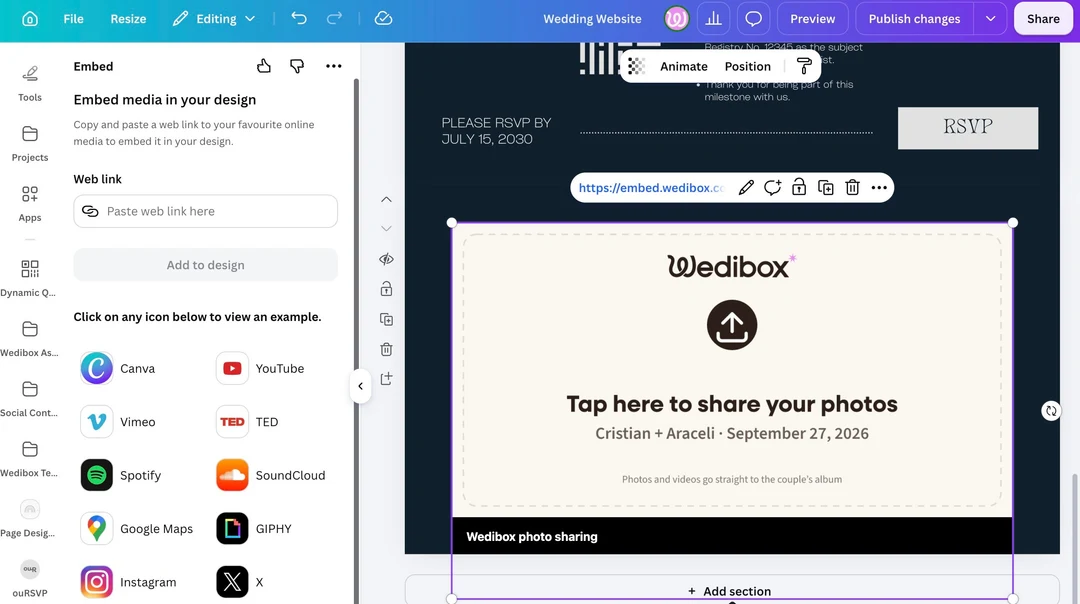
Resize and position the widget
Drag the corners until the widget fills the space you want on your page.
-
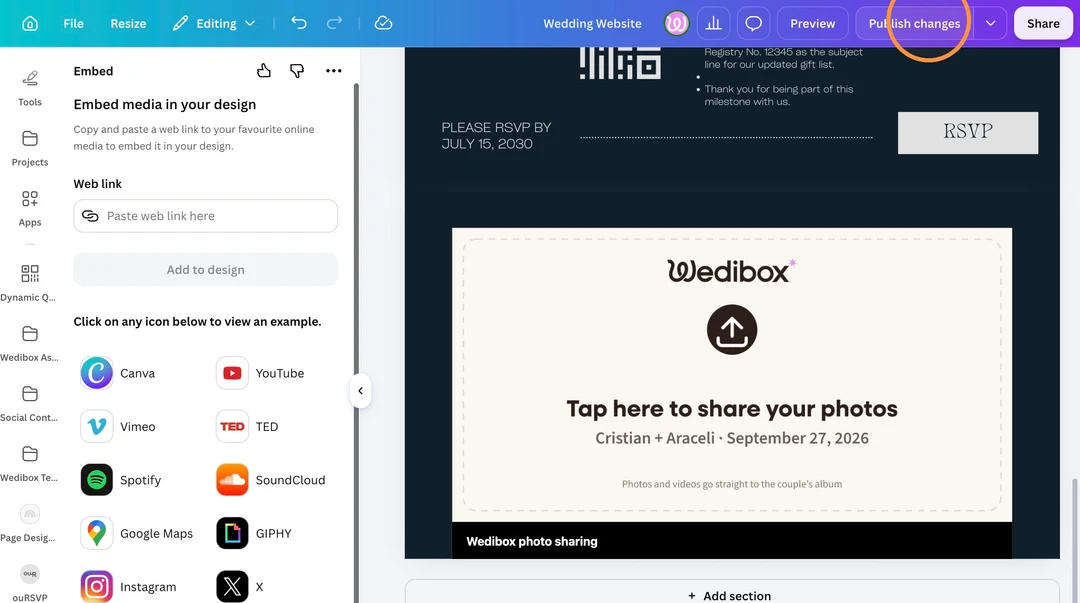
Click Publish changes
Click Publish changes in the top bar. The Wedibox widget is now live on your Canva website.
What Your Guests Will See
The Wedibox widget appears directly on your Canva wedding page. Guests never leave your site. They tap upload, pick their photos, and they are done.
- No app for guests to install
- Works on iPhone and Android
- Photos and videos in full resolution
- 50 free uploads to start
Emma & Ben
Wedibox widget
Upload Photos



247 guest uploads
Why Add Wedibox to Your Canva Website
-
The widget lives on your page
Guests upload photos and videos without leaving your Canva site. No second link to share.
-
No code to touch
The Canva Embed app takes one web address. You never open an HTML editor.
-
Free to start
Collect your first 50 uploads free. Paid plans are a one-time payment, never a subscription.
Common Questions About Wedibox on Canva
These cover Canva specifics. For pricing, upload limits, and everything else, see the full Embed FAQ.
Does Canva support custom HTML?
No. Canva websites do not accept script embeds. The Canva Embed app accepts iFrame links instead, and Wedibox gives you an iFrame made for exactly this. The widget works the same way.
Which part of the iFrame code do I copy?
Only the web address between the quotes after src=. It starts with https://embed.wedibox.com. The Canva Embed app needs the address alone, not the full code.
Can I move the widget to another page later?
Yes. Delete the embed element, open the Embed app on any other page, and paste the same address. Your gallery and settings stay the same.
Using a Different Platform?
Every platform has its own short setup guide.
 The Knot
 Zola
Zola
 WithJoy
 Wix
Wix
 Squarespace
 WedSites
 Minted
 SayIDo
Ready to Add Photo Sharing to Your Website?
Generate your free code snippet and add it to your wedding website today. Guests handle the rest.
- Works with The Knot, Zola, Joy, Wix, and more
- Guests upload right on your site
- No app for guests to install
- 50 free uploads to start
- $29 one time, never a subscription
- Photos transfer if you upgrade later
Free to start · $29 one time · 3 month upload window
Want everything in one place instead? Explore Wedibox photo sharing or see how the full platform works.