How to collect wedding photos from your guests
Photo sharingAll plans
Your guests will take hundreds of photos on your wedding day. The hard part is getting them off their phones. Wedibox gives you one QR code and one link: guests scan, upload from their browser, and everything lands in your private gallery. No app, no account, nothing for guests to install.
Plan: All plans · Where: Website (under “Your page”) and Overview
Before you start
- Your event needs a name and date, set during creation and editable from the event menu.
- On the Free plan, guests can share up to 50 uploads. Paid plans remove the cap.
Steps
-
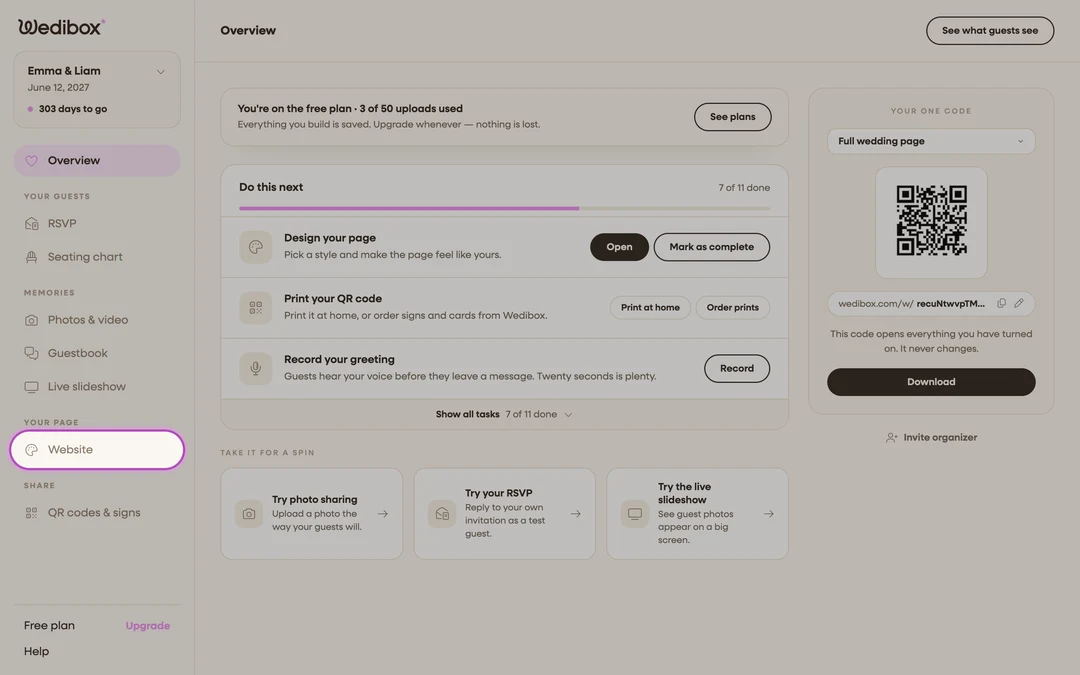
Open the Website editor. In the sidebar, click Website (under “Your page”). This one screen controls everything guests see and do on your page.
-
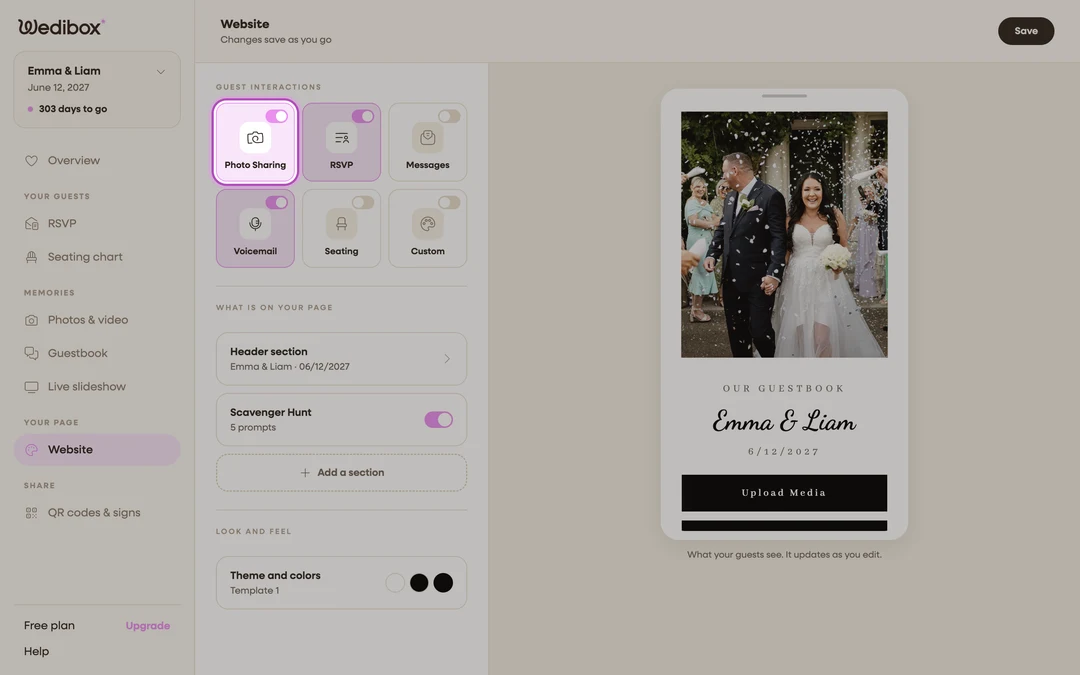
Make sure Photo Sharing is on. Under “Guest Interactions”, check that the switch on the Photo Sharing tile is on. This adds the Upload Media button to your page and turns on photo and video collection in one move.
-
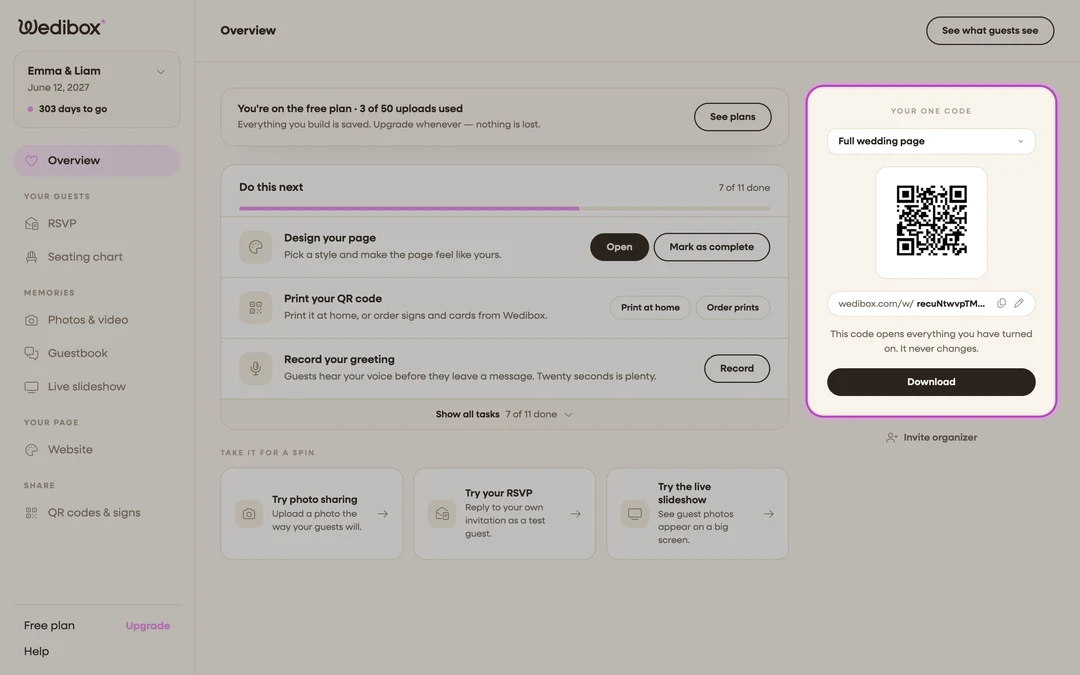
Get your QR code. In the sidebar, click Overview. Find the “Your one code” card: the QR code that opens your page. It never changes, so you can print it early.
-
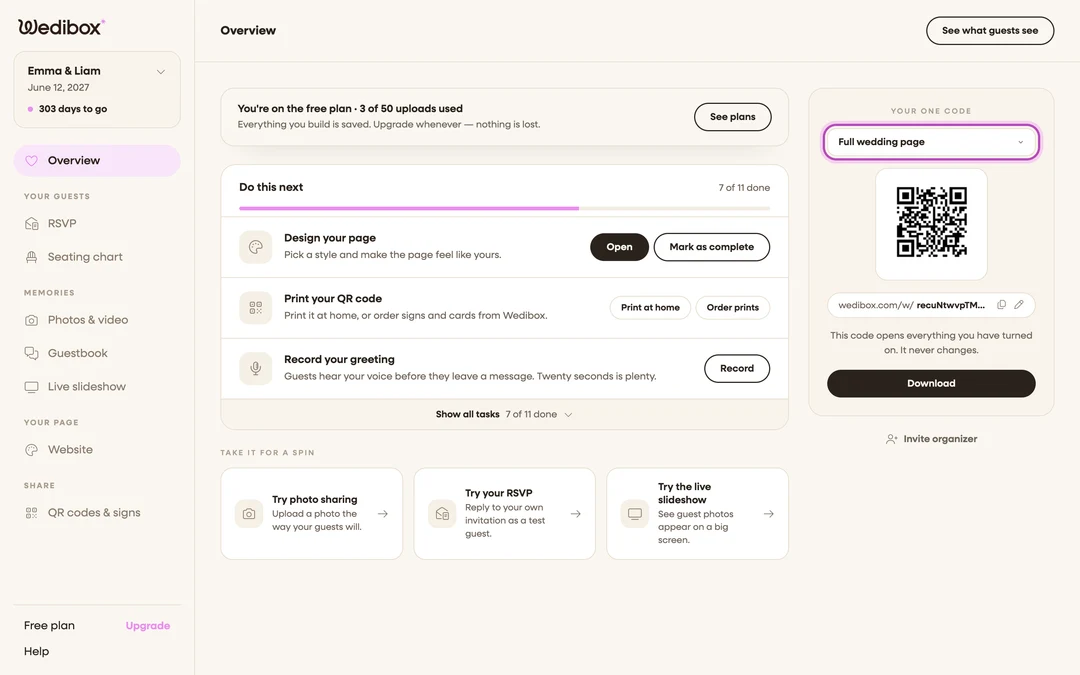
Choose what the code opens. In the dropdown above the code, keep Full wedding page for one code that does everything, or pick Photo sharing only for a code that jumps straight to uploading, ideal for reception table cards.
-
Download and share it. Click Download to save the QR image, or Print signs for ready-made table signs and cards. Click the copy icon next to your link to share the same page by text or email.
-
Do a test upload. Scan your own code with your phone and upload one photo. It is the fastest way to see exactly what guests will see. See How to do a test upload before the wedding.


What you should see
Scanning the code opens your page in the guest’s browser. They tap Upload Media (or Upload photos and videos on the photo-only page), pick files, add optional captions, and get a “Thank You!” screen. Every upload appears on the Photos & video page in your dashboard, and in the live gallery guests can browse. On the Free plan, the Overview banner tracks how many of your 50 uploads are used.
If something goes wrong
- Guests say there’s no upload button. The Photo Sharing switch is off in the Website editor, or both collect toggles were disabled. Turn the tile back on.
- A guest’s upload won’t start inside Instagram or Facebook. In-app browsers can block file access. Ask them to open the link in Safari or Chrome and try again.