How to set up an audio guestbook for your wedding
GuestbookWedding plan and up
An audio guestbook lets guests call your “voicemail” straight from their phones: they tap a button on your Wedibox page, hear your greeting, and record a message after the beep. No rented phone, no app, just the same QR code they already use for photos. You end up with your people’s actual voices, which is the part of the day everyone forgets fastest.
Plan: Wedding plan and up · Where: Website hub → Guest Interactions → Voicemail
Before you start
- Voicemails are part of the Wedding plan and up. On the Free plan the toggle shows a lock. Clicking it shows your upgrade options. The Guestbook hub also carries an editor-mode banner (“Editor mode: guests can’t leave messages yet”): record your greeting and set your prompts now, nothing is lost, and Unlock for guests opens the plan picker when you’re ready.
- Guests record right in their browser, so nothing extra is needed at the venue beyond your QR code or page link.
Steps
-
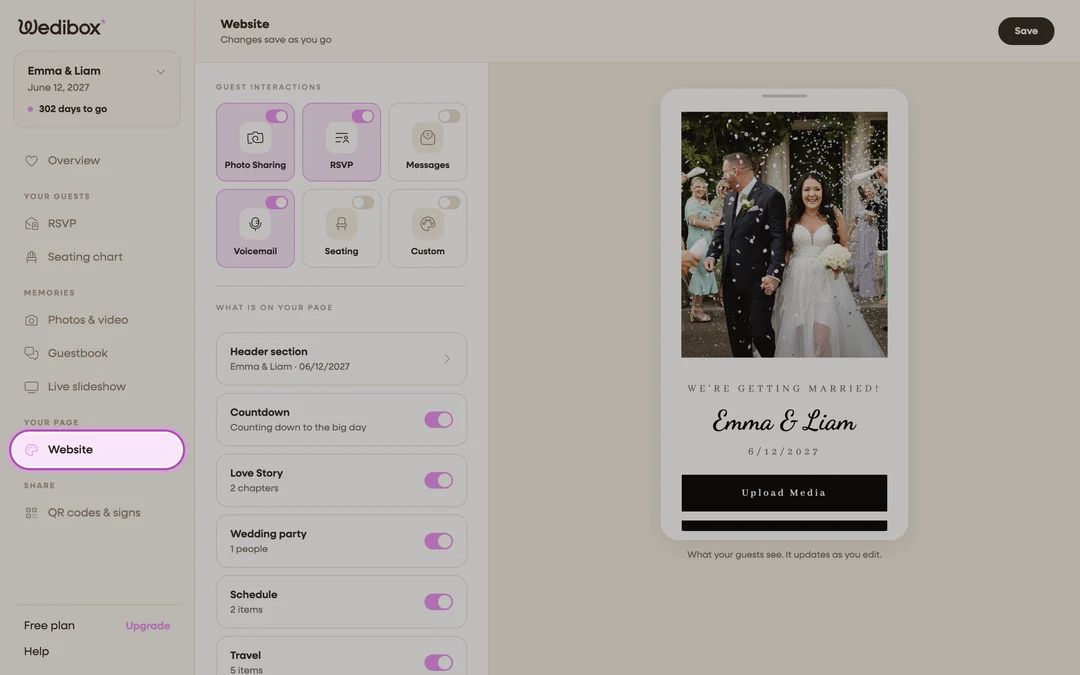
Open the Website editor. In the sidebar, click Website (under “Your page”).
-
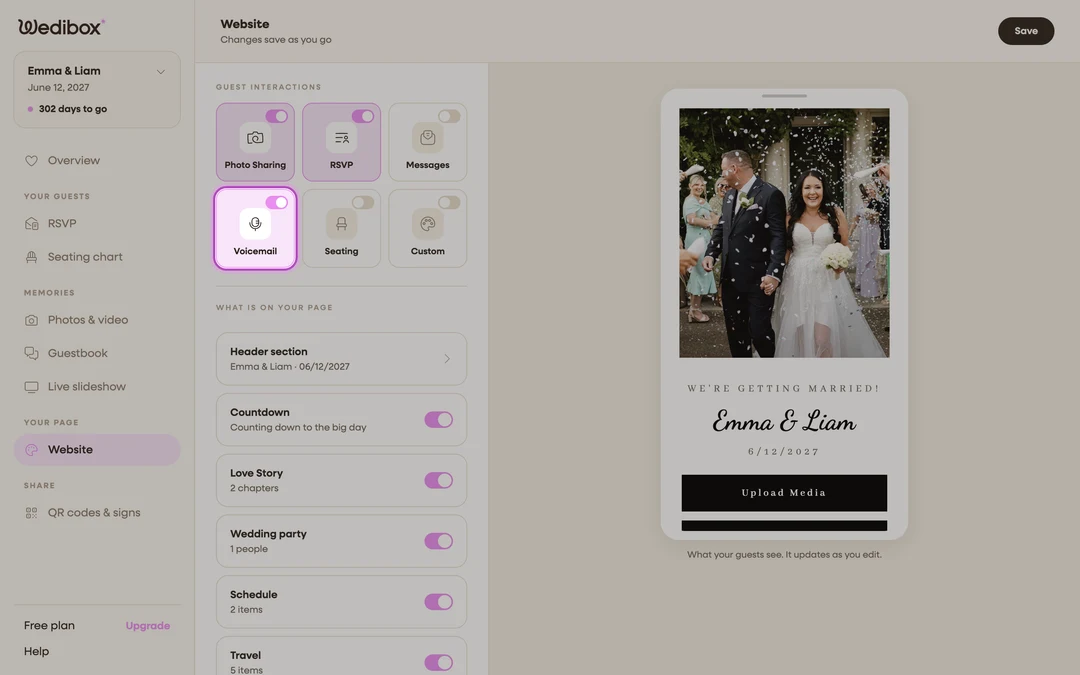
Open the Voicemail settings. Under Guest Interactions, click the Voicemail tile. The Digital Guestbook editor opens: photos, messages, and voicemails are collected by the same guestbook, so their settings live together here.
-
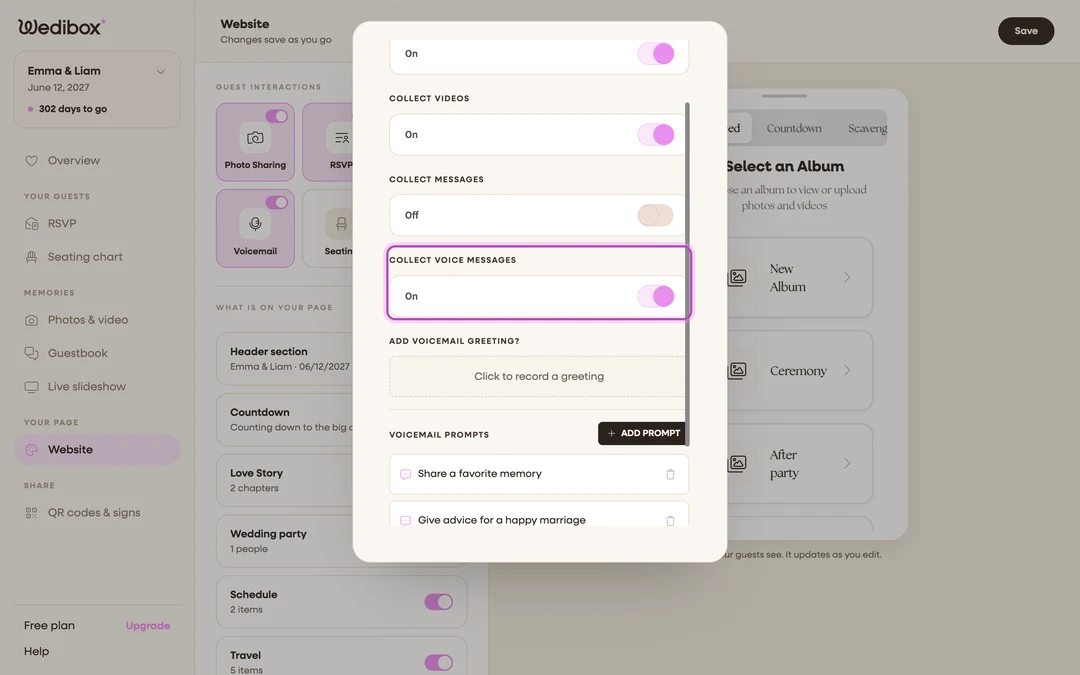
Turn on COLLECT VOICE MESSAGES. Flip the COLLECT VOICE MESSAGES toggle. This adds a voicemail button (labeled Leave a Voicemail by default) to your page, and the editor saves as you go.
-
Record your greeting. Under ADD VOICEMAIL GREETING?, click Click to record a greeting and record up to 30 seconds in your own voice. A real greeting is the single biggest reason guests follow through. The full walkthrough is in How to record your voicemail greeting.
-
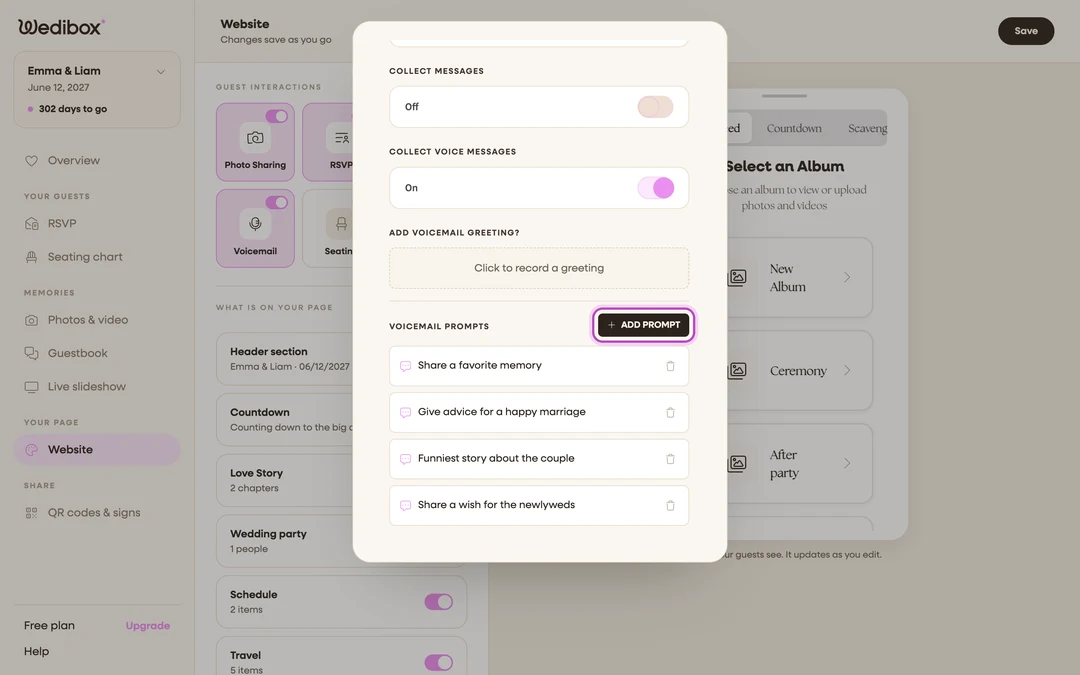
Add voicemail prompts. Under VOICEMAIL PROMPTS, click ADD PROMPT and type ideas like “Tell us the story of how we met you.” Guests see your prompts right before they record; without your own, Wedibox shows a standard set. See How to set custom prompts.
-
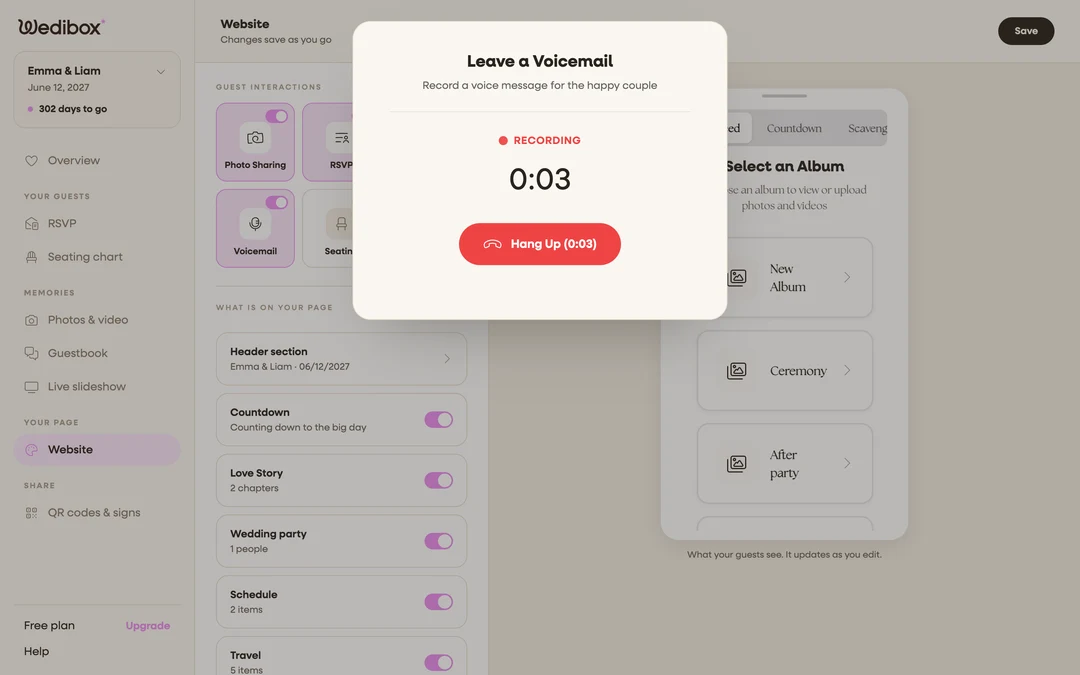
Test it yourself. Open your live page and tap the voicemail button. You’ll hear a phone ring, then your greeting, then the beep. Click Start Recording, say anything, click Hang Up, enter a name, and click Send. Allow microphone access when your browser asks.
-
Find your test message. In the sidebar, click Guestbook (under “Memories”). Your voicemail appears at the top of the feed with a play button. This page is where every voicemail lands.
What you should see
Your page now shows the voicemail button to every guest, and each recording appears on your Guestbook page moments after it’s sent. Filter the feed with the Voice tab, play messages back, or download them all as a ZIP. Guests who scan your QR code at the reception can go from scan to sent in under a minute.
If something goes wrong
- The toggle is locked: voicemails need the Wedding plan or higher. Click the locked row to see upgrade options.
- Your test recording won’t start: the browser blocked your mic or the page isn’t secure. Fixes are in Fixing microphone problems.