How to get your wedding QR code
QR codes & printsAll plans
Your QR code is how guests reach your page without typing anything: they point their phone camera at it and land straight on your event. Every event gets one code the moment it’s created, and the code never changes, so anything you print stays valid even if you keep editing your page right up to the wedding.
Plan: All plans · Where: Overview → Your one code (right rail)
Before you start
- You need an event. If you came from the free QR generator on wedibox.com, claim the event it created for you first, and this same code carries over.
- Decide roughly where the code will go (signs, cards, invitations). You can download it as many times as you like.
Steps
-
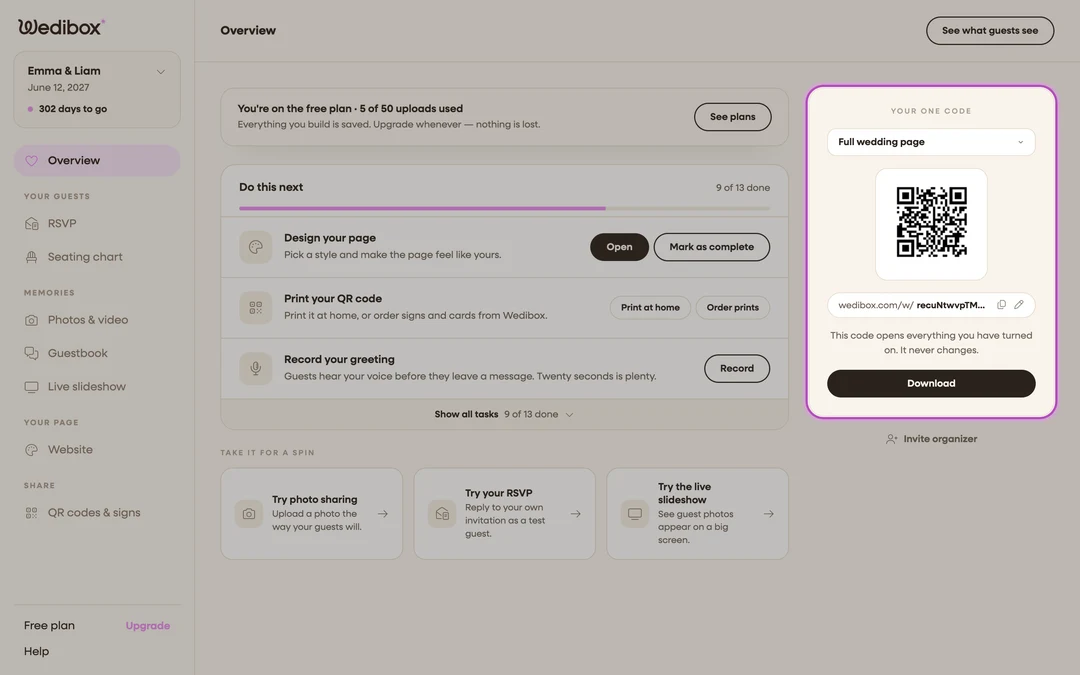
Open your event’s Overview. In the sidebar, click Overview. Your QR code lives in the card on the right labeled Your one code.
-
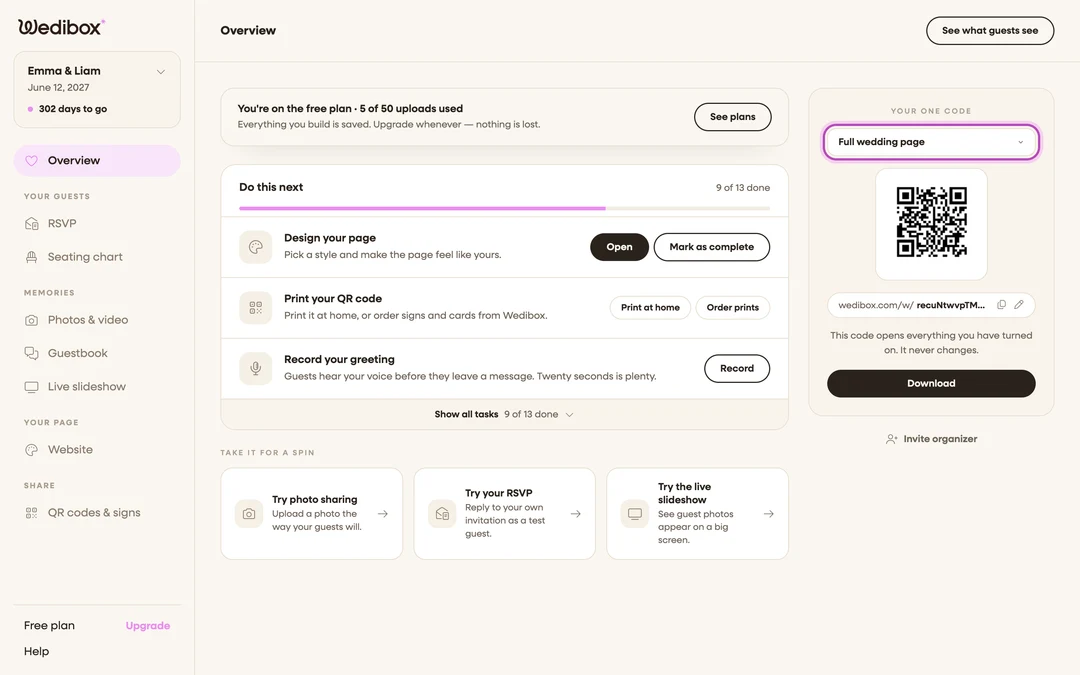
Choose what the code should open. Use the dropdown at the top of the card. Full wedding page is the default; you can also pick a focused code like Photo sharing only or RSVP only. See The three QR codes for when each one makes sense.
-
Check the address under the code. It shows exactly where the selected code points. The copy icon copies the link if you’d rather share it by text or email.
-
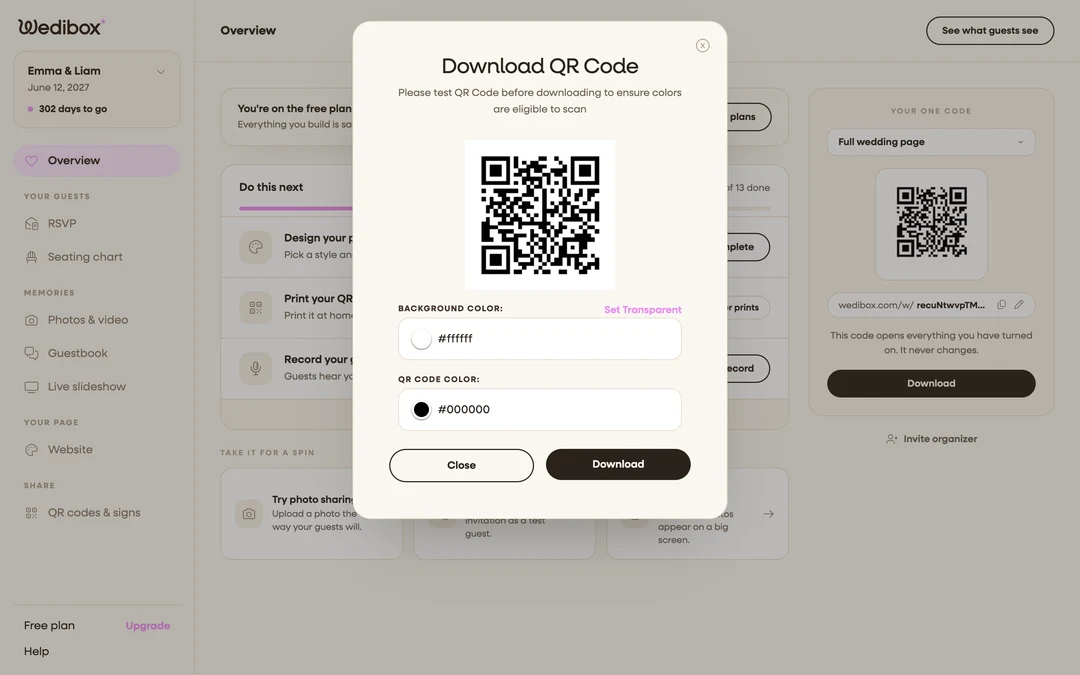
Click “Download”. The Download QR Code popup opens with a large preview of your code.
-
Optional: adjust the colors. Change Background Color: and QR Code Color: to match your stationery, or click Set Transparent for a transparent background. Keep strong contrast. See How to customize your QR code colors.
-
Click “Download” in the popup. The code saves as a PNG image you can drop into invitations, signs, or any design tool. On an iPhone, your share sheet opens instead so you can save it to Photos.


What you should see
A qr-code.png file in your downloads. Scan it once with your own phone. It should open
the page you picked in step 2. If you’re on the Free plan, the first download may show a
one-time heads-up about what guests can’t see yet; click Continue with Free to go
ahead, or See plans to compare upgrades first.
If something goes wrong
- The popup shows a lock saying “Activate your event to download your QR code”: you’re on the classic version of Wedibox, where trial events can’t download yet. Activate your event, then download.
- You’re worried about printing too early: don’t be. The code itself never changes; only what it opens is up to you. Print whenever you like.
- The code scans but opens the wrong thing: you downloaded a focused flavor. Go back to step 2, pick the right option, and download again.