How to customize your QR code colors
QR codes & printsAll plans
A plain black-and-white QR code works everywhere, but it doesn’t have to look like a parking ticket. You can recolor the code and its background to match your stationery, or make the background transparent so it sits cleanly on any design. The one rule: keep the contrast strong, because a code that’s pretty but won’t scan helps nobody.
Plan: All plans · Where: Overview → Your one code → Download
Before you start
- Know your wedding colors. Hex codes (like
#4A5D4F) give the cleanest match, and the color fields accept them directly. - Have your own phone ready to test-scan. The popup itself warns you: “Please test QR Code before downloading to ensure colors are eligible to scan.”
Steps
-
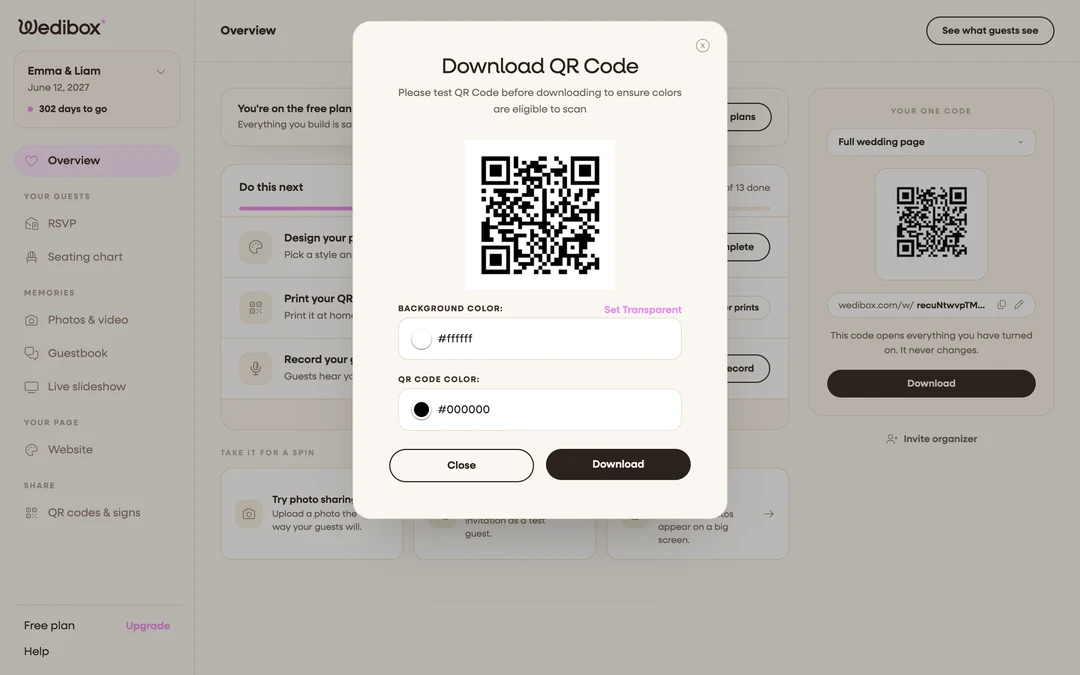
Open the download popup. On your event’s Overview, find the Your one code card and click Download. The Download QR Code popup opens.
-
Pick a background color. Next to Background Color:, click the color swatch to use the picker, or type a hex code straight into the field. The preview updates live.
-
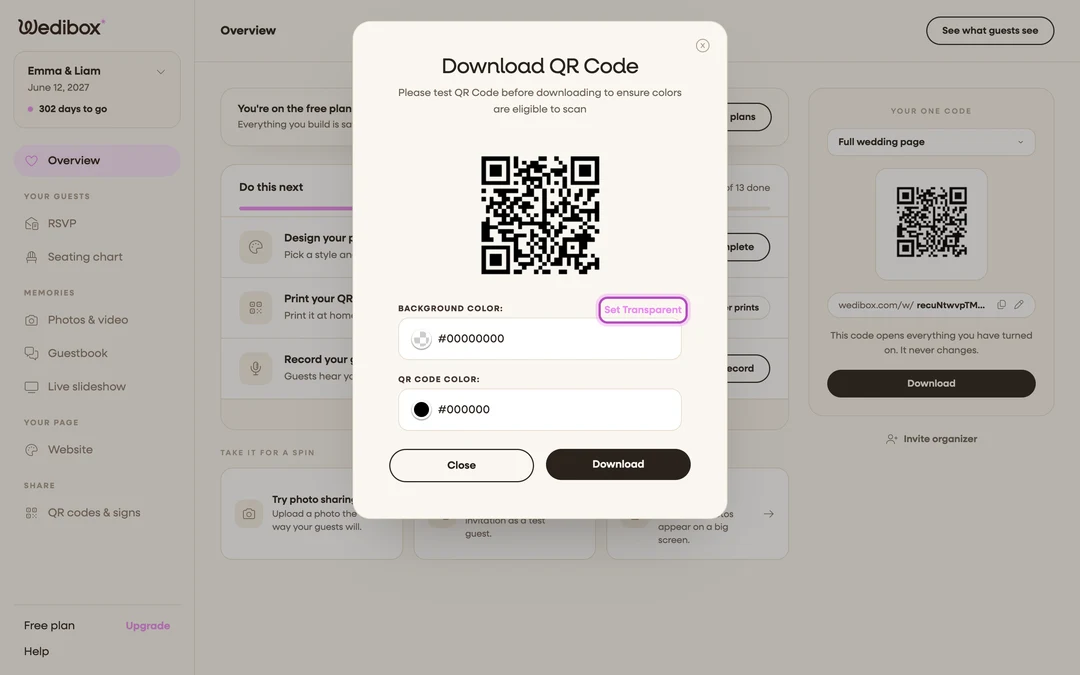
Or go transparent. Click Set Transparent to remove the background entirely. This is the option to use when the code will sit on top of your own design or patterned paper: the code adopts whatever is behind it.
-
Pick the code color. Next to QR Code Color:, choose the color of the squares themselves. Dark code on a light background is the reliable combination: scanners expect dark modules on a light field, so avoid flipping it to white-on-dark.
-
Test before you download. Point your phone camera at the preview on screen. If the link banner pops up within a second or two, your colors scan. If nothing happens, darken the code color or lighten the background until it does.
-
Click “Download”. You get a PNG with your colors baked in. Transparent backgrounds stay transparent in the file.
What you should see
A QR code that looks like it belongs on your stationery and still scans instantly. If you went transparent, drop it onto your design and test again there: the background it lands on is now part of the contrast equation.
If something goes wrong
- The code won’t scan after recoloring: the contrast is too low. Two pastels never work together; keep the code several shades darker than its background, or return to black on white for print.
- It scans on screen but not on paper: printers darken and dull colors. Print one test page and scan that before committing to a full run. See How to test your QR code before printing.
- The transparent version shows a white box: the design tool you pasted it into flattened the transparency. Re-insert the PNG directly rather than copy-pasting it.