

Link integration
Add Photo Sharing to Your The Knot Wedding Website
The Knot does not support custom code, but you can add a custom page that links to your Wedibox photo collection. Guests tap the link and upload photos, videos, and messages right away.
Get Your Free Link See the Steps
Free to start · About 5 minutes · No developer needed
Add Wedibox to The Knot in 8 Steps
Follow along in your The Knot editor. The whole process takes about 5 minutes.
First, grab your Wedibox photo page link
Create your free Wedibox gallery and copy your photo page link from the dashboard. It takes about a minute, and the first 50 uploads are free.
-
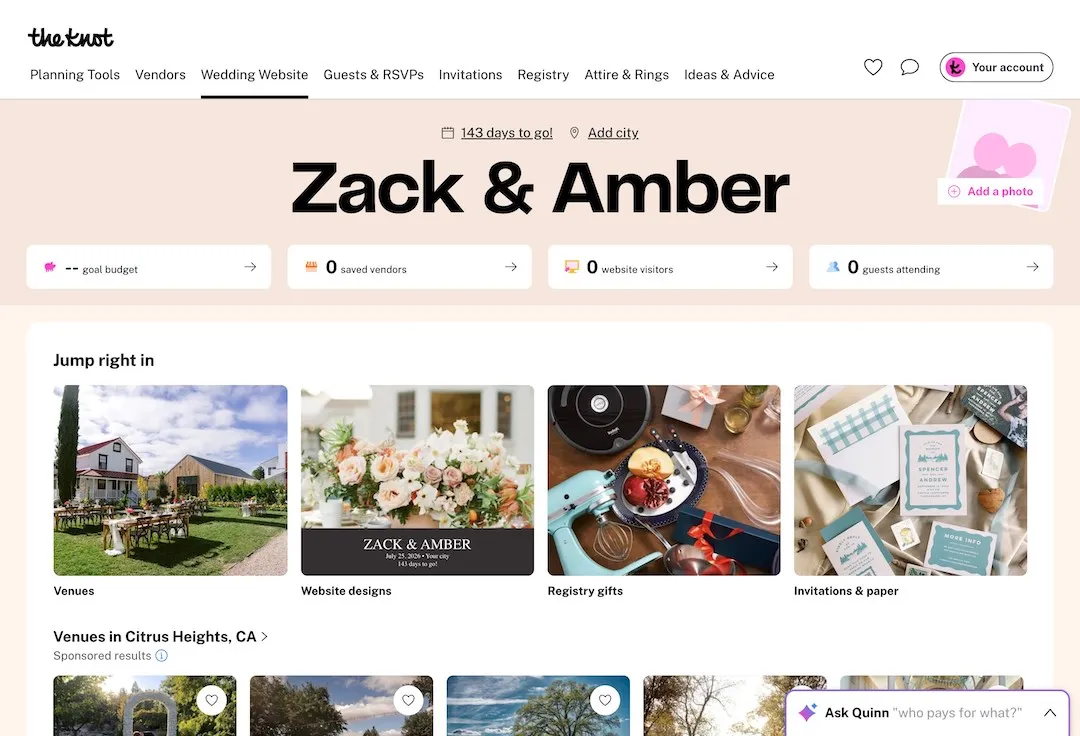
Log in to The Knot
Go to theknot.com and sign in to your wedding website dashboard.
-
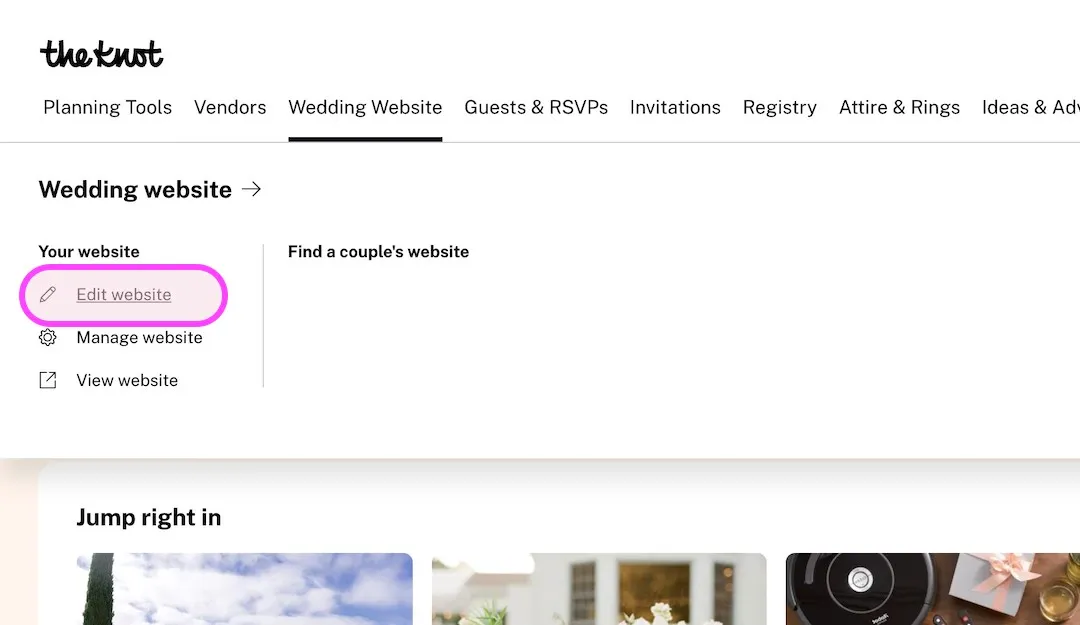
Click Edit Website
Find the Wedding Website tab and select Edit Website.
-
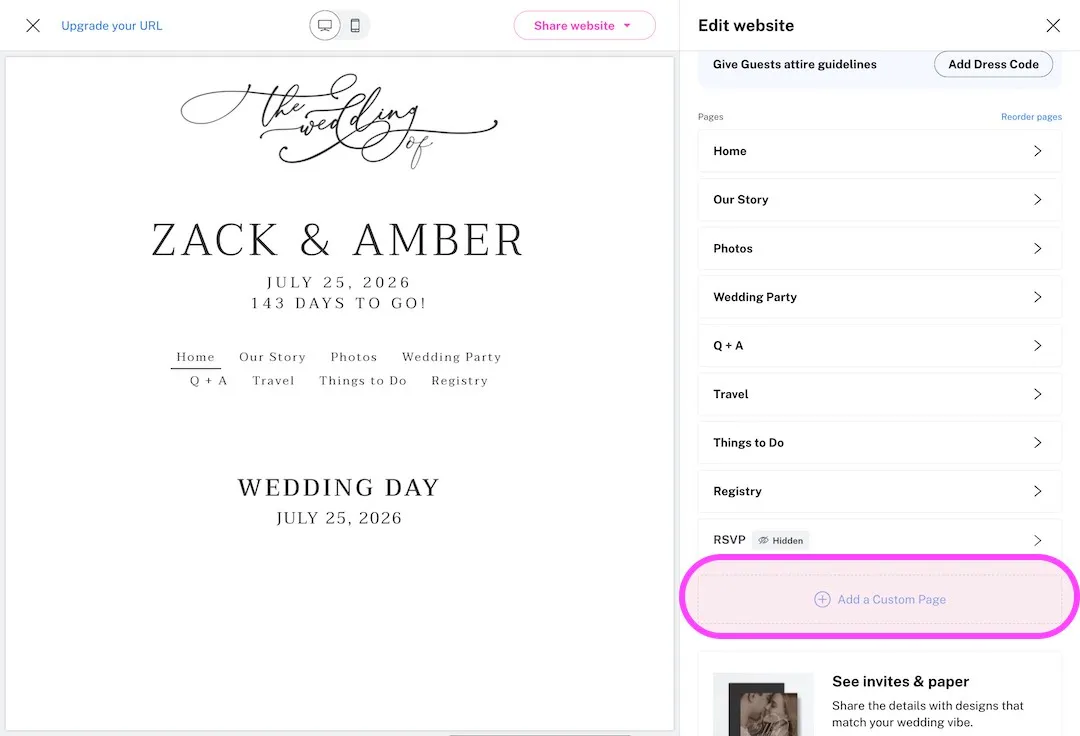
Click Add a Custom Page
This creates a new page where guests will find your photo sharing link.
-
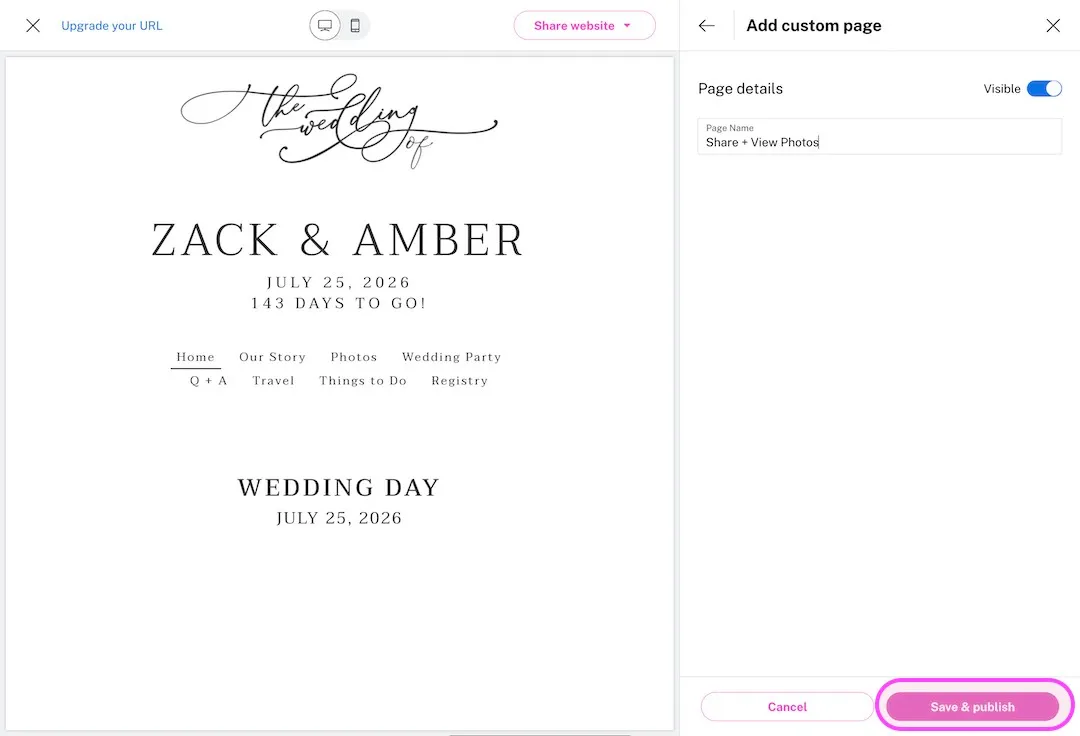
Name your page Share + View Photos
Enter the page name and click Save and Publish.
-
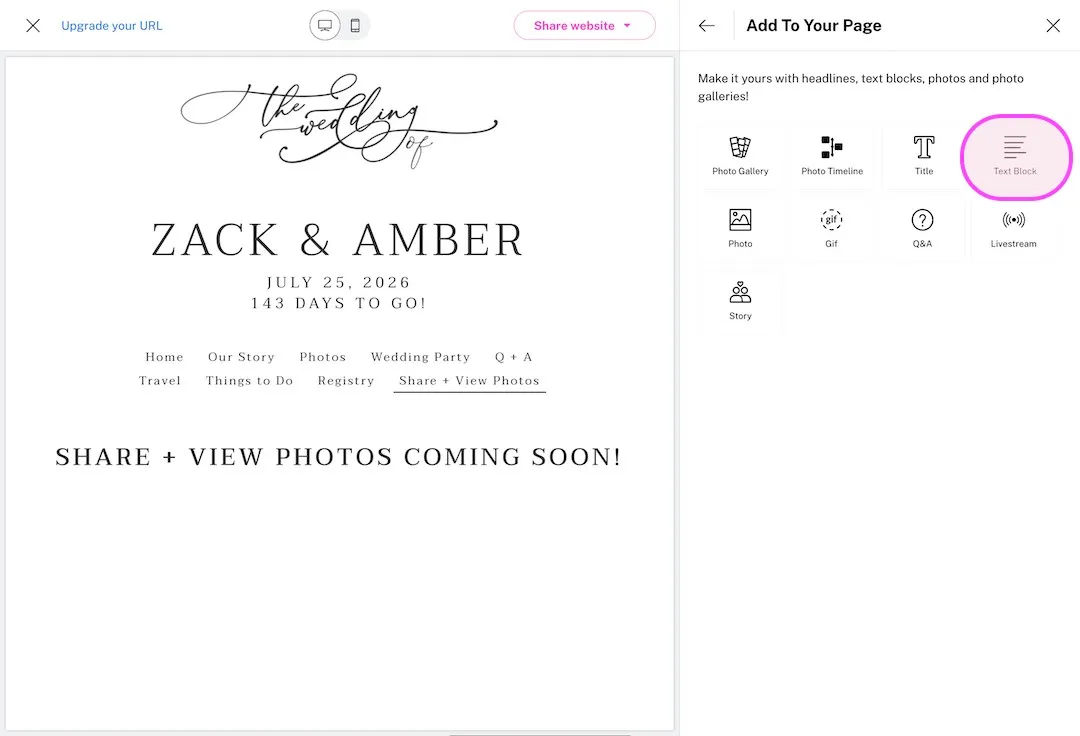
Open your new page and add a Text Block
Click your new page, then Add More, then Text Block.
-
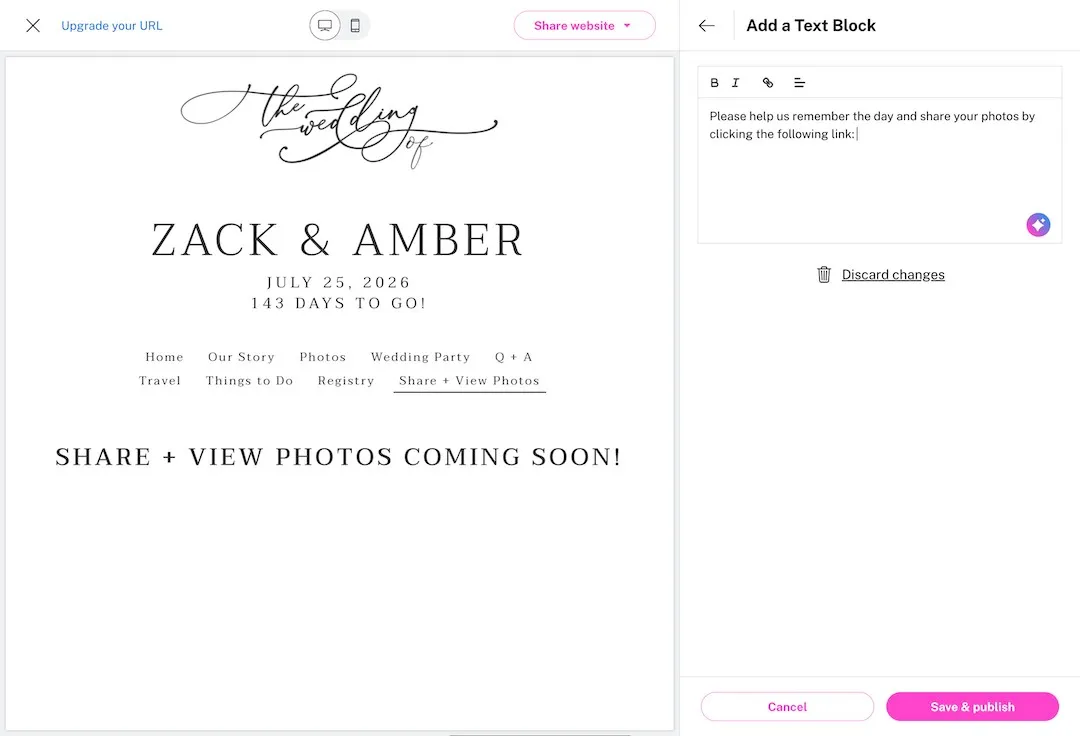
Write a short note to guests
For example: "Please help us remember the day. Share your photos at the link below."
-
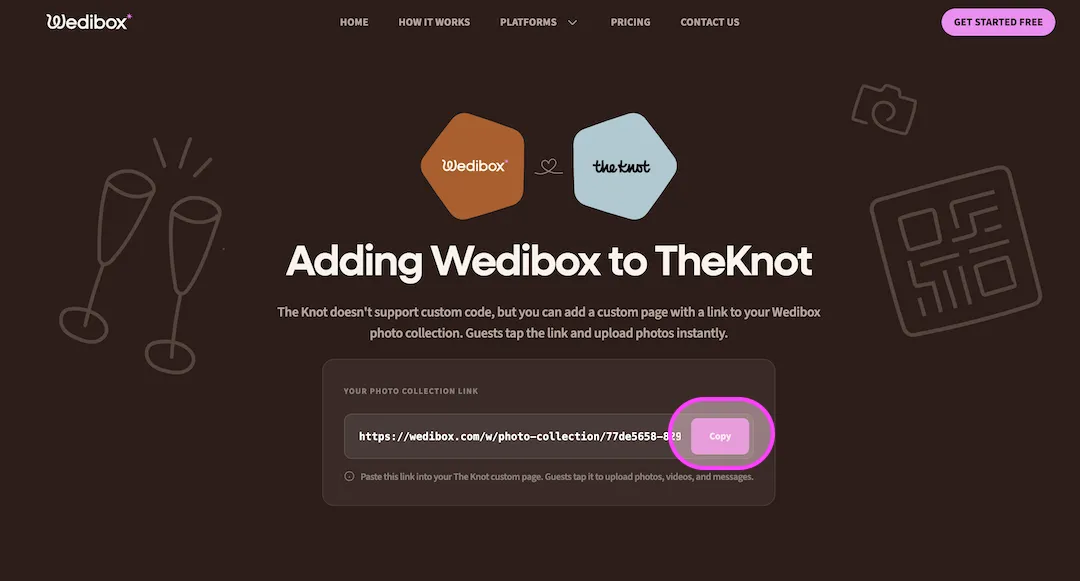
Copy your Wedibox link
Your photo page link lives in your Wedibox dashboard. Copy it.
-
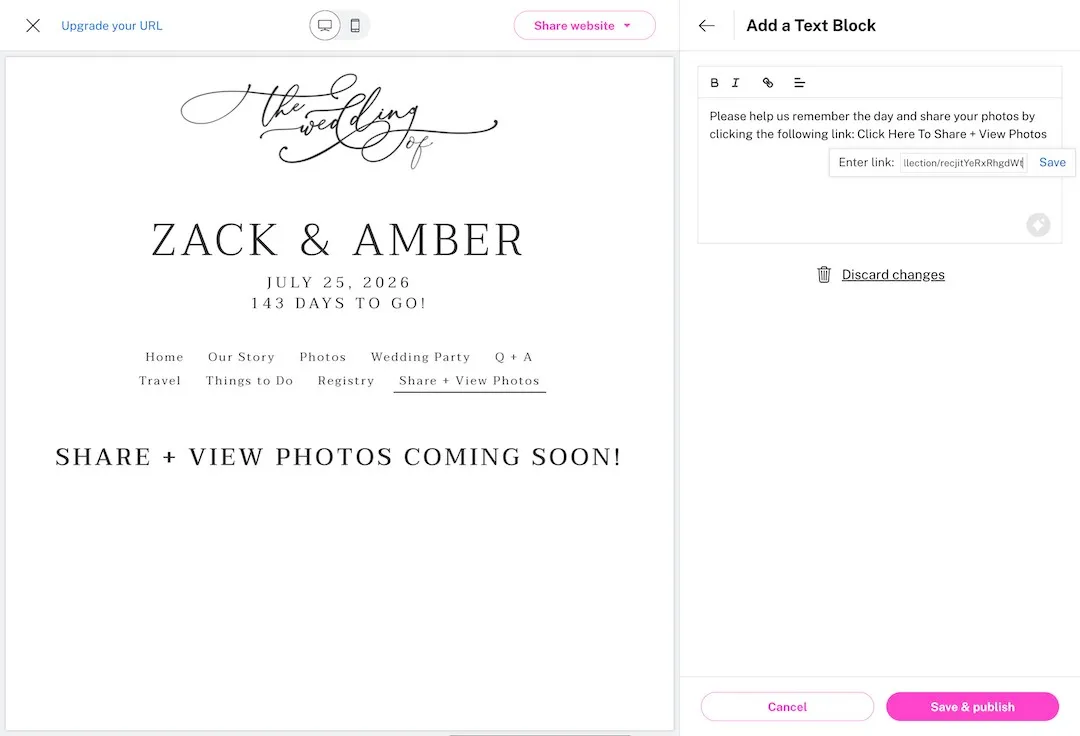
Add your link and publish
Type "Share + View Photos", highlight it, insert your Wedibox link, and save.
What Your Guests Will See
Guests tap your link and land on your personalized Wedibox photo page. They tap upload, pick their photos, and they are done.
- No app for guests to install
- Works on iPhone and Android
- Photos and videos in full resolution
- 50 free uploads to start
Why Add Wedibox to Your The Knot Website
-
The built-in gallery is basic
The Knot photo pages do not offer live guest uploads, QR code scanning, or full resolution downloads. Wedibox adds all three.
-
One link covers the whole wedding
Your Wedibox photo page collects photos, videos, and messages from the first shower to the last brunch. The link never changes.
-
Printed signs do the venue work
Print your QR code on table signs. Guests scan and land on the same photo page your The Knot site links to.
Common Questions About Wedibox on The Knot
These cover The Knot specifics. For pricing, upload limits, and everything else, see the full Embed FAQ.
Can I embed the Wedibox widget directly on The Knot?
No. The Knot does not allow custom HTML on wedding websites. The custom page link in this guide is the reliable path. Guests tap it and land on your hosted Wedibox photo page.
What should I name the custom page?
Most couples use Share + View Photos. It is clear at a glance, and it shows up in your site menu next to your schedule and registry.
Will this affect my The Knot registry or RSVP?
No. The custom page sits alongside your other pages. Your registry, RSVP, and schedule keep working exactly as before.
Using a Different Platform?
Every platform has its own short setup guide.
 Zola
Zola
 WithJoy
 Wix
Wix
 Squarespace
 WedSites
 Minted
 SayIDo
 Canva
Canva
Ready to Add Photo Sharing to Your Website?
Generate your free code snippet and add it to your wedding website today. Guests handle the rest.
- Works with The Knot, Zola, Joy, Wix, and more
- Guests upload right on your site
- No app for guests to install
- 50 free uploads to start
- $29 one time, never a subscription
- Photos transfer if you upgrade later
Free to start · $29 one time · 3 month upload window
Want everything in one place instead? Explore Wedibox photo sharing or see how the full platform works.