

Direct embed
Embed Photo Sharing in Your Wix Wedding Website
Wix supports custom HTML through its Embed Code element. Paste the Wedibox snippet and the photo sharing widget appears directly on your page. Guests upload without leaving your site.
Get Your Free Code See the Steps
Free to start · About 5 minutes · No developer needed
Add Wedibox to Wix in 7 Steps
Follow along in your Wix editor. The whole process takes about 5 minutes.
First, grab your Wedibox embed code
Create your free Wedibox gallery and copy your embed code from the dashboard. It takes about a minute, and the first 50 uploads are free.
-
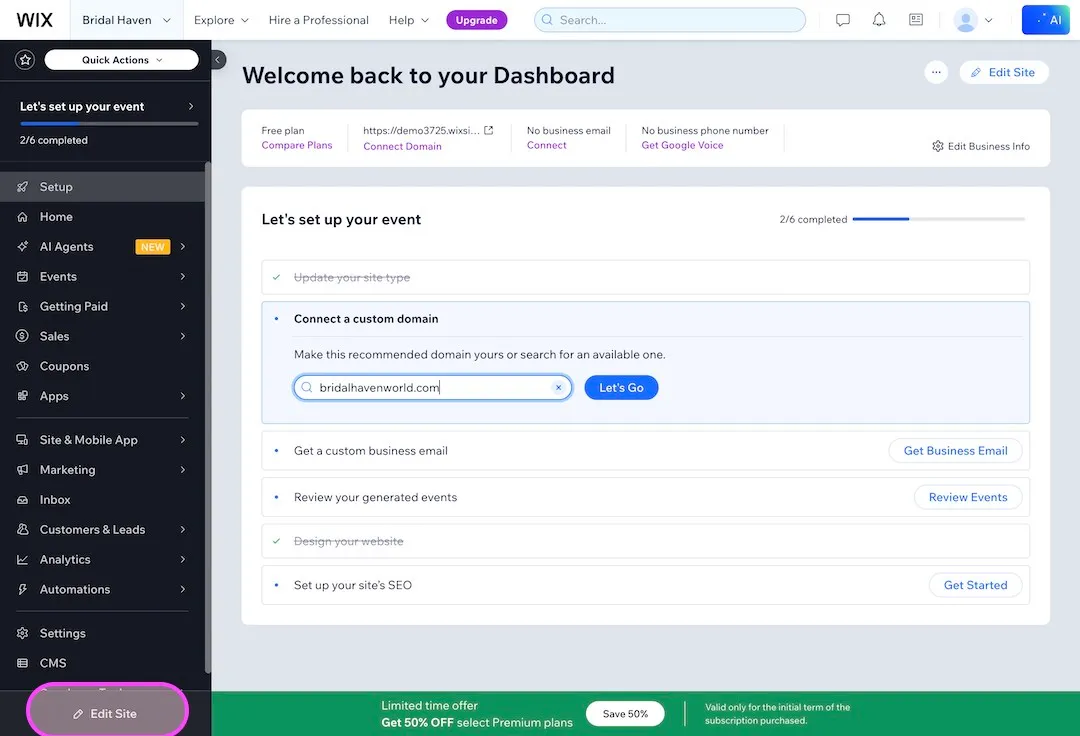
Open the Wix editor
Go to manage.wix.com and click Edit Site for your wedding website.
-
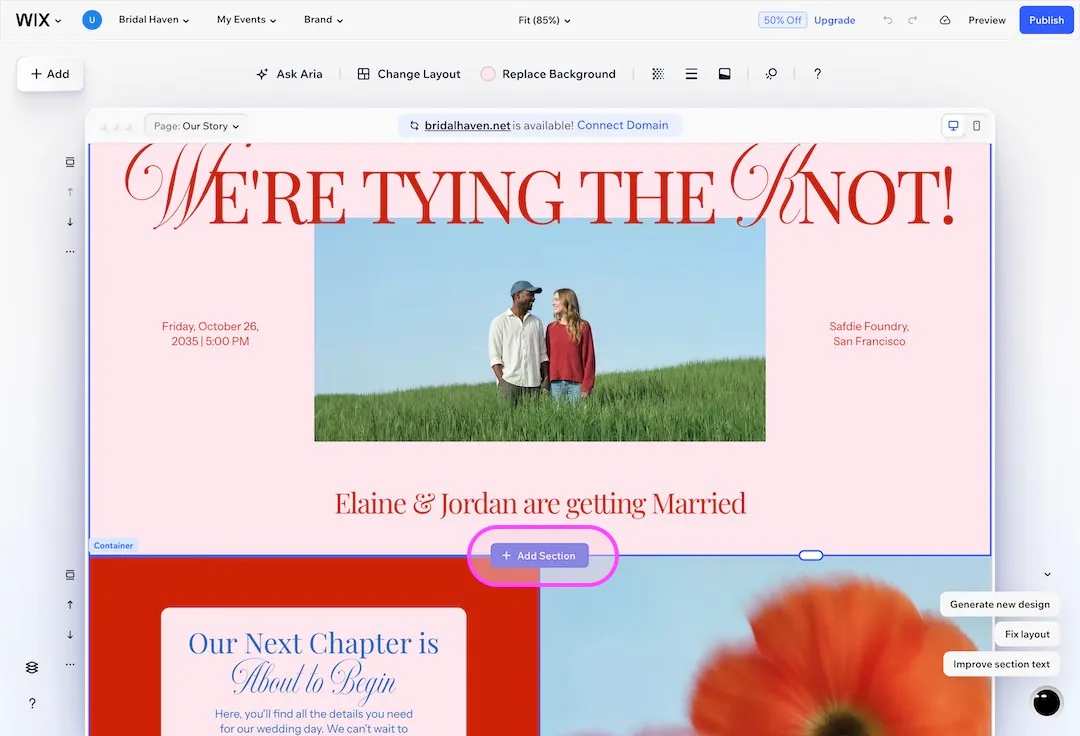
Add a new blank section
In the editor, click to add a new section, then select Blank Section. Double click it and choose a one cell container layout.
-
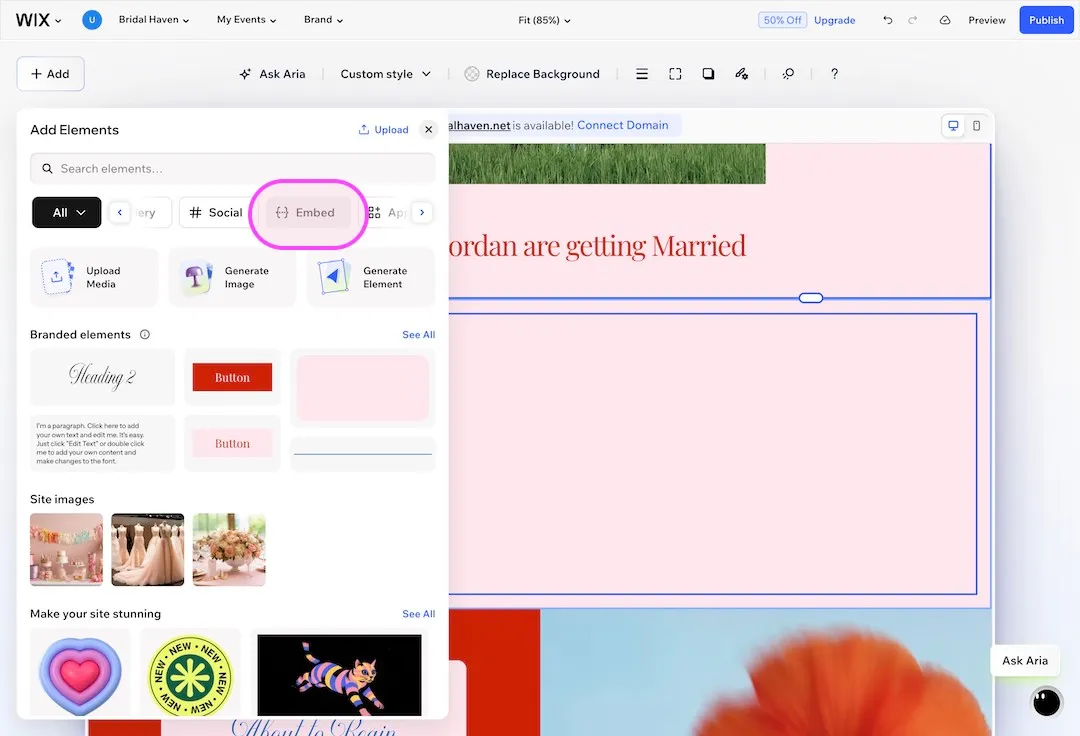
Add an Embed Code element
Click + Add in the left panel, scroll to Embed, and select Embed Code.
-
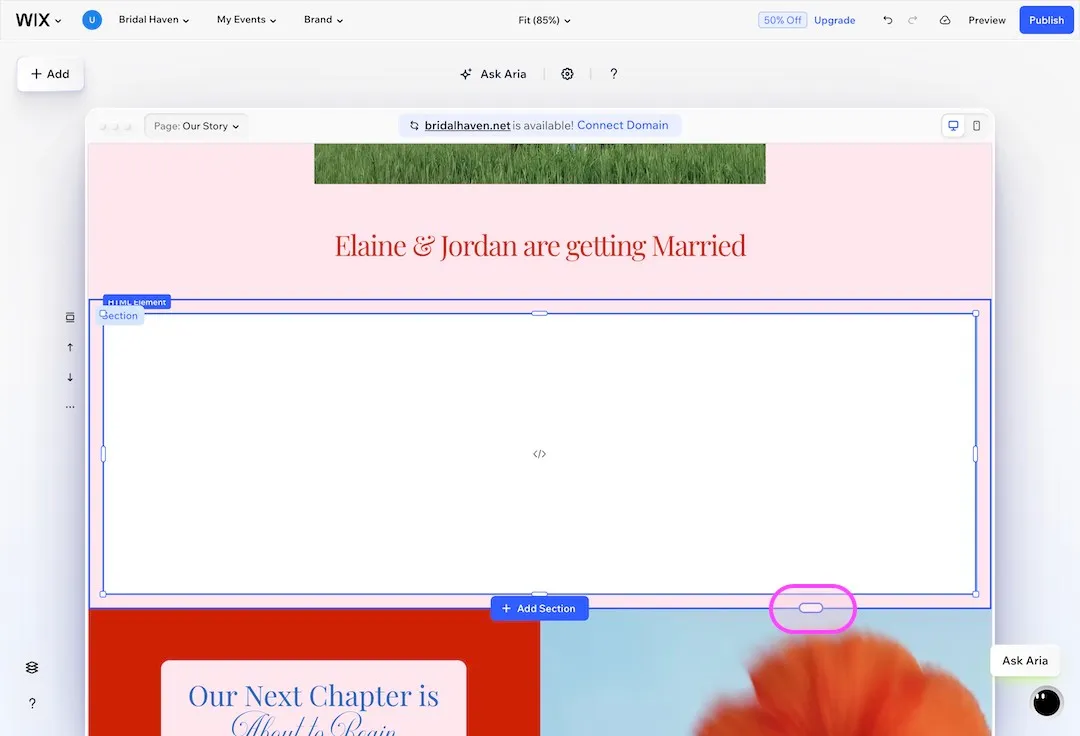
Resize the embed element
Drag the embed element into your new section and resize it to fill the full width. This gives the Wedibox widget enough room to display properly.
-
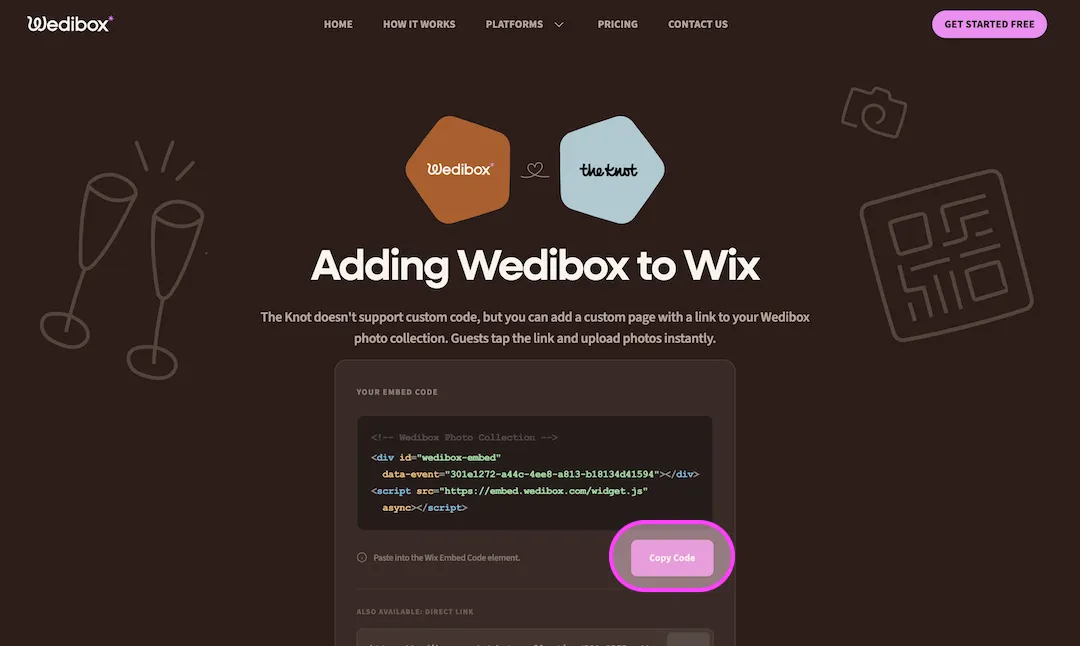
Copy your Wedibox code
Your two line embed code lives in your Wedibox dashboard. Copy it.
-
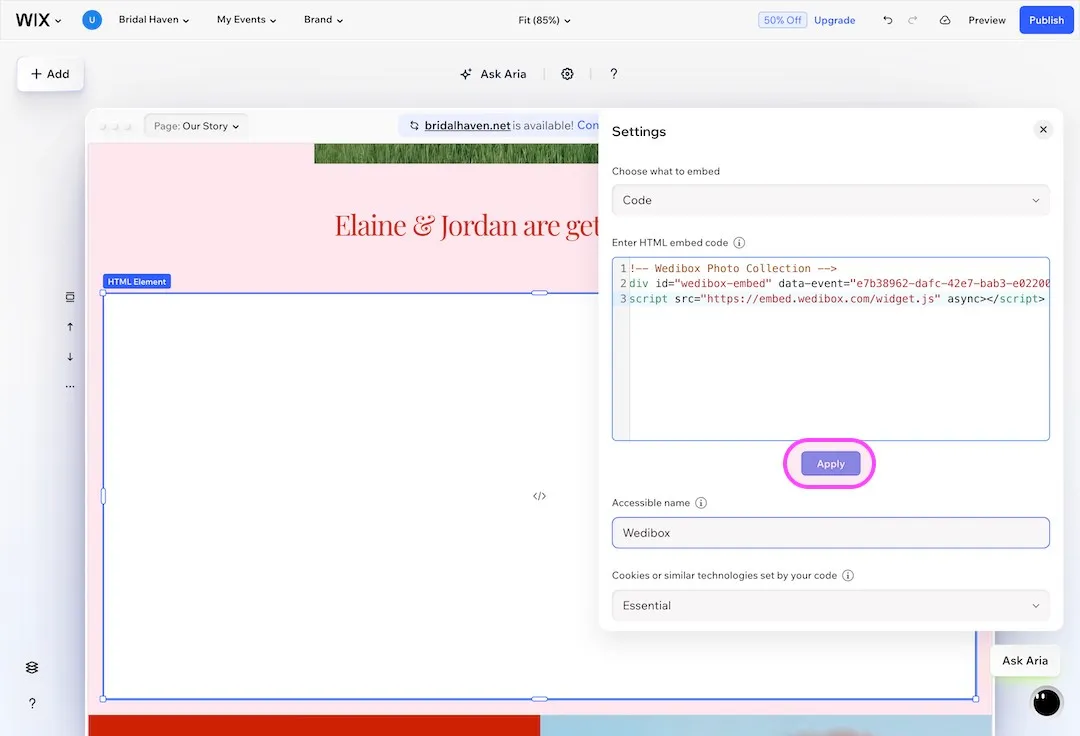
Paste your Wedibox code
Double click the embed element to open the code editor and paste your code.
-
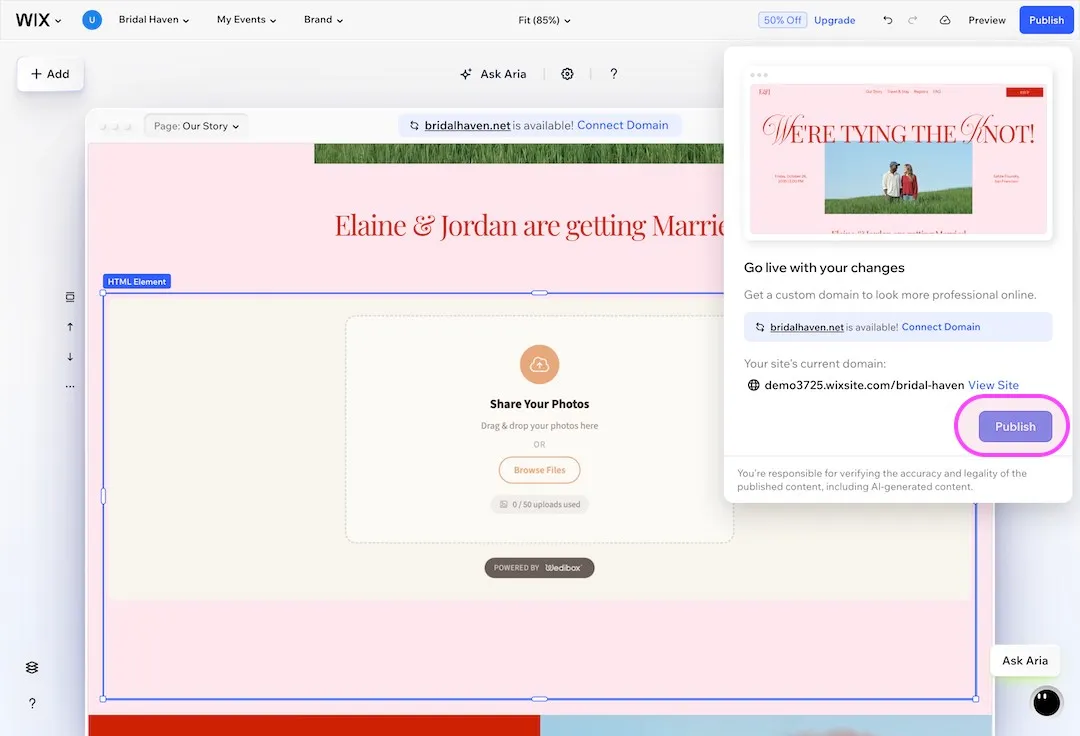
Publish your site
Click Publish in the top right corner to make your changes live.
What Your Guests Will See
The Wedibox widget appears directly on your Wix wedding page. Guests never leave your site. They tap upload, pick their photos, and they are done.
- No app for guests to install
- Works on iPhone and Android
- Photos and videos in full resolution
- 50 free uploads to start
Emma & Ben
Wedibox widget
Upload Photos



247 guest uploads
Why Add Wedibox to Your Wix Website
-
The widget lives on your page
Guests upload photos and videos without leaving your Wix site. No second link to share.
-
It matches your design
Pick your accent color and button text when you generate the code. The widget blends into your Wix template.
-
Two lines of code
One Embed Code element and one paste. No developer, no plugin, no app market.
Common Questions About Wedibox on Wix
These cover Wix specifics. For pricing, upload limits, and everything else, see the full Embed FAQ.
The embed element looks empty in the editor. Is that normal?
Yes, this can happen while editing. Publish your site and open the live page. The widget renders on the published site.
Will the widget slow my Wix site down?
No. The Wedibox script loads asynchronously, which means your page content loads first and the widget fills in right after.
How wide should the embed element be?
Stretch it to the full width of the section. The widget adapts to the space it gets, and full width gives the photo grid room to breathe.
Using a Different Platform?
Every platform has its own short setup guide.
 The Knot
 Zola
Zola
 WithJoy
 Squarespace
 WedSites
 Minted
 SayIDo
 Canva
Canva
Ready to Add Photo Sharing to Your Website?
Generate your free code snippet and add it to your wedding website today. Guests handle the rest.
- Works with The Knot, Zola, Joy, Wix, and more
- Guests upload right on your site
- No app for guests to install
- 50 free uploads to start
- $29 one time, never a subscription
- Photos transfer if you upgrade later
Free to start · $29 one time · 3 month upload window
Want everything in one place instead? Explore Wedibox photo sharing or see how the full platform works.