How to print your QR code yourself
QR codes & printsAll plans
You don’t have to order prints to put your code on paper. Download the assets and print at home, at a local shop, or through any stationery service. There are two things you can download: the bare QR code (drop it into your own invitations or signs) and the finished print design files (the same artwork Wedibox would print for you).
Plan: All plans · Where: Overview → Your one code → Download
Before you start
- Decide the final printed size first: it drives everything else. A QR code smaller than about 1 inch (2.5 cm) square gets unreliable; table signs guests scan from standing height want the code at 2 inches or more.
- Matte paper beats glossy for scanning: glossy sheets bounce light into the camera.
Steps
-
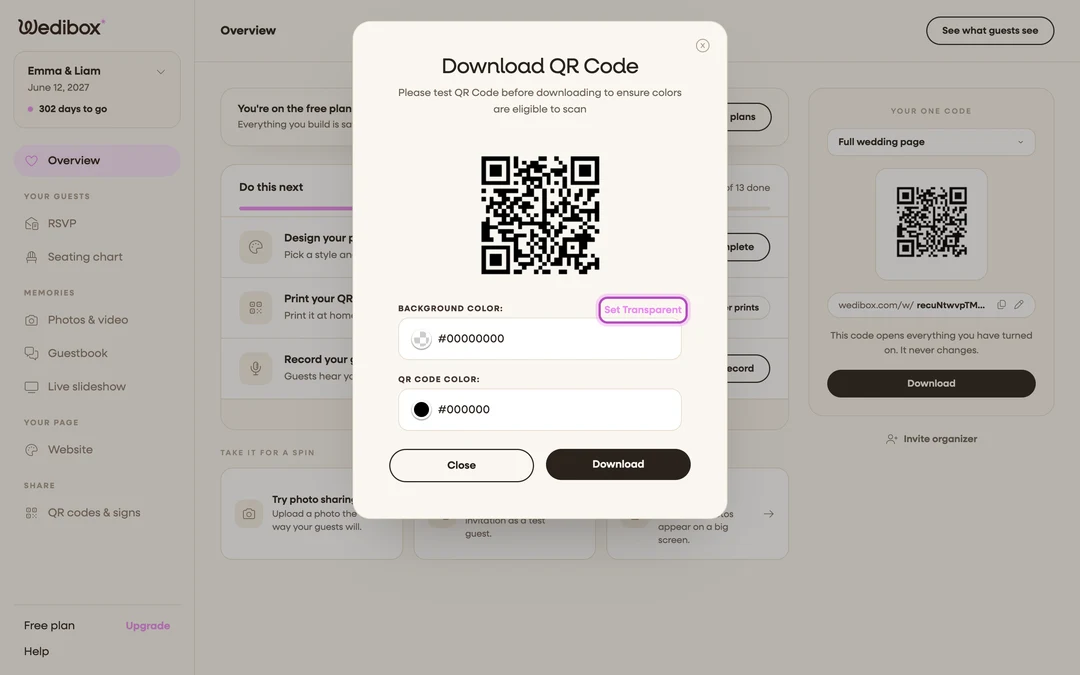
Download the bare code. On your event’s Overview, open the Your one code card, pick which flavor the code should open, and click Download. In the popup, click Set Transparent if the code is going on top of your own design, then click Download. You get a PNG.
-
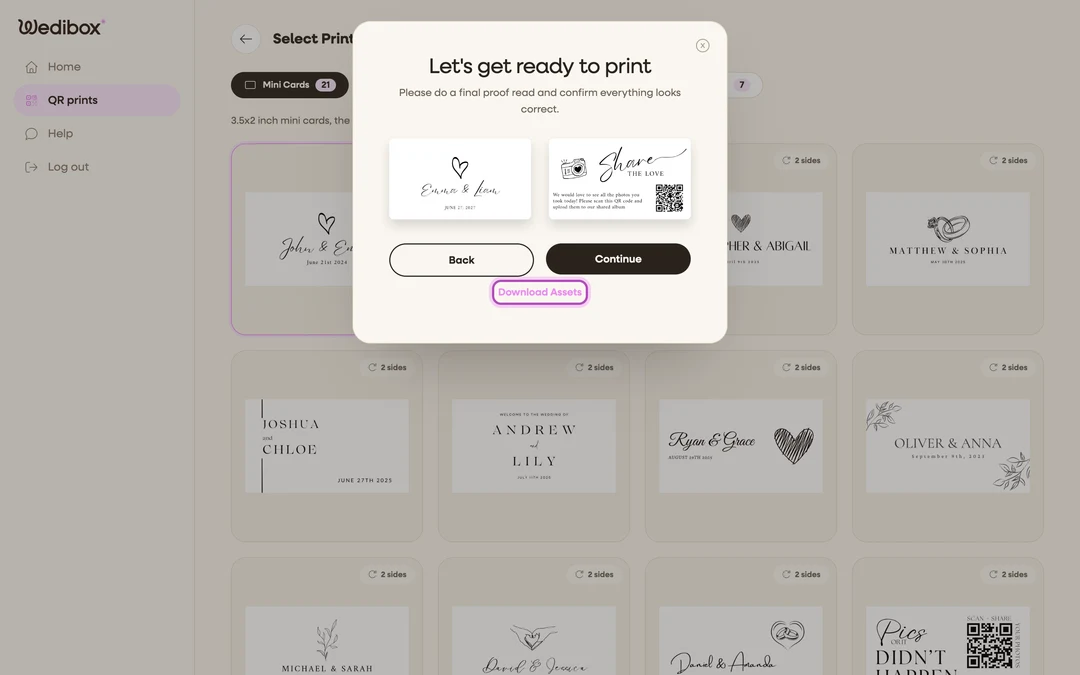
Or download a full print design. Open QR codes & signs in the sidebar, pick a design, fill in your text, and click Create Design. Approve the proof with Continue, then on the Select Quantity step click Print at home: free download instead of choosing a quantity. The print-ready files save to your device at no cost.
-
Place the code with breathing room. If you’re designing your own sign, keep a clear margin around the code: roughly the width of one of its small squares on every side. Cameras need that quiet zone to find the edges.
-
Print one test page. Before a full run, print a single copy on the actual paper at the actual size.
-
Scan the test print. Use your own phone from the distance guests will scan at: arm’s length for a card, a step back for a sign. It should open your page within a couple of seconds. If it does, print the batch.
What you should see
A stack of cards or signs that scan on the first try. Keep one spare aside: if anything gets lost or rained on at the venue, you can photograph and reprint from it locally.
If something goes wrong
- Prints look blurry or blocky: the code was scaled up too far in your design tool. Re-download and place it at final size instead of stretching a small copy.
- The test print won’t scan: check size and contrast first, then paper glare. The full checklist is in How to test your QR code.
- DIY is turning into a project: the done-for-you route exists: order printed cards and table signs and they arrive ready to place.