How to listen to, download, and manage voicemails
GuestbookWedding plan and up
Every voicemail your guests leave lands on your Guestbook page, alongside their written and video messages, in one feed you can search and play through like a playlist of your wedding. This guide covers listening, cleaning up, and (most importantly) downloading your own copies to keep.
Plan: Wedding plan and up · Where: Sidebar → Guestbook (under “Memories”)
Before you start
- Voicemails appear here only if COLLECT VOICE MESSAGES is on. See How to set up an audio guestbook.
- If the feed is empty, that’s normal before the wedding. Share your QR code and the messages will come.
Steps
-
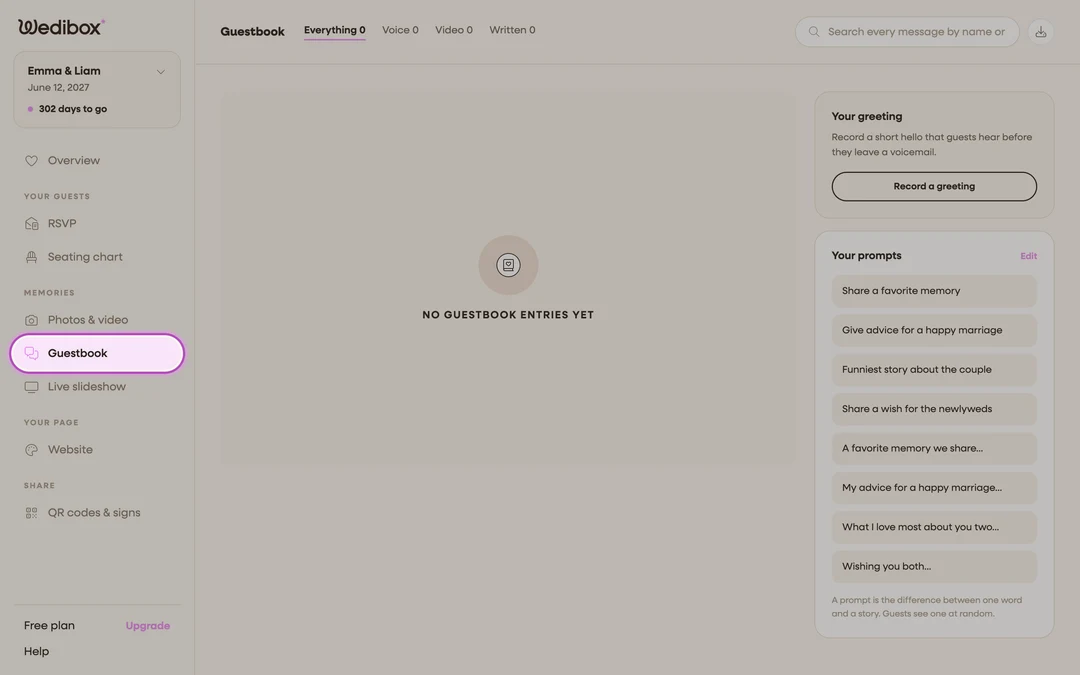
Open the Guestbook page. In the sidebar, click Guestbook (under “Memories”). Voice, video, and written notes all live here in one feed, newest first.
-
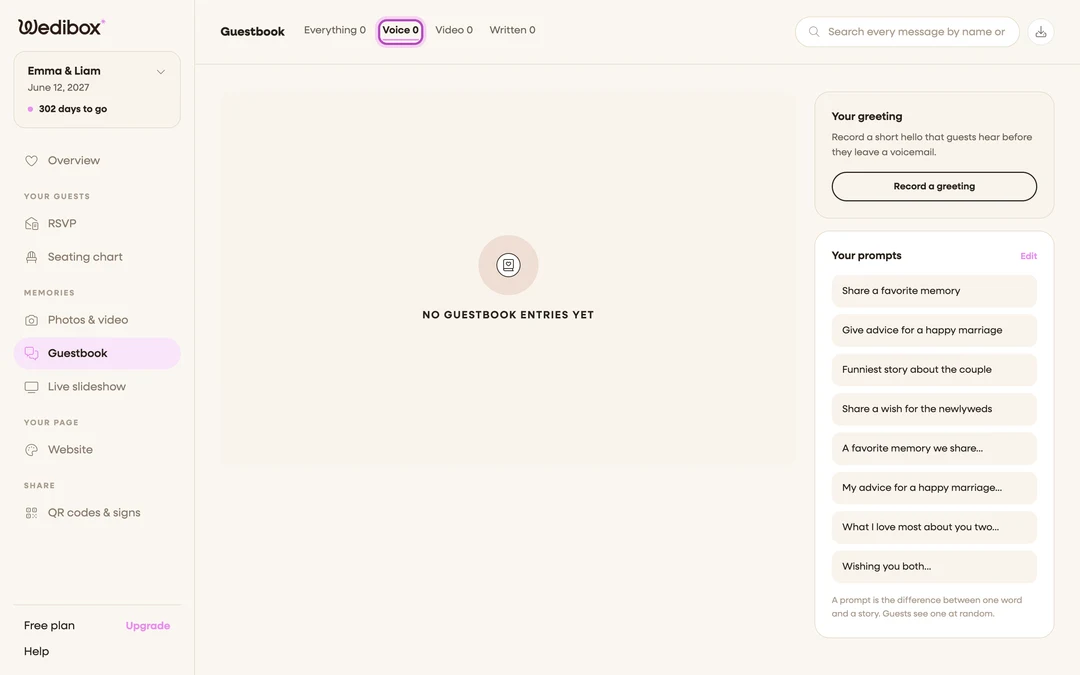
Filter to voicemails. Click the Voice tab at the top. Each tab shows a count, so you can see at a glance how many messages of each kind you have.
-
Play a voicemail. Click the play button on any card. The waveform animates while it plays, and starting another message pauses the first. No overlapping audio.
-
Find a specific guest. Type a name in the search box (“Search every message by name or word”). The feed narrows as you type, across all message types.
-
Delete anything you don’t want. Click the trash icon on a card and confirm. Deleting is permanent. If you’re unsure, download everything first (next step) so you always have a copy.
-
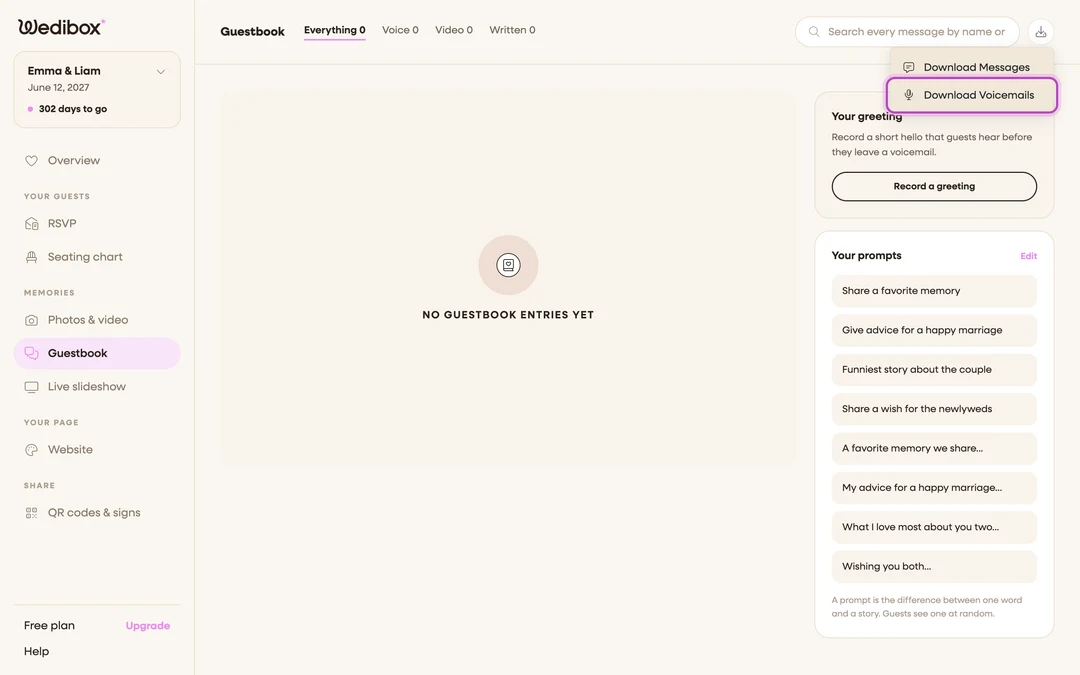
Download your voicemails. Click the Download button in the page header, then Download Voicemails. Your browser saves a ZIP of every audio file. Do this after the wedding, and again before your storage period ends.
-
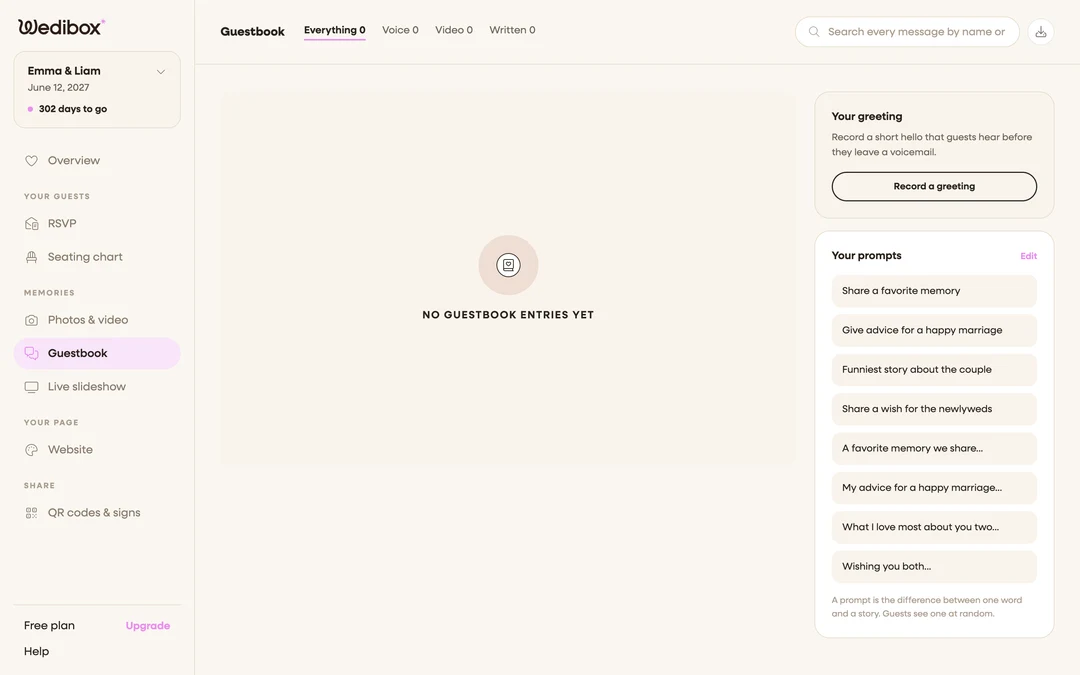
Check your greeting and prompts while you’re here. The sidebar shows Your greeting (with a play button, and Record it again if you want a new take) and Your prompts (with an Edit link). Both open the same editors used in the Website editor.


What you should see
A feed of cards with each guest’s name, message type, length, and when it arrived. The Download dropdown also offers Download Messages, which bundles written notes and video messages the same way. Between the two, your entire guestbook fits in two ZIP files.
If something goes wrong
- “No voicemails to download.”: the ZIP only includes voice messages, and there are none yet. Written and video messages come through Download Messages instead.
- The page shows “Your Storage Has Expired”: your storage period ended and content is locked. Click Extend Storage to regain access.