How to collect written messages from guests
GuestbookWedding plan and up
Written messages are the digital version of the guestbook by the door, except guests write them from their own phones, whenever the words come, and nothing gets left in a box you open once. Every note lands on your Guestbook page, signed and timestamped, ready to reread on your first anniversary.
Plan: Wedding plan and up · Where: Website hub → Guest Interactions → Messages
Before you start
- Written messages are part of the Wedding plan and up. You can switch them on and set everything up on any plan. Guests can start leaving messages once your event is on the Wedding plan.
- Messages can be up to 500 characters, and guests sign each one with their name, so you’ll always know who wrote what.
Steps
-
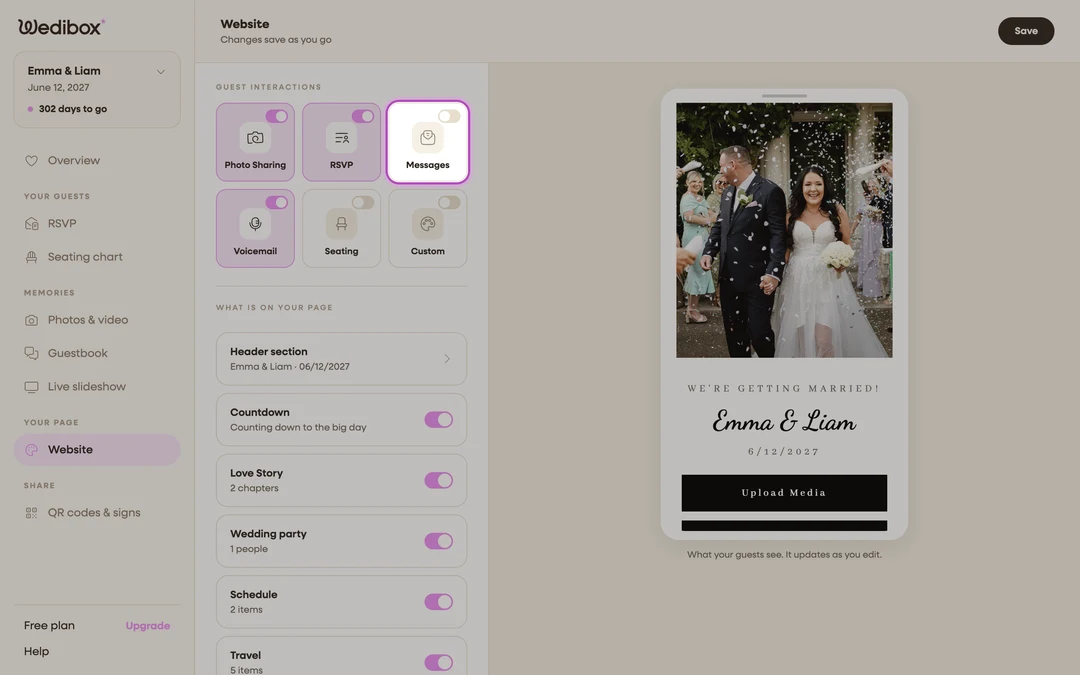
Open the Website editor. In the sidebar, click Website (under “Your page”).
-
Open the Digital Guestbook panel. Under Guest Interactions, click the Messages tile.
-
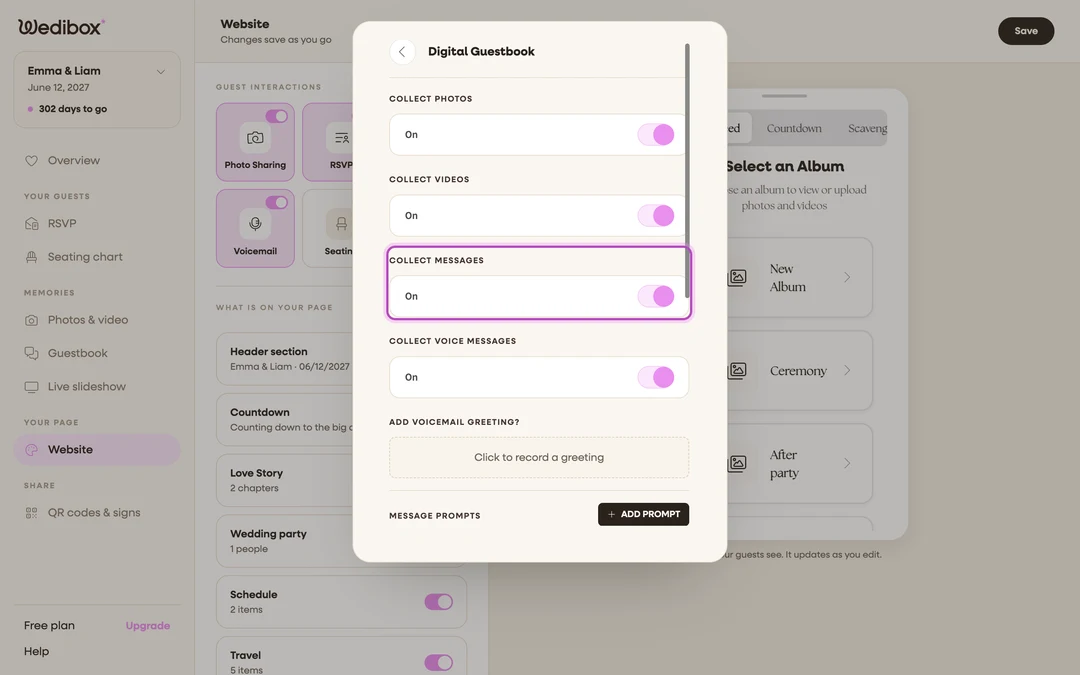
Turn on COLLECT MESSAGES. Flip the COLLECT MESSAGES toggle. This adds a message button (labeled Leave a Message by default) to your page, and the editor saves as you go.
-
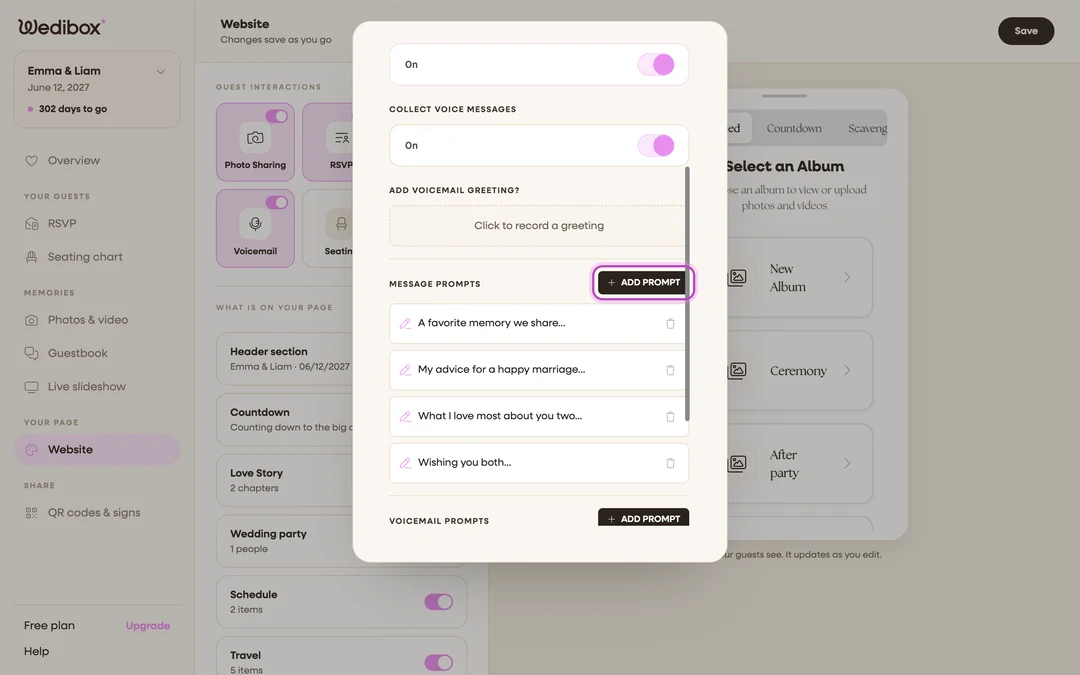
Add message prompts. Under MESSAGE PROMPTS, click ADD PROMPT and write openers like “The moment I knew you two were it…” Guests see your prompts while the message box is still empty, and tapping one starts the note for them. If you skip this, Wedibox shows a standard set like “My advice for a happy marriage…”
-
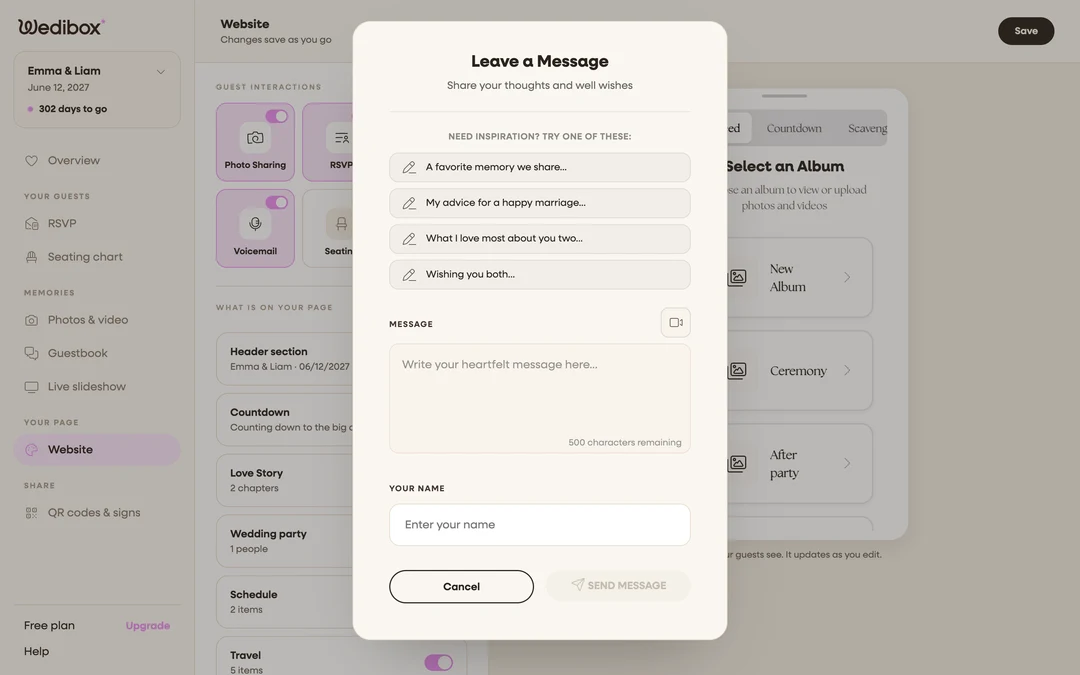
See what guests see. Open your live page and tap the message button. The Leave a Message popup opens with your prompts under “Need inspiration? Try one of these:”, a Message box with a character counter, an Add video (optional) button, and a Your Name field. Guests click SEND MESSAGE and they’re done.
-
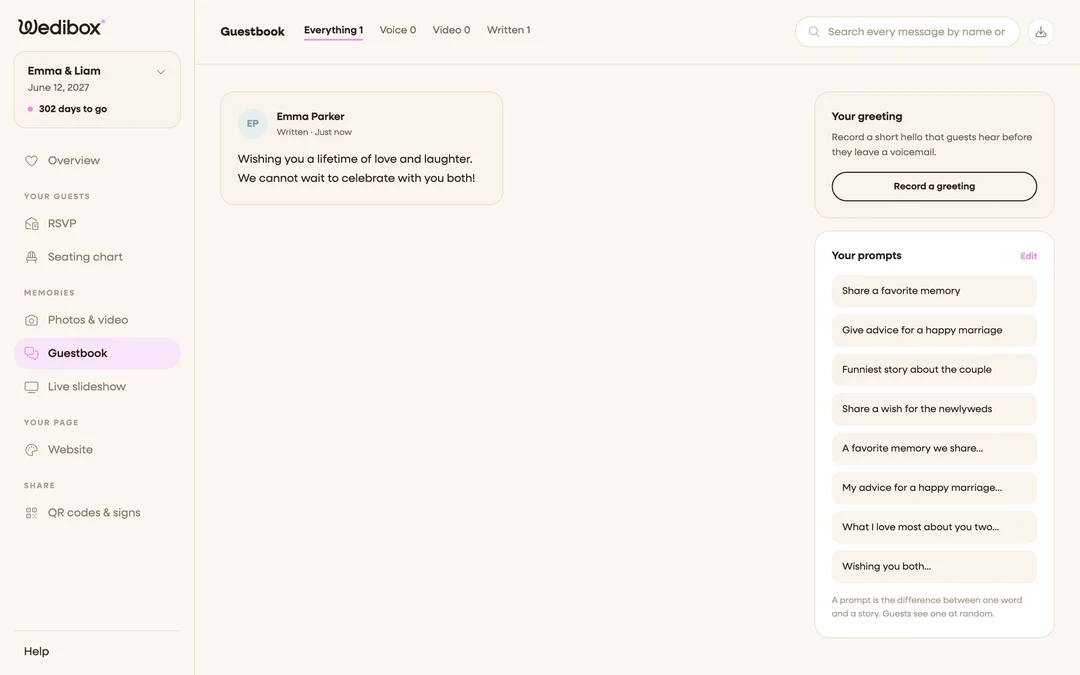
Read your messages. In the sidebar, click Guestbook (under “Memories”) and click the Written tab. Click any note to expand the full text; use the search box to find a specific guest or word.

What you should see
Every note appears in your Guestbook feed within moments of being sent, newest first, with the guest’s name and how long ago it arrived. The Download button in the header bundles all written messages into a text file inside a ZIP, so you can keep them forever, even printed into an album later.
If something goes wrong
- A guest says they can’t send: the message and name fields are both required. An empty name shows “Please enter your name” until they fill it in.
- A message shouldn’t be there: click the trash icon on the note’s card to delete it permanently. There’s no undo, so read it twice.