How to collect video messages
GuestbookWedding plan and up
Some guests want to do more than write. They want to hold up their phone and say it to your faces. Video messages ride along with written messages: when messages are on, every guest gets a small video button in the message popup, and their clips land on your Guestbook page ready to play.
Plan: Wedding plan and up · Where: Website hub → Guest Interactions → Messages
Before you start
- There’s no separate video-message toggle. Turning on COLLECT MESSAGES enables the whole flow, video included.
- Guests can attach MP4 or MOV files up to 500 MB, which comfortably covers a phone-shot clip of a toast or a group hello.
Steps
-
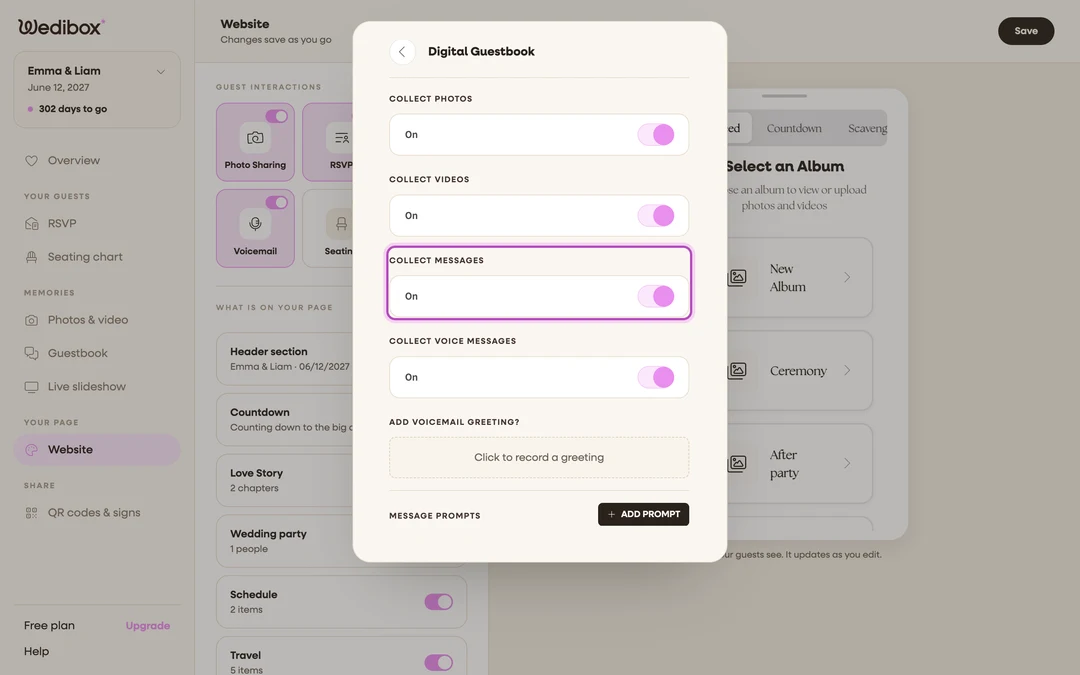
Turn on messages. In the sidebar, click Website. Under Guest Interactions, click the Messages tile, and make sure COLLECT MESSAGES is on. This puts the message button on your page.
-
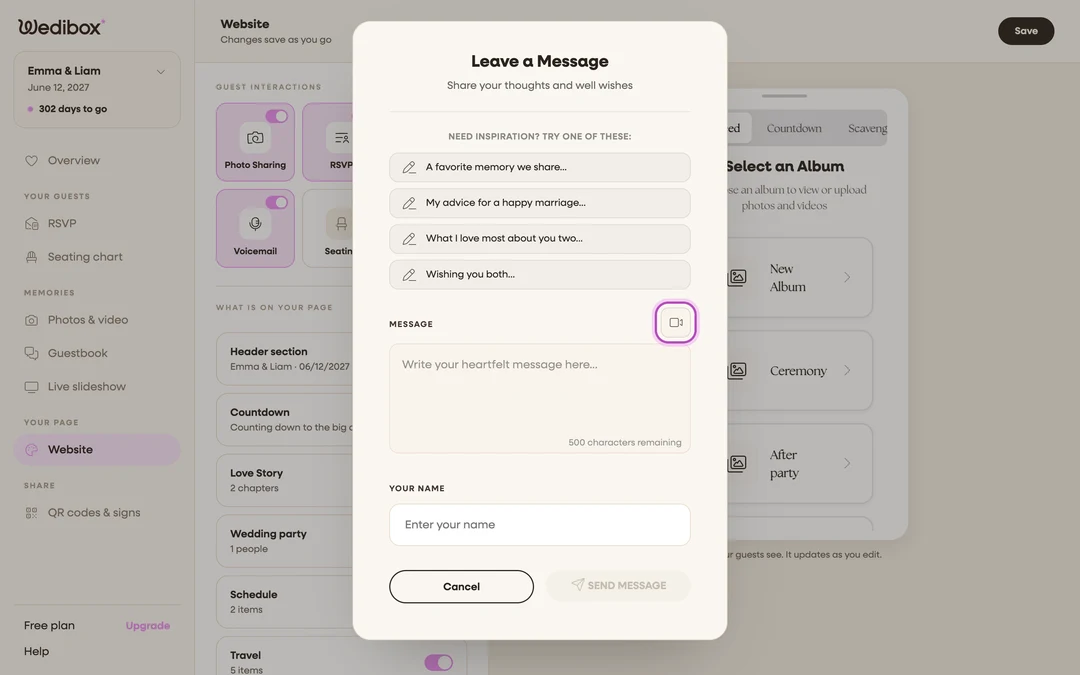
Know what guests see. On your page, the message button opens the Leave a Message popup. Guests write their note, click the small video button, and pick a video from their phone, usually one they just recorded in their camera app.
-
Let guests send. After choosing a file, guests add their name and click SEND MESSAGE. An “Uploading your video…” bar runs while the clip transfers, so tell impatient guests not to close the popup mid-upload.
-
Watch your videos. In the sidebar, click Guestbook (under “Memories”) and click the Video tab. Click any thumbnail to open the player. The guest’s written note shows next to the video.
-
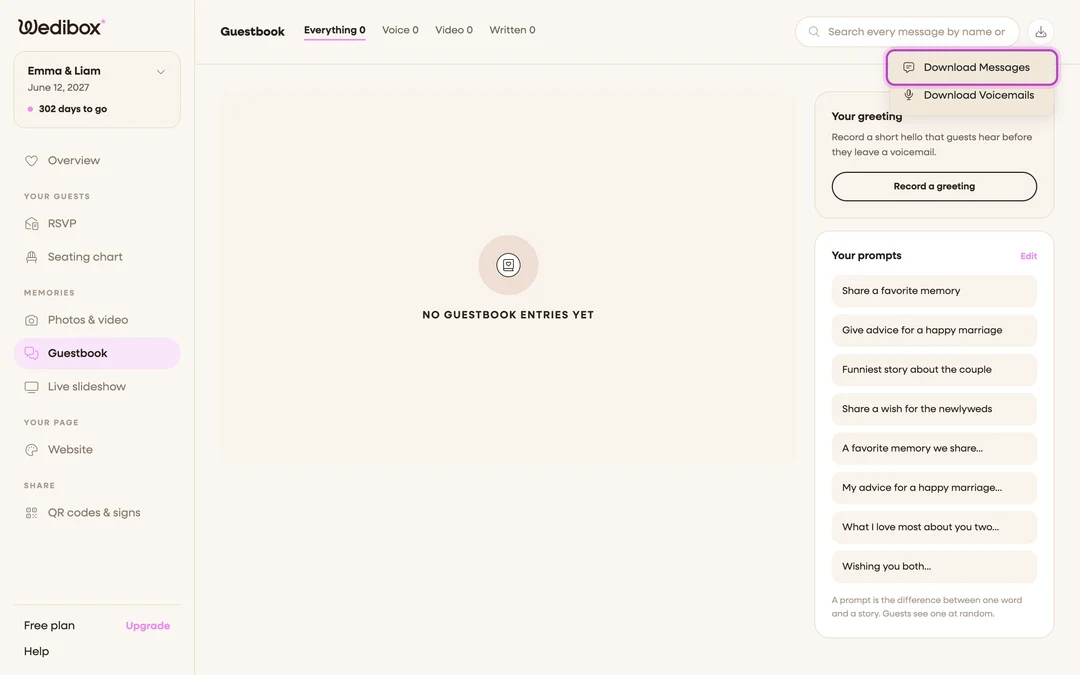
Download everything. Click Download in the page header, then Download Messages. The ZIP includes each video file plus a text file of all written notes.
What you should see
Video cards in your Guestbook feed with a play overlay, the guest’s name, and when the clip arrived. Seed the idea before the wedding: a line on your page or a sign at the bar (“leave us a 30-second video toast”) turns a rarely-used feature into a highlight reel.
If something goes wrong
- “Please select an MP4 or MOV video file”: the guest picked an unsupported format. Recording with the phone’s normal camera app produces a file that works.
- “File size exceeds 500MB. Please choose a smaller file.”: the clip is too long or too high-res. A shorter take, or the phone’s built-in trim, gets it under the limit.