Upload settings explained: privacy, passwords, moderation
Photo sharingAll plans
You decide how open your gallery is: whether guests must leave a name, whether they can browse each other’s photos, and whether uploading needs a password. All of it lives on one card on the Photos & video page, and every change saves automatically.
Plan: All plans · Where: Photos & video (under “Memories”) → Guest upload controls
Before you start
- These settings apply to your whole event, not per album.
- Changes take effect immediately; anything a guest opens after you save follows the new rules.
Steps
-
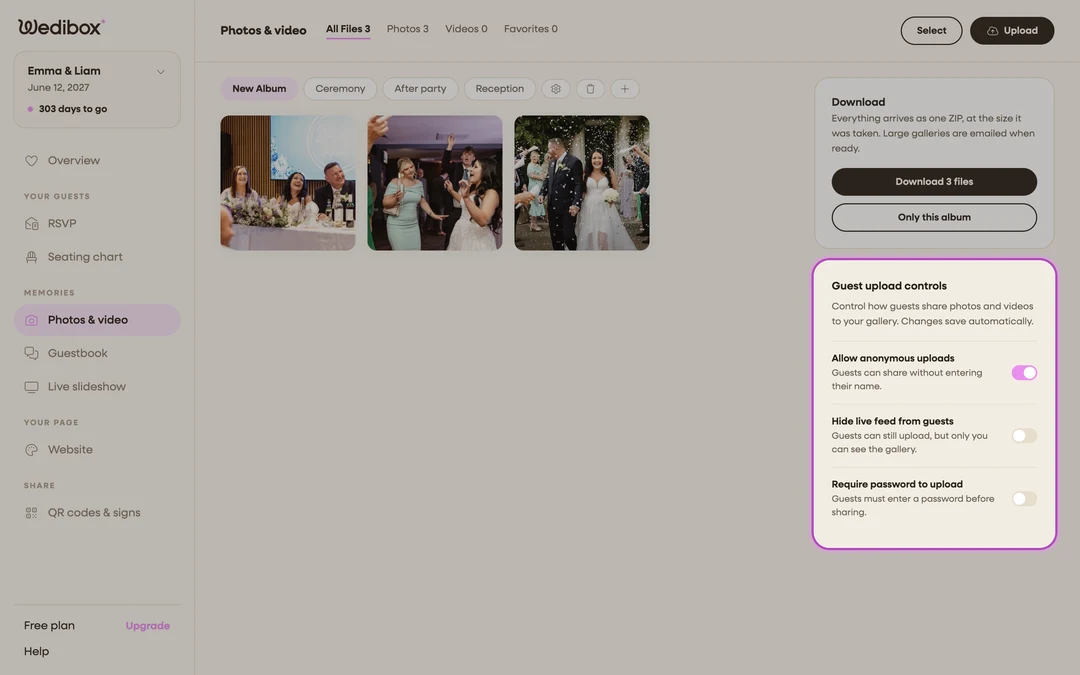
Open Photos & video. In the sidebar, click Photos & video (under “Memories”). The Guest upload controls card sits in the right-hand column. Watch for the small Saved label; each switch saves itself the moment you flip it.
-
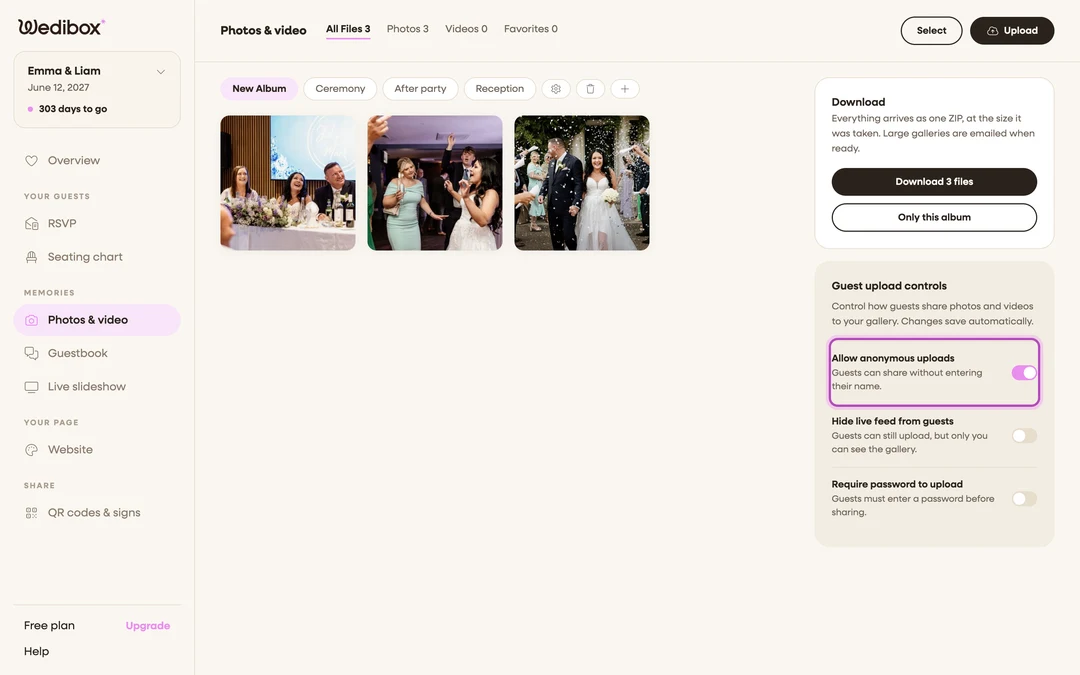
Decide on names: Allow anonymous uploads. On, guests can share without entering their name; off, the upload form requires one. Names help you thank people later; anonymity gets you more candid party shots.
-
Decide who sees the gallery: Hide live feed from guests. On, guests can still upload, but only you can browse the gallery. The live feed tab disappears from your wedding page entirely, and the page opens on the first section that’s left. Use this if you want to review everything before anyone else sees it.
-
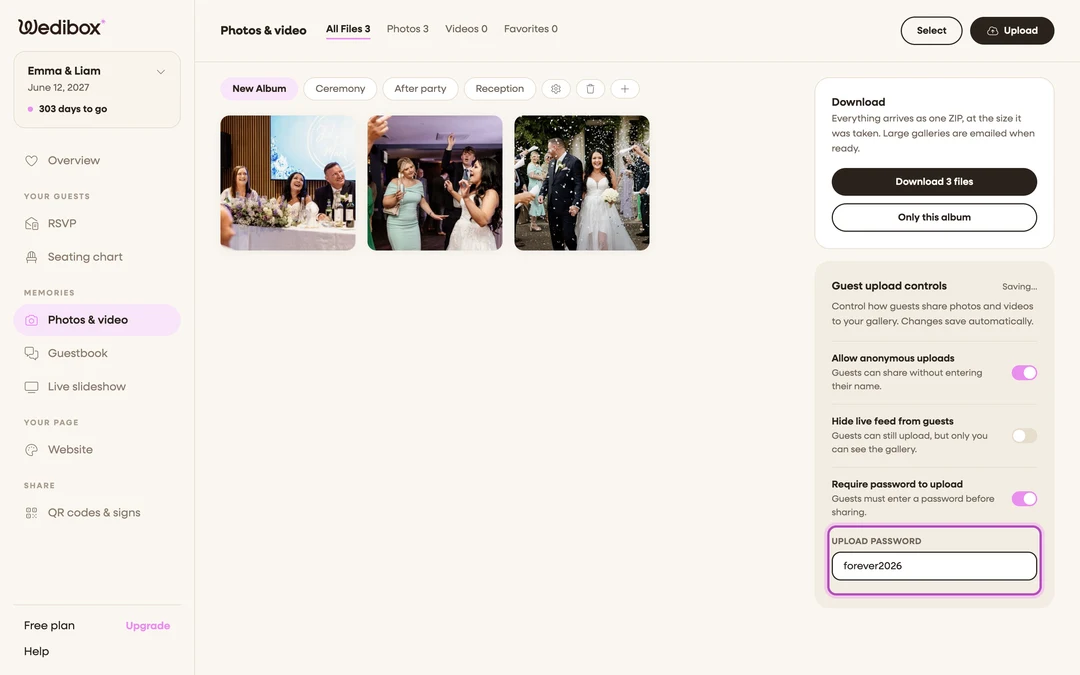
Lock uploading down: Require password to upload. Flip Require password to upload on and an Upload password field appears. Type something short and easy to put on signage (the placeholder suggests the style: “forever2026”). Guests then enter it once in the upload form.
-
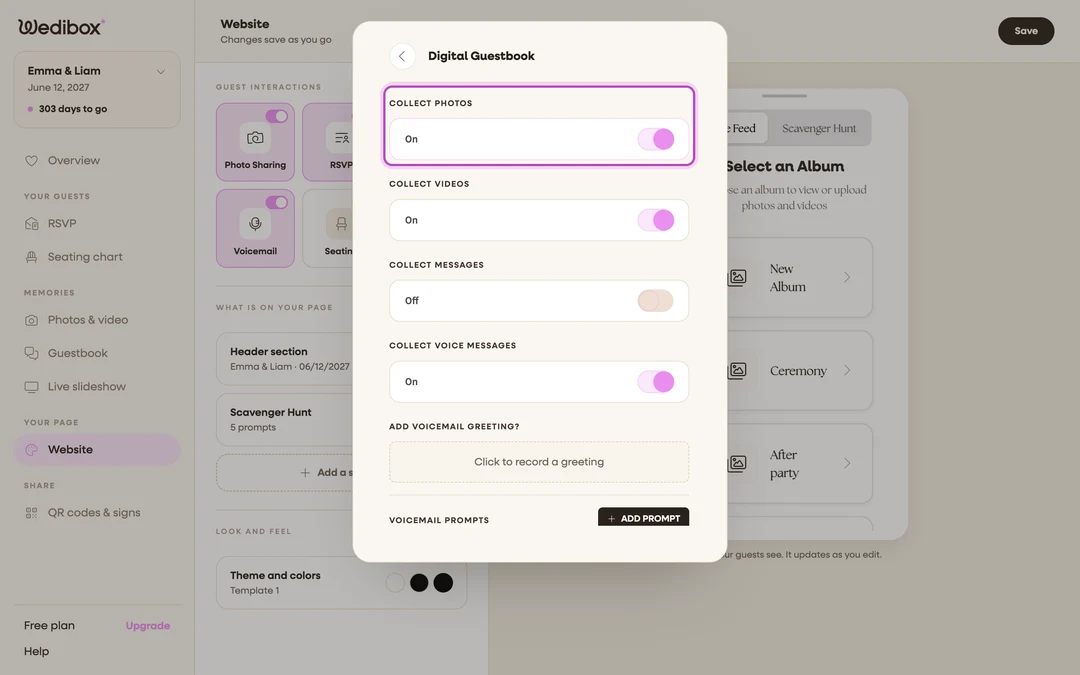
Control what you collect: photos and videos. In the Website editor, the Photo Sharing tile switch turns photo and video collection (and the page’s upload button) on or off together. To split them (for example photos yes, videos no), open the Digital Guestbook settings panel and flip COLLECT PHOTOS and COLLECT VIDEOS separately.


What you should see
The card shows Saved after each change. On the guest side: with anonymous uploads allowed, the upload form shows an Upload Anonymously toggle; with a password set, a Password to Upload field appears; with the live feed hidden, the Website editor’s Live Feed card reads “Uploads are hidden”. The same anonymous, hide, and password switches also appear in the Live Feed editor on the Website page; they’re the same settings, whichever screen you flip them on.
If something goes wrong
- Guests report “Invalid password”. The password is compared exactly as typed, including spaces. Check the Upload password field for a stray space, and match your signage to it.
- You turned off videos but a guest’s video still shows. Collect toggles stop new uploads; they don’t remove existing ones. Delete the video from the gallery if needed.