How to do a test upload before the wedding
Photo sharingAll plans
The single best thing you can do before printing anything is to be your own first guest: scan your QR code, upload a photo, and watch it appear in your gallery. It takes about 30 seconds, removes any doubt that the flow works, and (on the Free plan) earns you a 15% discount on activation.
Plan: All plans · Where: Overview → “Your one code” card
Before you start
- Set your names and wedding date first; the discount prompt only appears once they’re in.
- Have your phone ready; you’ll scan the code straight off your computer screen.
Steps
-
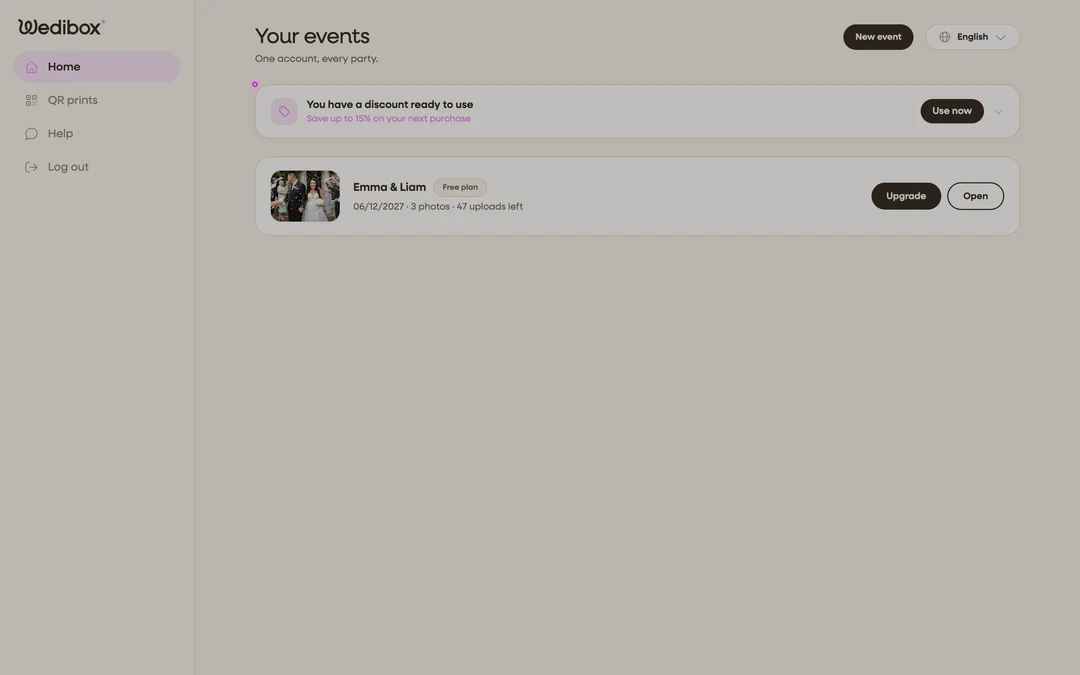
Open the Overview. In the sidebar, click Overview. If you’re on the events list, you may also see a card that says See what your guests will see; clicking it lands here too.
-
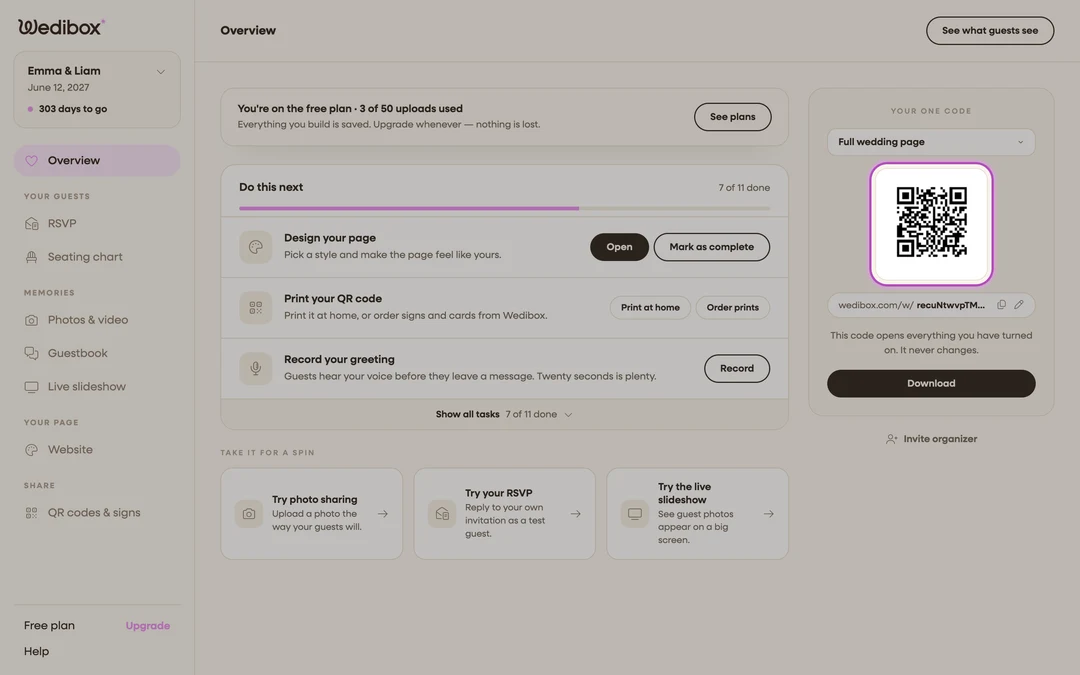
Scan your own code. Point your phone’s camera at the QR in the “Your one code” card and open the link. This is exactly what a guest at your reception will do: no app, no login.
-
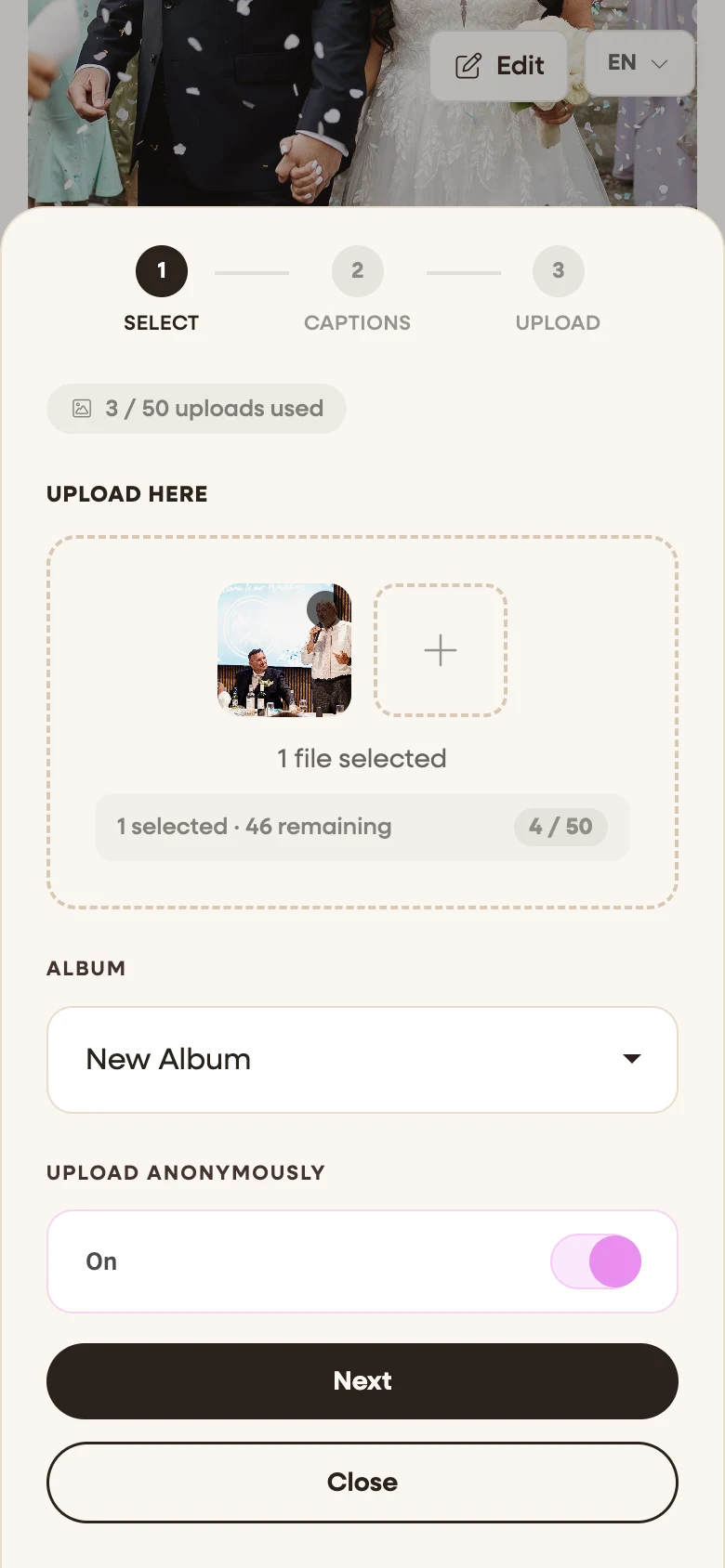
Upload a photo. On your page, tap the upload button (it’s labeled Upload Media unless you renamed it), pick any photo, add a caption if you like, and tap through Next and Upload. You’ll get a “Thank You!” screen when it’s done.
-
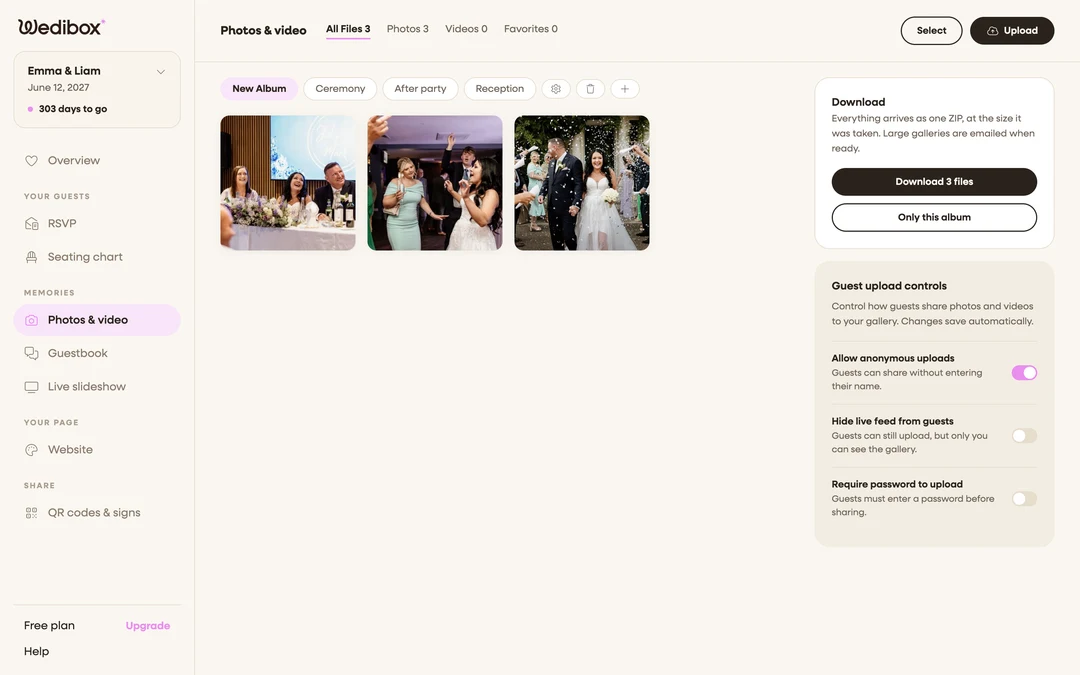
Watch it land. Back in your dashboard, open Photos & video in the sidebar. Your test photo is in the gallery. This is where every guest upload will live.
-
Collect your 15% reward. On the Free plan, your first photo triggers a “Your first memory is live!” popup with a personal discount code. Click Copy, then use it at checkout, or click Activate now & save 15% to apply it right away. The code is valid for 14 days.
-
Optional: delete the test photo. In Photos & video, hover the photo and click the trash icon. Your gallery starts clean for the real day.


What you should see
A photo that traveled the full loop: phone camera → QR scan → browser upload → your gallery. If that worked for you, it will work for a hundred guests at once on the day.
If something goes wrong
- The discount popup didn’t appear. It shows on the Free plan only, and only if your event has a name and date set. Refresh the events list; if photos exist but no code was issued, the popup appears then.
- Upload stalls inside Instagram or Facebook’s browser. Open the link in Safari or Chrome instead. In-app browsers sometimes hand Wedibox an unreadable file.