How to add Wedibox to a WordPress.com website
Embed widgetEmbed widget
WordPress.com supports custom code through the Custom HTML block, so the Wedibox widget can live directly on your wedding site, with one catch: WordPress.com only runs embedded scripts on its higher-tier plans. This guide covers the embed and the fallback for everyone else.
Plan: Embed widget · Where: wedibox.com/w/embed/setup → select WordPress.com
Before you start
- Custom HTML with scripts requires a WordPress.com Business plan or higher. On lower plans, use the shareable link from the same Wedibox screen instead (it’s step 5).
- This guide is for WordPress.com. Self-hosted WordPress sites also work: pick Other as your platform and paste the same snippet into any HTML block or widget area.
- The Free embed plan (up to 50 uploads) covers setup and testing.
Steps
-
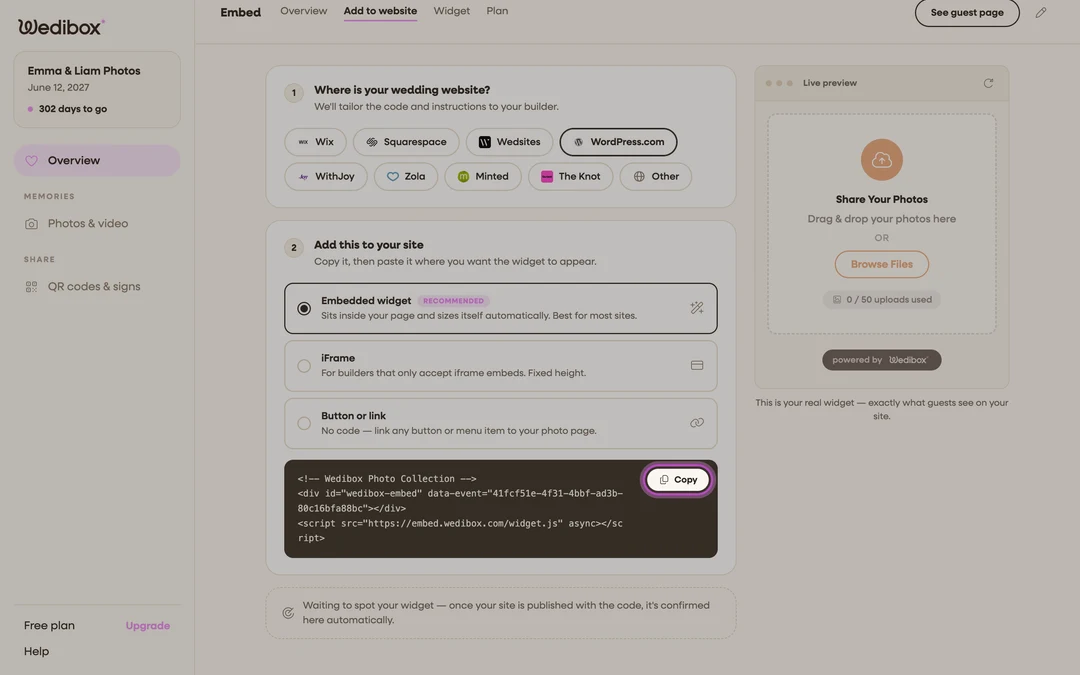
Get your embed code. Go to wedibox.com/w/embed/setup, select WordPress.com, enter your event name and date, and create your free account. On the Add to Your Website step, keep Embedded widget selected and click Copy on the code box.
-
Open your page editor. In WordPress.com, navigate to the page where you want photo sharing and click Edit.
-
Add a Custom HTML block. Insert a Custom HTML block where the widget should appear (this is the part that requires the Business plan or higher).
-
Paste and publish. Paste the Wedibox snippet into the HTML block, then publish the page. The editor’s preview may show only a placeholder; the live page renders the real widget.
-
On a lower plan? Use the link instead. Back on the Wedibox code screen, switch to Button or link (the link looks like
wedibox.com/w/photo-collection/your-names) and add it to your page as a normal link or button. No plan requirement, and guests get the same upload page. -
Test it. Open the live page on your phone and do a test upload from the widget’s Share Your Photos button (or from the linked photo page).

What you should see
On the live page, the upload widget renders where the HTML block sits, in your accent color. Test uploads appear on your embed dashboard, and your domain shows in the Overview tab’s Active Installations card after the first view.
If something goes wrong
- The script is stripped out after saving. Your WordPress.com plan doesn’t allow embedded scripts. Use the shareable link (step 5) or upgrade the WordPress plan.
- The block shows the code as text. You pasted into a paragraph block. Delete it and use a Custom HTML block instead.