Sharing your photo collection page
Embed widgetEmbed widget
Alongside the widget on your website, every embed event gets a standalone photo collection page: a full-screen public gallery at its own link. It’s the page behind your QR code, the fallback for website builders that can’t host code, and the easiest thing to text to a guest who asks “where do the photos go?”
Plan: Embed widget · Where: embed event → Overview tab → the QR card
Before you start
- Set up your embed event first (see the pillar guide below). The collection page exists as soon as the event does.
- Decide your privacy settings (anonymous uploads, upload password, hidden gallery). They apply to this page too, and so does the Default Language you pick on the Widget tab.
Steps
-
Open your embed dashboard. Log in at wedibox.com and open your embed event. The Overview tab is home to your stats, QR code, and sharing tools.
-
Copy the link. In the QR card on the right (its label reads Share it anywhere), click the copy icon next to your link. The link looks like
wedibox.com/w/photo-collection/your-names, and the card explains that the QR code and link open your public photo page.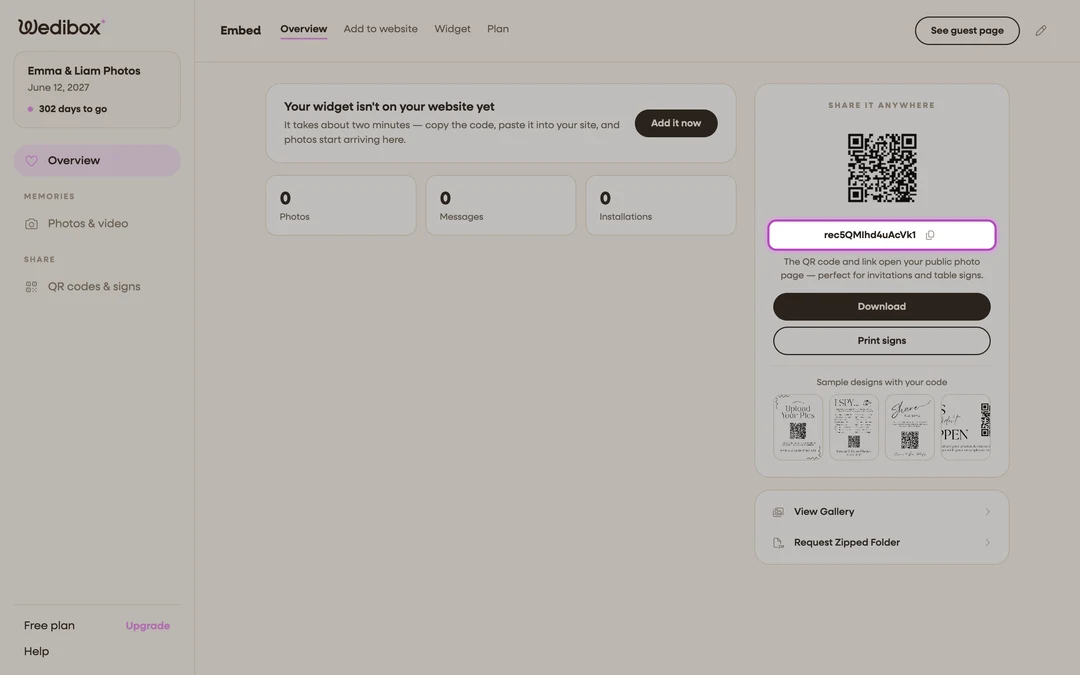
-
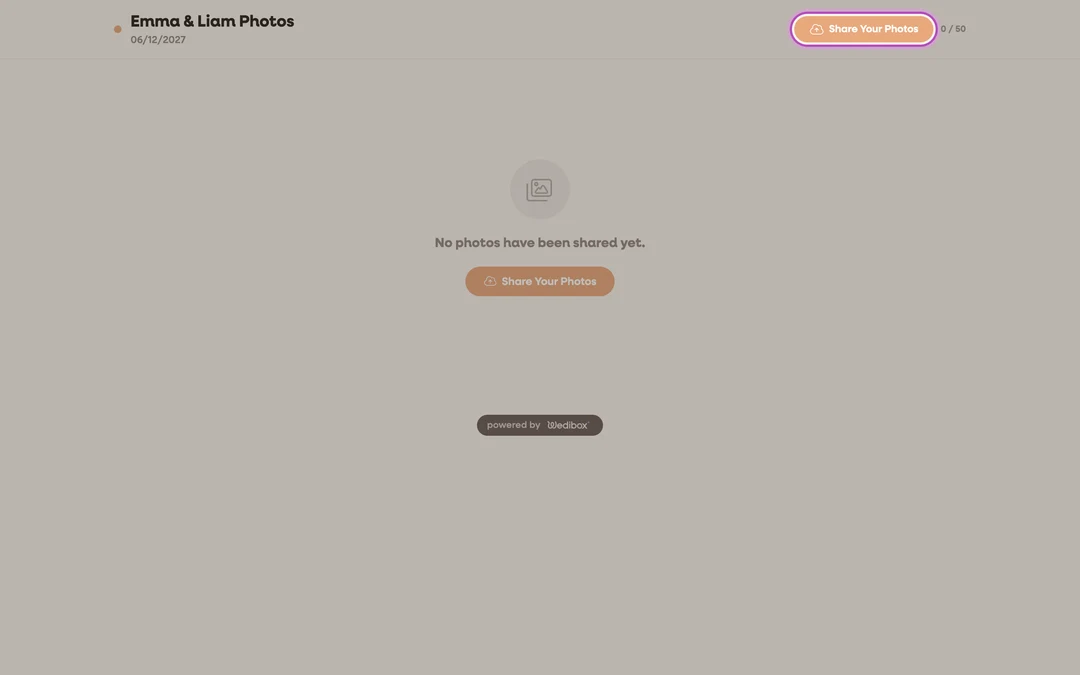
Check the page yourself. Open the link. You’ll see your event name and date, a Share Your Photos upload button, and the gallery grid. An item count and album tabs (starting with All Photos) appear as photos and albums arrive. On the Free plan a “powered by” Wedibox footer shows; Starter and Premium remove it automatically.
-
Share it everywhere guests look. Paste the link on your wedding website (this is the whole integration for Zola, The Knot, Minted, and WithJoy), drop it in your group chats, and add it to day-of emails. Wherever the link unfurls (WhatsApp, iMessage, Facebook, Canva’s Embed app), it shows a preview card with the Wedibox mark, “Tap here to share your photos”, and your event name and date, so it reads as an invitation rather than a bare address.
-
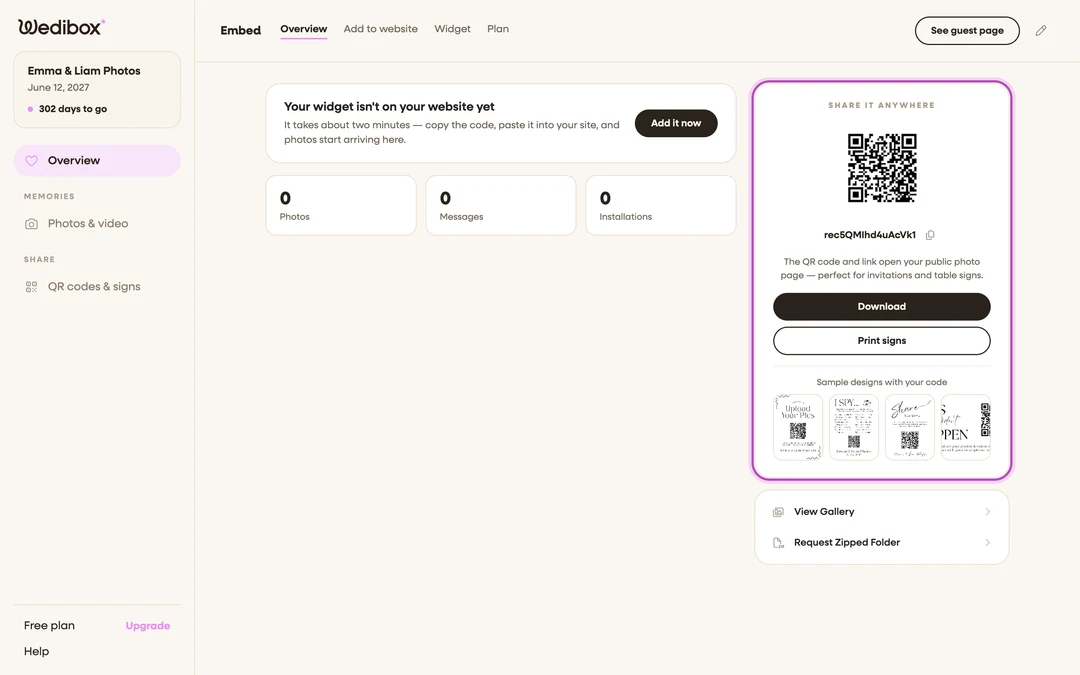
Print the QR code. Back in the same card, click Download for a scannable version of the same link, or click Print signs and pick a ready-made design. The card previews a few under Sample designs with your code. At the venue, the QR does the work.


What you should see
Guests who open the page can upload with one tap and watch the grid fill in. Tapping any photo opens it full-size with a download button, and once photos exist the page shows a Slideshow button so you can project the gallery at the venue. Uploads made here count toward the same collection as widget uploads, and the page’s visits appear in your dashboard’s Active Installations card as “Collection link.”
If something goes wrong
- The gallery looks empty to guests but you can see uploads. You’ve turned on HIDE LIVE FEED FROM GUESTS. That’s by design; switch it off on the Widget tab when you’re ready to reveal the photos.
- Guests report “Upload limit reached”. The Free plan caps the collection at 50 uploads (“This collection has reached its free plan upload limit.”). Upgrade to Starter or Premium for unlimited uploads.