How to share your RSVP link and QR code
RSVPAll-in-One plan
Guests can always RSVP through the button on your wedding page, but for invitations you usually want something more direct: a link or QR code that opens straight into the RSVP form with nothing else in the way. Wedibox gives every event a dedicated RSVP address for exactly this.
Plan: All-in-One plan · Where: Sidebar → Overview → “Your one code” card
Before you start
- The RSVP option only appears once RSVP is switched on for your page; see setting up online RSVP.
- Your form doesn’t need to be final. Edits go live instantly and the link and code never change, so it’s safe to print before the menu is settled.
- Still deciding between Wedibox, a plain form, or a website builder for RSVPs? The how to create a QR code for wedding RSVP guide on the blog compares the three routes and shows these screens in order.
Steps
-
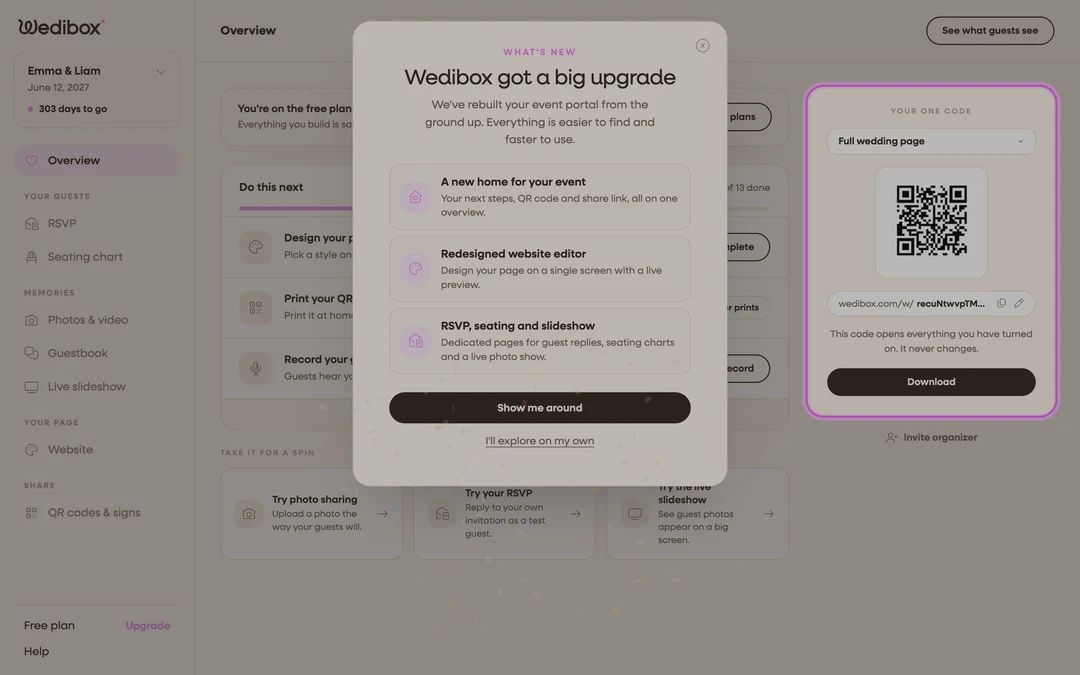
Open the Overview page. In the sidebar, click Overview. The “Your one code” card sits in the right-hand rail with your QR code in it.
-
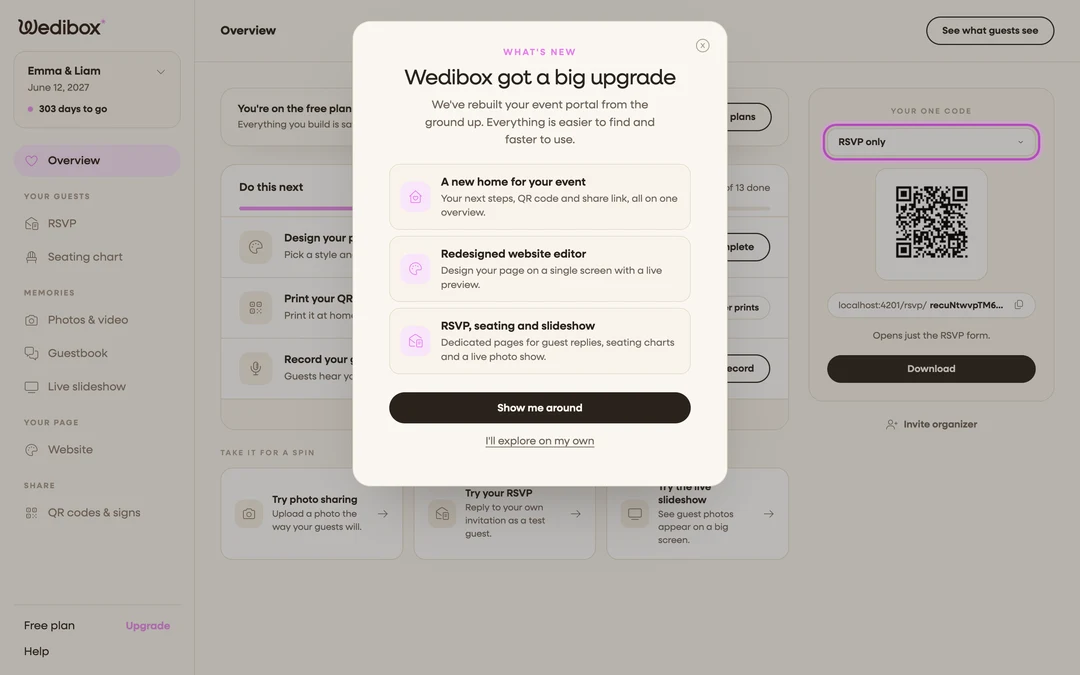
Pick what the code opens. Use the dropdown at the top of the card and choose RSVP only; “Opens just the RSVP form.” The QR code and the address under it switch to your dedicated RSVP page.
-
Copy the link. Click the copy icon next to the address. That exact address ; ending in
/rsvp/plus your custom link; is what the QR code encodes. -
Paste it where guests will see it. Digital invitations, the wedding group chat, email reminders; anywhere a link works. Guests who open it land on a card with your names and an RSVP now button.
-
Download the QR code for print. Click Download. In the Download QR Code popup you can adjust the background and code colors (or Set Transparent), then click Download to save the image for invitation suites and details cards.
-
Test before printing. Scan the downloaded code with your own phone; the popup reminds you to, since low-contrast color combinations can fail to scan. The code should open your RSVP page directly.
-
Order printed cards if you like. The Print signs button on the same card leads to printed materials; see the three QR codes for how the photo, RSVP, and song codes differ.
What you should see
Scanning the code or opening the link shows a focused page with your names, your date, “Will you be there?”, and an RSVP now button; no gallery, no scrolling, just the form. Replies from this page land on your Replies tab exactly like replies from your main wedding page.
If something goes wrong
- The dropdown doesn’t offer “RSVP only”; RSVP is switched off for your page. Turn the RSVP tile on in the Website editor first.
- Guests see “The couple has not turned this on yet.”. Same cause as above, or your event isn’t on the All-in-One plan yet, which is what unlocks guest replies.
- A printed code won’t scan. The colors are too close together. Re-download with darker code color on a light background and test again before the full print run.