How to track who's coming
RSVPAll-in-One plan
Every reply lands on one dashboard the moment a guest hits submit; no refreshing spreadsheets, no counting reply cards. The Replies tab shows your headcount, who’s still silent, and every detail each party gave you.
Plan: All-in-One plan · Where: Sidebar → RSVP (under “Your guests”) → Replies tab
Before you start
- Replies only arrive once your RSVP is set up and on your page.
- In Invitation only mode, households you added but who haven’t answered also appear here; as rows waiting for a reply.
Steps
-
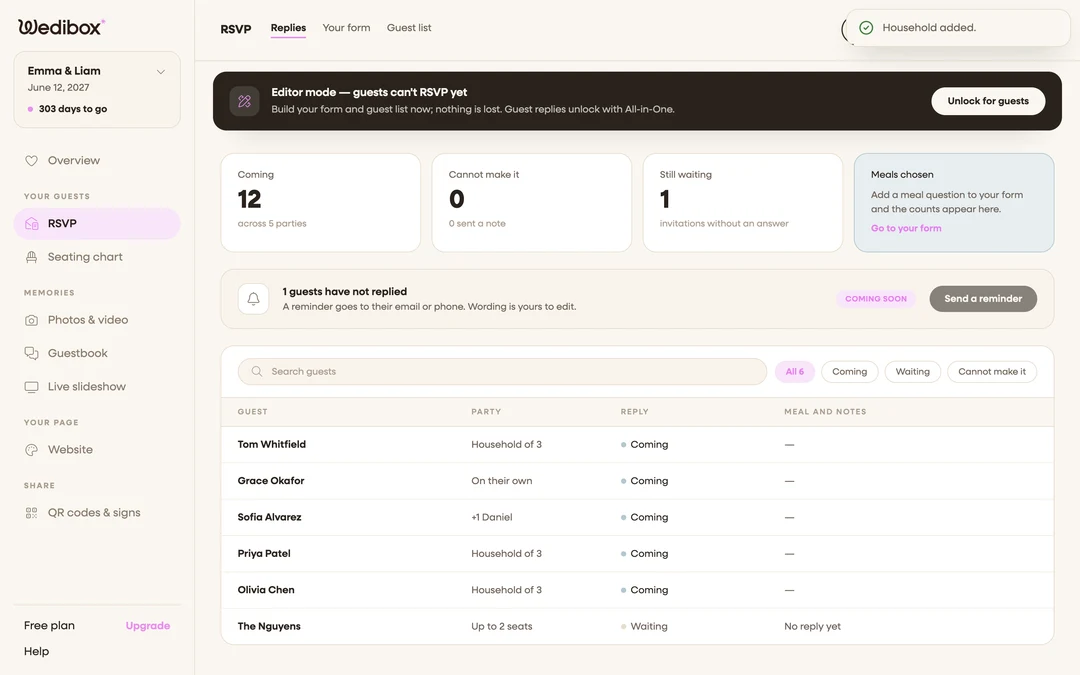
Open the Replies tab. In the sidebar, click RSVP. Replies is the first tab.
-
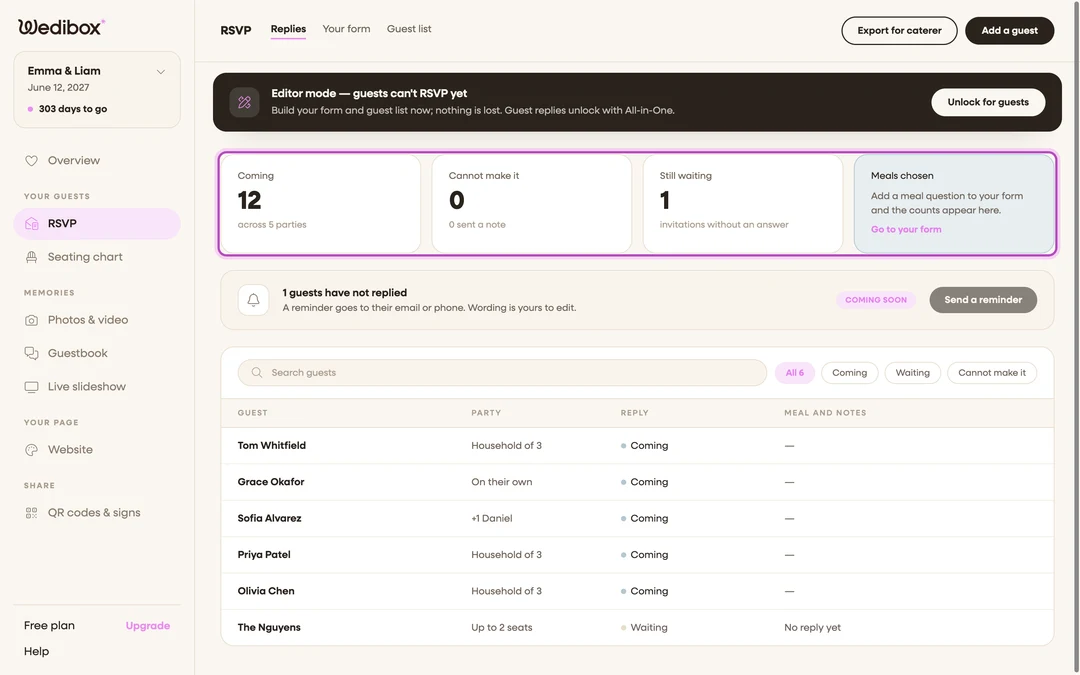
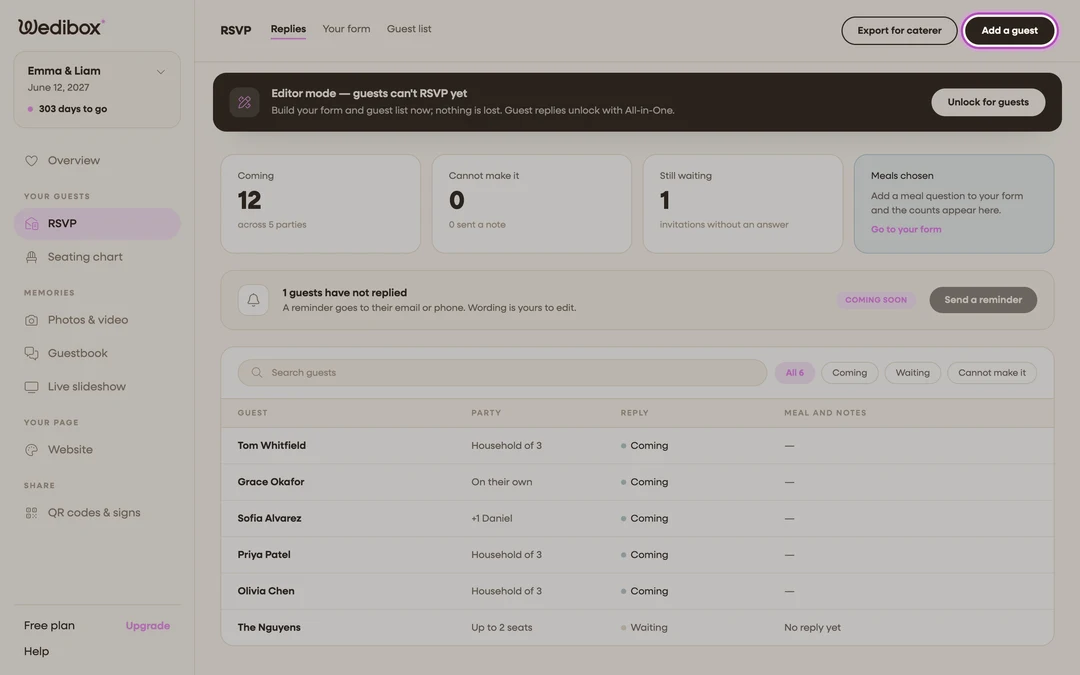
Read the stat cards. Four cards summarize everything: Coming (total guests, across N parties), Cannot make it, Still waiting, and Meals chosen. A live tally of your meal question, per option (the app recognizes the meal question from its wording; see custom RSVP questions).
-
Filter by status. The chips above the table; All, Coming, Waiting, Cannot make it. Narrow the list. “Waiting” is your chase list: parties without an answer, plus (in Invitation only mode) invited households that haven’t replied at all. The Guest list tab agrees with it: every household counted under Still waiting reads “No reply yet” there, and a household only reads “Replied · N coming” once a real reply names at least one person.
-
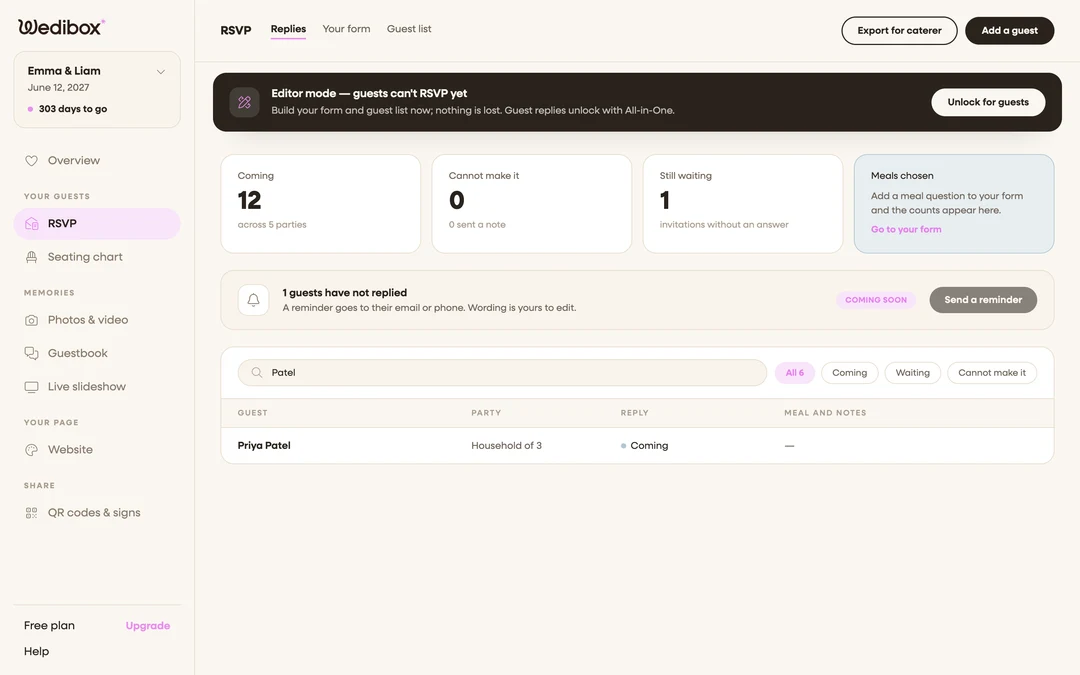
Search for anyone. Type in the Search guests box. It matches every name in a party, not just the first, so “grandma Rose” turns up even if her son submitted the reply.
-
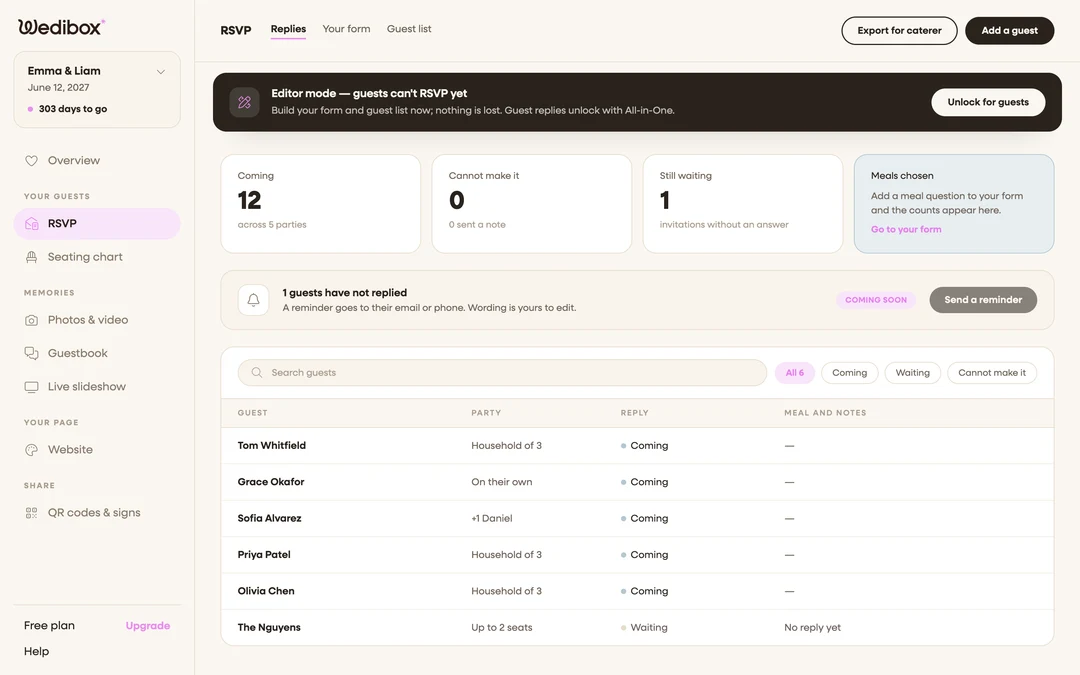
Open a reply’s details. Click any row. The table shows Guest, Party, Reply, and Meal and notes at a glance; the detail view has the rest; every name in the party, which events they’re attending, contact info, notes, and answers to your questions.
-
Fix or complete a reply. In the detail view you can correct a name, change event attendance, or fill in an answer a guest gave you verbally, then save with Update Guest(s). There’s also a Delete Guest option for test replies.
-
Add guests who replied outside the form. Click Add a guest (top right) for the aunt who RSVP’d by phone. Enter first and last name, tick at least one event under Event Attendance, and save; she counts toward Coming like everyone else.
What you should see
A live table where each row is one party: who they are, how many they’re bringing (“On their own”, “+1 Jane”, “Household of 4”), their status, and their meal and notes. On a phone the same rows appear as cards. When you’re ready to hand numbers to your caterer, use Export for caterer.
If something goes wrong
- A party shows “Waiting” but they told you they’re coming. They never finished the form. Open the row (or Add a guest if there’s no row) and record their attendance yourself.
- A household went back to “No reply yet” after you deleted a reply. That’s expected: deleting a reply (for example a test one) returns the household to the waiting list until a new reply arrives.
- The table is empty; “No replies here yet. Share your page and they will land in this list.” Check that the RSVP is on your page and your link has gone out.