How to build your guest list by hand
RSVPAll-in-One plan
Your guest list is a set of households: one invitation, one shared reply, and a seat cap per household. Adding them by hand takes about ten seconds each and gives you more control than a spreadsheet import; including per-event invitations and private notes.
Plan: All-in-One plan · Where: Sidebar → RSVP (under “Your guests”) → Guest list tab
Before you start
- The household list only applies in Invitation only mode; in Open door mode there is no list to manage. See which mode to use.
- Have your rough headcount handy: the seat cap you set per household is a hard limit on the form.
Steps
-
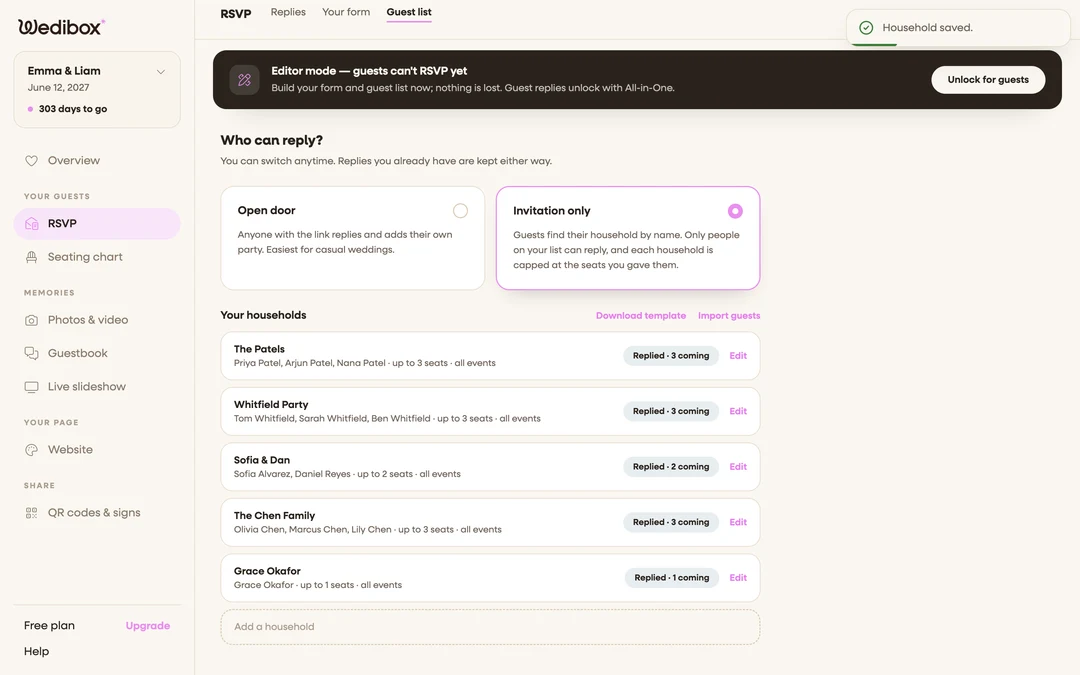
Open the Guest list tab and pick Invitation only. In the sidebar, click RSVP, then Guest list. Under “Who can reply?”, select the Invitation only card.
-
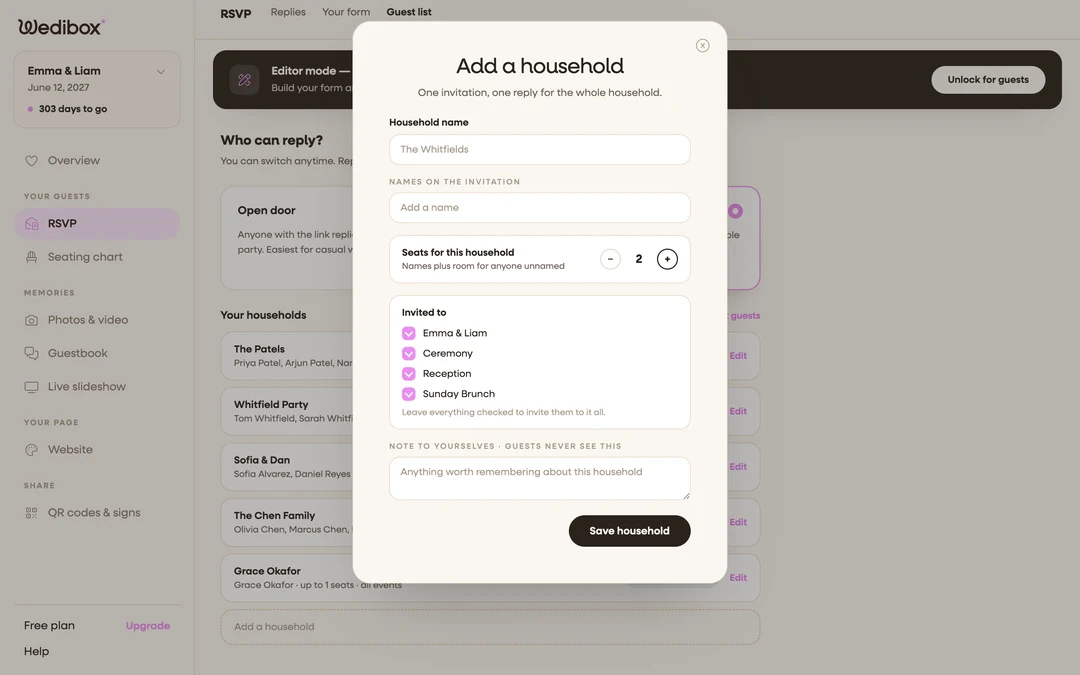
Click Add a household. The household editor opens; “One invitation, one reply for the whole household.”
-
Name the household. Type a Household name like “The Whitfields”. This is what guests find when they search their name, so use something they’d recognize.
-
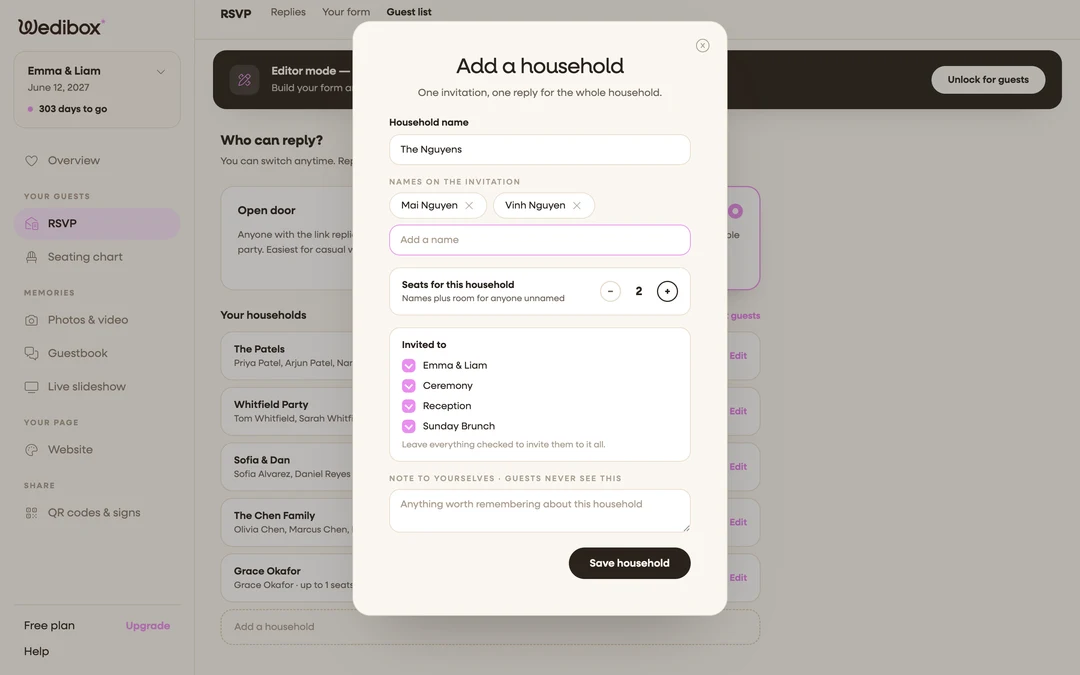
Add the names on the invitation. Under Names on the invitation, type a name and press Enter; each becomes a small chip you can remove later. These names pre-fill the RSVP form for the household. You can leave this empty and rely on the household name alone.
-
Set the seats. Use the − and + stepper under Seats for this household ; “names plus room for anyone unnamed.” Two named guests with 3 seats means they can bring one extra person. The count can’t go below the number of named guests, and adding a name beyond the cap raises it automatically.
-
Limit which events they’re invited to (optional). If your form has two or more events, an Invited to list appears with a checkbox per event. Leave everything checked to invite them to it all, or untick events this household shouldn’t see.
-
Leave yourself a note (optional). The field marked “Note to yourselves · guests never see this” is for anything worth remembering; “vegetarian”, “Grandma’s table”, “may need a ride.”
-
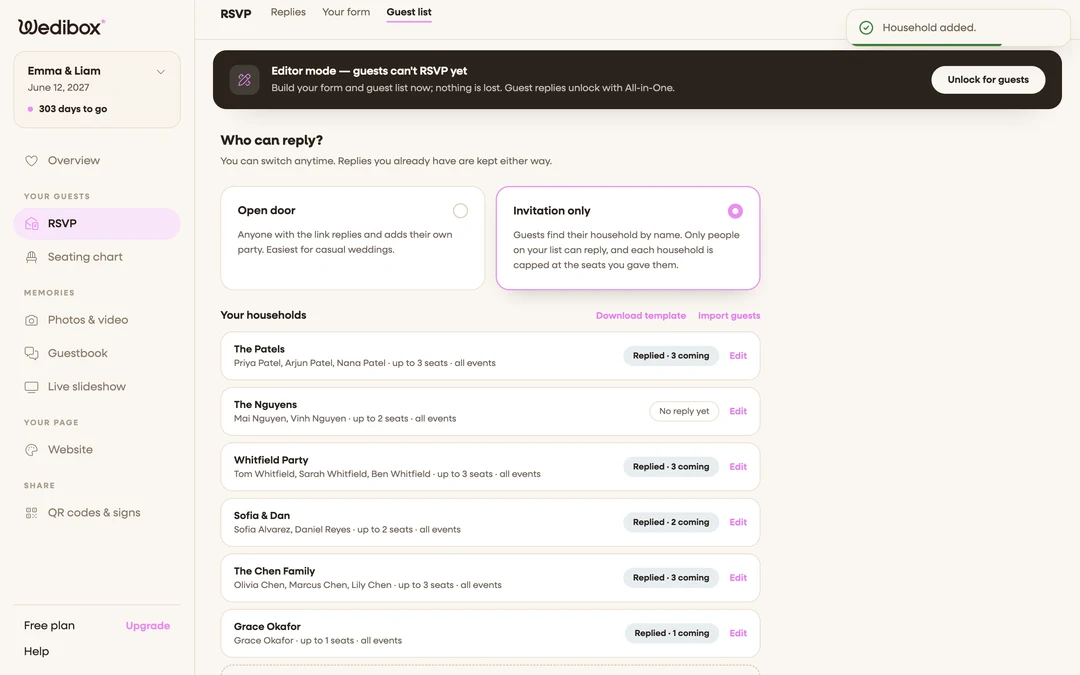
Click Save household. The editor closes and the household appears in your list with its names, “up to N seats”, the events it’s invited to, and No reply yet.
What you should see
A row per household. As replies come in, each row’s status changes to “Replied · N coming” or “Replied · cannot make it”. Click Edit on any row to change names, seats, events, or notes; or to Delete household. Guests who search their name on the RSVP form now find their invitation with everything pre-filled.
If something goes wrong
- “Give the household at least one seat.”. The seat count is empty or zero. Every household needs at least 1 seat.
- “Give the household a name or add at least one guest name.”. A household needs something guests can search for: a household name, a named guest, or both.
- A guest reports they can’t find their invitation. Search is by first or last name. Check the spelling of the household name and the names on the invitation.