How to collect RSVPs for ceremony, reception, and brunch
RSVPAll-in-One plan
A wedding is rarely one event. Add each part of your celebration; ceremony, reception, rehearsal dinner, Sunday brunch; to your RSVP form and guests answer yes or no to each one individually. Combined with the guest list, you can even invite some households to the reception only.
Plan: All-in-One plan · Where: Sidebar → RSVP (under “Your guests”) → Your form tab
Before you start
- Every event you add is included in your plan at no extra cost.
- Per-household restrictions need Invitation only mode and at least two events on the form; with one event there’s nothing to restrict.
Steps
-
Open the Your form tab. In the sidebar, click RSVP, then Your form.
-
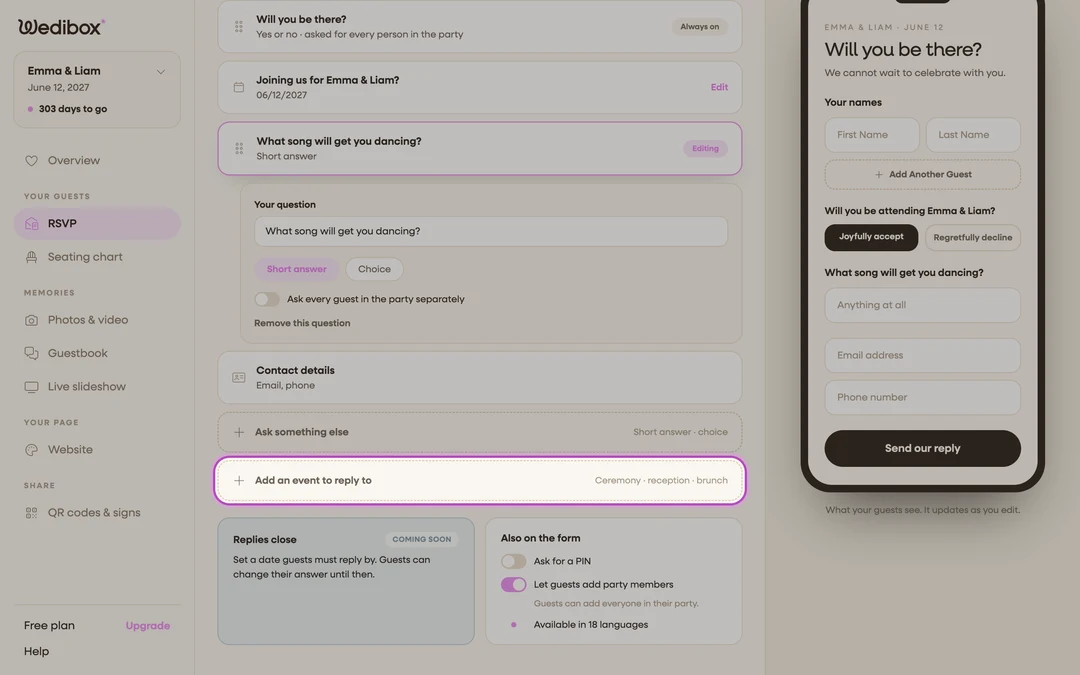
Click Add an event to reply to. It’s at the bottom of the question list, marked “Ceremony · reception · brunch”. The Schedule Item Details popup opens.
-
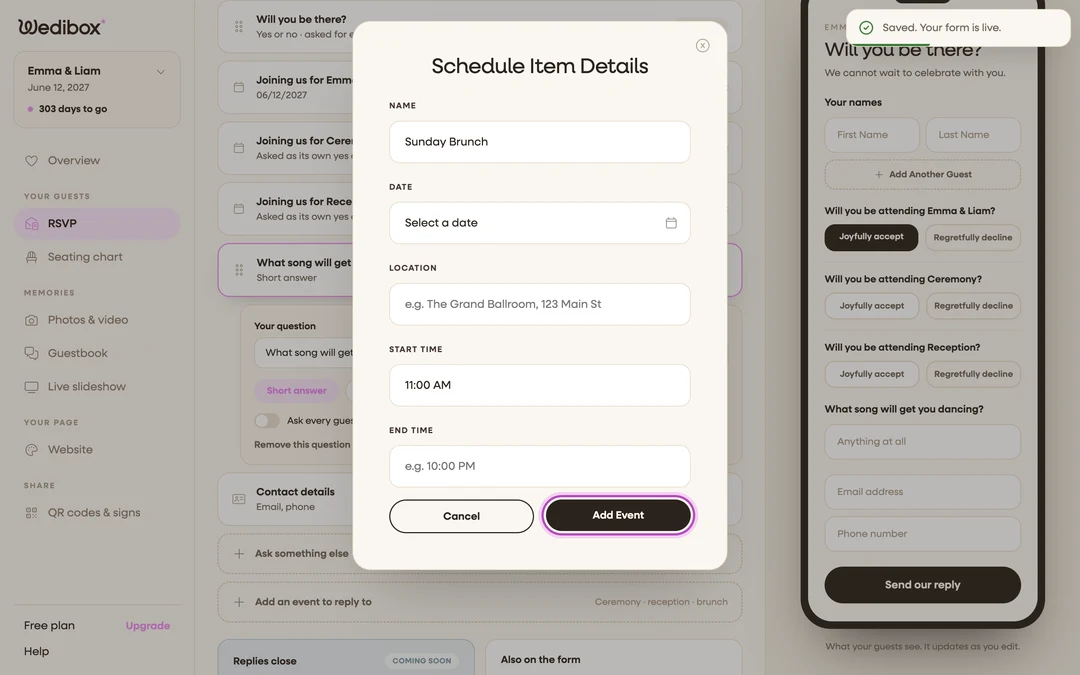
Fill in the event. Give it a NAME guests will recognize (“Wedding Ceremony”), and optionally a DATE, LOCATION, START TIME, and END TIME. Whatever you fill in is shown under the question on the form, so guests reply with the details in front of them.
-
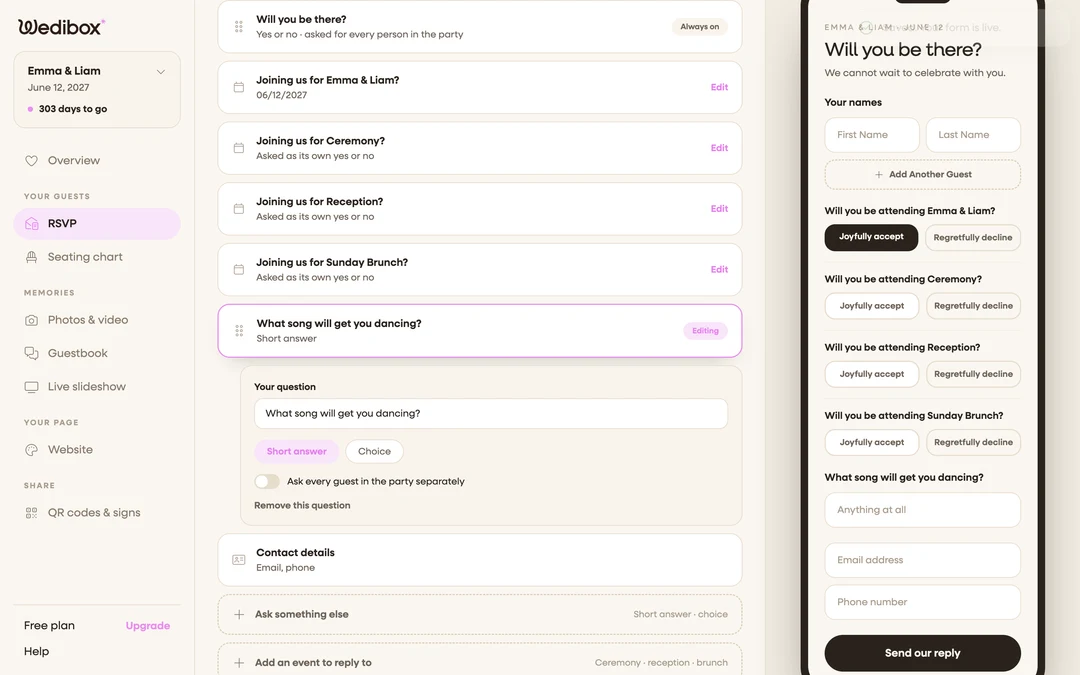
Click Add Event. The event appears in your form as its own card; “Joining us for Wedding Ceremony?”; asked as its own yes or no.
-
Repeat for each part of your celebration. Each event becomes one question. Click any event card later to edit its details (Update Event).
-
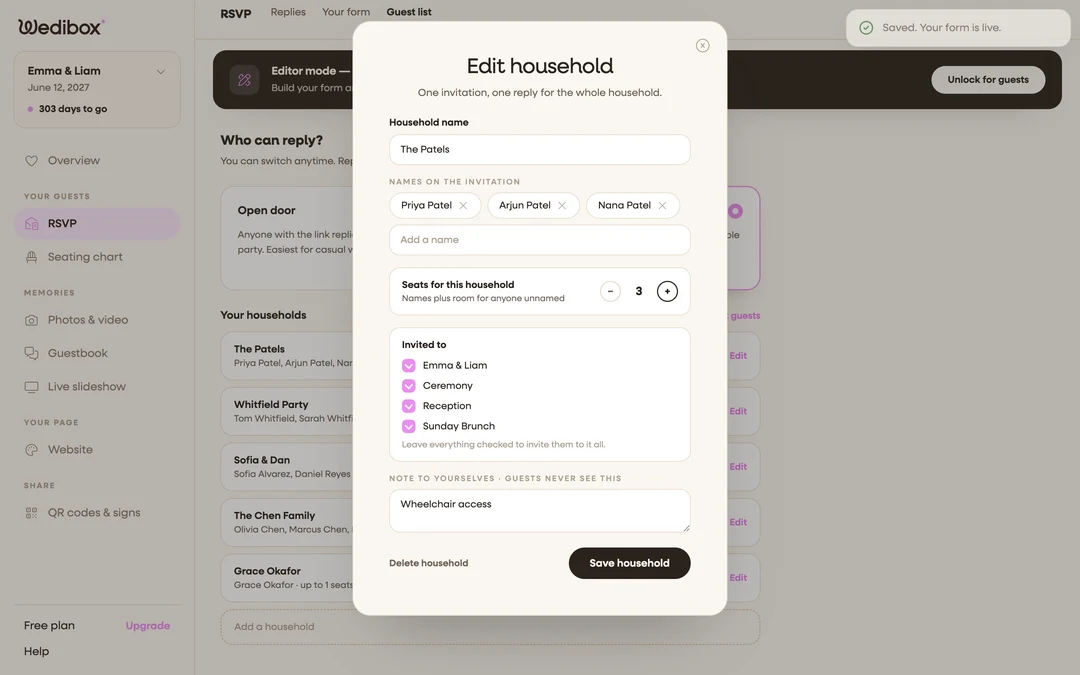
Restrict households if needed. On the Guest list tab (in Invitation only mode), click Edit on a household. The Invited to list shows a checkbox per event; leave everything checked to invite them to it all, or untick the events this household shouldn’t see. Restricted households never even see the other events on their form.
-
Click Save in the page header so the form goes live with your schedule.
What you should see
Guests answering your RSVP get one Joyfully accept / Regretfully decline choice per event, and the form requires an answer for each before they can continue. On the Replies tab, a reply’s detail view shows exactly which events each party accepted, and the CSV export lists attended events per party; your per-event headcounts for the caterer and the venue.
If something goes wrong
- You need to delete an event. Open its card, click the delete option, and type
deleteto confirm. Be careful: deleting an event item permanently removes it and the replies associated with it, and nothing is recoverable. - A household says they only see one event. Their Invited to list is restricted. Edit the household and re-check the missing events.