How to import your guest list from a spreadsheet
RSVPAll-in-One plan
If your guest list already lives in Excel, Google Sheets, or another planning tool, you don’t have to retype it. Upload the file as-is (CSV or Excel, any column layout) tell Wedibox what each column means, and it creates every invitation with its seat cap in one go. By default, everyone is also marked as attending, so your headcount starts complete instead of at zero.
Plan: All-in-One plan · Where: Sidebar → RSVP (under “Your guests”) → Guest list tab
Before you start
- Import lives in Invitation only mode; the Import guests link only appears once that mode is selected. If you’re unsure about modes, read Open RSVP vs. guest list RSVP first.
- Your file needs a heading row (like “Name” or “Party”) as its first row. Both layouts work: one row per household or one row per guest. If each guest has their own row, include a column with the household or party name so Wedibox knows who belongs together.
- Starting from scratch? Download template gives you a ready-made file with the right columns.
Steps
-
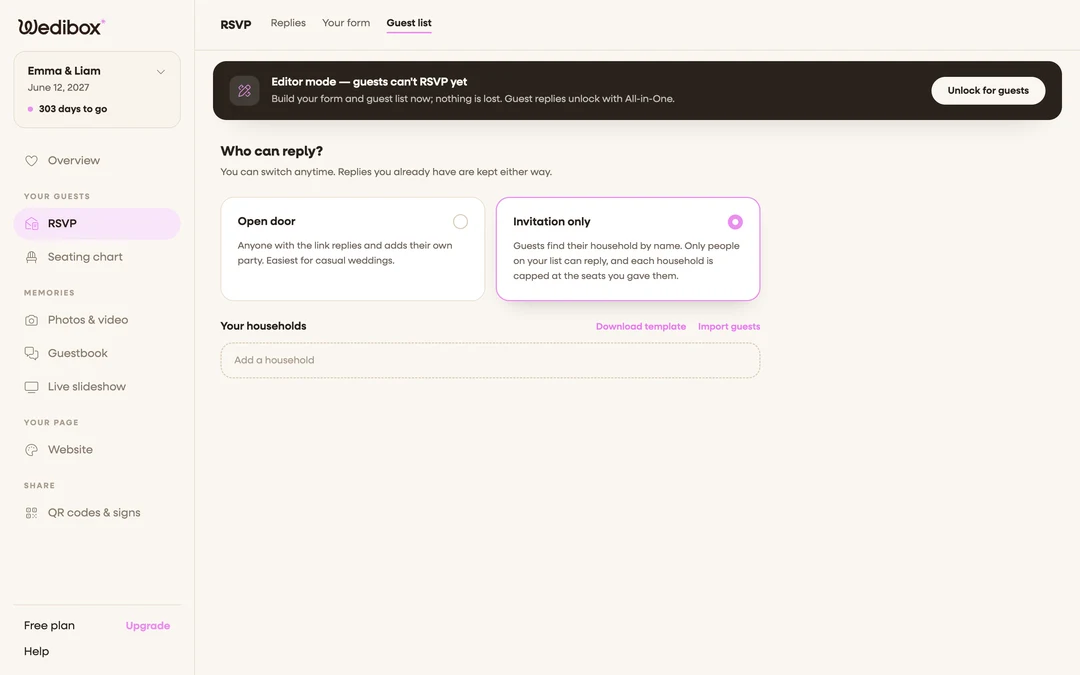
Open the Guest list tab. In the sidebar, click RSVP, then the Guest list tab. Under “Who can reply?”, select Invitation only.
-
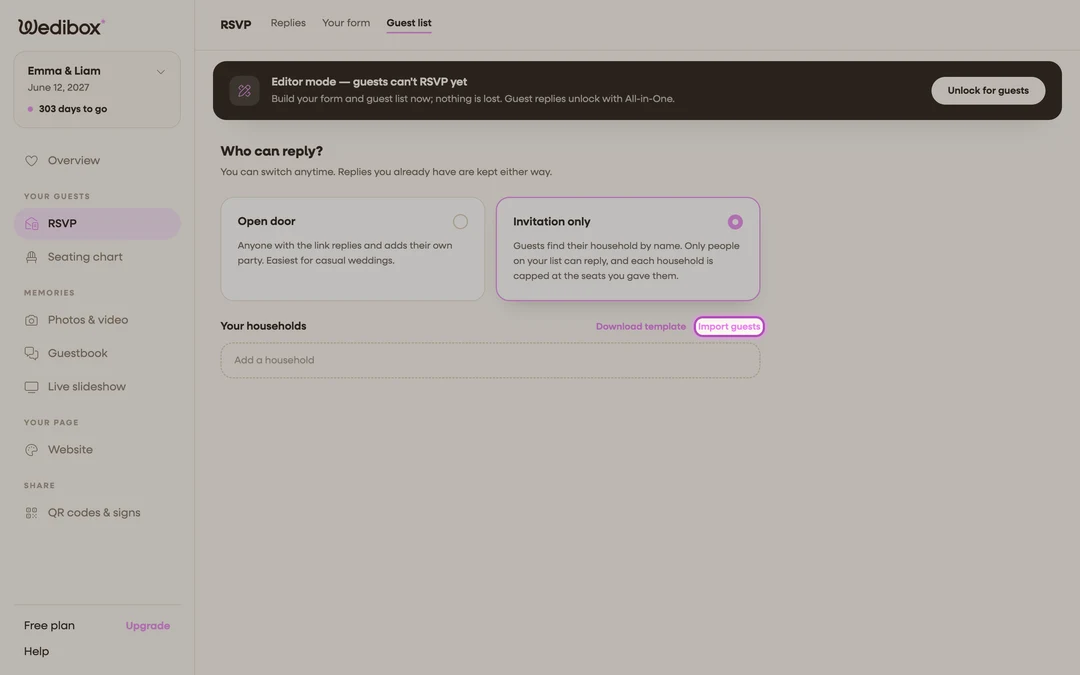
Click Import guests. It’s next to “Your households”, beside Download template. The import window opens on its first step.
-
Choose your file. CSV, TSV, and Excel (
.xlsx) all work; export straight from Excel, Google Sheets, or whatever tool holds your list today. No need to reformat anything first.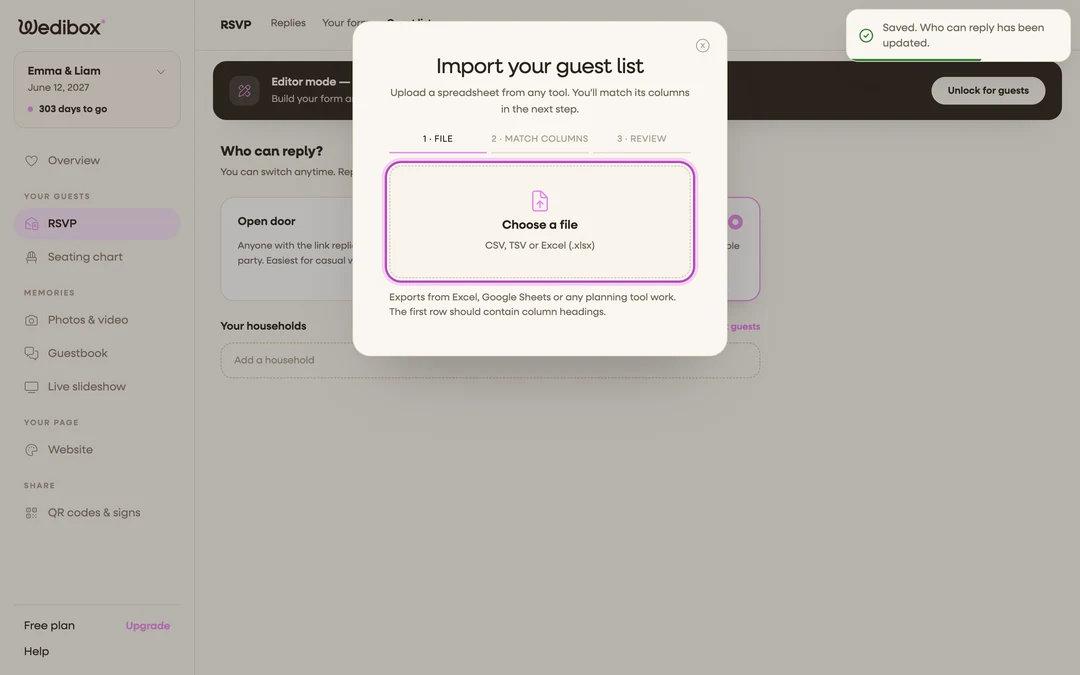
-
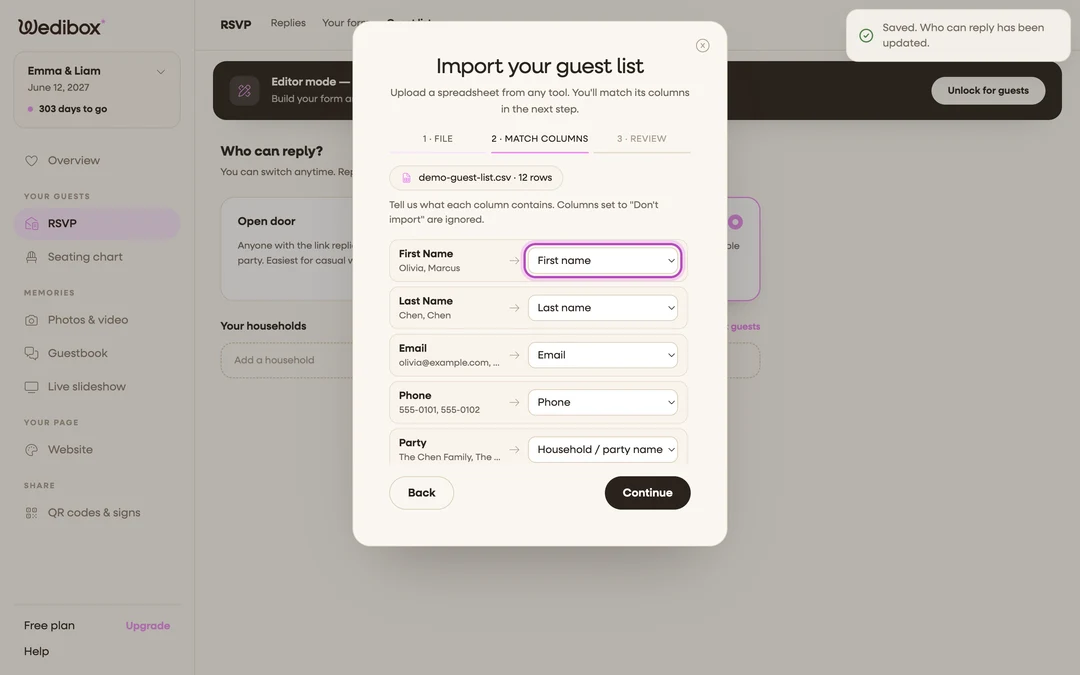
Match the columns. Wedibox reads your headings and guesses what each column is ; guest names, household, seats, email, phone. Check its guesses against the sample values shown under each heading and fix any with the dropdown. Columns you don’t want are set to Don’t import. You need at least one name column to continue.
-
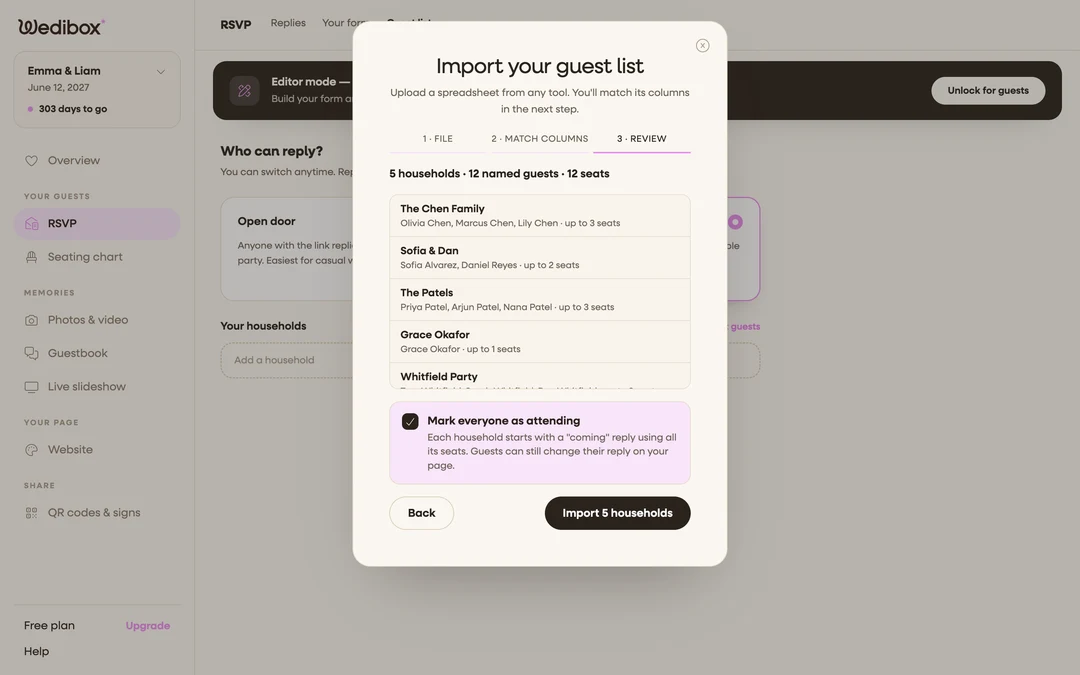
Review the result. Step 3 shows exactly what will be created; how many households, named guests, and seats; with a preview of the first few rows. Guests sharing a household name are grouped onto one invitation; rows without one become their own household.
-
Decide on automatic attending. The Mark everyone as attending box is checked by default: every imported household starts with a “coming” reply that uses all its seats, so your replies dashboard and headcount are complete from day one. Guests can still open your page and change their reply at any time. Prefer to start at zero and let each household reply themselves? Untick the box.
-
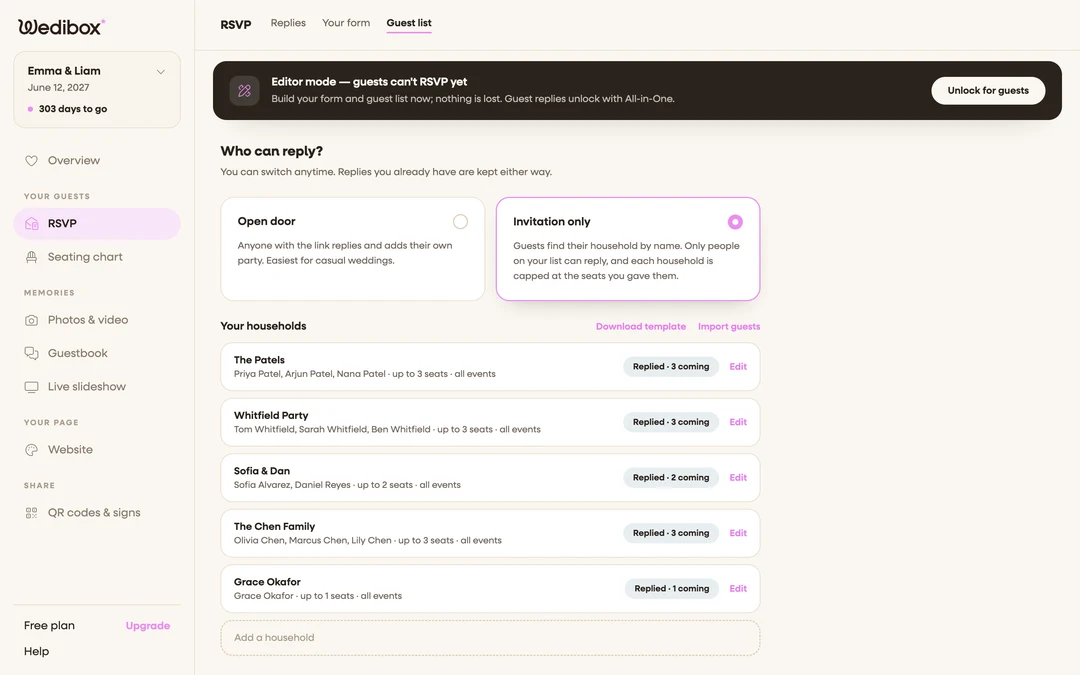
Click Import. The households appear in your list immediately: “Replied · N coming” if you left automatic attending on, or “No reply yet” if you turned it off. The Replies tab uses the same rule, so households reading “No reply yet” are exactly the ones counted under Still waiting.
-
Spot-check a few rows. Click Edit on a household to confirm the names and seats came through. This is also where you add anything a spreadsheet doesn’t carry: host-only notes and per-event restrictions (Invited to).
What you should see
Every household listed under “Your households” with its names and “up to N seats”. With automatic attending on, the Replies tab already counts everyone in; from here it’s easier to track the handful who decline than to chase everyone for a yes. Guests who open your RSVP search their name, find their household, and can adjust their reply for at most the seats you gave them.
If something goes wrong
- A column was matched wrong. Go Back to the matching step and change its dropdown. Nothing is created until you click Import on the review step.
- Two guests merged into one household (or one family split in two). Households group by the household column’s exact text. Make the value identical on every row of a family (watch for stray spaces or “Smith” vs “The Smiths”) and re-import.
- “We couldn’t read that file”. Save it again as CSV or Excel (
.xlsx) and retry. Older.xlsfiles and PDFs can’t be read. - You imported twice and everything is doubled. Importing adds households, it doesn’t replace them. Click Edit on a duplicate and Delete household.
- You left attending on but wanted replies to start empty. Open a household’s reply in the Replies tab and delete it, or delete the households and re-import with the box unticked.