How to ask custom RSVP questions (meals, songs, anything)
RSVPAll-in-One plan
Attendance is only half of what an RSVP is for. Custom questions let you collect meal choices, allergies, song requests, or anything else; and because answers arrive attached to each reply, you’ll never chase guests by text for their entrée again.
Plan: All-in-One plan · Where: Sidebar → RSVP (under “Your guests”) → Your form tab
Before you start
- Two question types exist: short answer (a free text box) and choice (guests pick one option from a list).
- Decide whether a question needs one answer per household (“Any song requests?”) or one per guest (“Chicken, beef, or vegetarian?”). Meal choices are the classic per-guest case.
Steps
-
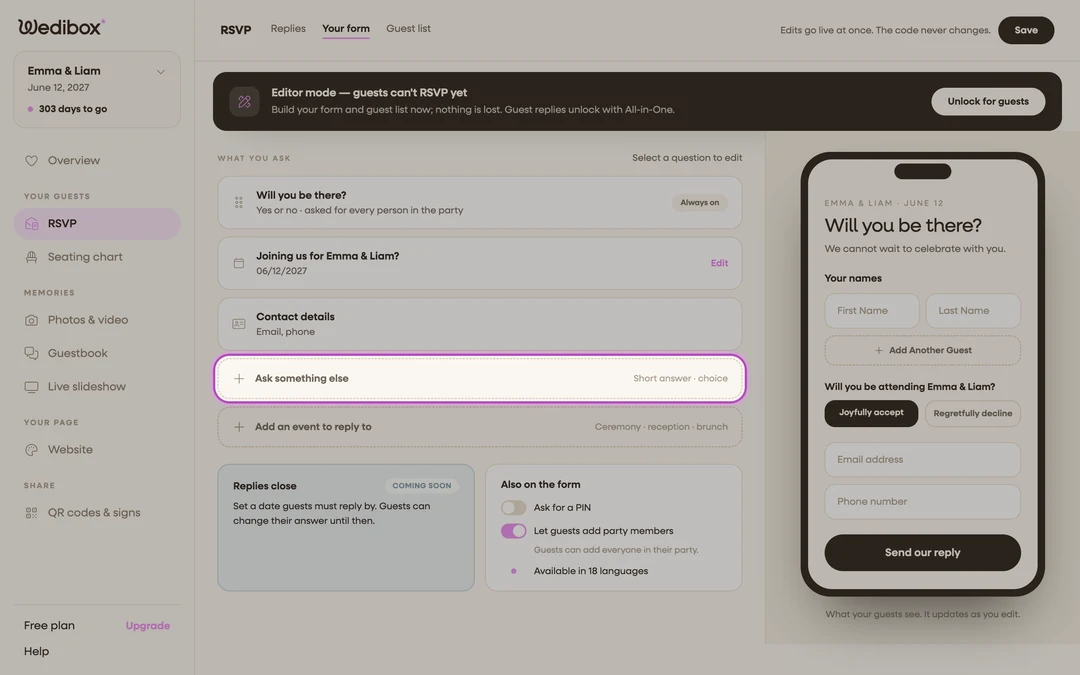
Open the Your form tab. In the sidebar, click RSVP, then Your form. Your current questions are listed on the left; the phone preview on the right shows what guests see.
-
Click Ask something else. It’s at the bottom of the question list, marked “Short answer · choice”. A new question card appears with its editor open.
-
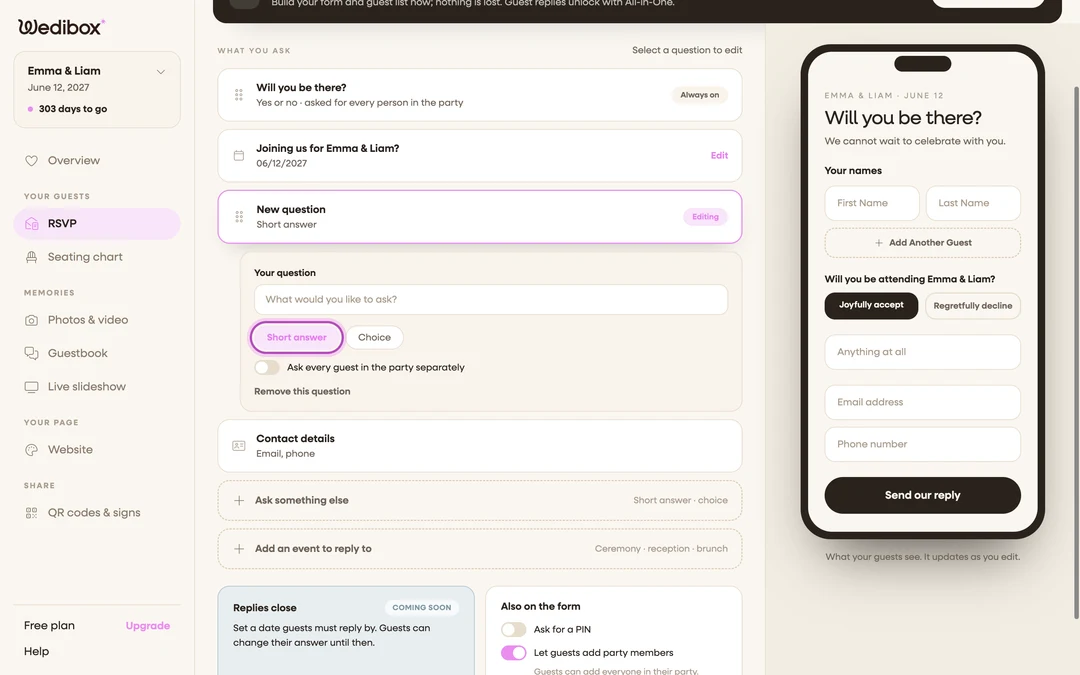
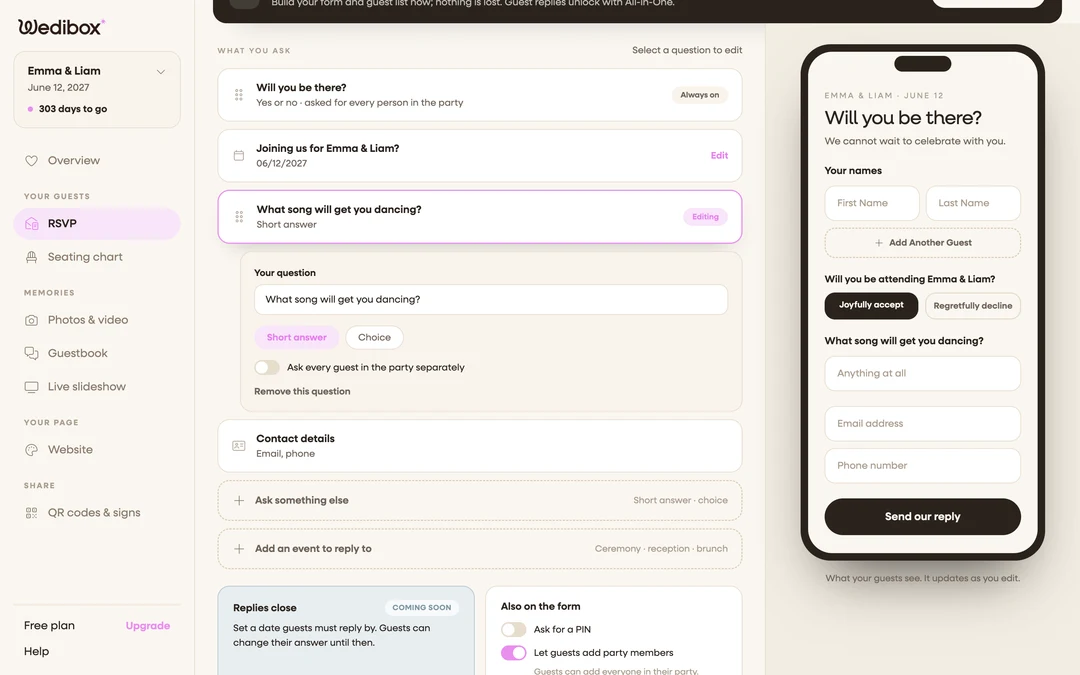
Write the question. Type it in Your question. For example “Which meal would you like?”. Keep it answerable in a word or two; guests are on their phones.
-
Pick the type. Click Short answer for a free text box, or Choice for a pick-one list.
-
Add your options (choice questions only). Under Your options, fill in the first option and click Add an option for each additional one; “Chicken”, “Beef”, “Vegetarian”. Once replies arrive, each option shows a live count like “12 chose this.”
-
Decide who answers. Flip Ask every guest in the party separately on for per-guest questions like meals; a party of four then gives four answers, one next to each name. Leave it off for one answer per household.
-
Click Save in the page header. “Saved. Your form is live.”; guests see the new question immediately, with no change to your link or QR code.
-
Repeat for each question; sparingly. Every question you add costs a little completion rate. To remove one later, open its card and click Remove this question.
What you should see
In the phone preview, short-answer questions appear as a text box and choice questions as a dropdown (“Select an option”). Per-guest questions repeat once per named guest. On the Replies tab, a “Meals chosen” card tallies your meal question automatically, each reply’s answers appear in its detail view, and every question becomes its own column when you export your responses.
There is no switch to mark a question as the meal question. The app recognizes it on its own: a meal question created by the setup wizard always wins; otherwise it picks the choice question whose title or options use food words (meal, menu, dinner, entrée, dietary, chicken, beef, fish, vegetarian, vegan, and so on, in any language Wedibox supports). That answer then follows each guest into the seating chart: it prints on the seat lookup card and in every export.
If something goes wrong
- The “Meals chosen” card says to add a meal question. That card counts answers to the choice question the app reads as your meal question. Add a choice question with food words in its title or options and the counts appear as replies come in.
- The wrong question is being counted as meals. Rename your meal question so the word “meal” or “menu” is in its title. A title match outranks option matches.
- You changed a question after some guests replied. Earlier answers are kept as they were given. When a guest edits their RSVP, they’re asked the current version of the form, including any questions added since.