How to print or export your seating chart
Seating chartAll-in-One plan
Your venue coordinator wants a paper copy, your caterer wants a list by table with meals, and your planner wants a spreadsheet. The seating chart exports all three, generated from whatever chart is currently open, so they’re always up to date with your latest swaps. If your RSVP form asks a meal question, every export carries each guest’s answer.
Plan: All-in-One plan · Where: Seating chart → Print for the venue / Import & export
Before you start
- Exports cover the selected chart. If you run multiple charts (say rehearsal and reception), switch to the right one first, then export each separately.
- Finish your seat assignments first: unassigned guests appear in the CSV, but empty chairs print as empty.
Steps
-
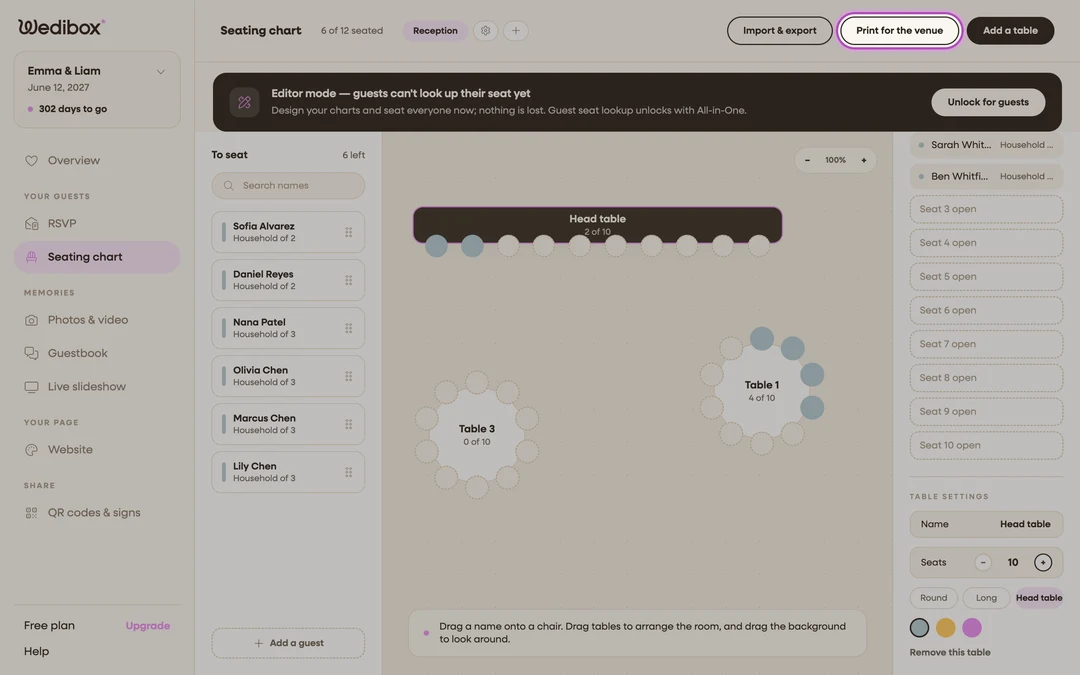
Quick print: click Print for the venue. On the seating chart page, click Print for the venue in the top-right. It generates the chart PDF immediately: a formatted document with your chart name and a card per table listing who sits where. On mobile, the same button sits at the bottom of the table list.
-
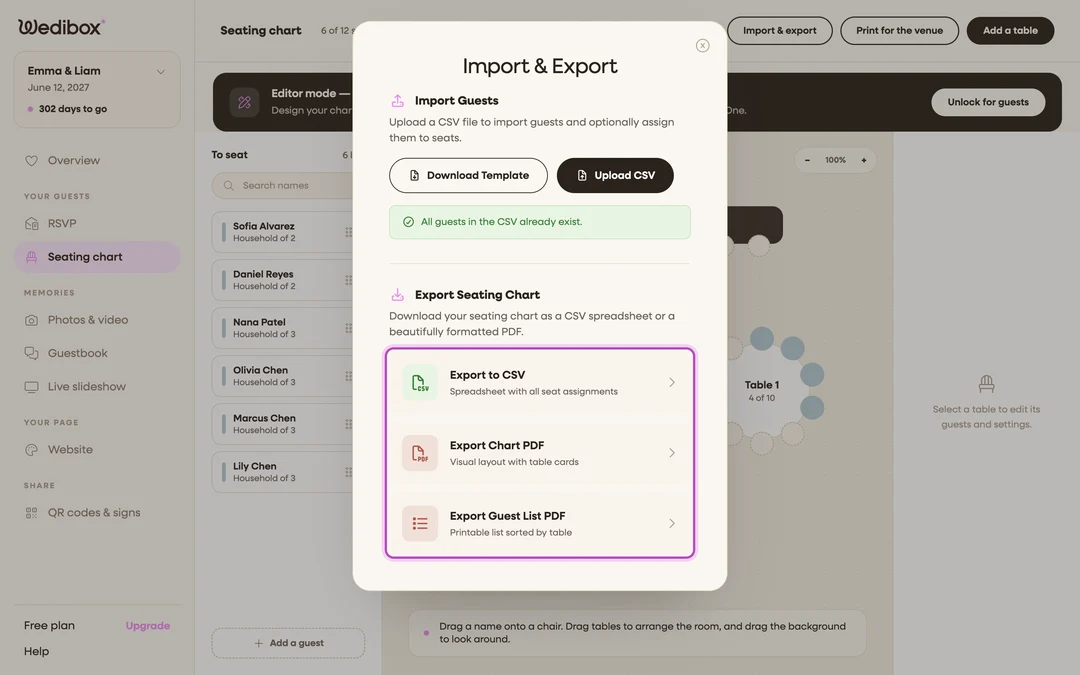
For the other formats, open Import & export. Click Import & export, then scroll to the Export Seating Chart section.
-
Pick the format that matches who’s asking.
- Export Chart PDF: “Visual layout with table cards”. The same file as Print for the venue; best for the venue and day-of setup crew. Each table card lists its guests with their meal choice after a dot, for example “1. Emma Nguyen • Chicken”.
- Export Guest List PDF: “Printable list sorted by table”. A clean list your caterer or banquet captain can run down while plating, with a Meal column.
- Export to CSV: “Spreadsheet with all seat assignments”. One row per seated guest (first name, last name, table name, table type, seat number, meal), with unassigned guests and their meals listed at the bottom. This is the format planners can re-sort.
-
Download and check it. Each card downloads its file straight to your device. Open the PDF once before forwarding it. You want the version after your last guest swap, not the one from before.
-
Re-export after late changes. Files are snapshots. If cousin drama forces a reshuffle the week of the wedding, export fresh copies and resend them.
What you should see
A chart PDF and guest-list PDF that read cleanly on paper, and a CSV that opens in Excel or Google Sheets with every assignment in place. The CSV also round-trips: it uses the same name and table columns the import accepts, and the extra Meal column is simply ignored on the way back in.
Meals come from the choice question the app recognizes as your meal question (see custom RSVP questions), and they are stamped onto seats when you save the chart. Replies that arrive after your last save show up in exports after you save again.
If something goes wrong
- The PDF is missing a table’s guests: those guests are seated in a different chart. Switch charts with the pills at the top and export again.
- The Meal column is empty: your RSVP form has no choice question the app can read as a meal question, or guests haven’t answered yet. Name the question or its options with food words (meal, menu, chicken, beef, vegetarian) and save the chart again.
- You need a version with no last-minute edits leaking in: export right before sending; the file reflects the chart at the moment you click, and autosave means the chart is always current.