How to import your guest list into the seating chart
Seating chartAll-in-One plan
If your guest list already lives in a spreadsheet, don’t retype it. A CSV upload adds everyone to your list in one go. If you include table names and seat numbers, it seats them too.
Plan: All-in-One plan · Where: Seating chart → Import & export
Before you start
- Open the chart you want to fill first. Imported seat assignments land in the chart that’s currently selected.
- If your CSV assigns seats, create and name your tables before importing: the import matches the “Table Name” column to tables that already exist (capitalization doesn’t matter). It won’t create tables for you.
- Imported guests are added to your event’s guest list and marked as attending, so you’ll also see them in RSVP.
Steps
-
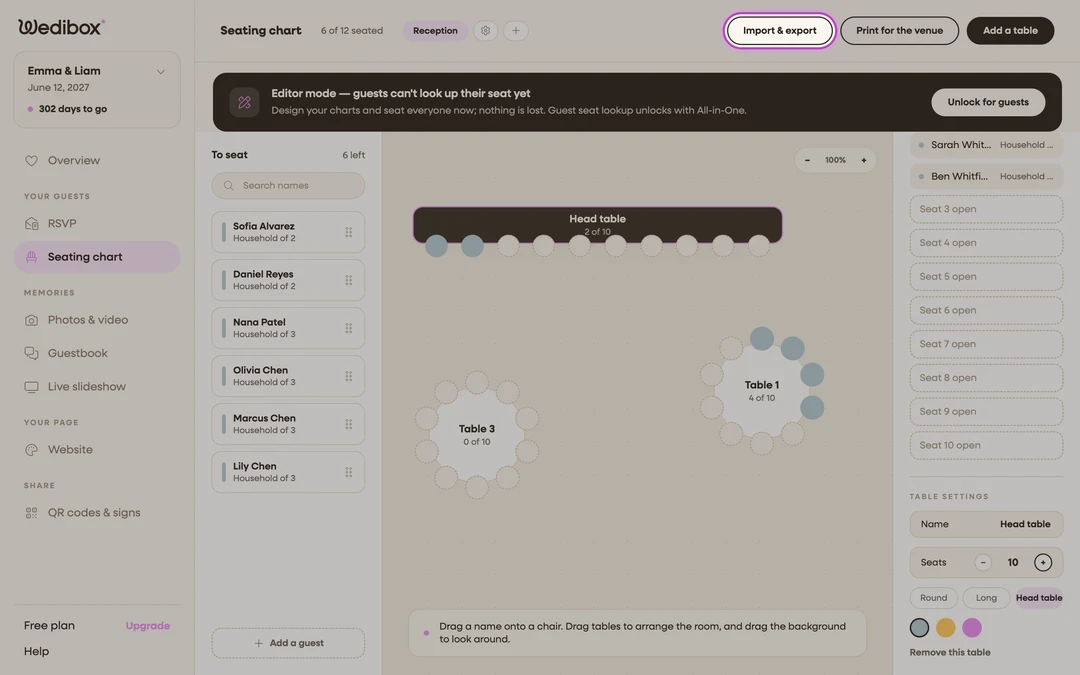
Open the import popup. On the seating chart page, click Import & export in the top-right.
-
Download the template. Under Import Guests, click Download Template. You get
seating-chart-template.csvwith the exact columns and a few example rows.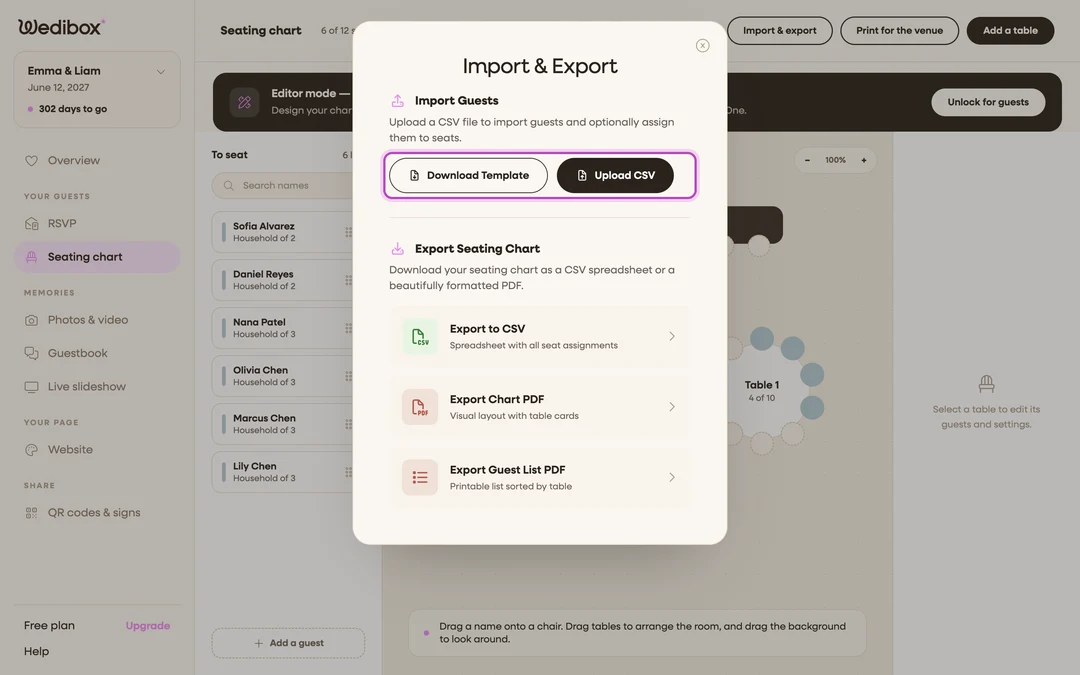
-
Fill it in. The columns are First Name, Last Name, Table Name, and Seat Number. First and last name are required; leave Table Name and Seat Number blank to import people into the unassigned pool and seat them by hand later.
-
Match table names exactly. For pre-assigned rows, Table Name must match a table in your open chart, and Seat Number must exist at that table (a 10-seat table has seats 1–10). Rows that don’t match import the guest but skip the seat.
-
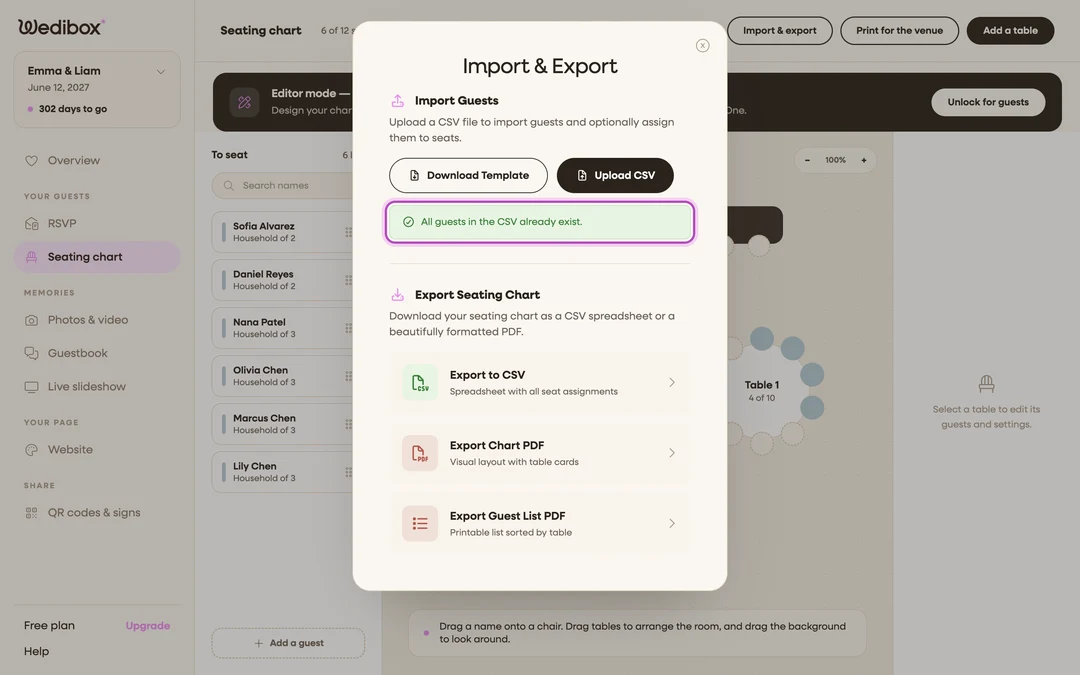
Upload it. Click Upload CSV, pick your file, and wait while it says “Processing…”. A green summary confirms the result; re-uploading a list of names that already exist confirms nothing was duplicated.
-
Spot-check the room. Close the popup and skim the canvas: seat counts on each table should match your spreadsheet, and everyone else is waiting in To seat.
What you should see
Every row of your spreadsheet is now a guest card or a filled chair. Re-running an import is safe: names that already exist aren’t duplicated. The import only tries to seat them if the row includes a table and seat.
If something goes wrong
- “CSV must have “First Name” and “Last Name” columns.”: the header row was edited or removed. Start from the downloaded template again.
- Guests imported but nobody got seated: the Table Name column doesn’t match your table names, the seats were already taken, or a different chart was open. Rename tables to match (or fix the CSV) and upload again.
- A guest appears twice: the two rows spell the name differently (“Rob” vs “Robert”). Remove the extra from your guest list in RSVP.