How to assign guests to seats
Seating chartAll-in-One plan
Once your tables are placed, seating is the fun part: work through the To seat list until it’s empty. You can drag names onto chairs, or click a chair and pick from a searchable list. Whichever fits how your brain sorts 120 relatives.
Plan: All-in-One plan · Where: Sidebar → Seating chart
Before you start
- Names come from your RSVP guest list, plus anyone you add here. Guests who declined don’t appear. They need no seats.
- Names added together in one party stay grouped, so you’ll see labels like “Household of 3” on their cards to help you seat families together.
Steps
-
Scan the To seat panel. The left panel lists everyone without a chair, with a counter (“14 left”). Use the Search names box to jump to a person.
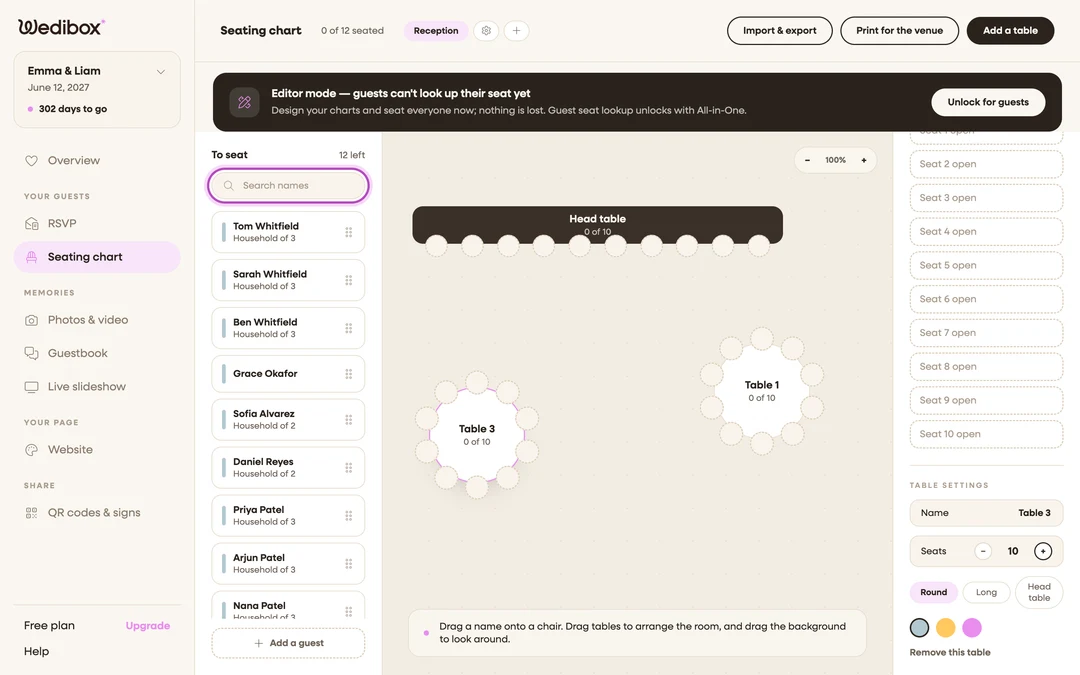
-
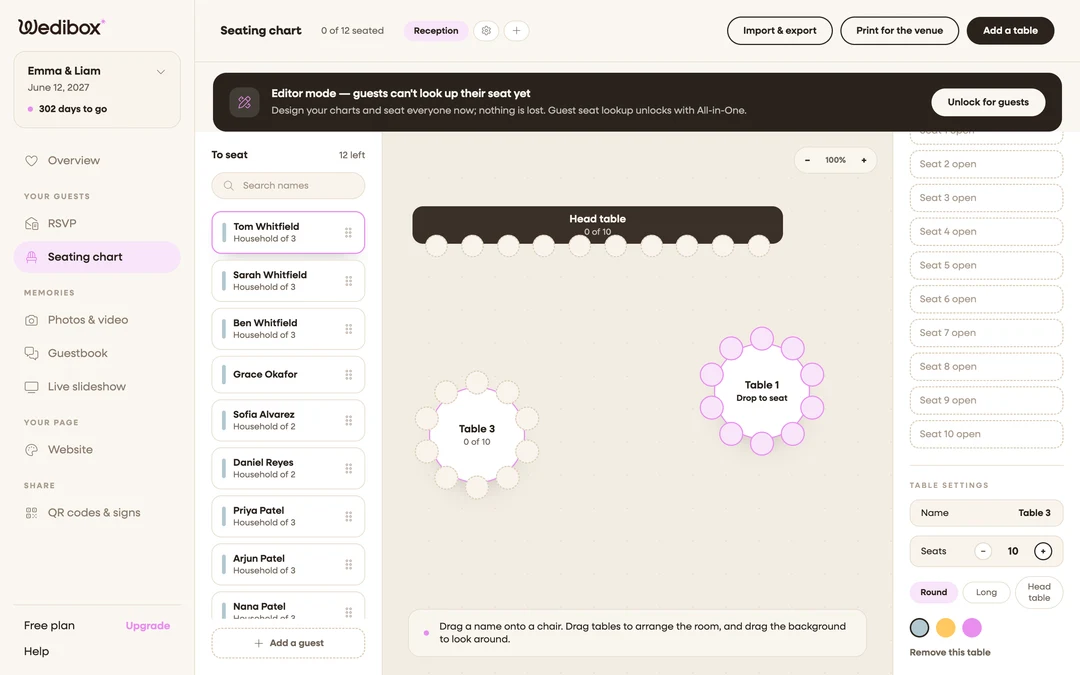
Drag a name onto a chair. Drop it on the exact chair you want. Drop it on the table instead and it takes the first open seat. The table lights up with “Drop to seat” while you hover.
-
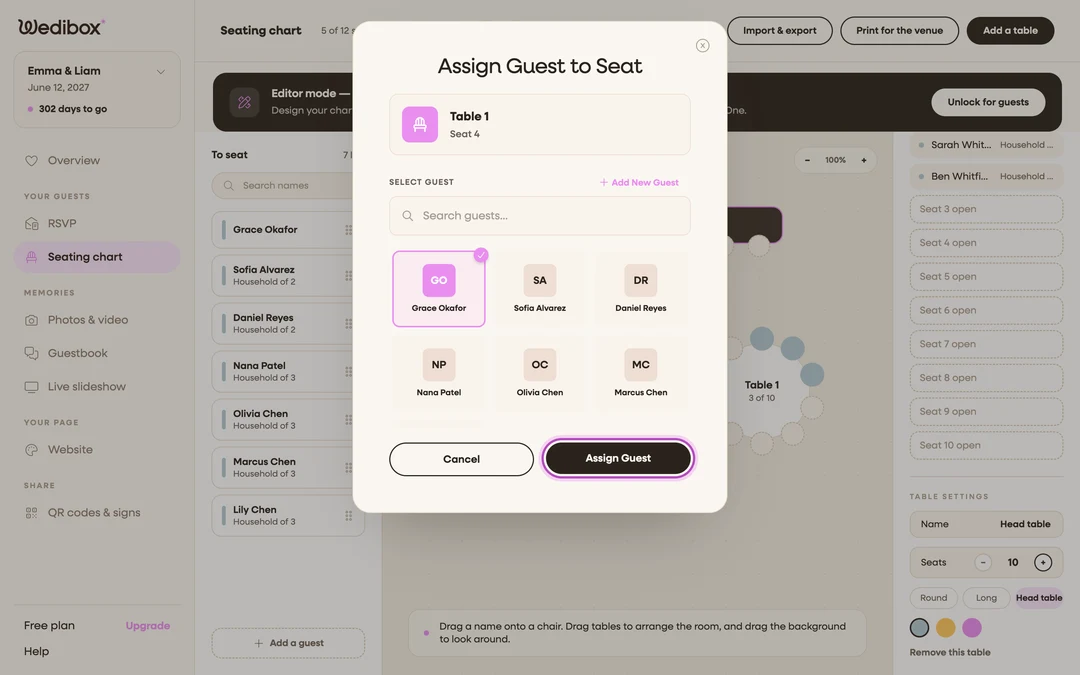
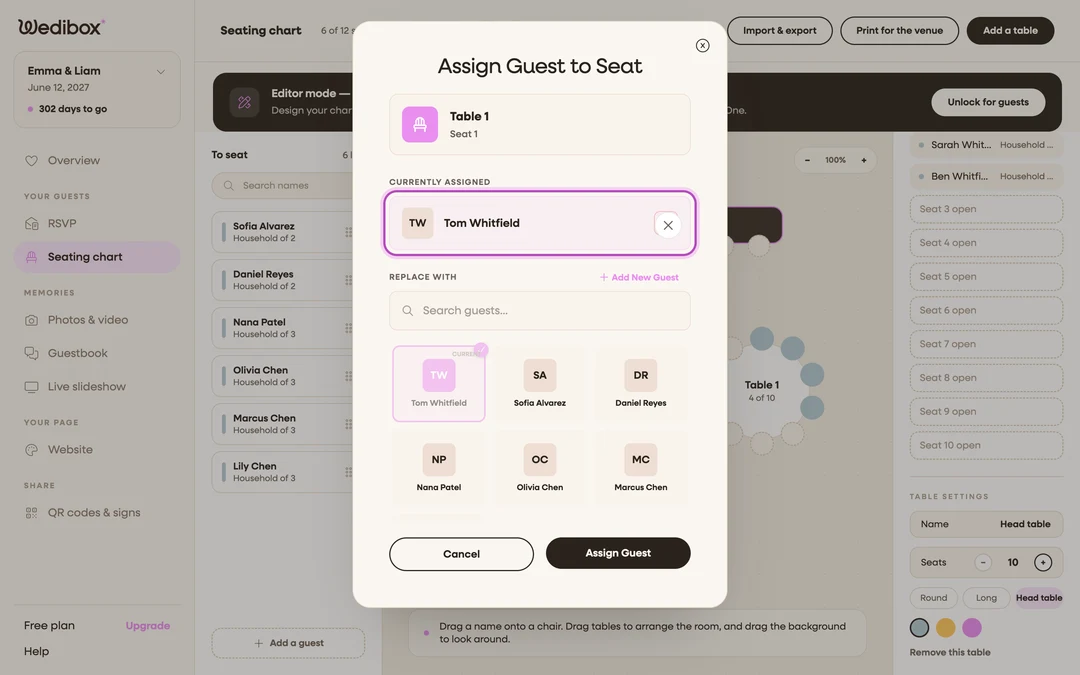
Or click a chair. Clicking any open chair opens the Assign Guest to Seat popup for that exact seat. Search under SELECT GUEST, click the person, then click Assign Guest.
-
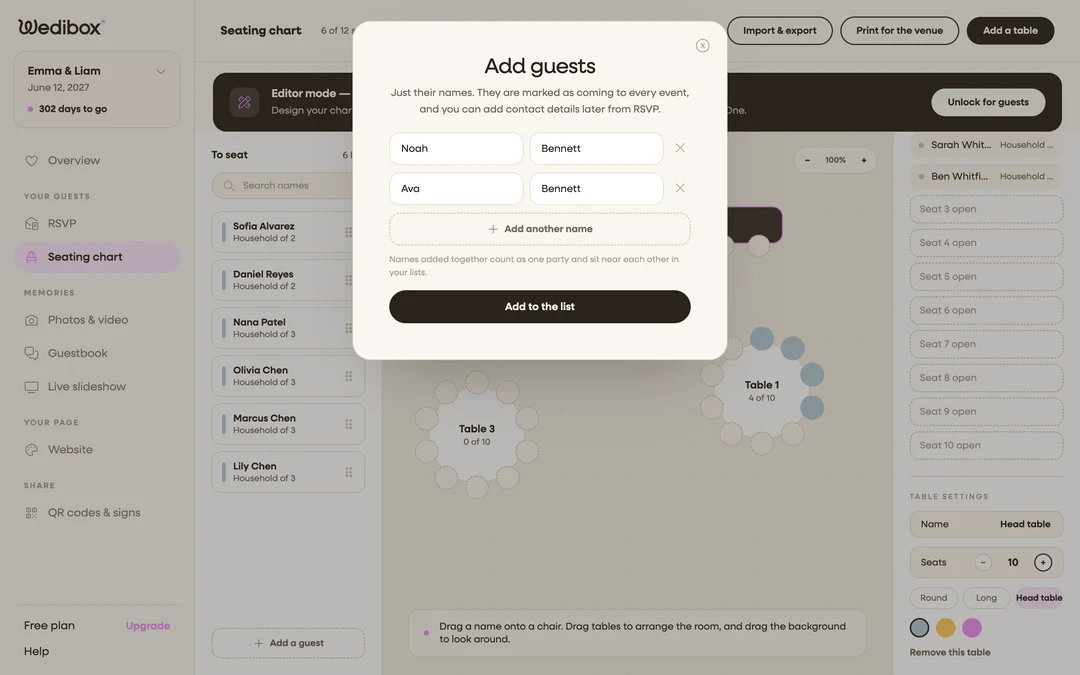
Add someone who’s missing. Mid-assignment, click Add New Guest in the popup, or Add a guest at the bottom of the To seat panel. Type first and last name; they join your guest list marked as attending, and you can fill in contact details later from RSVP.
-
Replace or unseat someone. Click an occupied chair: the popup shows who’s CURRENTLY ASSIGNED with an × to unseat them, and a REPLACE WITH list to swap in someone else. The person you replace returns to the To seat pool.
-
Check tables as you go. Select a table to see its guest list in the right panel: filled seats show names, open ones say “Seat 3 open”. Click any row to change that seat. Every change autosaves (“All changes saved” in the header).
-
Finish the pool. You’re done when the To seat panel says “Everyone has a seat.” Leaving a few people unassigned is fine too. Vendors and maybes can stay in the pool without blocking anything.
What you should see
The header counter reads something like “118 of 120 seated”, chairs are filled with the table’s color, and hovering any chair shows who sits there. Guests you seat are instantly findable in Find Your Seat. Saving the chart also stamps each seated guest’s meal choice (from your RSVP meal question) onto their seat, so it shows in the seat lookup and in every export.
If something goes wrong
- A toast says the table “is full. Add more seats or pick another table.”: the drop target has no open chairs. Raise its Seats count or seat the guest elsewhere.
- “No guests found” when searching in the popup: everyone matching is already seated, or the name is spelled differently. Clear the search and scroll, or add them with Add New Guest.
- On mobile you can’t drag: tap a table in the list instead, then tap “Seat someone here” on an open seat to pick a guest.