How guests find their seat with Find Your Seat
Seating chartAll-in-One plan
Instead of squinting at a seating board, guests type their name and instantly see their table and seat number. The lookup lives in three places: a Find Your Seat section on your wedding page, a standalone seat-lookup page you can link directly, and a QR code you can print for the venue entrance.
Plan: All-in-One plan · Where: Website editor and Overview
Before you start
- Finish your seating chart first. The lookup only finds guests who are assigned to a seat.
- Still deciding who sits where? The wedding seating chart guide covers etiquette, display ideas, and day-of changes.
- You need the All-in-One plan. On other plans the seating page runs in editor mode and guests can’t search yet.
Steps
-
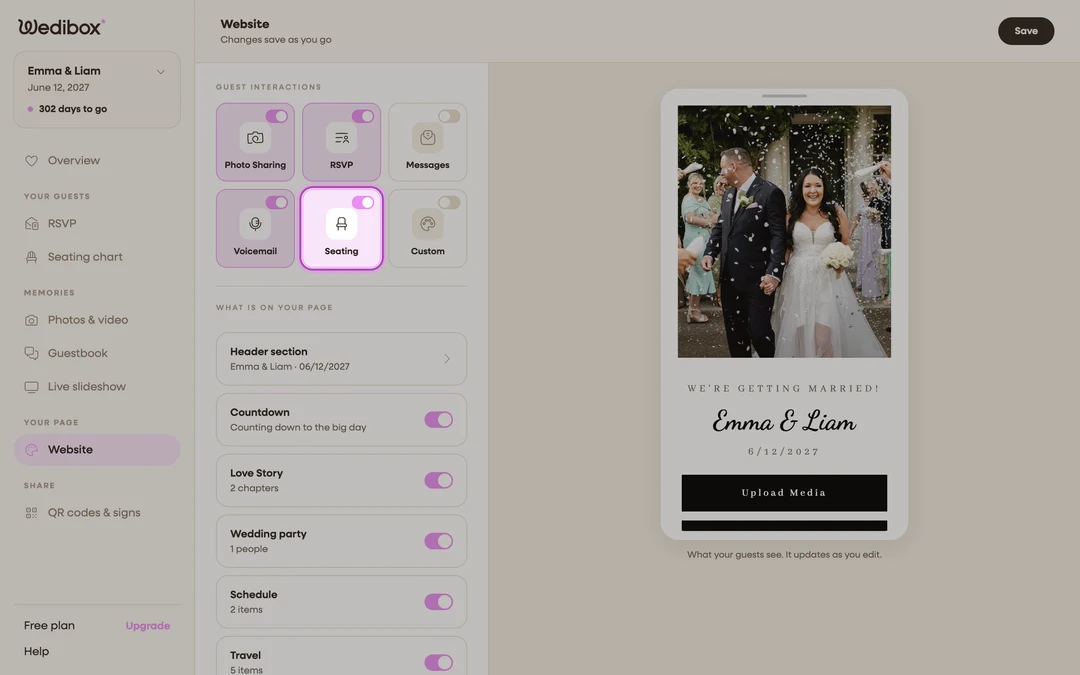
Open the Website editor. In the sidebar under “Your page”, click Website.
-
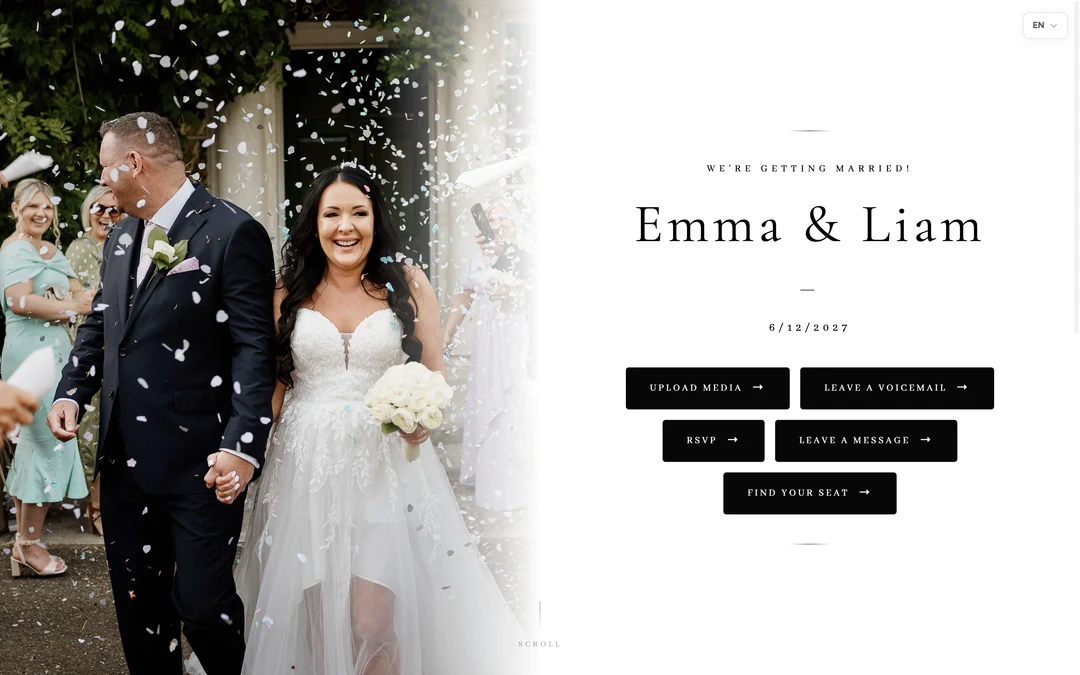
Turn on the Seating tile. In the Guest Interactions grid, flip the switch on the Seating tile. This does two things at once: it adds a Find Your Seat button to your page header and makes the seat-search section live on your page.
-
Test it as a guest. Click See what guests see, then click the Find Your Seat button on your page. Type a guest’s name and click Find My Seat. You should get their table name and seat number back.
-
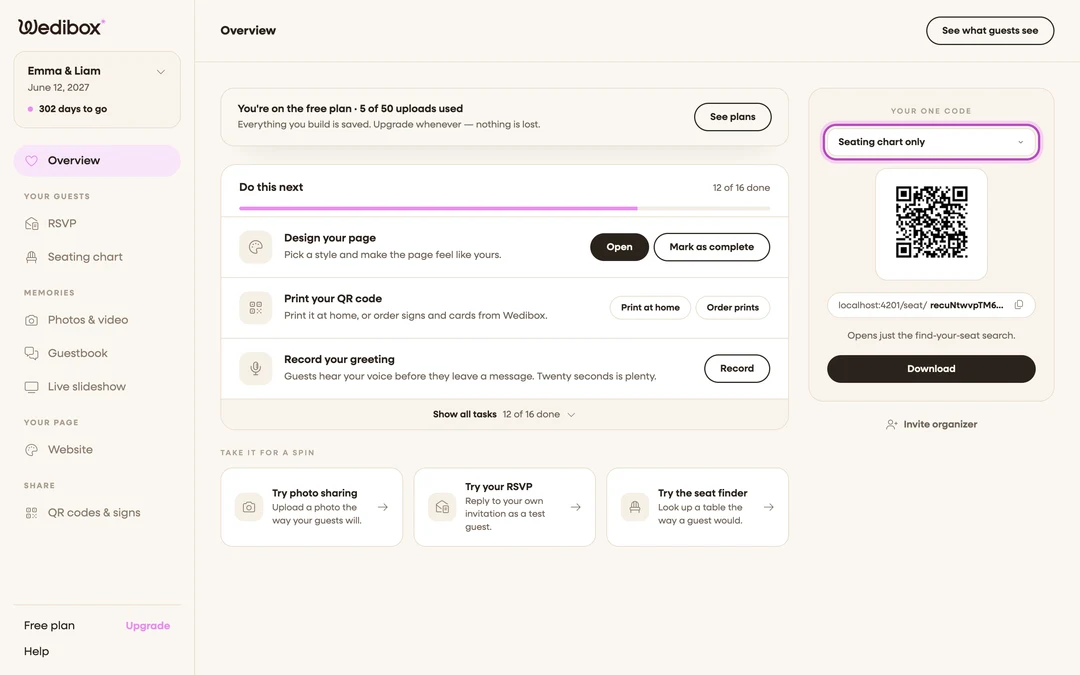
Get the standalone seat page and its QR code. Every event also gets a seat-lookup page with nothing else on it: the same search, minus the rest of your site. Go to Overview, find your QR code, and under What should this code open? choose Seating chart only. The hint confirms “Opens just the find-your-seat search.”
-
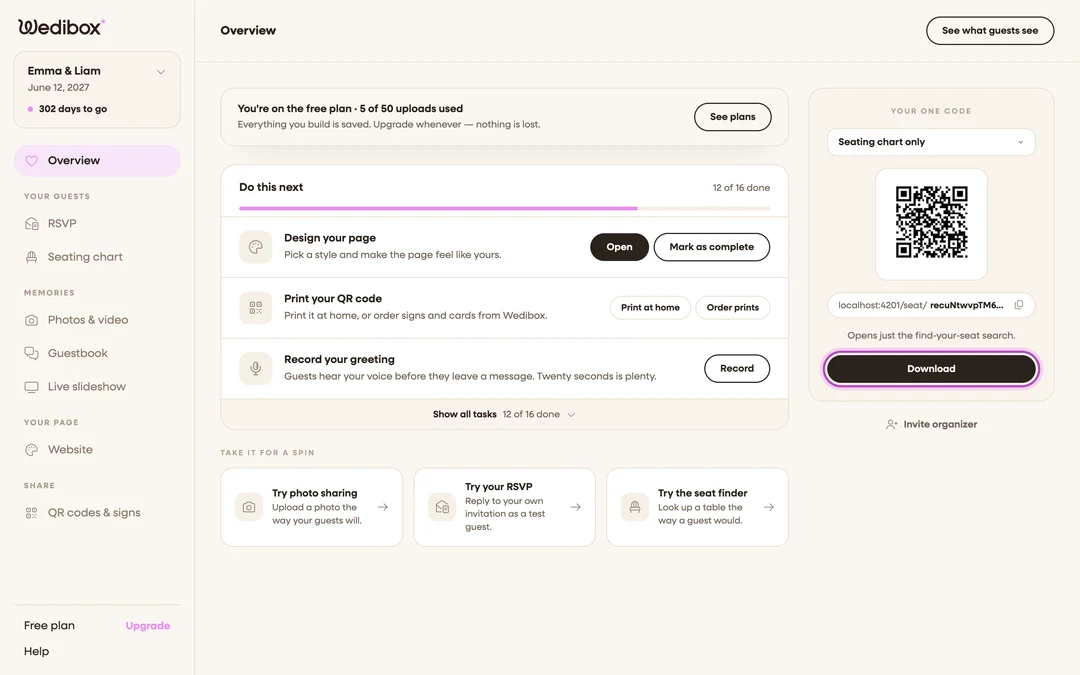
Copy the link or download the code. The address shown under the QR code is the exact link the code opens. Copy it for a day-of group chat or your invitation insert. Click Download to save the code image, or Print signs to order table cards and signs with the code built in.
-
Put the code where guests walk in. A sign at the entrance (“Find your seat: scan here”) replaces the seating board. Guests scan, type their name, and go sit down.
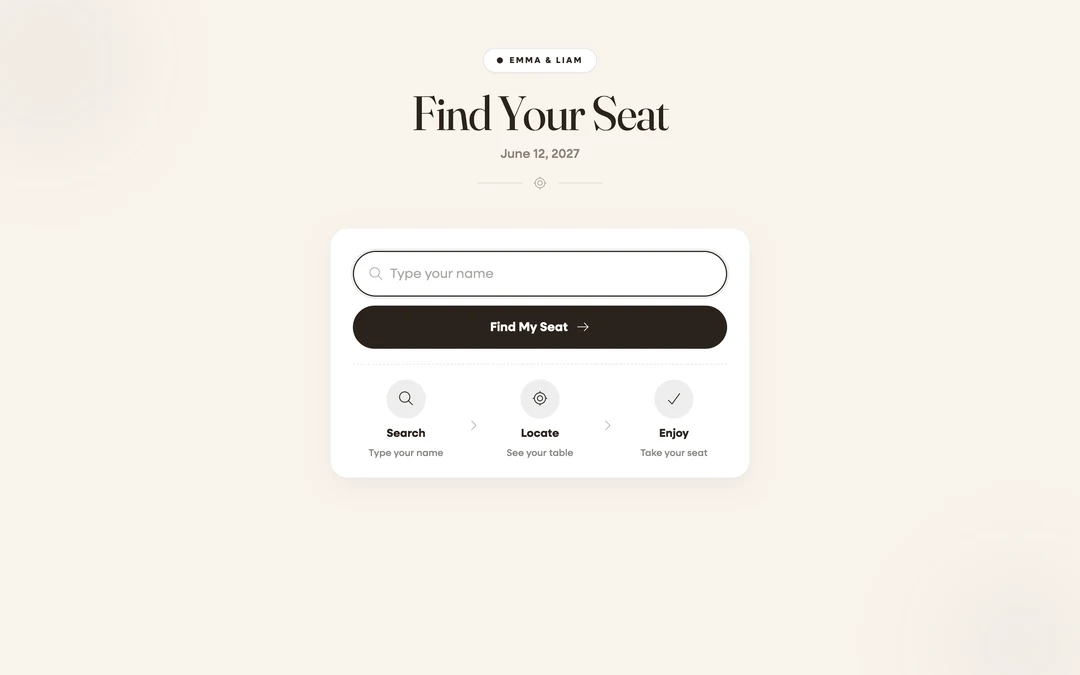


What you should see
A guest who scans or taps sees a search box (“Type your name”), then a welcome card: their name, “You’re seated at”, the table name, and their seat number. If your RSVP form collected meal choices, the card also shows a Meal line with their answer, so nobody has to remember what they picked. If you run more than one chart, the result also names which chart it came from.
If something goes wrong
- “No seat found” for a real guest: their name is spelled differently in your chart, or they were never assigned a seat. Search for them on the seating page and fix the spelling or seat them.
- The seat page says “Seat lookup isn’t available yet”: your plan doesn’t include guest lookup. Upgrade to All-in-One, or check that the Seating tile is switched on in the Website editor.
- The Seating chart only option is missing from the QR dropdown: the Seating tile is off. Turn it on in the Website editor first (step 2).
- The Meal line is missing or out of date: meals are stamped onto seats when you save the seating chart. Open the chart and save once more after new replies arrive.