How to show your seating chart on your website
Seating chartAll-in-One plan
Guests never see your canvas of tables. They see a polite search box. Turning the seating feature on adds a Find Your Seat button to your page header and a search section to your site, so guests can check their table from the same page they already use for photos and RSVP.
Plan: All-in-One plan · Where: Sidebar → Website → Guest Interactions
Before you start
- Build the chart first. The search can only find guests who have a seat assigned.
- Guest lookup requires All-in-One. On other plans you can flip the toggle in the editor, but the guest-facing search stays locked until you upgrade.
Steps
-
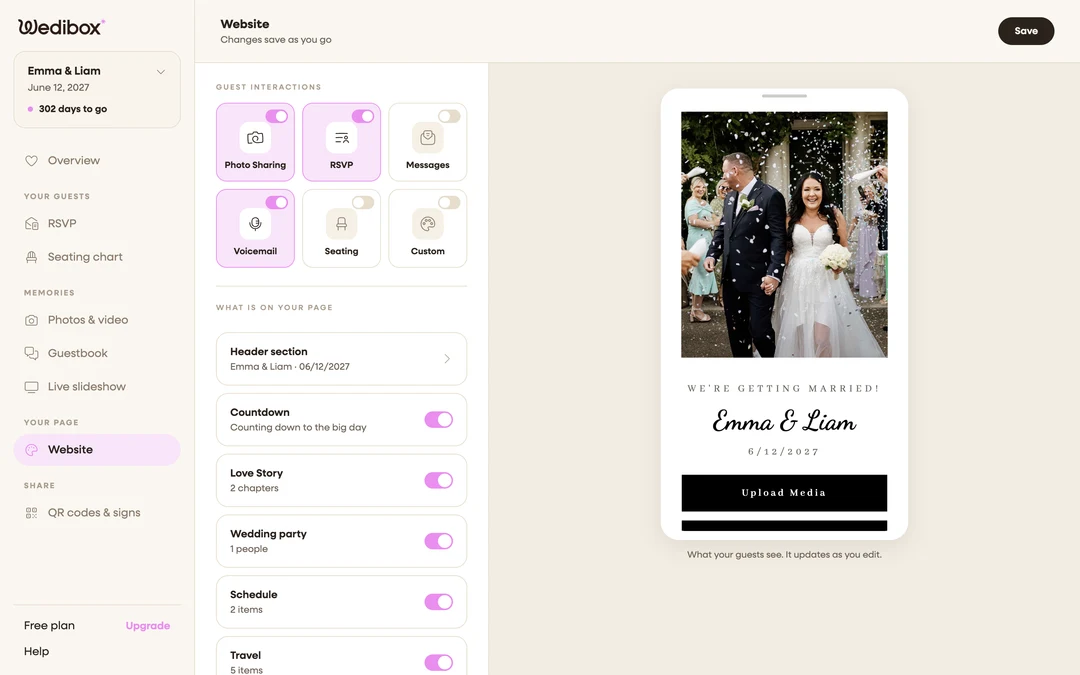
Open the Website editor. In the sidebar under “Your page”, click Website. Your live page preview sits on the right. It updates as you edit.
-
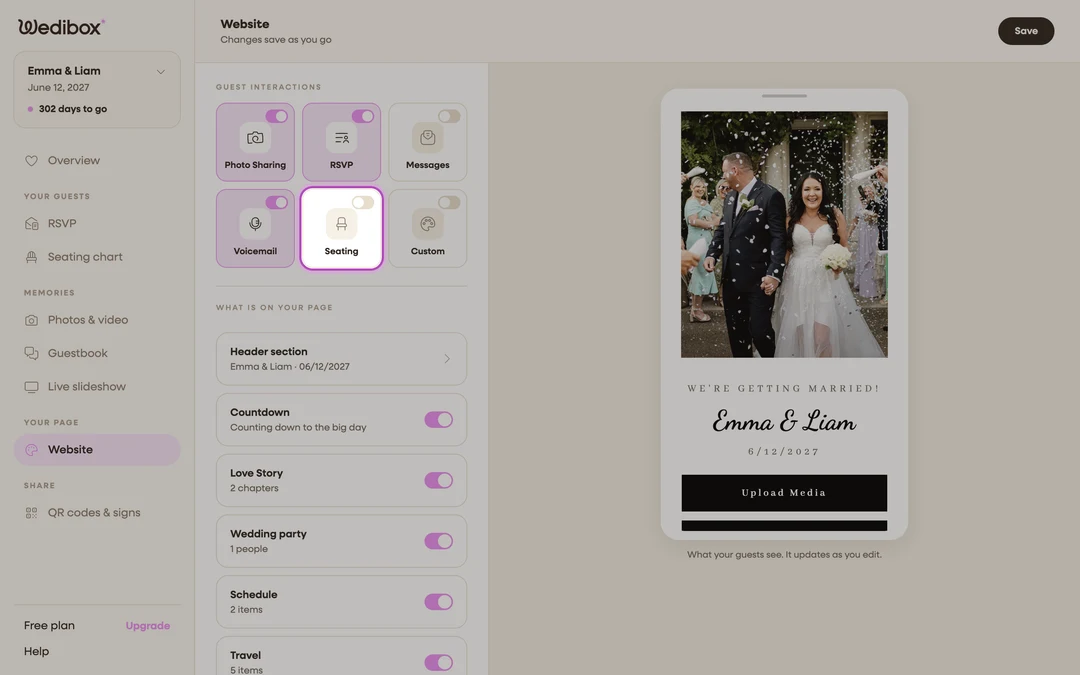
Find the Seating tile. At the top of the panel, under Guest Interactions, locate the Seating tile (“Help guests find their assigned table”).
-
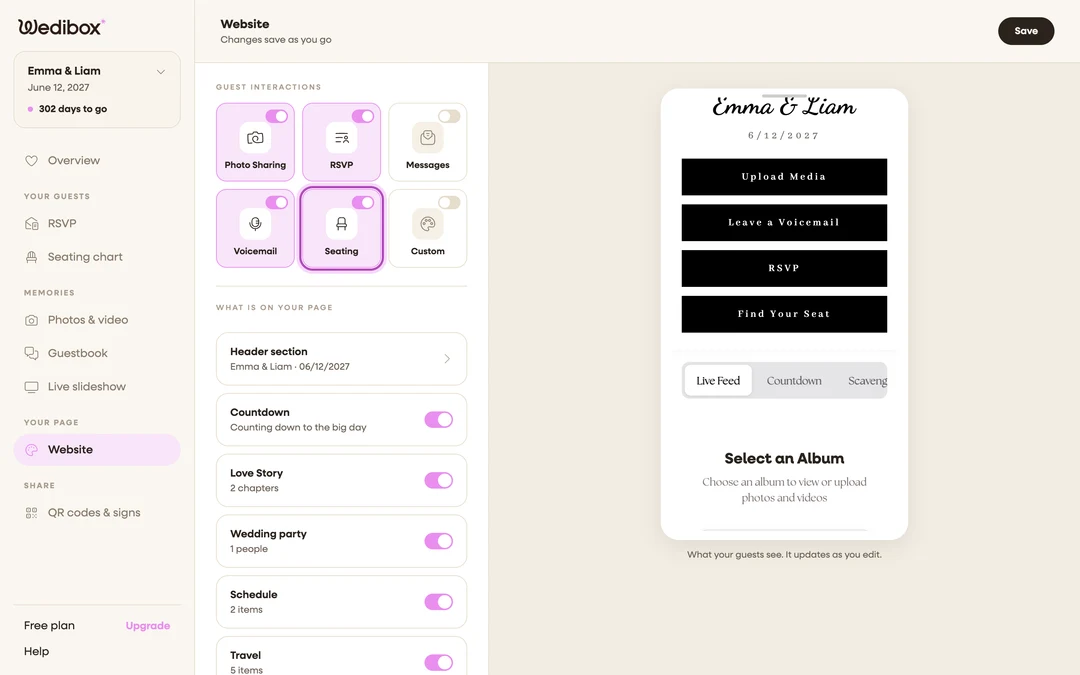
Flip its switch on. The switch does two things in one move: it adds a Find Your Seat button to your page header, and it turns on the seat-search section for guests. Watch both appear in the preview.
-
Open the editor if you still need to build. Clicking the tile itself (not the switch) takes you straight to the seating chart maker.
-
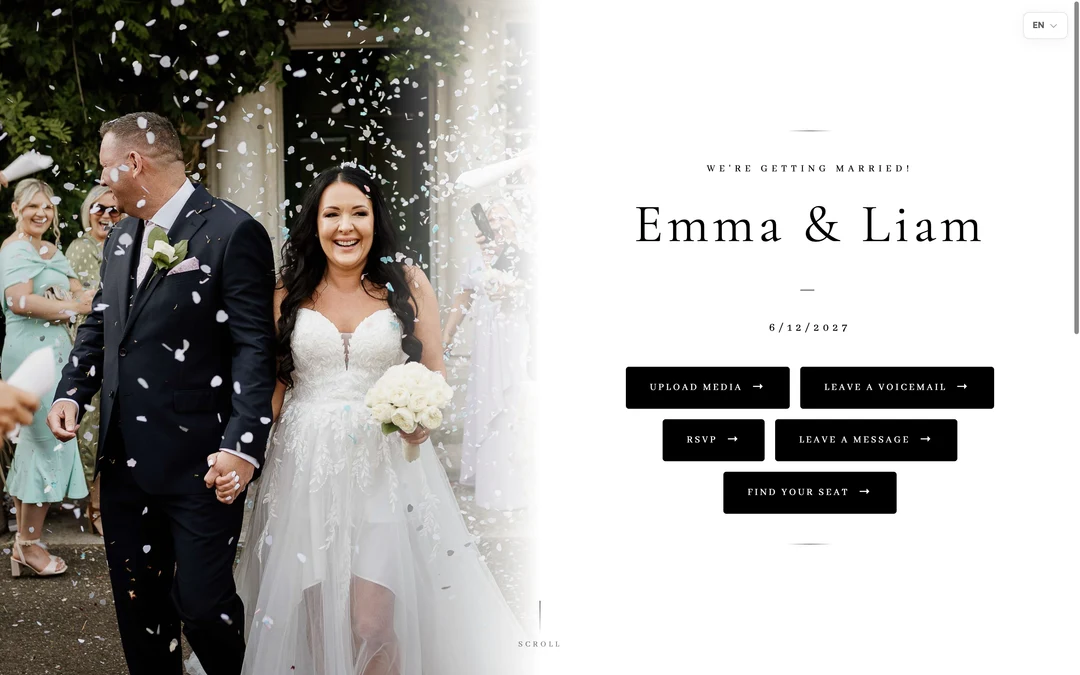
Check the section as a guest. Click See what guests see. On your page, click Find Your Seat. It jumps to the search section titled Find Your Seat (“Search your name to find your table assignment”). Run a real guest’s name through Find My Seat.
-
Changes save on their own. The editor header cycles “Saving” → “All changes saved”. There’s nothing else to publish.

What you should see
Your page header now includes Find Your Seat alongside your other buttons, and searching a seated guest’s name returns their table name, table type, and seat number. If you run more than one chart, results say which chart they came from.
If something goes wrong
- The button is on but searches return “No seat found”: the guest isn’t assigned yet, or their name is spelled differently in the chart. Fix it on the seating page; the site reflects it immediately.
- Your header template only shows one button: one of the header designs allows a single button, so the editor blocks adding more (“This template only allows one button.”). Switch templates or choose which button matters most.
- You’d rather not clutter your page: leave the tile off and share the standalone seat page instead; see how guests find their seat.