How to put the slideshow on a TV or projector
Live slideshowWedding plan and up
Your slideshow lives at a public web address (my.wedibox.com/live/ followed by your
event’s link), so any screen that can open a web page can play it. That’s a smart TV, a
laptop plugged into a projector, or a cast from another device. Here’s how to get from
“there’s a TV at the venue” to photos on the wall.
Plan: Wedding plan and up · Where: Sidebar → Live slideshow → “Put it on the big screen”
Before you start
- Decide your settings first (layout, timing, names) on the Live slideshow control page; they travel inside the copied link.
- The screen needs internet at the venue. Do a test run on the actual hardware before the wedding day; the AV checklist walks through it.
Steps
-
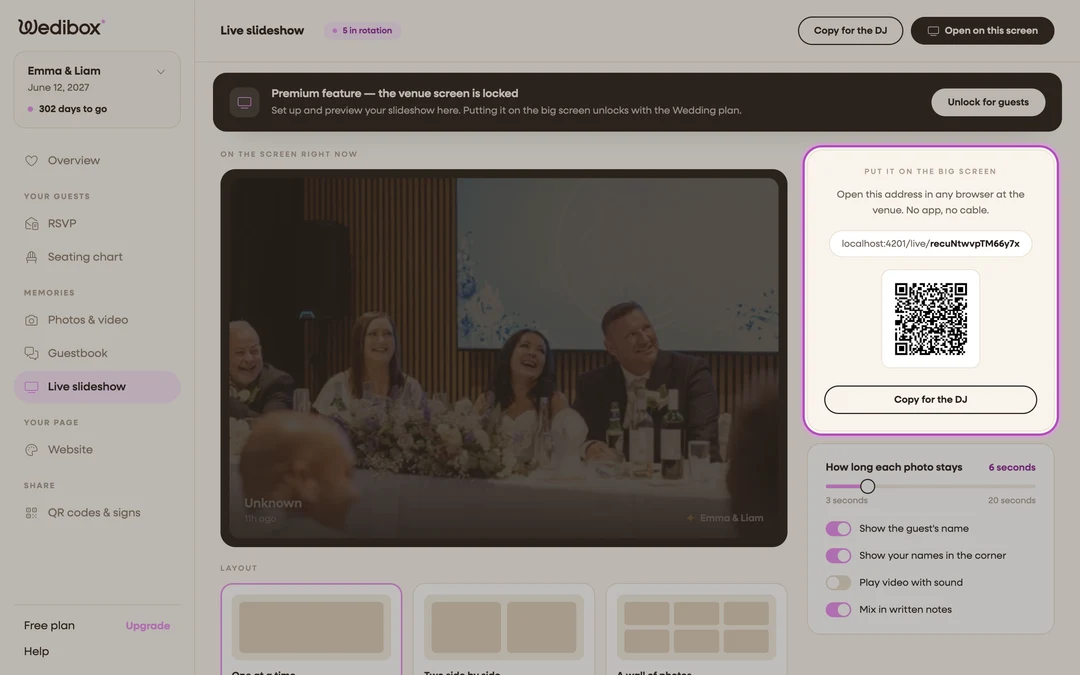
Copy your live link. On the Live slideshow page, click Copy for the DJ in the Put it on the big screen card. Send it to whoever runs the screen. The card also shows the address in plain text and a QR code you can scan from the venue device.
-
Pick your route to the screen. Three that work at almost any venue:
- Smart TV: open the TV’s web browser and type the live address.
- Laptop + HDMI (most reliable): plug a laptop into the TV or projector and open the link in any browser.
- Casting: open the link on a phone, tablet, or computer and mirror that screen to the TV with Chromecast or AirPlay screen mirroring.
-
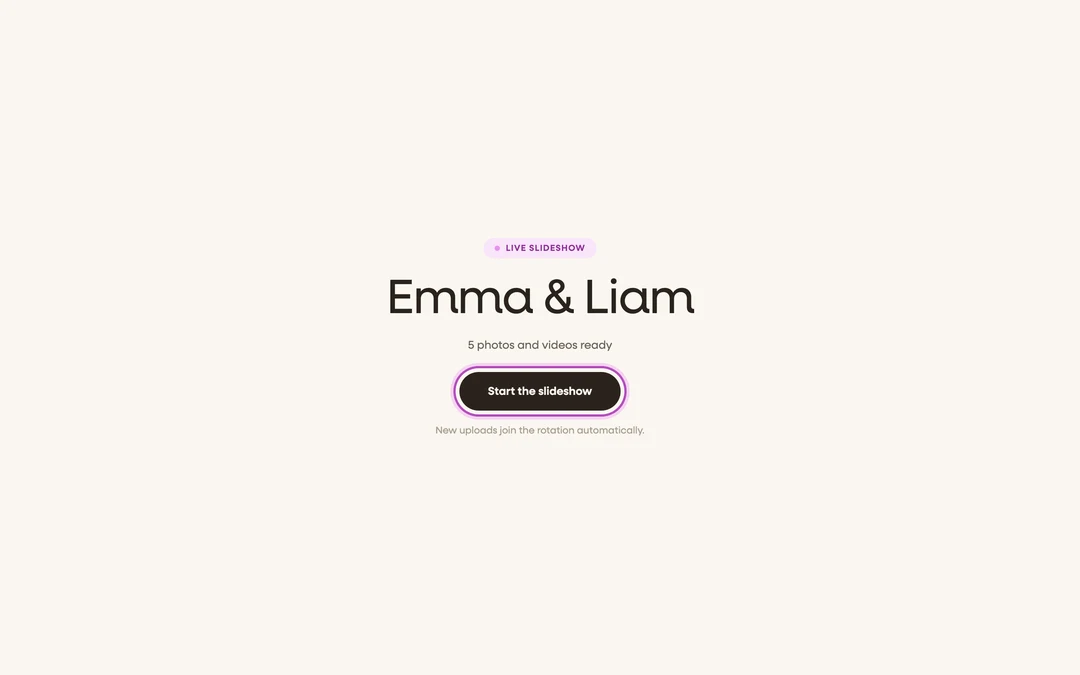
Open the link on the venue device. You’ll see your names, a count of photos and videos ready, and a Start the slideshow button. No login needed: the page is public, which is what makes venue hardware painless.
-
Click Start the slideshow. The page goes fullscreen and begins playing. Browsers require that one click before fullscreen, which is why the show doesn’t autostart.
-
No photos yet? Leave the waiting screen up. Before the first upload, the screen shows “Waiting for the first photo” with a large QR code guests can scan to add theirs. It doubles as a photo-sharing sign until the party fills the rotation.
-
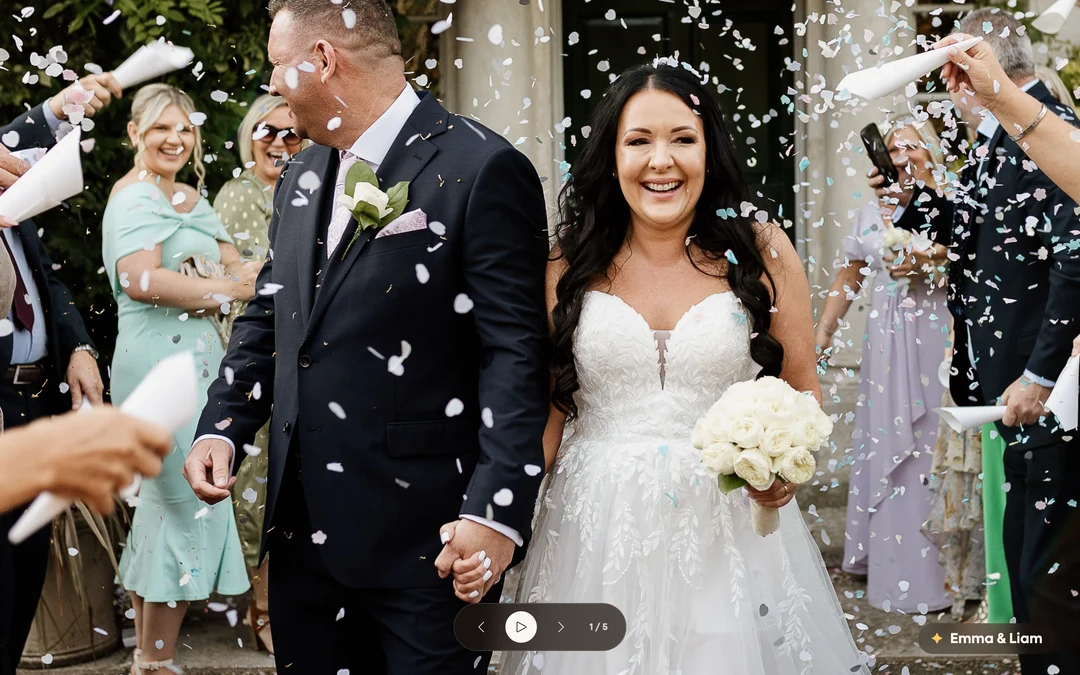
Know the controls, then walk away. Moving the mouse (or tapping the screen) reveals previous, pause, and next buttons plus a photo counter; they hide themselves after a few seconds. Arrow keys and the spacebar work too. New uploads join automatically about once a minute.

What you should see
Fullscreen photos with no browser chrome, guest names on each shot (if enabled), and your names in the corner. From here the screen runs itself for the rest of the night.
If something goes wrong
- Fullscreen didn’t happen: some TV browsers block it. Press the browser’s own fullscreen key (F11 on a laptop), or just leave it windowed; the show plays either way.
- The TV’s built-in browser struggles: smart-TV browsers can be outdated. Switch to the laptop + HDMI route; it’s the most dependable setup.
- The screen went to sleep mid-party: turn off sleep/screensaver on the device before the reception, and keep laptops plugged in.