Slideshow settings: speed, layout, and background
Live slideshowWedding plan and up
Every slideshow setting lives on the Live slideshow control page, and the preview at the top shows your changes instantly: what you see there is what the venue screen plays. One thing you don’t have to manage: the background. The venue screen always plays on a dark backdrop built for projection, so photos pop in a dim reception hall.
Plan: Wedding plan and up · Where: Sidebar → Live slideshow (under “Memories”)
Before you start
- Settings save on the device you’re using and travel inside the link you copy, so finish your choices before sending the link to the venue.
Steps
-
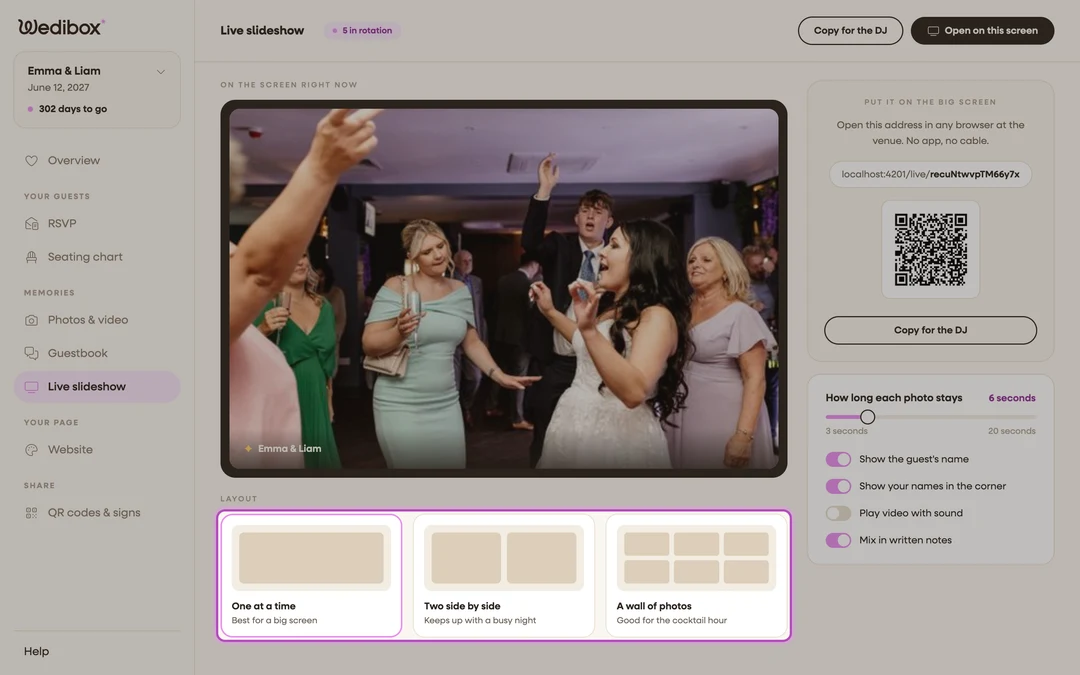
Choose a Layout. Under Layout, pick how many photos share the screen:
- One at a time: one full-screen photo; best for a big screen and formal moments.
- Two side by side: two photos at once; keeps up with a busy night.
- A wall of photos: a six-photo grid; good for the cocktail hour, when volume beats focus.
-
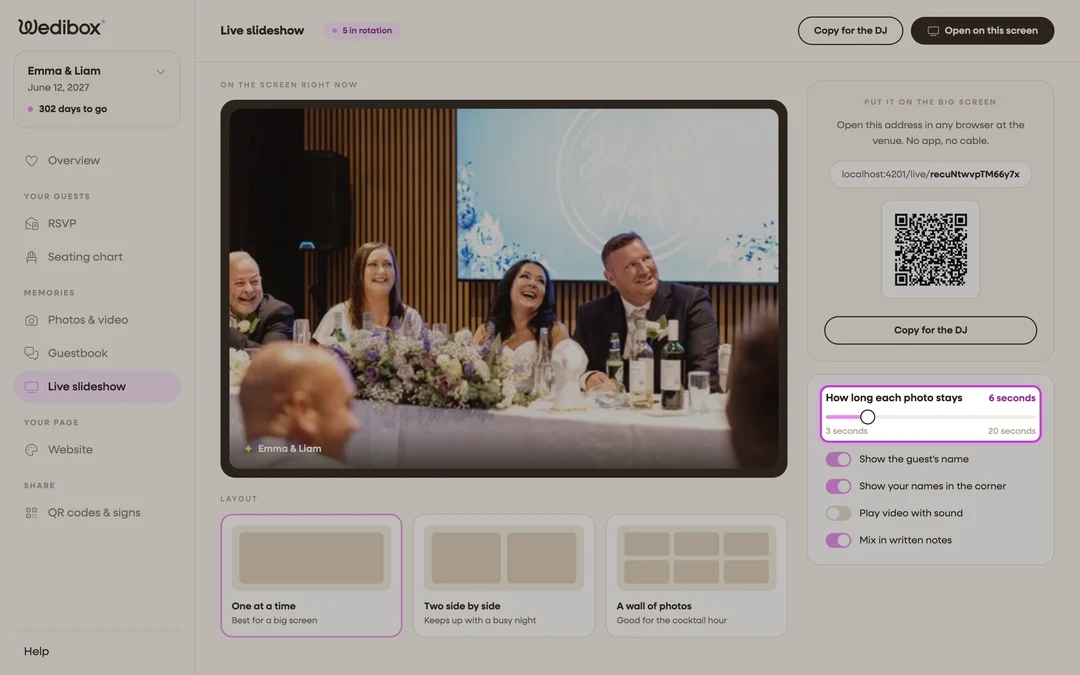
Set How long each photo stays. Drag the slider between 3 and 20 seconds. Short times suit the photo wall; longer times suit One at a time. With multiple photos on screen, the whole set swaps together at this pace.
-
Show the guest’s name. On: each photo carries the uploader’s name and how long ago it arrived, great for making guests feel seen. Photos uploaded without a name simply show clean.
-
Show your names in the corner. On: a small mark with your names sits in the corner of the screen, so the display reads as yours even between recognizable faces.
-
Play video with sound. Off by default, so guest videos play silently and never fight your DJ. Turn it on only if the slideshow is the entertainment for a stretch (think brunch, not dance floor).
-
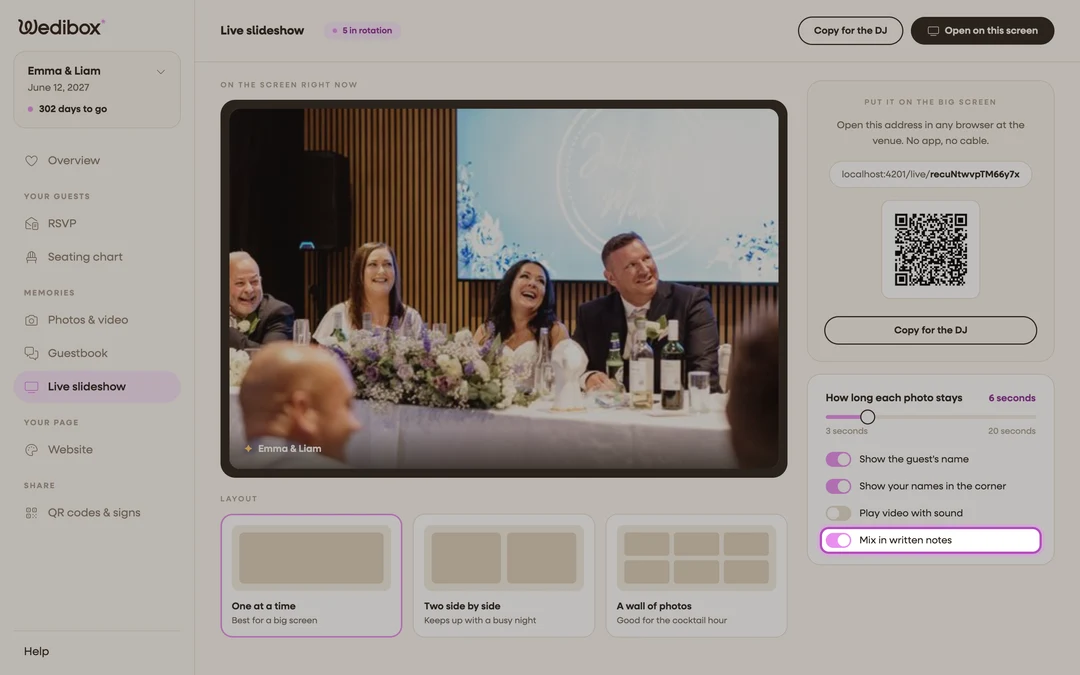
Mix in written notes. On: written messages from your digital guestbook appear as elegant text slides dropped in after every few photos, with the writer’s name beneath.
-
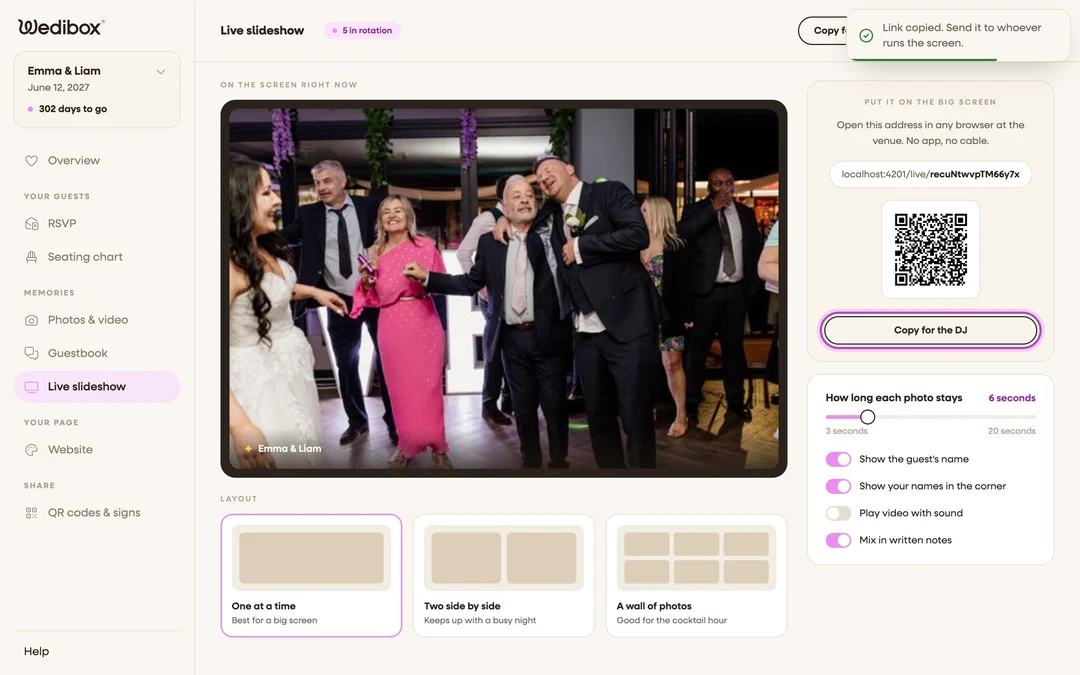
Send the settings to the venue screen. Click Copy for the DJ. The copied link (and the QR code) carries every choice above. Change your mind later? Adjust here, copy again, and reopen the new link on the venue device.


What you should see
The “On the screen right now” preview mirrors each change the moment you make it. On the venue screen, your layout, pace, and overlays appear exactly as previewed, on the fixed dark backdrop.
If something goes wrong
- The venue screen ignores your changes: it’s still on the old link. Settings ride inside the link itself, so recopy with Copy for the DJ and reload the venue device with the fresh link.
- Videos are playing silently: that’s the default. Turn on Play video with sound, then copy and reopen the link.