How to run a live photo slideshow at your reception
Live slideshowWedding plan and up
The live slideshow shows your guests’ photos on the venue’s big screen minutes after they’re taken: someone snaps the first dance, scans your QR code, and their shot is up while the song is still playing. It runs in two parts: a control page in your dashboard where you pick how it looks, and a public link you open on whatever screen the venue has.
Plan: Wedding plan and up · Where: Sidebar → Live slideshow (under “Memories”)
Before you start
- The slideshow pulls from every album guests can see, oldest first, so the screen replays the night in order. Hidden albums stay off the screen.
- The venue screen just needs a browser and internet. No app, no cable box, no login. See the AV checklist for hardware.
Steps
-
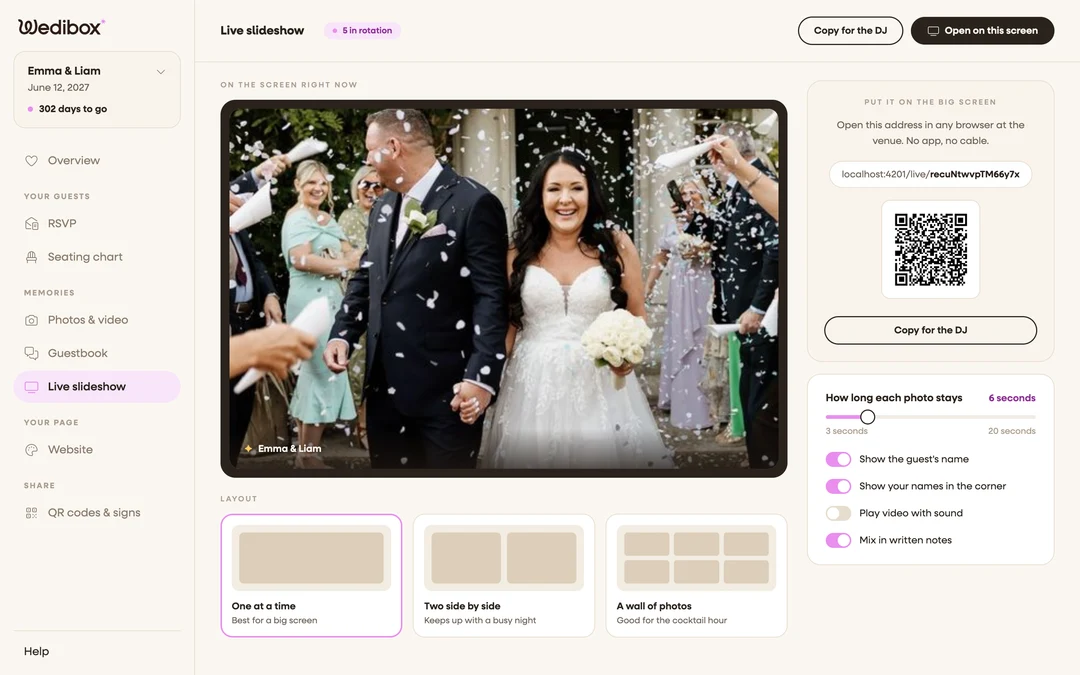
Open the Live slideshow page. In the sidebar, click Live slideshow (under “Memories”). The “On the screen right now” preview shows exactly what the venue screen will play.
-
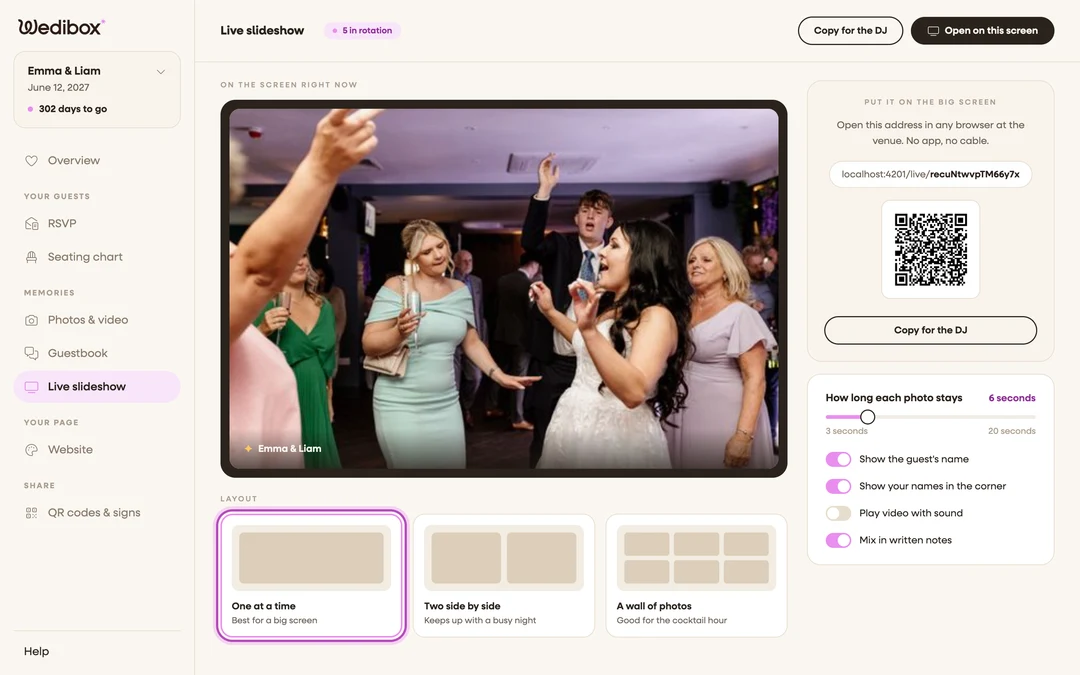
Pick a layout. Under Layout, choose One at a time (best for a big screen), Two side by side (keeps up with a busy night), or A wall of photos (good for the cocktail hour). The preview switches instantly.
-
Set the pace. Drag the How long each photo stays slider, anywhere from 3 to 20 seconds. Around 6 seconds keeps the screen moving without feeling rushed.
-
Choose what shows on screen. Four toggles: Show the guest’s name, Show your names in the corner, Play video with sound (videos are silent unless you turn this on), and Mix in written notes, which drops guests’ written guestbook messages between the photos.

-
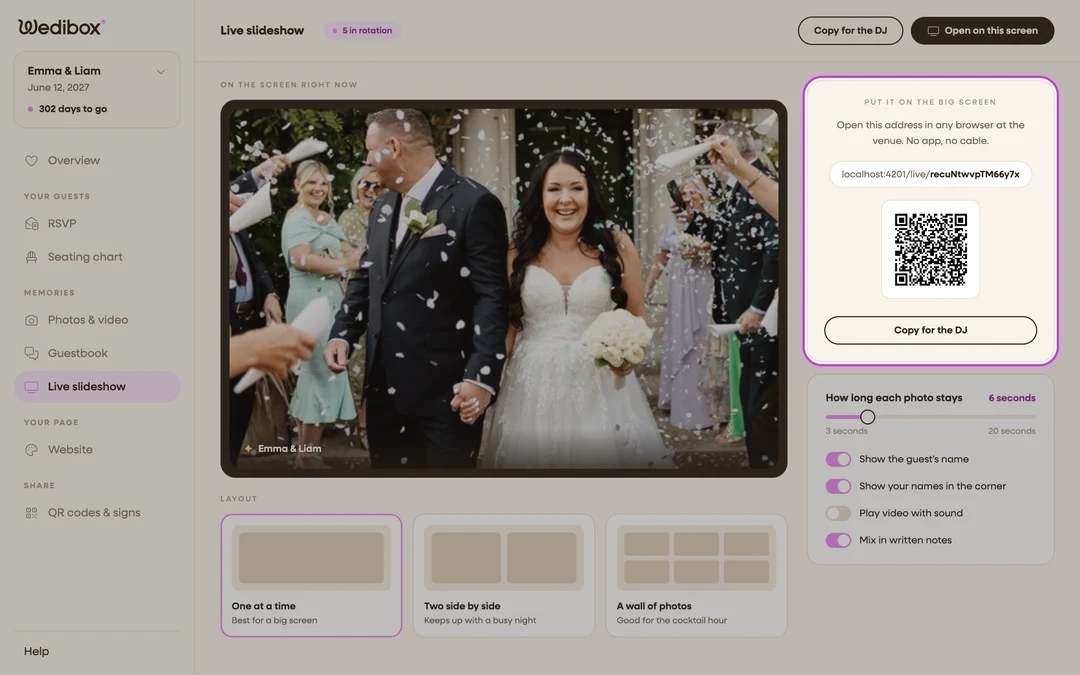
Send the link to the venue screen. In the Put it on the big screen card, click Copy for the DJ and send the link to whoever runs the screen. Your settings travel inside the link. Testing on this computer? Click Open on this screen instead. There’s also a QR code you can scan from the venue device.
-
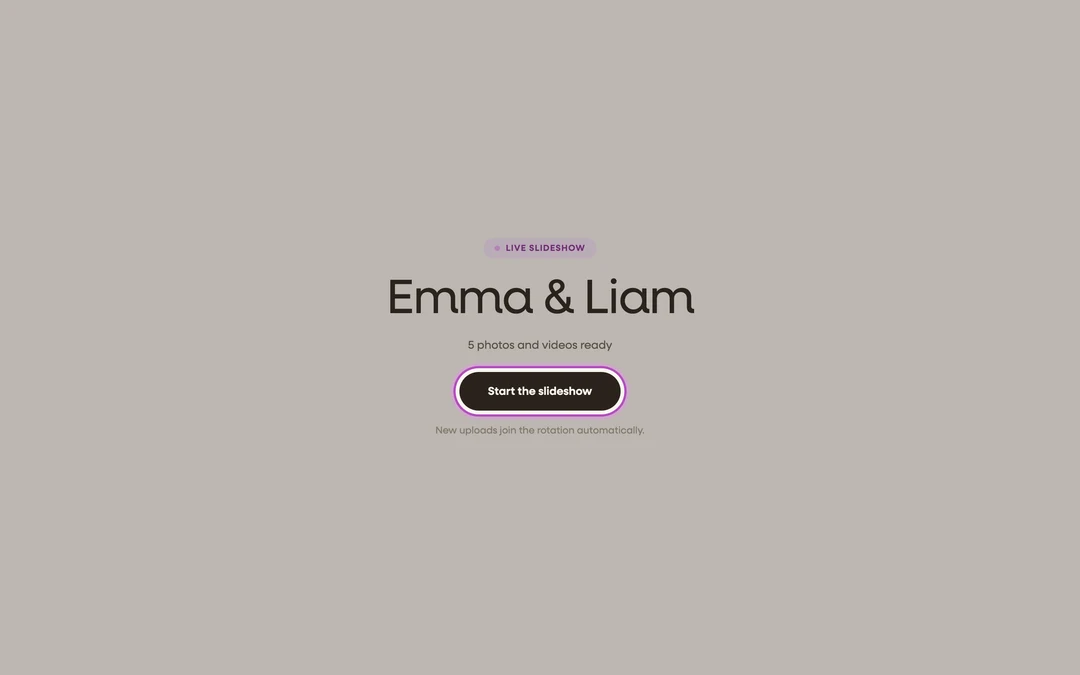
Start the show at the venue. Open the link on the venue device and click Start the slideshow. The screen goes fullscreen and starts playing. Full details in How to put the slideshow on a TV or projector.
-
Let it run. New uploads join the rotation automatically. The screen checks for fresh photos about once a minute, so there’s nothing to operate during the party.


What you should see
Photos fading from one to the next at your chosen pace, each tagged with the guest’s name and how recently it arrived, your names in the corner, and the occasional written note mixed in. If nobody has uploaded yet, the screen shows a QR code inviting guests to add the first photo.
If something goes wrong
- A new photo isn’t showing: give it a minute; the screen refreshes every 60 seconds. If it still doesn’t appear, check the photo’s album isn’t hidden from guests.
- You changed settings but the venue screen didn’t change: settings travel in the link. Click Copy for the DJ again and reopen the fresh link on the venue device.