How to collect song requests from wedding guests
PlaylistAll-in-One plan
A dance floor fills faster when guests hear their own picks. Wedibox’s shared playlist gives guests a simple request page: they search a song, add their name, and it lands on your list with credit attached, so you know exactly who to blame for the polka.
Plan: All-in-One plan · Where: Sidebar → Website → Playlist
Before you start
- You need the All-in-One plan for guests to see the playlist and request songs. You can build playlists earlier; the guest side unlocks when the plan does.
- Song search runs against Apple’s music catalog, so titles, artists, and cover art come in clean. Guests don’t type free-form text into your list.
Steps
-
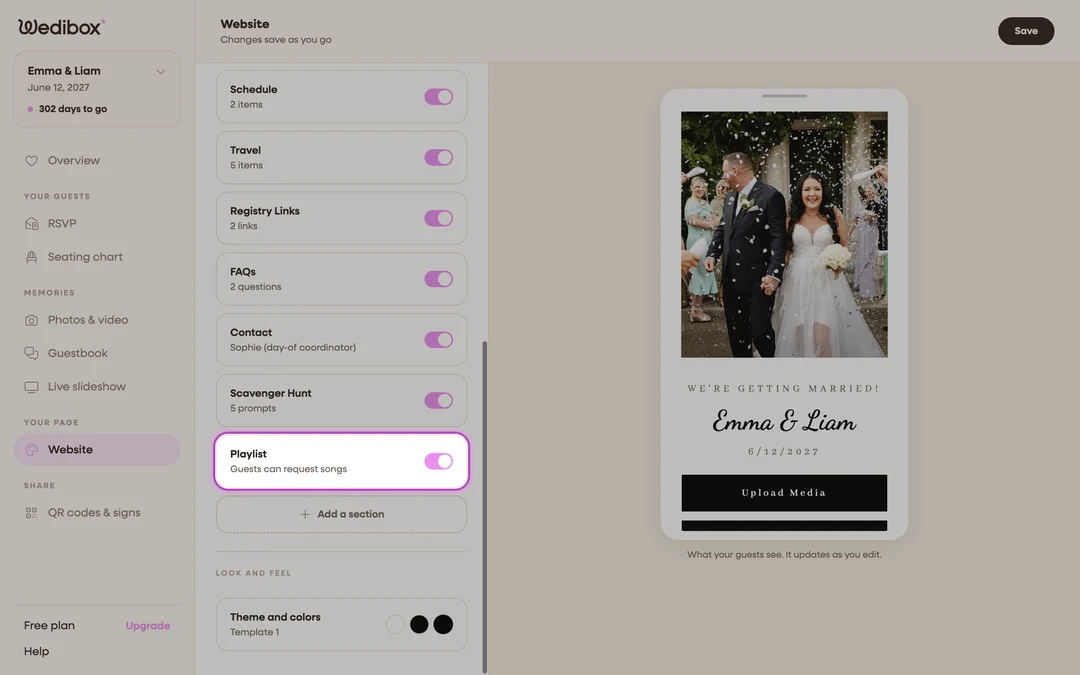
Open the Website editor. In the sidebar under “Your page”, click Website.
-
Add the Playlist section. Under What is on your page, find the Playlist card. Don’t see it? Click Add a section and pick Playlist (“Let guests suggest songs for your event”). Make sure its switch is on. The card’s status line should read “Guests can request songs”.
-
Open the playlist editor. Click the Playlist card. It takes you to the Shared Playlist page.
-
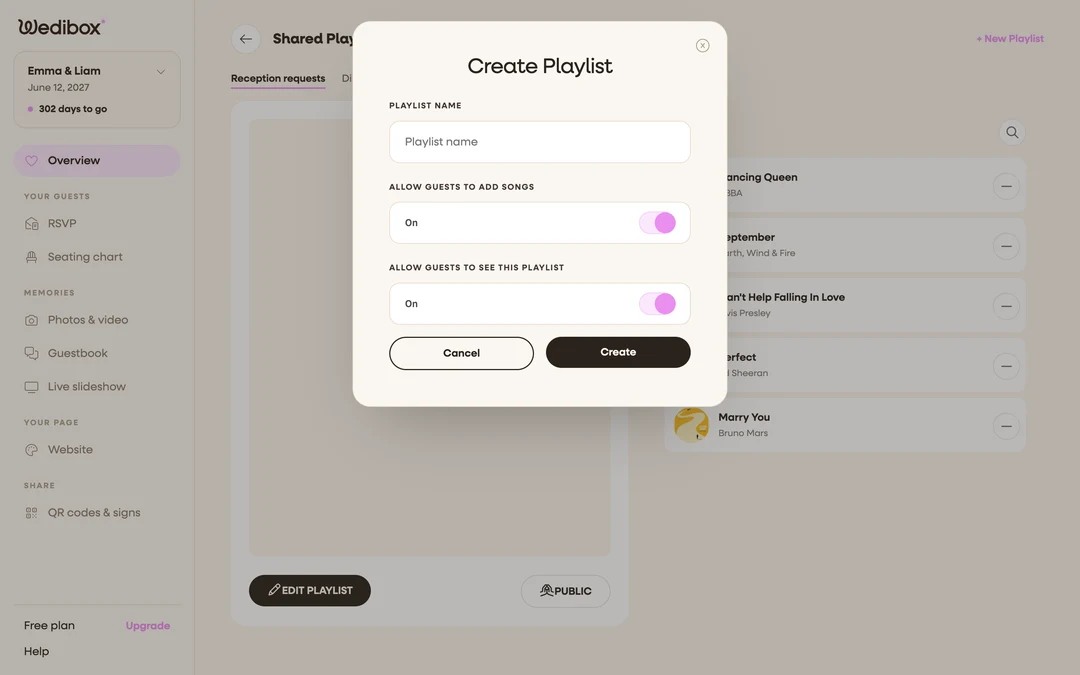
Create your playlist. Click + New Playlist. In the Create Playlist popup, name it under PLAYLIST NAME (“Reception requests”), and turn on both toggles (Allow Guests to add songs and Allow guests to see this playlist) so guests can view the list and add to it. Click Create.
-
Seed it (optional). Add five or ten songs yourselves first (see adding and removing songs). An empty list asks guests to go first; a seeded one shows them the vibe.
-
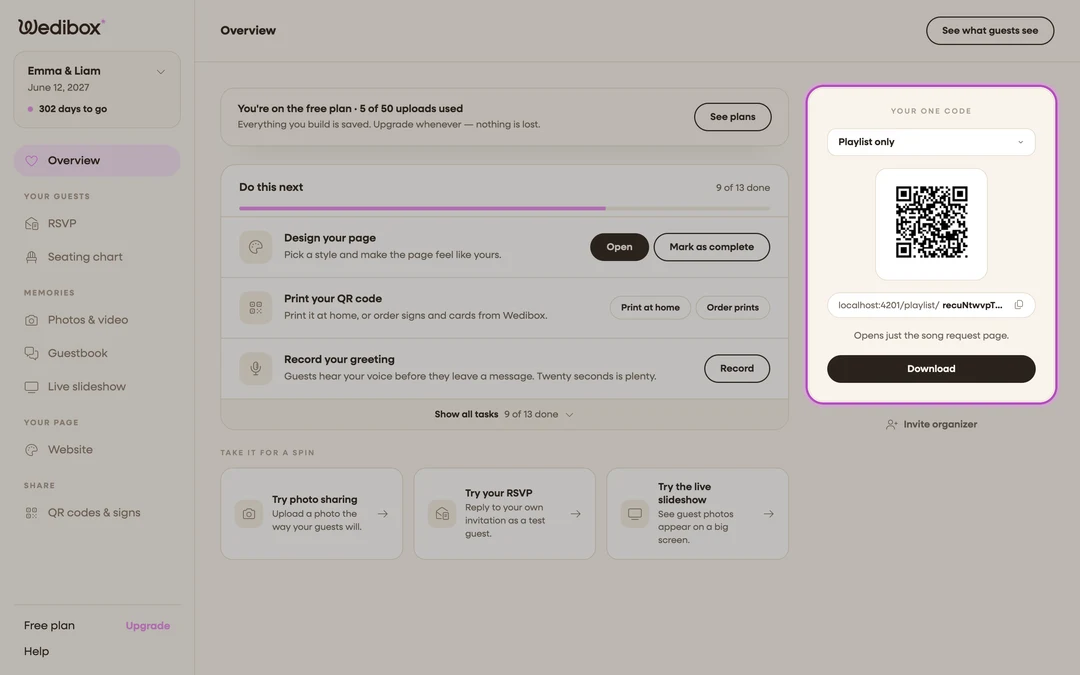
Share the song request page. Go to Overview, and under What should this code open? choose Playlist only. The hint confirms “Opens just the song request page.” Copy the address shown under the QR code for texts and your website, or click Download to print the code for reception tables.
-
Watch the requests come in. Guests open the page, search under Song Title, pick the exact track from the suggestions, add their name (optional), and click Add to Playlist. Each request appears on your list immediately.

What you should see
On the guest page: your playlist with the prompt inviting guests to suggest their favorite songs, a growing numbered list, and a requester name beside each guest-added track. On your side: the same list in the playlist editor, ready to prune and hand to your DJ.
If something goes wrong
- Guests see “The couple has not turned this on yet.” The Playlist switch is off in the Website editor, or your event isn’t on All-in-One yet.
- A guest’s song didn’t appear. They likely typed a title without picking a suggestion and hit an error (“Could not add the song. Please try again.”). Have them search again and tap the song in the dropdown.
- The list is filling with duplicates or jokes. Remove tracks with the − button in the editor; removal is instant and guests aren’t notified.