How to create and manage playlists
PlaylistAll-in-One plan
One list for dinner, one for the dance floor, one private list you’re still arguing about. Each playlist has its own name, cover photo, and guest permissions. This guide covers creating, editing, and deleting them.
Plan: All-in-One plan · Where: Sidebar → Website → Playlist
Before you start
- The playlist editor opens from the Website editor: click the Playlist card under What is on your page (add it via Add a section if it’s not listed).
- Decide per playlist what guests may do: see it, add to it, both, or neither.
Steps
-
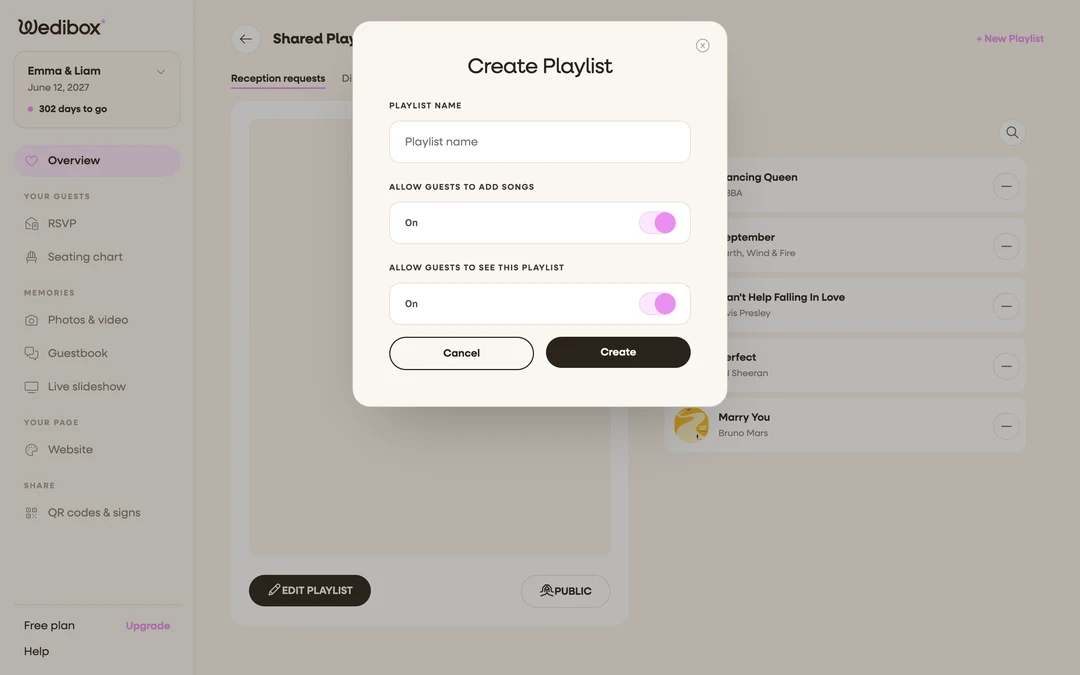
Create a playlist. On the Shared Playlist page, click + New Playlist (or ADD FIRST PLAYLIST if the page is empty). Name it under PLAYLIST NAME.
-
Set the guest toggles. The popup has two switches: Allow Guests to add songs and Allow guests to see this playlist. Turn both on for a request list; leave both off for a private planning list. Click Create.
-
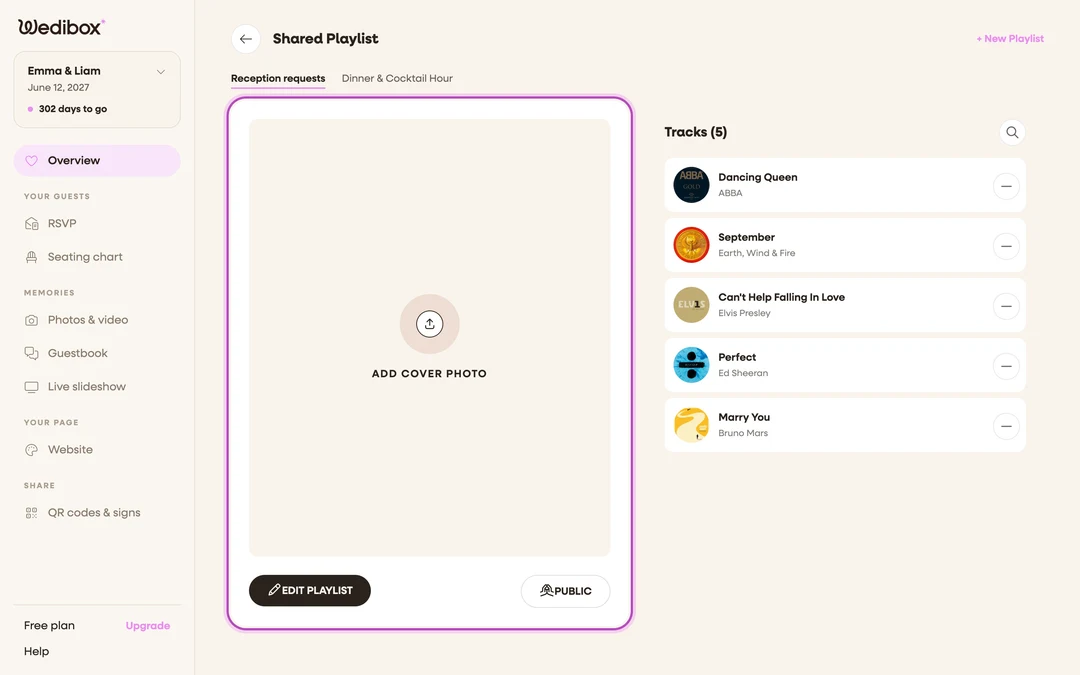
Add a cover photo. Click the big ADD COVER PHOTO area and pick an image. It’s the artwork guests see over the list. An engagement photo works nicely.
-
Check the status chip. Next to EDIT PLAYLIST, a chip reads PUBLIC or PRIVATE, your quick confirmation of whether guests can currently see this playlist.
-
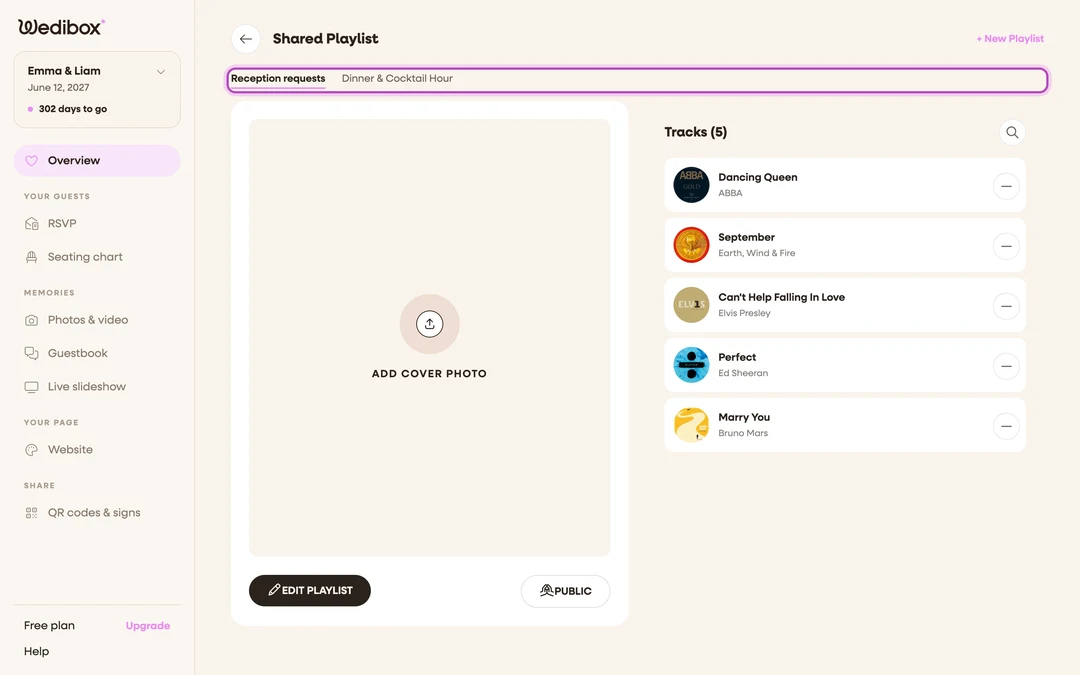
Create more playlists if you want them. Repeat step 1. With more than one, playlists appear as tabs across the top of the page. Click a tab to switch. Guests get the same tabs on their song page for every playlist you’ve made visible.
-
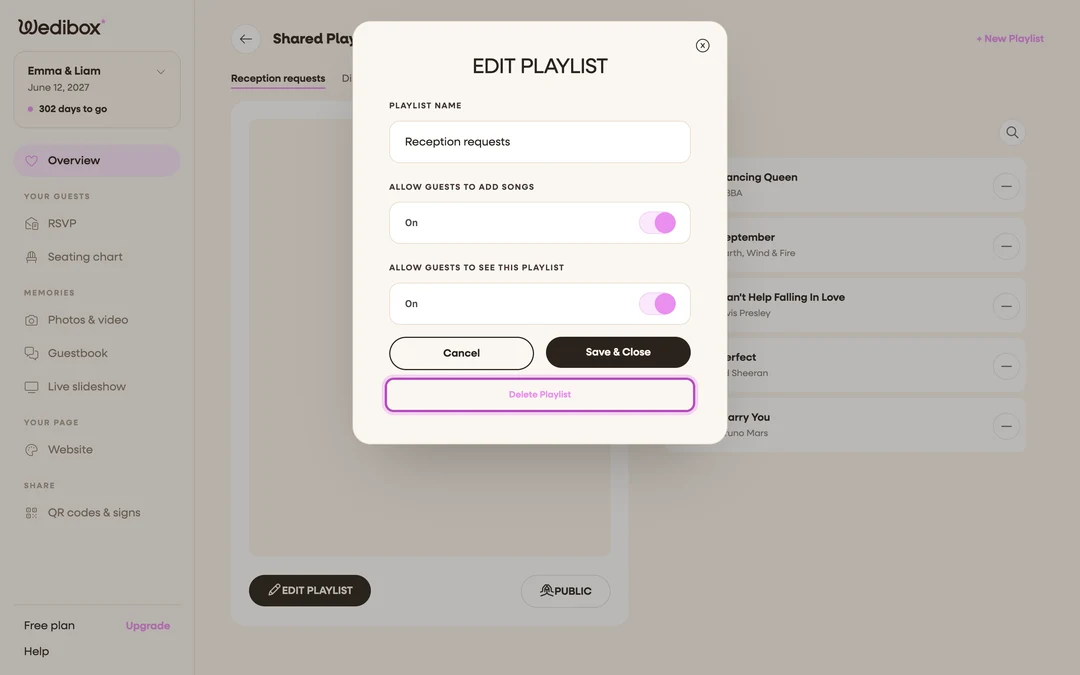
Edit a playlist later. Select its tab, click EDIT PLAYLIST, change the name or toggles, and click Save & Close.
-
Delete one you’re done with. In the same edit popup, click Delete Playlist and confirm. The playlist and its songs are gone for good; other playlists aren’t touched.


What you should see
A tab per playlist, each with its own cover, permissions chip, and track list. On the guest page, visible playlists appear as tabs; ones you kept private don’t exist as far as guests know. Your cover photo shows to guests too: as a small square next to the playlist name on the song page, and as a larger album-style cover above the title in your website’s playlist section. No cover uploaded, no empty box; the space simply isn’t there.
If something goes wrong
- Guests can see a list you meant to keep private. Open EDIT PLAYLIST and check both toggles, then Save & Close. Verify from the guest page afterward.
- Guests can see the playlist but can’t add songs. That’s a valid combination (view-only). Their page says “Check out the songs for our special day” instead of inviting suggestions. Flip the add toggle in EDIT PLAYLIST if you want requests.
- You deleted the wrong playlist. There’s no undo, and songs go with it. Recreate it and re-add the essentials.