How to change colors, fonts, and button styles
Wedding websiteAll plans
Templates get you 90% of the way; colors take you the rest. Four color controls cover the page (background, text, and the two button colors) so a few clicks match your page to your invitations, your flowers, or whatever palette you’ve been pinning.
Plan: All plans · Where: Website editor → Look and feel → Theme and colors → Design
Before you start
- If you have brand colors from your invitations, keep their hex codes handy (like
#7A8B6F); you can paste them straight in. - Pick your template first; each design ships with its own typography and starting colors, and your overrides apply on top.
Steps
-
Open the Website editor. In the sidebar, click Website (under “Your page”).
-
Open Theme and colors. Under Look and feel, click Theme and colors.
-
Expand the Design panel. At the top of the window, click the Design card (“Customize colors and language for your page”) to unfold the color controls.
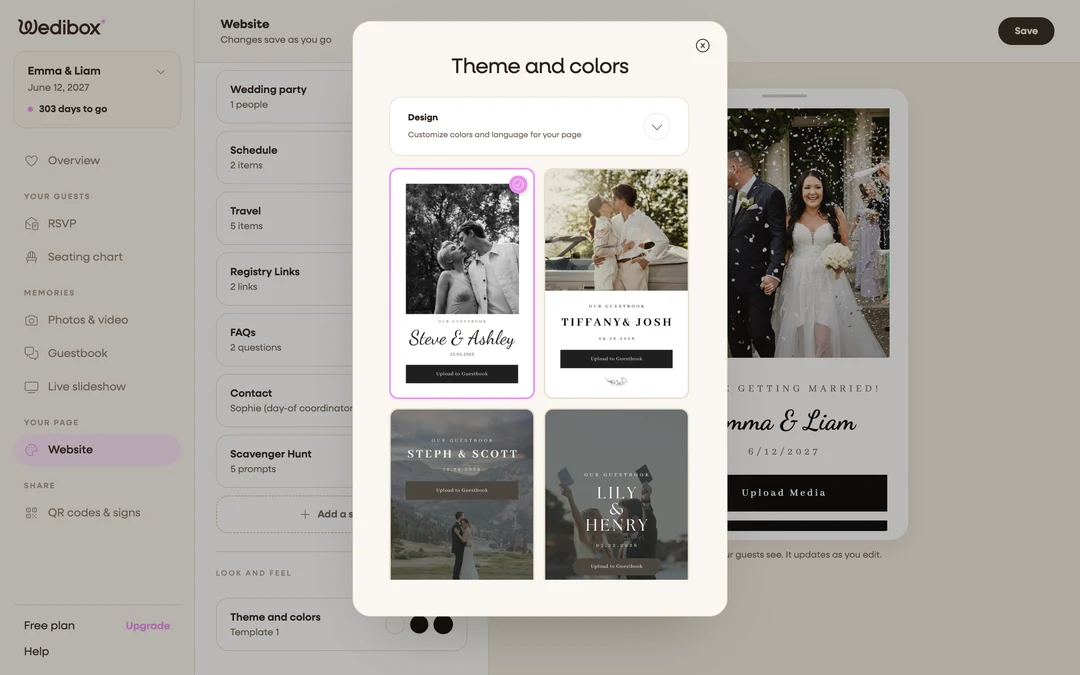
-
Set your four colors. Each row; Header background, Header text, Button background, and Button text. Has a color swatch that opens a picker, plus a field for typing a hex code. The preview updates as you pick, so trust your eyes.
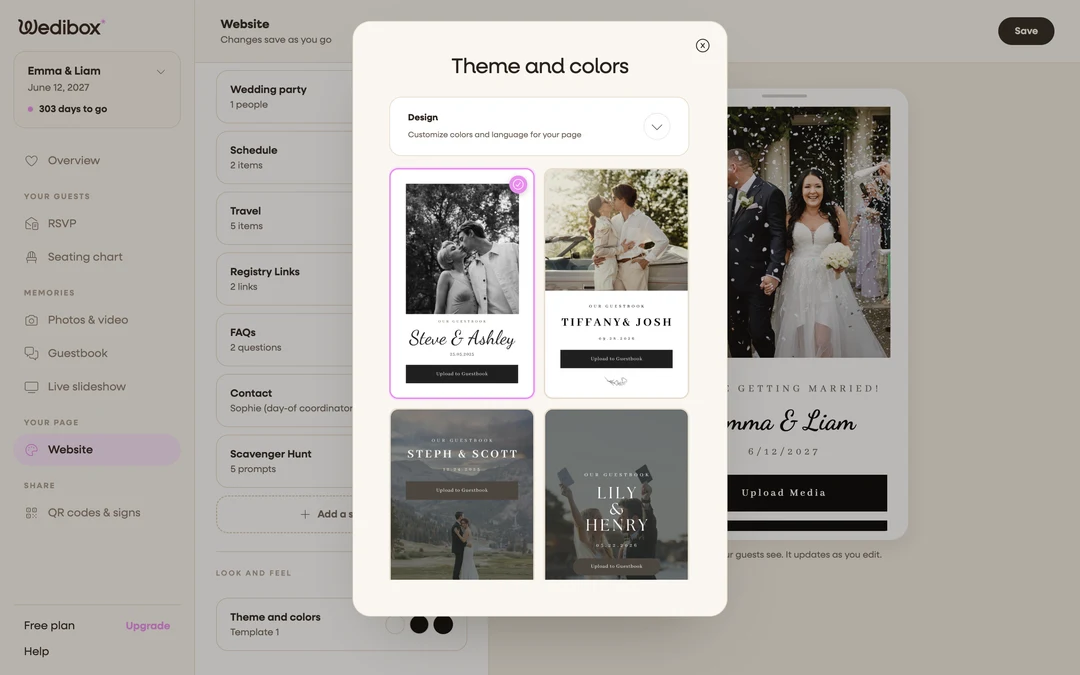
-
Check contrast on the preview. Make sure Header text stands out against your cover photo and Button text against Button background. Guests will read this outdoors, on phones, in sunlight.
-
Reset if you overdo it. The Reset button in the Design panel returns the colors to the template’s defaults. Experimenting is safe.
-
Set your button shape. Fonts and layout come with your chosen template, but the button silhouette is yours: open the Header section card and set BUTTON SHAPE to Round or Square.
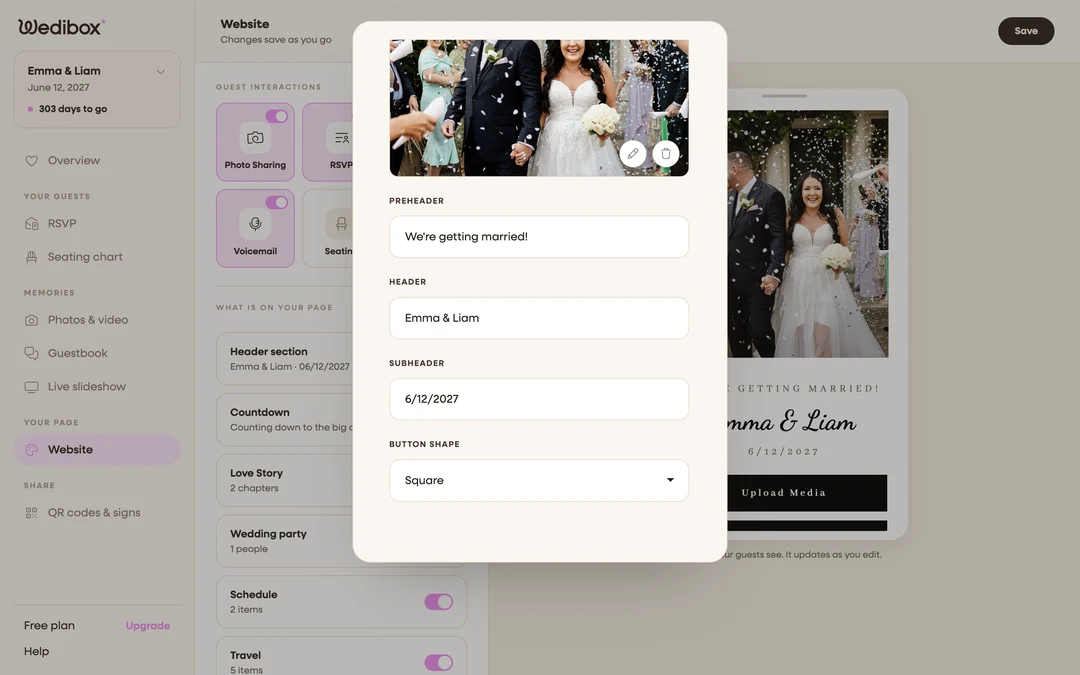
What you should see
Your palette applied across the page (header, sections, and every button) in the preview and on your live page. The Theme and colors card back on the main panel shows your new swatches.
If something goes wrong
- Text is hard to read over your photo. Darken Header background, or pick a calmer cover photo; busy photos fight thin fonts on small screens.
- You want the original look back. Open the Design panel and click Reset; the template’s default colors return instantly.