How to leave an audio message for the couple
For guestsFor guests
Some couples set up an audio guestbook: instead of writing in a book, you leave them a voice message they can replay on every anniversary. It works exactly like calling a phone and reaching voicemail (greeting, beep, your message), right from your phone’s browser.
Plan: For guests · Where: the voicemail button on the couple’s wedding page or photo-sharing page
Before you start
- Find a quieter corner if the dance floor is loud. Your phone’s mic picks up everything.
- Your browser will ask permission to use the microphone. Allow it, or nothing records.
Steps
-
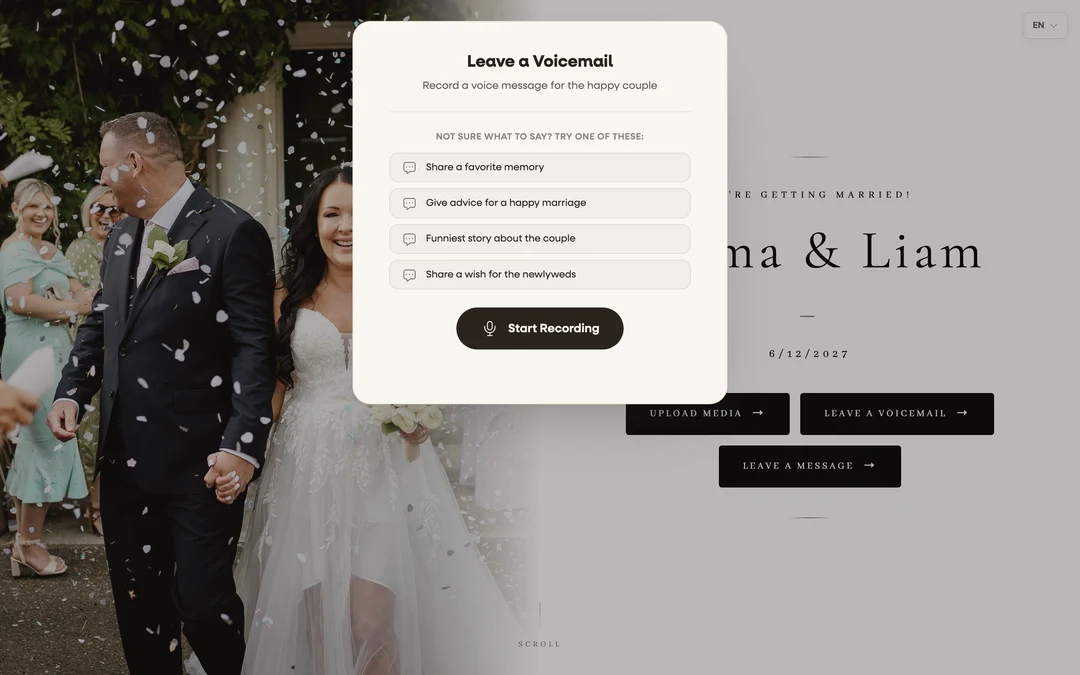
Tap the voicemail button. On the couple’s page, tap Leave a Voicemail (the couple may have renamed it, but look for the microphone). The voicemail screen opens with the note “Record a voice message for the happy couple.”
-
Steal an idea if you’re blanking. Under “Not sure what to say? Try one of these:” there are prompts from the couple. One warm sentence beats a speech.
-
Tap Start Recording and allow the microphone. Tap Start Recording; when your browser asks to use the microphone, tap Allow.
-
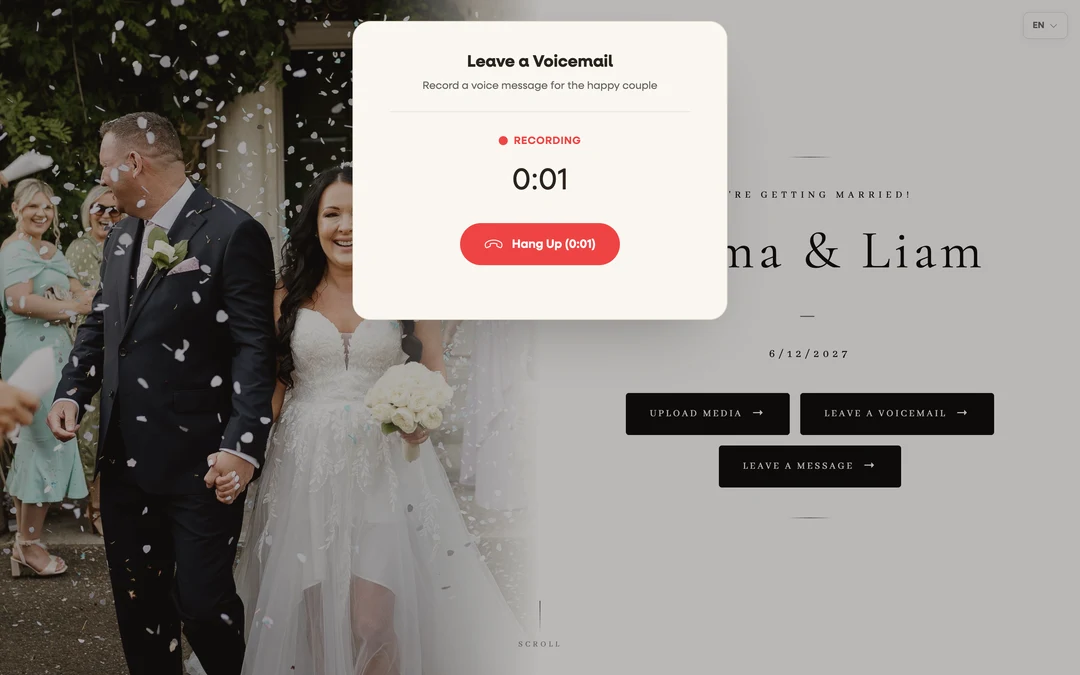
Wait for the beep. You’ll hear ringing, then the couple’s greeting if they recorded one, then a beep. Speak after the beep; a timer shows you’re recording.
-
Hang up and review. Tap Hang Up when you’re done. Play your recording back. Happy with it? Add your name under Your Name. Want another take? Tap Re-record; takes are free.
-
Send it. Tap Send. Your message lands in the couple’s guestbook.
What you should see
The voicemail screen confirms your message was sent. The couple gets it in their guestbook with your name attached. They can play it, download it, and keep it forever.
If something goes wrong
- “Could not access microphone. Please allow microphone permissions.”: your browser blocked the mic. iPhone: refresh the page and tap Allow when asked, or check Settings → Safari (also make sure the phone-wide microphone switch is on). Android: tap the icon left of the address bar → Permissions → allow Microphone. Then try again.
- You’re in the Instagram or Facebook in-app browser: it often can’t use the mic. Open the same link in Safari or Chrome.
- Nothing recorded / instant silence: another app may be holding the microphone. Close video or voice apps and retry.