How to publish your wedding website and share it
Wedding websiteAll plans
There’s no publish button to hunt for: your Wedibox page is live from the moment your event exists, at a link only you have. Nothing appears in search results or public listings (the page is reachable only by its link or QR code), so “publishing” really means checking it looks right, then putting the link in front of your guests.
Plan: All plans · Where: Website editor and Overview
Before you start
- Do a quick pass in the Website editor first: names, date, cover photo, and the sections you want. Unfinished is fine; the page updates live as you keep editing.
- Decide roughly when you want guests looking. You can share weeks early; RSVPs and details work long before the wedding day.
Steps
-
Save your latest edits. In the Website editor, the status line under the title should read “All changes saved”; click Save in the top-right if you want to be sure.
-
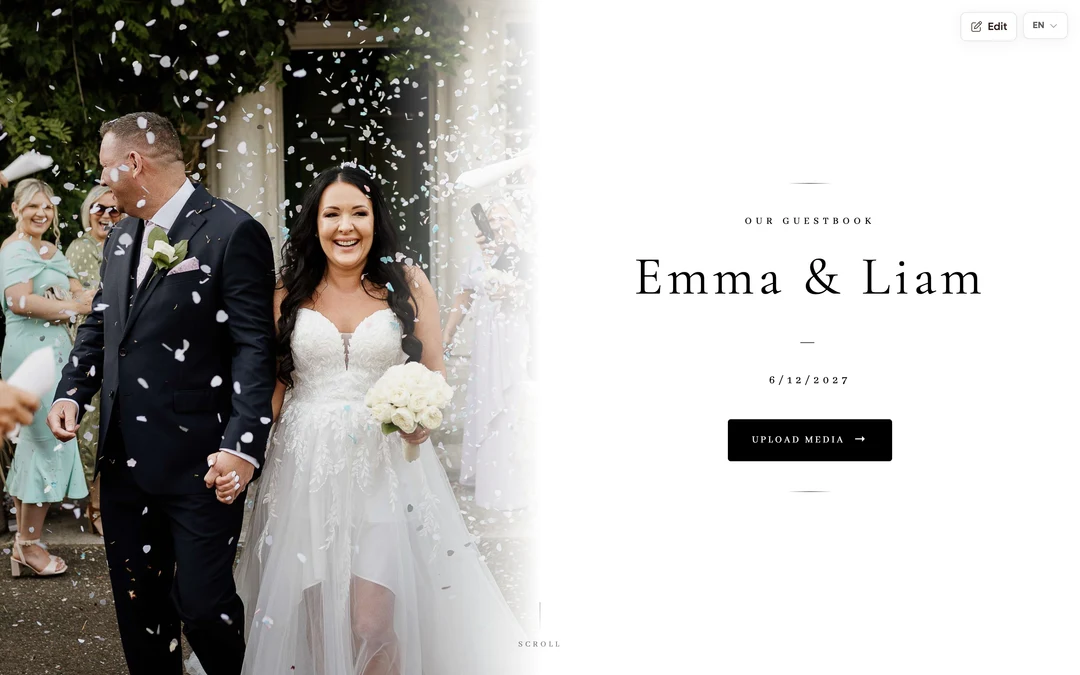
Preview like a guest. Click See what guests see on your Overview. Your live page opens in a new tab. This is exactly what your link shows.
-
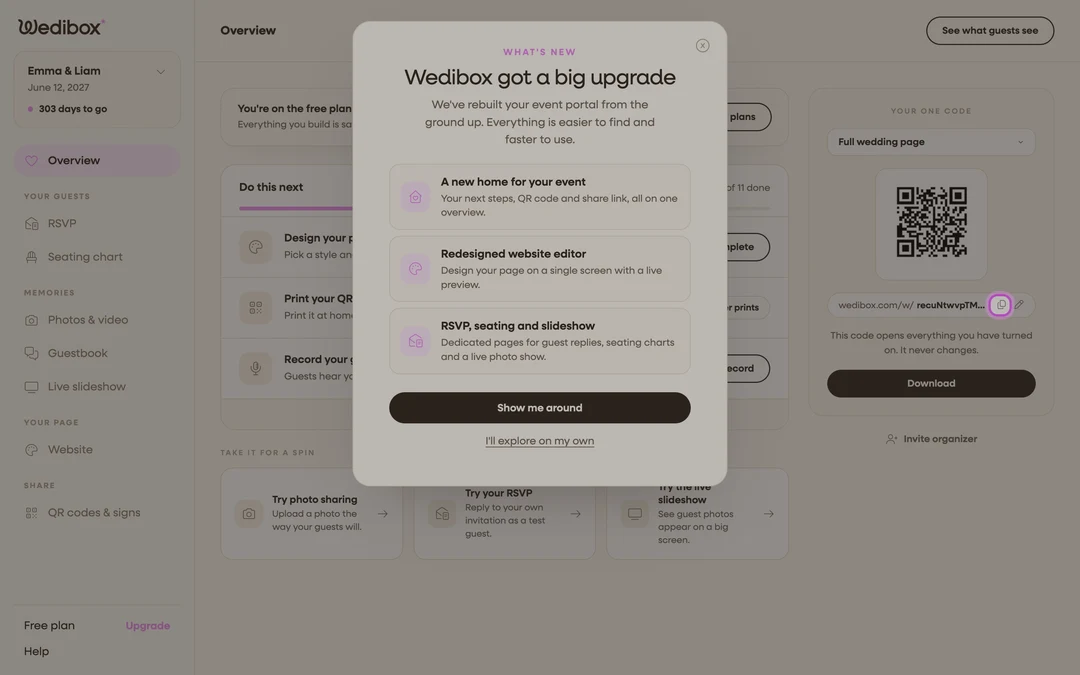
Copy your link. On the Overview, click the copy icon next to your link in the Your one code card; a “Link copied.” toast confirms.
-
Optional: make the link yours first. If you plan to print the address, claim a custom link like
wedibox.com/w/your-namesbefore sharing; see claiming a custom link. -
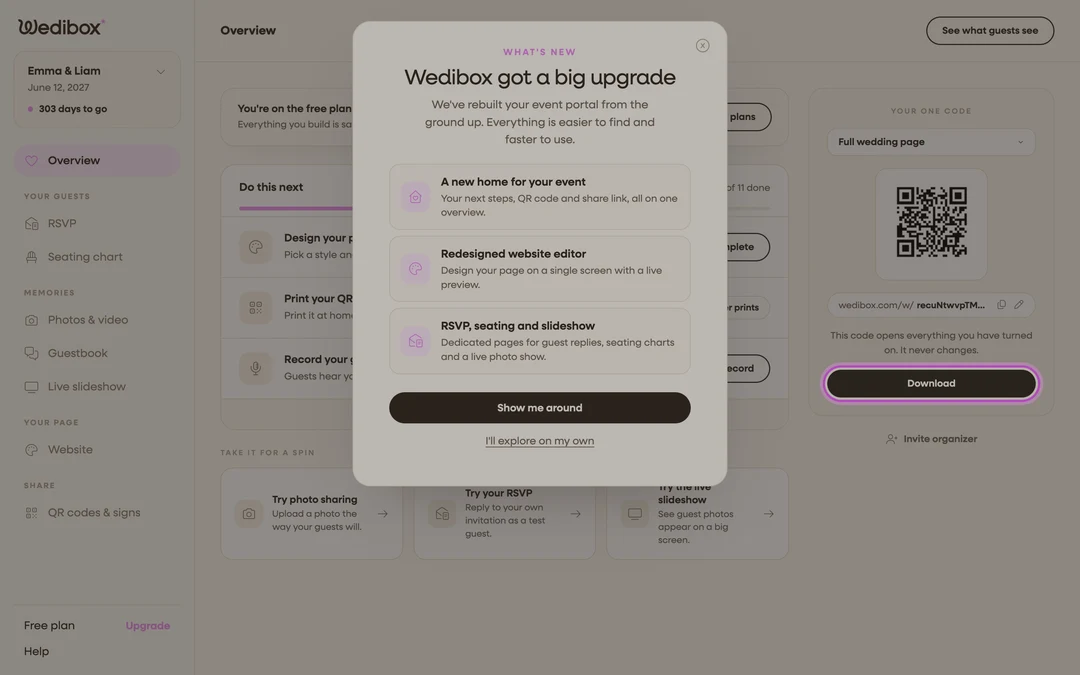
Download your QR code. On the Overview, the Your one code card holds your QR. The dropdown sets what a scan opens (Full wedding page for the website), then click Download. As the card says, this code never changes, so it’s safe to print early.
-
Put the link where guests already look. The usual spots: save-the-dates and invitations (link or QR), the wedding group chat, a reminder email the week before, and printed signs at the venue (Print signs on the same card orders those).
-
Decide what’s open before the big day. Anything you’re not ready to show, switch off in the Website editor; cards under What is on your page keep their content when toggled off, so you can flip them back on the morning of.


What you should see
Guests who open your link see your page exactly as the preview shows it, and anything you edit later updates for them instantly. No re-publishing step, ever.
If something goes wrong
- Guests see fewer sections than your editor shows. Some sections only display to guests on certain plans. Check which sections come with which plan.
- Guests can’t upload photos yet. Uploads depend on your plan and activation date, not on the page being live. See how to activate your event.