How to make multiple seating charts
Seating chartAll-in-One plan
One wedding often means more than one seated meal. Wedibox lets you keep a separate chart per occasion (rehearsal dinner, ceremony, reception), each with its own tables and assignments, all drawing from the same guest list.
Plan: All-in-One plan · Where: Sidebar → Seating chart
Before you start
- You need at least one chart already (see making your first chart).
- Each chart is independent: seating Aunt Meg at the rehearsal doesn’t seat her at the reception. Plan to work through the To seat list once per chart.
Steps
-
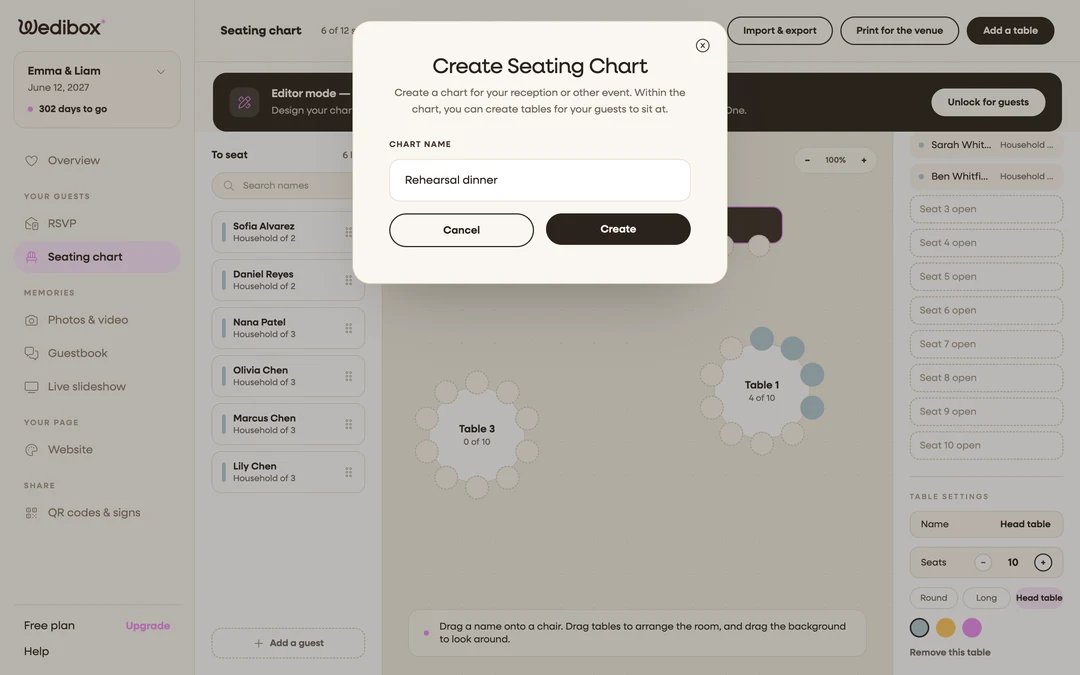
Add a second chart. On the seating chart page, click the + pill next to your chart tabs. In the Create Seating Chart popup, name it under CHART NAME (“Rehearsal dinner”), and click Create.
-
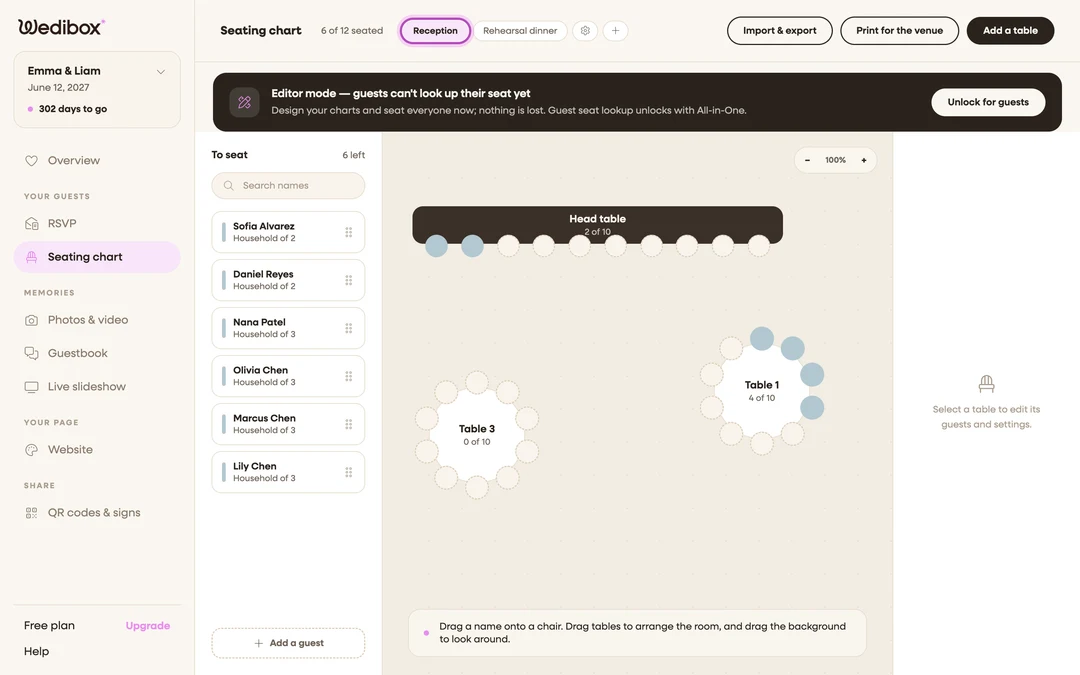
Switch between charts. Your charts appear as pills across the top. Click one to load its canvas. The header counts (“32 of 40 seated”) and the To seat panel always refer to the chart you’re looking at.
-
Build each room separately. Tables, shapes, and assignments belong to one chart. The guest pool is shared, so the same names are available to seat in every chart.
-
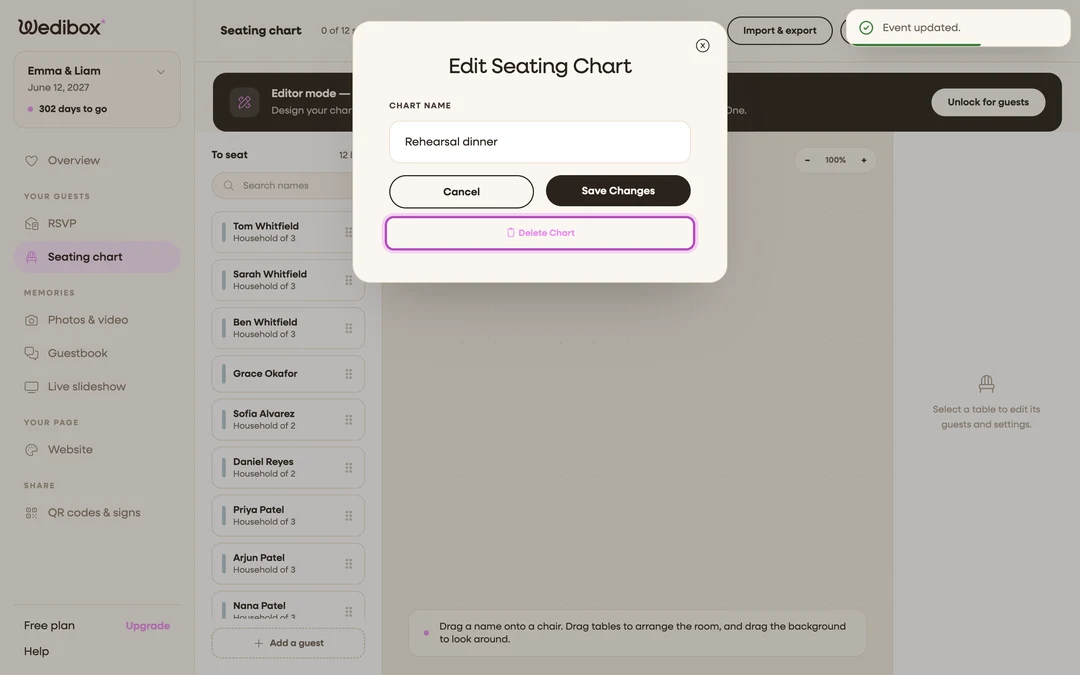
Rename a chart. With the chart selected, click the gear pill (Chart settings). Edit the name in the Edit Seating Chart popup and click Save Changes.
-
Delete a chart you no longer need. In the same Edit Seating Chart popup, click Delete Chart and confirm. Its tables and assignments go with it; your guest list is untouched.
-
Export each chart for its venue. Exports cover the open chart only. Switch to each chart and print or export it separately.
What you should see
A pill per occasion across the top of the page, each opening its own floor plan. When guests look up their seat, the search checks every chart. When more than one chart exists, each result is labeled with the chart it came from, so “Table 2” at the rehearsal can’t be confused with “Table 2” at the reception.
If something goes wrong
- A guest shows two results in Find Your Seat: that’s expected when they’re seated in two charts; each result names its chart. If one is stale (say, an old draft chart), unseat them there or delete the draft chart.
- You deleted a chart by accident: there’s no undo. Recreate it and re-seat; if you exported a CSV earlier, re-import it to restore assignments quickly.