How to organize a drop with albums
For creatorsDrops account
Albums split a drop into chapters the couple can jump between: Getting ready, Ceremony, Reception. You pick an album for each batch you upload, and you can rename, reorder, and move files between albums at any time. Album changes save the moment you make them.
Plan: Drops account · Where: drop page → Media tab → album bar
Before you start
- Albums are optional. A drop with no albums shows the couple one continuous gallery.
- Files that are not in any album sit under Unsorted. The couple sees them under All files only.
Steps
-
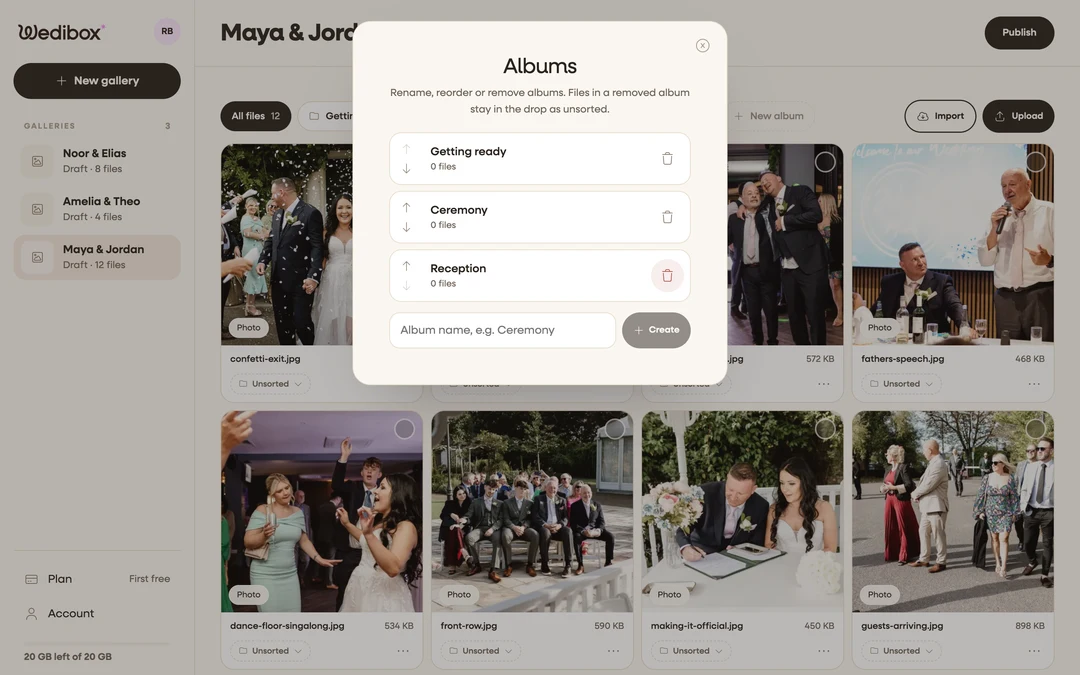
Create an album. In the album bar above the grid, click New album. In the Albums popup type a name such as “Ceremony” (up to 40 characters) and click Create. Repeat for each chapter, then close the popup.
-
Upload straight into an album. Click Upload in the album bar. The “Where should these go?” popup lets you pick the album before you choose the files.
-
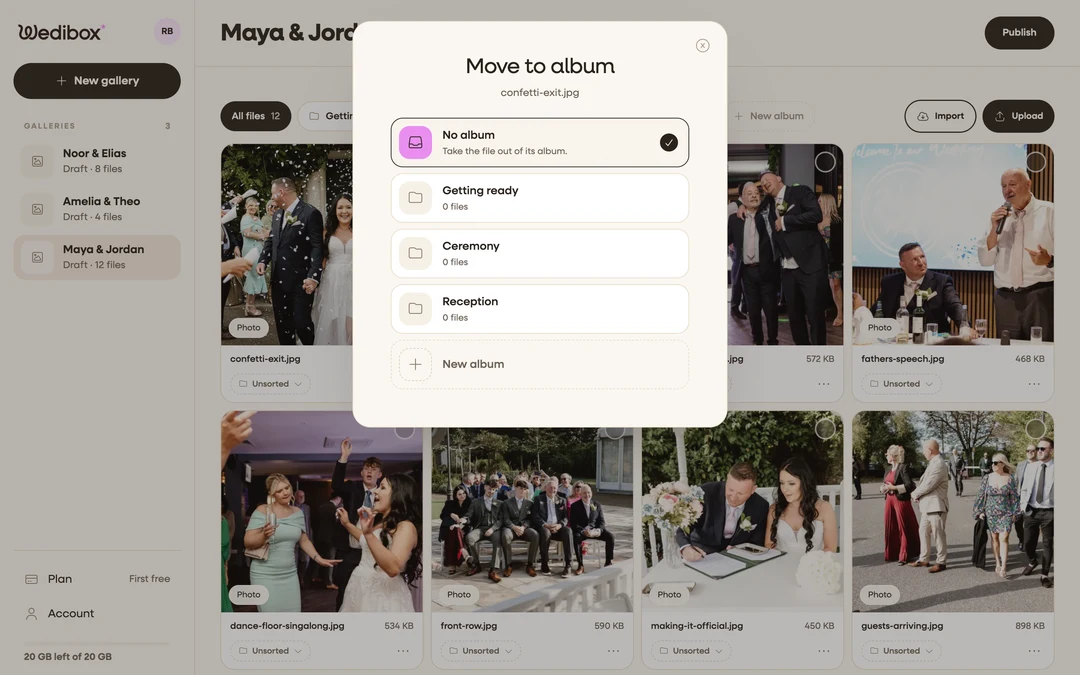
Move a file into an album. Each tile has an album chip at the bottom reading its album name or Unsorted. Click it, then pick the album in the Move to album popup. On a computer you can also drag a tile onto an album chip in the bar.
-
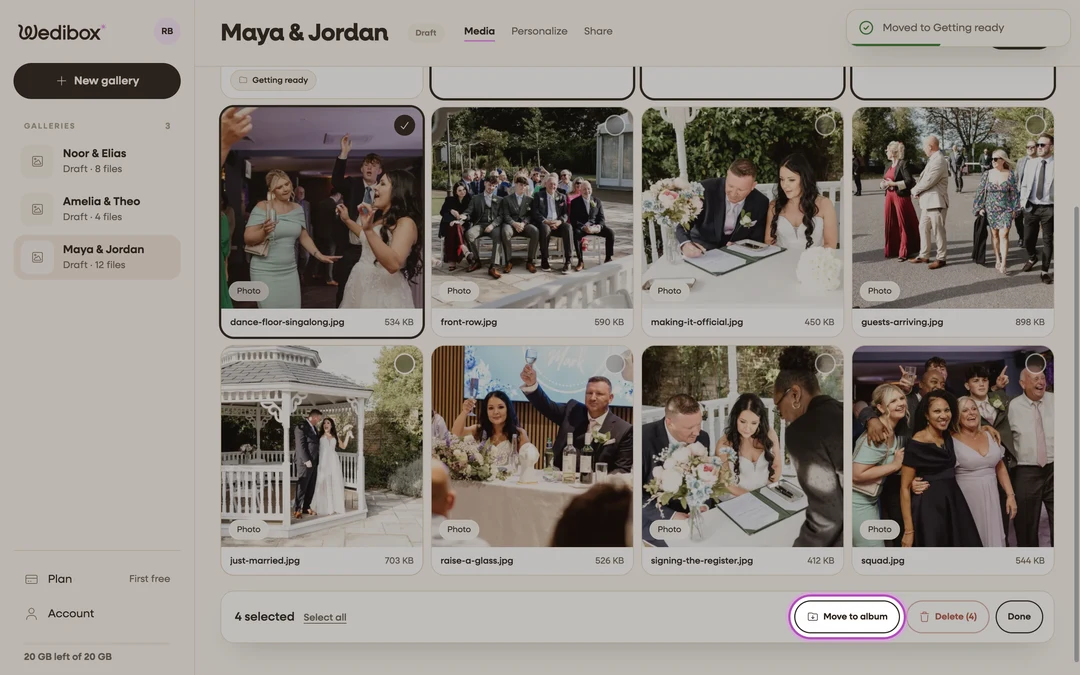
Move several files at once. Tick the checkbox in the corner of each tile. A bar appears with the count, Select all, Move to album, and Delete. Click Move to album, pick the target, and the selection moves. Click Done to leave selection mode.
-
Reorder files. Drag tiles into place on a computer, or open a tile’s More actions menu and click Move up or Move down. Under an album filter the move is within that album.
-
Set the cover. In a tile’s More actions menu click Set as cover. The cover is the photo or clip the couple sees first; vertical clips play best.
-
Rename, reorder, or remove albums. Click New album in the album bar (it is labeled Manage albums once albums exist). In the popup, click a name to rename it, use the arrows to reorder, and the trash icon to remove it. Files in a removed album stay in the drop as unsorted.


What you should see
The album bar shows All files, one chip per album with its count, and Unsorted if anything is left over. Clicking a chip filters the grid. On the drop page the couple gets the same albums as tabs, chips, story rings, or a list, depending on the style you pick under Personalize → Gallery.
If something goes wrong
- “There is already an album with this name.” Album names must be unique inside a drop. Add a word, for example “Reception, evening”.
- “We could not save this change. Refresh the gallery and try again.” The change was rolled back. Reload the page; nothing was deleted.
- Delete file is greyed out. That file is still uploading in another tab of this browser. Let it finish first.