How to send a couple their photos through their Wedibox link
For creatorsNo account needed
When a couple keeps their wedding on Wedibox, they can send you a private upload link. You open it, add your photos and videos in full quality, and the couple gets them next to everything their guests shared. You do not need an account, and it costs you nothing.
Plan: No account needed · Where: the link the couple sent you
Before you start
- Use the link exactly as the couple sent it. It is yours alone, and it keeps working for later uploads until the couple closes it.
- Accepted formats: JPEG, PNG, HEIC, WebP, MP4, and MOV, up to 20 GB per file. RAW files are not accepted.
- On an iPhone, keep the screen open while clips upload. iOS pauses browser uploads in the background and resumes them when you come back.
Steps
-
Open the link. The page greets you by name and shows who the wedding is for. A “Step 1 of 3” counter sits in the top corner.
-
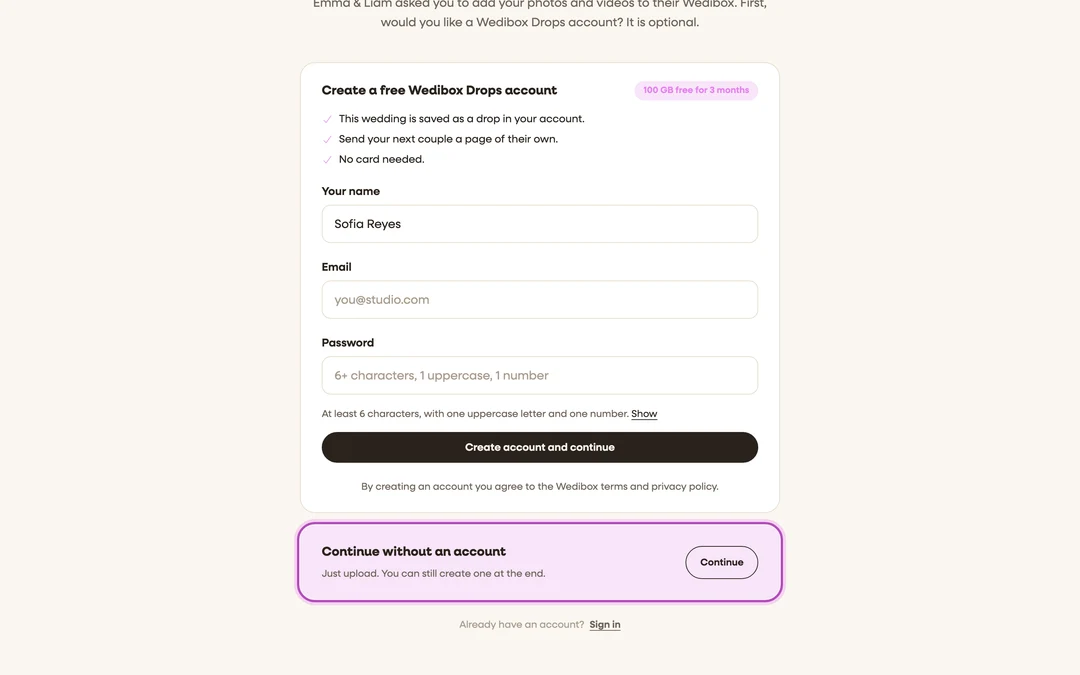
Choose whether you want an account. It is optional. To skip it, click Continue under “Continue without an account”. To create one, fill in Your name, Email, and Password, then click Create account and continue. An account opened here starts with 100 GB free for 3 months, with no card, and this wedding is saved to it. If you already use Wedibox Drops, click Sign in.
-
Decide on albums. The next question is “Want to sort your files into albums?” Click Yes, set up albums to name them now, or No, upload everything together to add one batch.
-
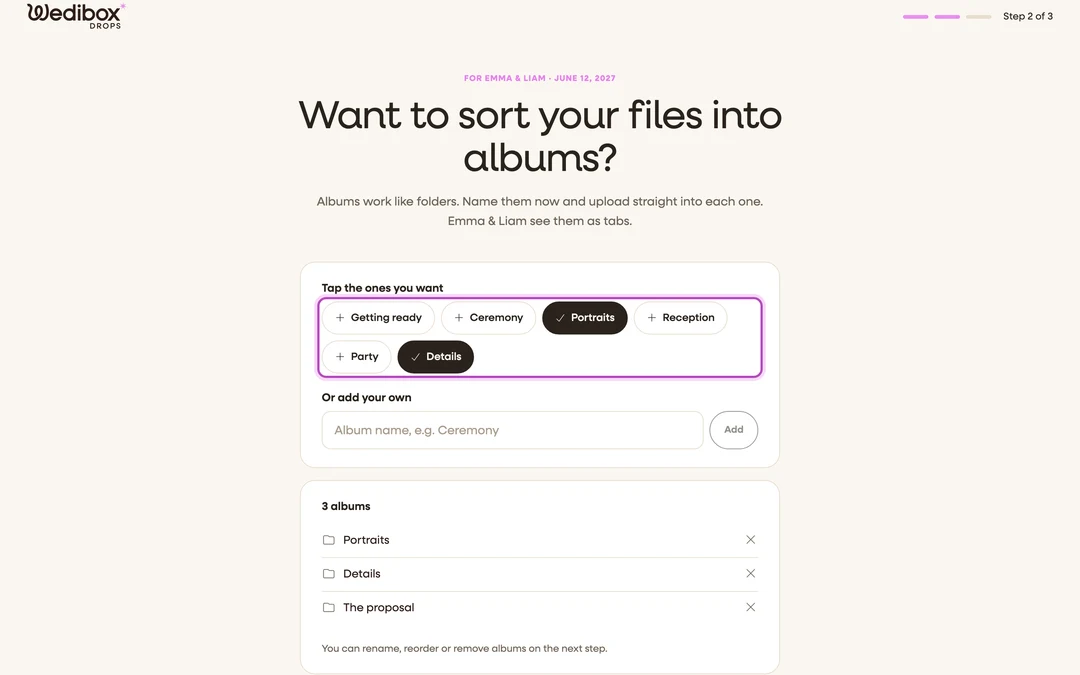
Name your albums. Tap the suggestions you want, such as “Ceremony” or “Reception”, or type your own name and click Add. Then click Continue to upload. The couple sees each album as its own tab.
-
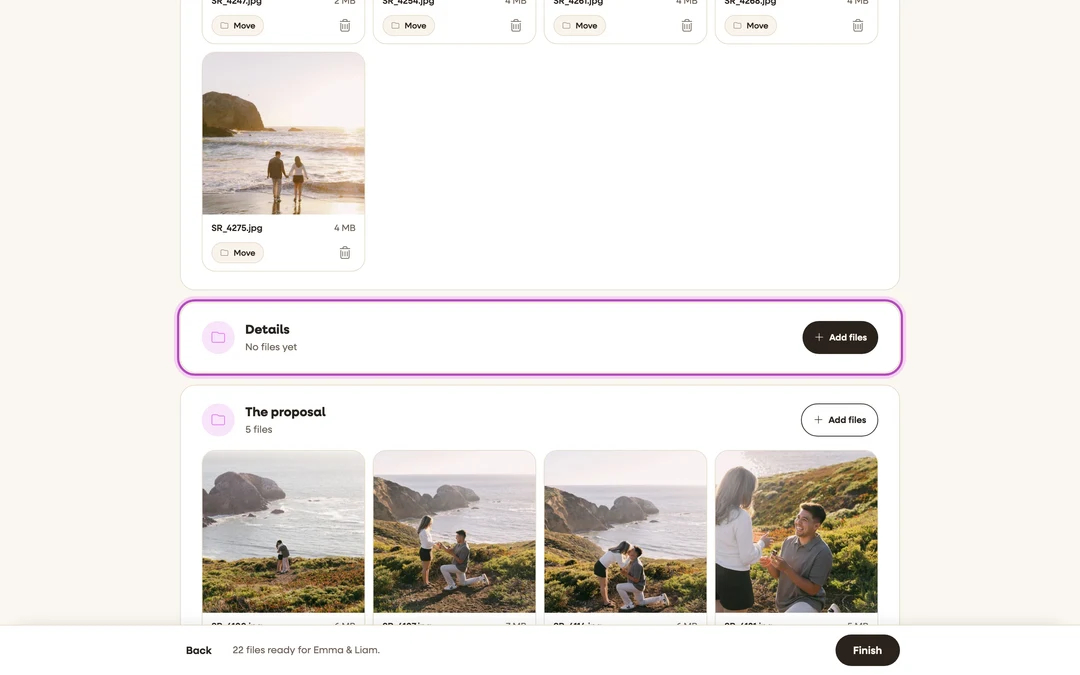
Add your files. Each album has its own Add files button. Click it and pick the photos and videos for that album, or drag files onto the album on a computer. A progress card shows each file as it uploads, and an upload that stops picks up where it left off.
-
Leave a note if you like. Under your files, “A note for the couple” is shown to them above your photos. It is optional.
-
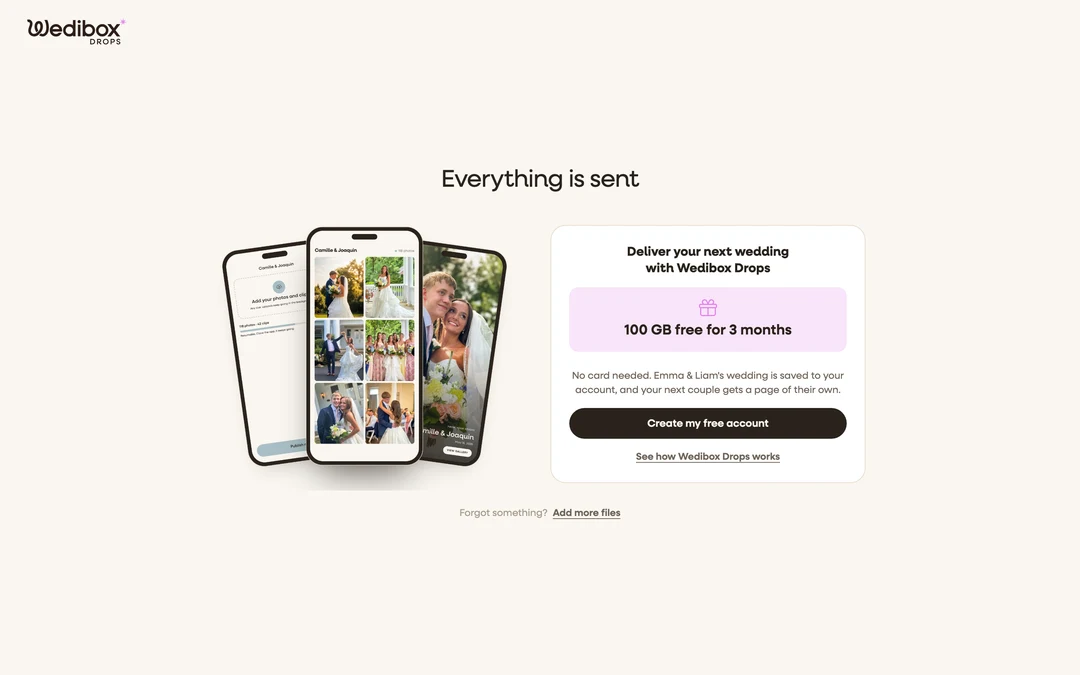
Click Finish. The button turns on once at least one file is done uploading. The couple gets an email right away, and the page reads “Everything is sent”.
-
Add more later. Open the same link, click Add more files, upload, and click Send the new files. You can also move a file to another album with Move, or remove it with the trash icon, at any time.


What you should see
A page that reads “Everything is sent”. The couple has been emailed and can open your files in their Wedibox. If you skipped the account, the same page offers it once more with Create my free account. If you created or signed in to a Wedibox Drops account, the wedding is listed under From couples on your dashboard. It does not count toward your storage or your free first drop.
If something goes wrong
- “Almost ready”. The couple still needs the Wedding or All-in-One plan on their Wedibox before files can be added. Let them know, then click Check again or come back to the same link.
- “This link is closed” or “This link has expired”. The couple closed the link, or it passed its end date. Everything you already sent is still with them. Ask them for a new link to add more.
- An upload is stuck. See Fix a stuck or paused upload. The same uploader runs on this page.
- “An account with this email already exists.” Click Sign in instead, then open the link again. The wedding is saved to that account.