How to publish a drop and send the link
For creatorsDrops account
Publishing turns a draft into a drop the couple can open. Wedibox emails them one link, creates a free Wedibox event for them if they do not have one yet, and attaches the drop to the event they already own if they do. You can publish while clips are still uploading; they appear for the couple as each one lands.
Plan: Drops account · Where: drop page → Share tab → Publish
Before you start
- At least one file must be fully uploaded (“Preparing preview” is fine).
- Save any Personalize edits first; the publish popup refuses unsaved details.
- Your first published drop is free for 30 days with no card. Publishing a second one asks you to choose a plan.
Steps
-
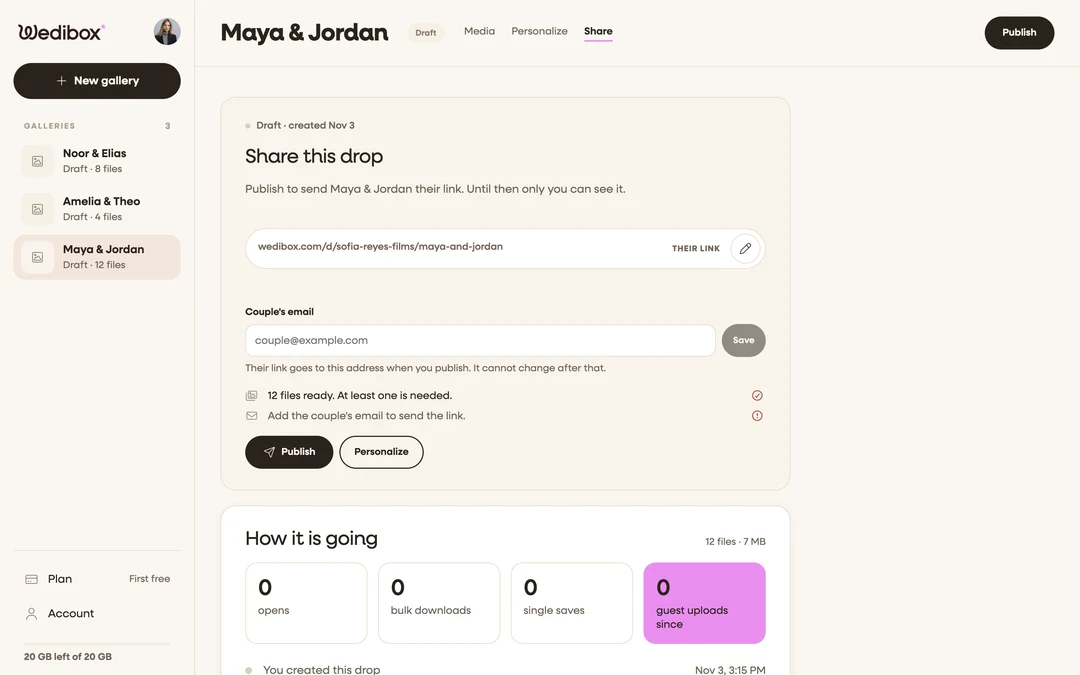
Open the Share tab. The Share card reads “Share this drop” with a checklist underneath: files ready, couple email, unsaved details. Above it, “Their link” previews the address the couple will get.
-
Save the couple’s email. Type it under Couple’s email and click Save. The hint says it: their link goes to this address when you publish, and it cannot change after that. Use the email the couple would sign up to Wedibox with, so the drop lands in the right event.
-
Change the link name if you want. Click the pencil next to the link, type a new Link name (letters, numbers, dashes), and click Save.
-
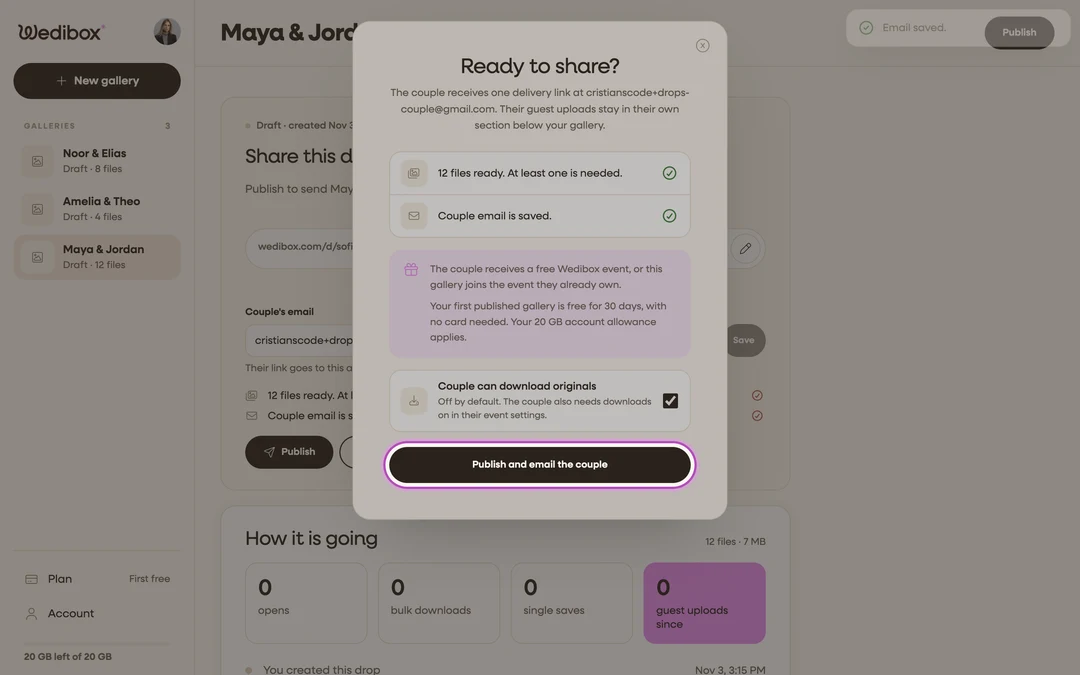
Decide on downloads. Under Settings, switch on Couple can download originals if they should be able to save full-resolution files. It is off by default, and the couple also needs downloads on in their own event settings.
-
Click Publish. The “Ready to share?” popup repeats the checklist, shows what the couple gets on your plan, and offers the download switch again.
-
Click Continue to email. The “Make it personal” editor opens with the couple’s address, the subject, and a message you can keep or rewrite. Click Preview to read it as the couple will, then Publish & send. The toast “Your gallery is published” confirms it. To publish without an email, untick Send email to the couple in the popup first; the link goes live and nothing is sent. If the button reads Choose a plan, your free drop is used; pick a plan and come back. The editor is covered in How to preview and send the drop email.


What you should see
The Share card switches to Drop link with the address, Copy link, and Send by email. The chip next to the title reads Published. Under How it is going, the timeline shows “You published” and “Waiting for [the couple] to open it”; it changes to “opened it for the first time” when they do, and Wedibox emails you at that moment.
The couple receives an email from Wedibox titled “Your gallery from [your name]” with an Open your gallery button.

If something goes wrong
- Publish stays grey. Something on the checklist is missing: a ready file, a saved email, or unsaved details. Click Add their email or Edit details in the popup.
- “Delivery is unavailable right now. Your gallery and uploads are saved.” Wedibox could not reach the delivery service. Nothing is lost; try Publish again in a few minutes, or Send by email if the drop already shows as published.
- The couple did not get the email. Ask them to check spam for a message from hello@wedibox.com, then click Send by email, type any address, and click Send. You can also click Copy link and send it yourself.