How to add Wedibox to a Wix website
Embed widgetEmbed widget
Wix supports custom code, so the Wedibox widget can live directly on your Wix wedding website. Guests upload photos and browse the gallery without ever leaving your page. The whole job is one copy-paste into a Wix embed element.
Plan: Embed widget · Where: wedibox.com/w/embed/setup → select Wix
Before you start
- You need edit access to your Wix site (the Wix Editor, not just the dashboard).
- The Free embed plan (up to 50 uploads) is enough to set up and test.
Steps
-
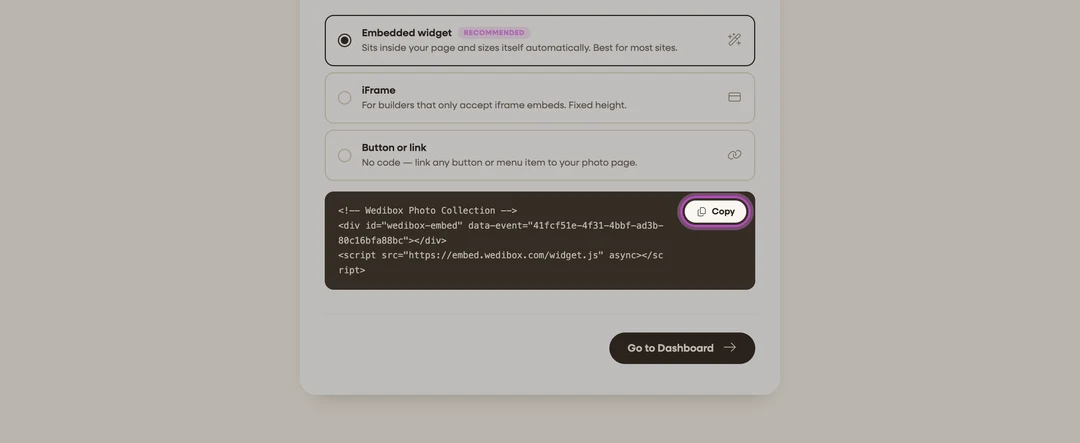
Get your embed code. Go to wedibox.com/w/embed/setup, select Wix, enter your event name and date, and create your free account. On the Add to Your Website step, keep Embedded widget selected and click Copy on the code box. A step-by-step Wix walkthrough appears on the same screen.
-
Open the Wix Editor. Go to your site dashboard and click Edit Site, then open the page where you want photo sharing. A dedicated “Photos” page works well.
-
Add an Embed HTML element. In the editor, click Add (+) > Embed Code > Embed HTML. This drops an embed box onto the page.
-
Paste the code. Switch the element to “Code” mode, paste the Wedibox snippet, and click Apply. Drag the element into position. The widget resizes itself to fit its container, so give it the full content width.
-
Publish and test. Publish your Wix site, open it on your phone, and do a test upload from the widget’s Share Your Photos button.

What you should see
The upload widget renders right on your Wix page, matching your accent color. Test uploads appear in the widget’s gallery and on your embed dashboard, and your Wix domain shows up in the Overview tab’s Active Installations card once the page has been viewed.
If something goes wrong
- The widget doesn’t appear after publishing. Make sure you used Embed Code > Embed HTML, not a text box, and that the element is in “Code” mode. If Wix still blocks the script, use the iFrame version from the same code screen; as the app notes: “In Wix, use the ‘Embed HTML’ element to paste this code.”
- The widget is cut off. Enlarge the embed element in the Wix Editor. The widget reports its own height, but the Wix element sets the maximum space it can use.