How to create and manage photo albums
Photo sharingWedding plan and up
Albums keep a thousand-photo gallery navigable: Ceremony, Reception, Photo Booth, Brunch. Guests pick an album when they upload, so photos sort themselves as they arrive, and you can keep a private album hidden from guests entirely.
Plan: Wedding plan and up · Where: Photos & video (under “Memories”) → album pills
Before you start
- Every event starts with one album and must always keep at least one.
- Create albums before the wedding; guests can only sort into albums that already exist.
Steps
-
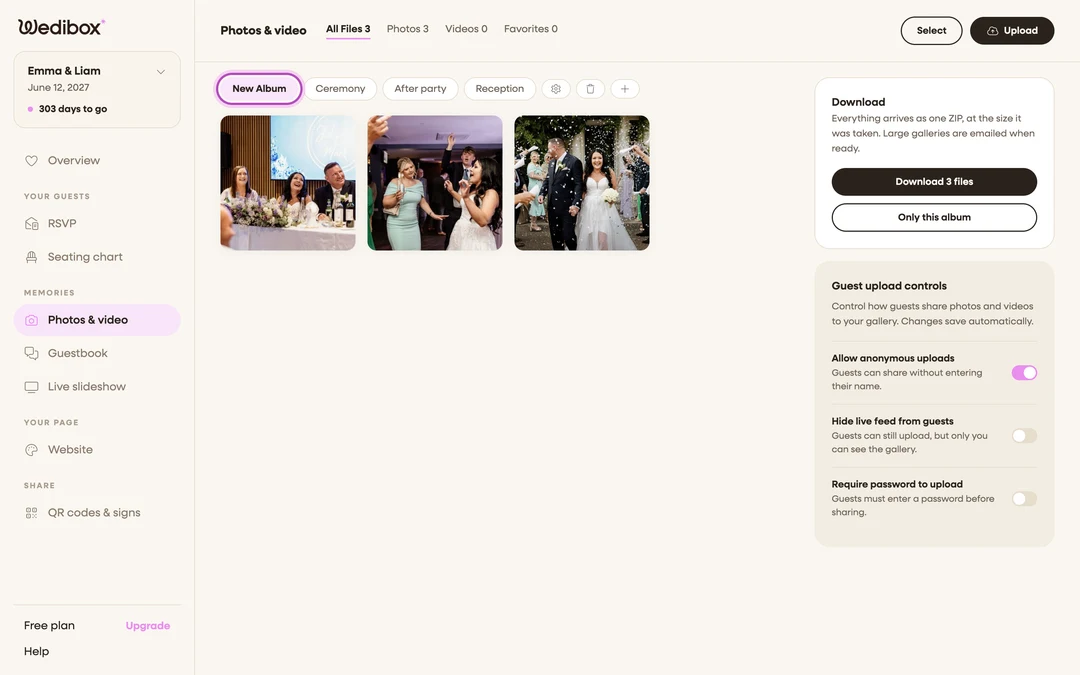
Open Photos & video. In the sidebar, click Photos & video (under “Memories”). Your albums run across the top of the gallery as pills; the selected pill is the album you’re viewing.
-
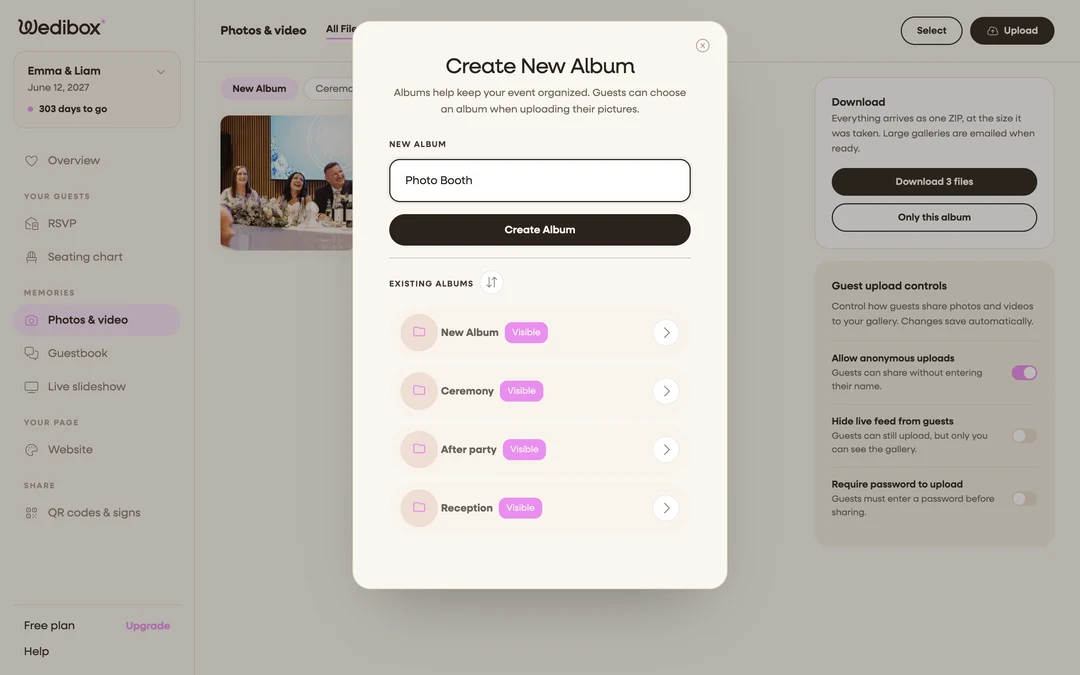
Create an album. Click the + pill at the end of the row. In the Create New Album popup, type a name (the field hints “Album name (e.g. Ceremony)”) and click Create Album.
-
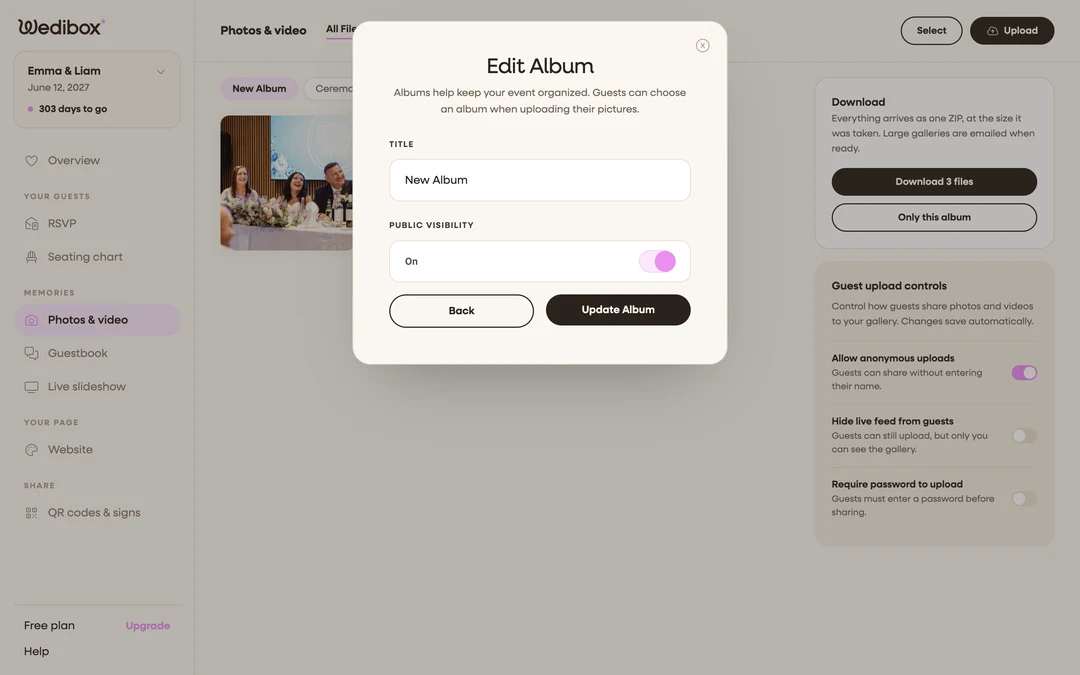
Rename an album, or hide it from guests. Select the album’s pill, then click the gear pill next to it. In Edit Album, change the TITLE, or switch PUBLIC VISIBILITY off to hide the album. Click Update Album to save. Hidden albums disappear from the guest gallery and from the album choices guests see when uploading; you still see them here, marked with a crossed-eye icon.
-
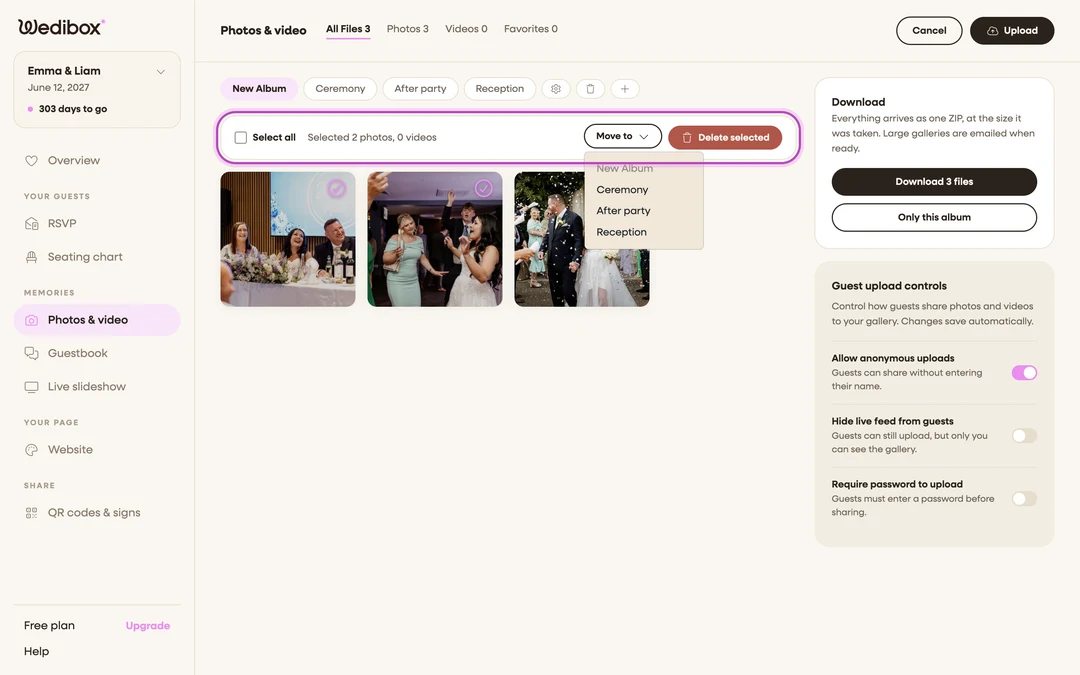
Move photos between albums. Click Select in the page header, tick the photos to move (or Select all), then open the Move to dropdown and pick the target album. The Move to dropdown appears once you have more than one album.
-
Delete an album you no longer need. Select its pill and click the trash pill. Deleting an album deletes every upload inside it, so the popup makes you type
permanently delete everythingbefore Confirm Delete unlocks. Move any photos you want to keep first.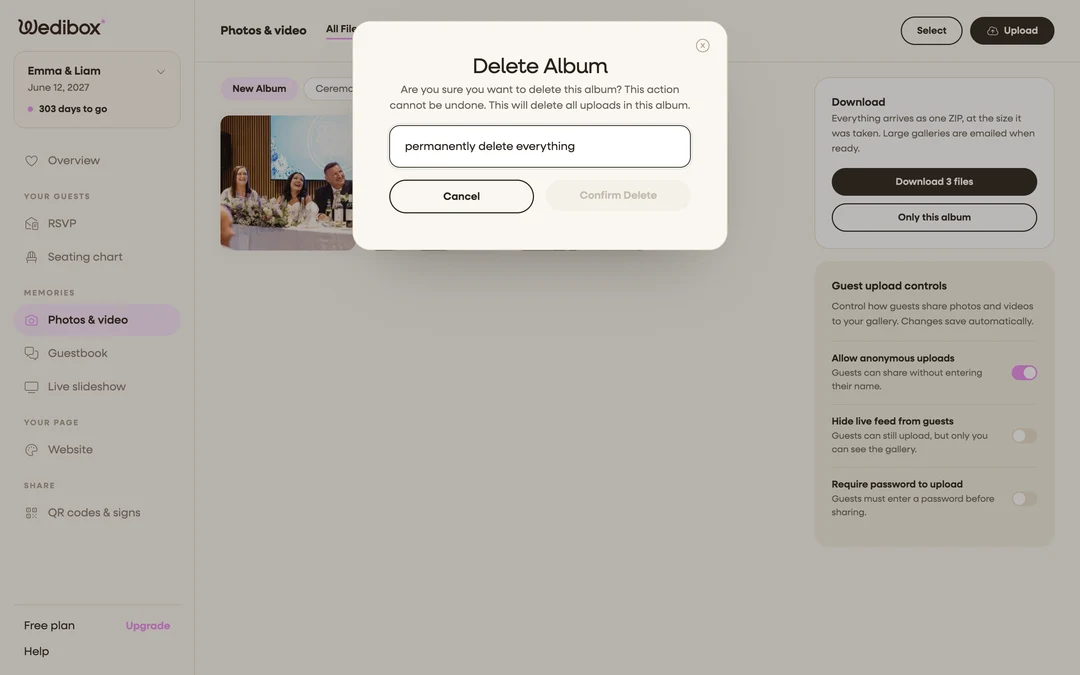


What you should see
Your album pills reflect the new structure, and guests uploading from your page see the same list (minus hidden albums) in the Album dropdown of the upload form. Hidden albums show the crossed-eye icon on their pill so you always know what’s private.
If something goes wrong
- “You cannot delete your last album.” Every event must have at least one album. Create a replacement first, then delete the old one.
- A guest uploaded to the wrong album. No harm done: use Select → Move to to re-file their photos in seconds.