How to view and manage everything guests upload
Photo sharingAll plans
Every photo and video your guests share lands on one page: Photos & video. From there you can filter, favorite, open full-size views, and clean things up in bulk. It’s your private mission control for the gallery, separate from what guests see.
Plan: All plans · Where: Photos & video (under “Memories”)
Before you start
- Written notes and voicemails aren’t here; they live on the Guestbook page. The guest list lives in the RSVP hub.
Steps
-
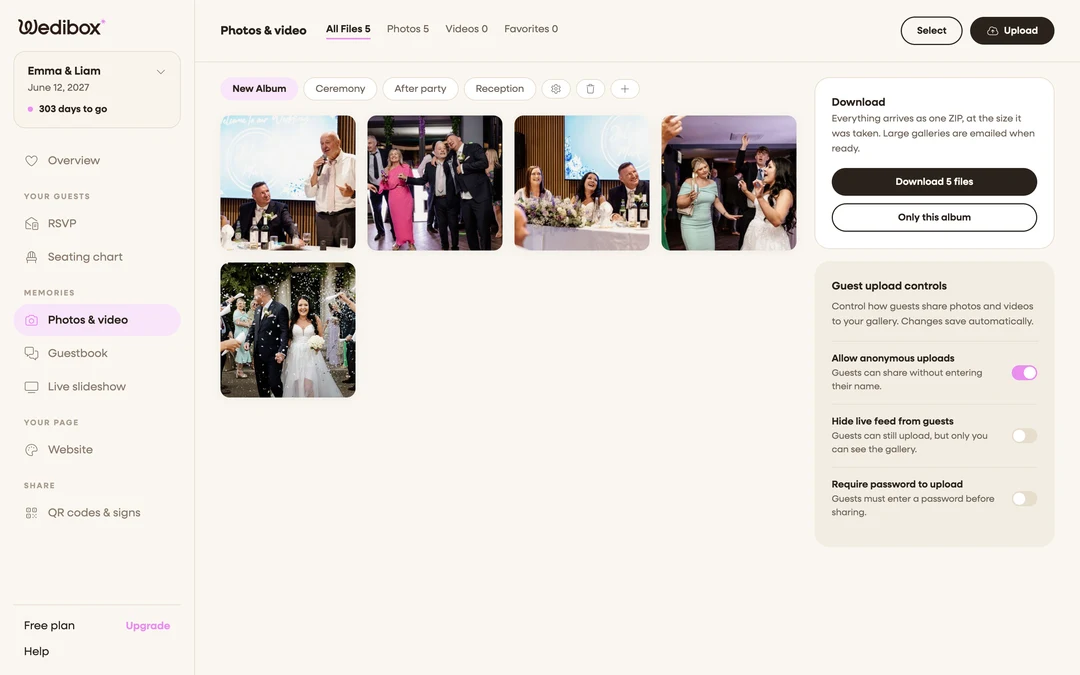
Open Photos & video. In the sidebar, click Photos & video (under “Memories”). New uploads appear here moments after guests finish.
-
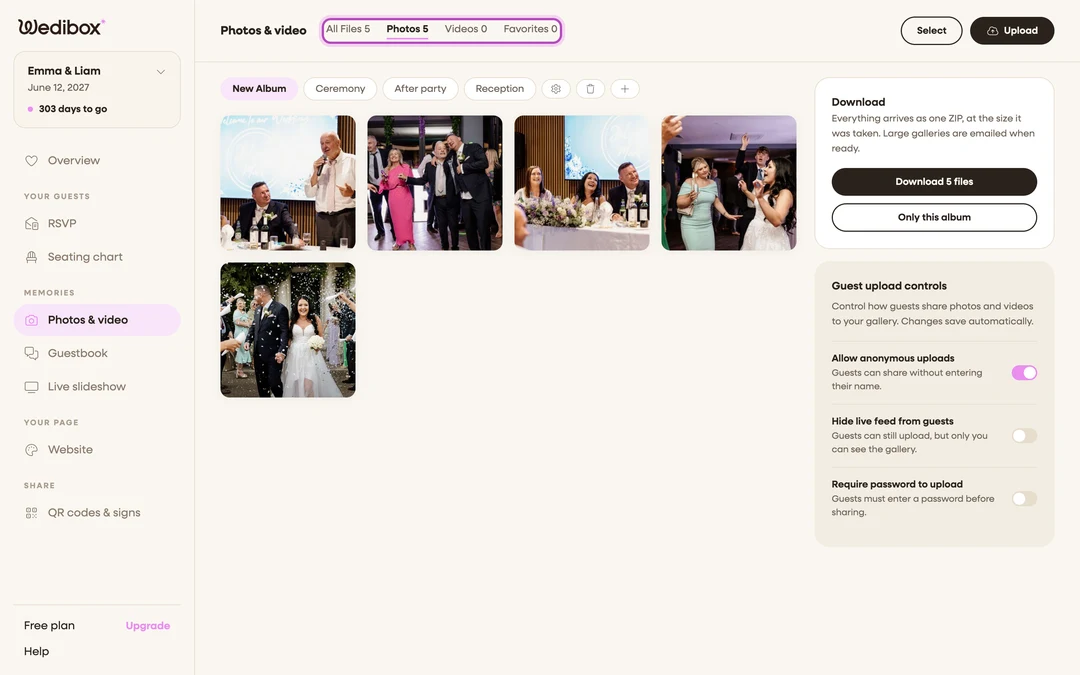
Filter by type. Use the tabs in the page header (All Files, Photos, Videos, Favorites), each with a live count. Videos carry a play badge in the grid.
-
Filter by album. Click an album pill above the grid to switch albums. The tab counts update to the selected album.
-
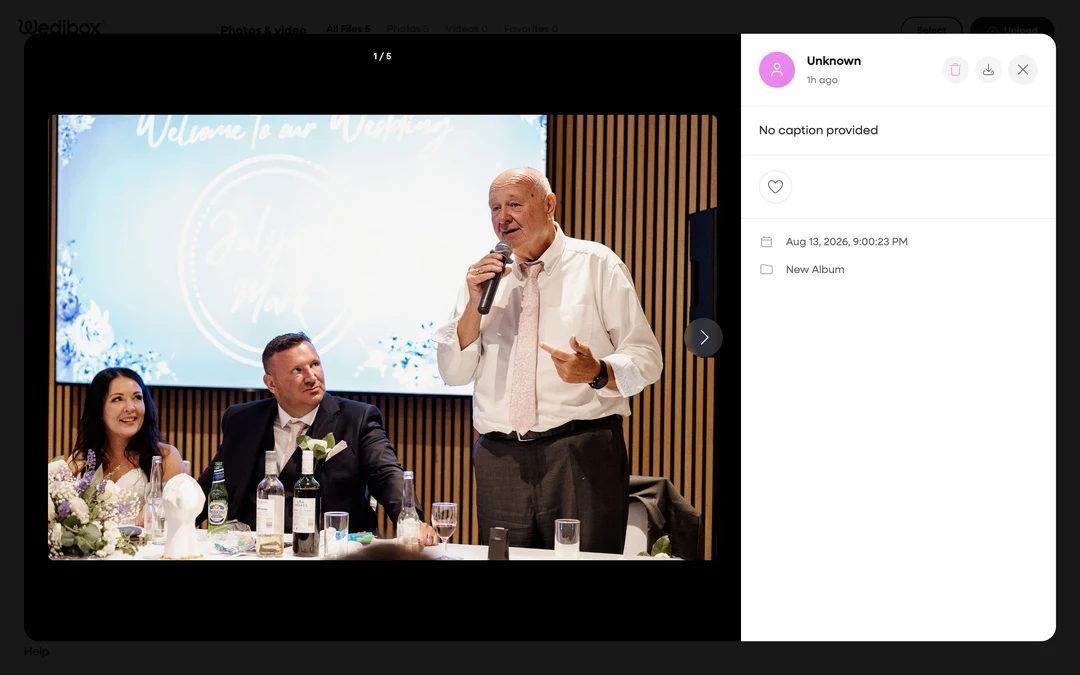
Open a photo full-size. Click any tile. The detail view shows who uploaded it and when, the caption, the album, and arrows (or your keyboard’s arrow keys) to move through the gallery. From here you can download the file or delete it.
-
Mark your favorites. Hover a tile and click the heart, or click the heart button in the detail view; it fills in red once favorited. Favorites collect under the Favorites tab: your shortlist for albums, prints, and thank-you cards.
-
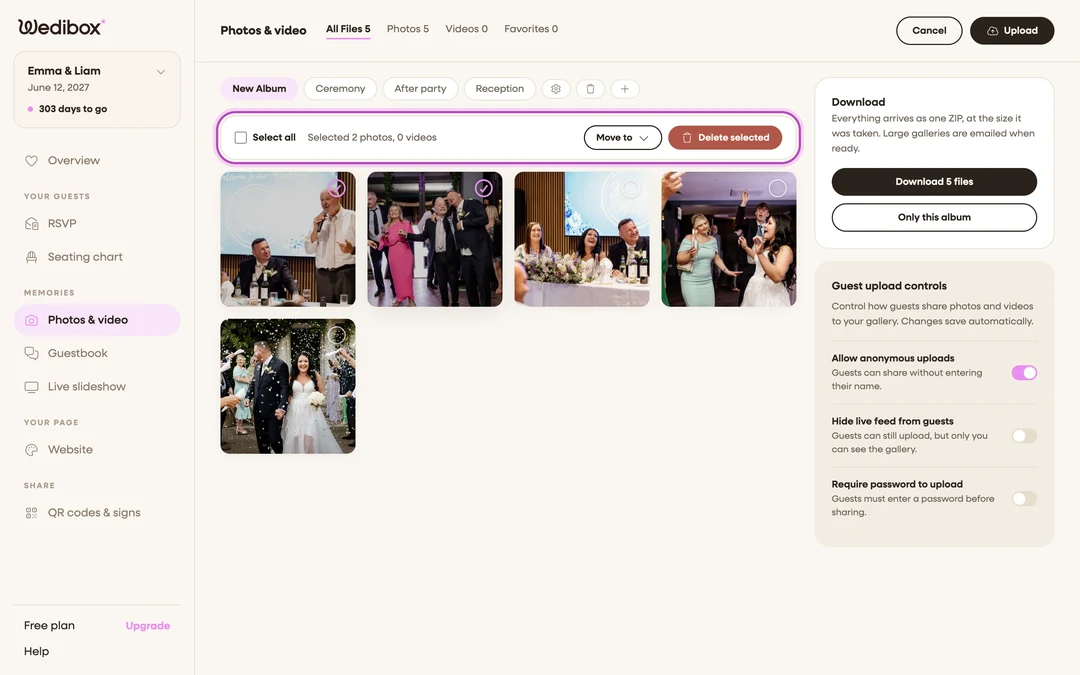
Select many at once. Click Select in the page header. Tick individual tiles, or Select all for everything in the current filter; the bar counts selected photos and videos. From here, Move to re-files them into another album and Delete selected removes them for good.


What you should see
A gallery that answers questions fast: how many videos came in, which photos you loved, what’s in each album. The sidebar cards handle the rest: downloading everything and controlling how guests upload.
If something goes wrong
- “Nothing here matches this filter yet.” The album has uploads, just none of the filtered type. Switch back to All Files.
- A fresh upload isn’t showing. Uploads can take a few seconds to process. Switch albums and back, or reload the page.