How to set up a photo scavenger hunt for guests
Photo sharingAll plans
A scavenger hunt turns your guests into your photo team: give them a list of shots to capture (“Best dance move”, “Photo with the couple”) and each challenge card on your page opens the uploader directly. It fills your gallery with exactly the moments you want, and it’s free on every plan.
Plan: All plans · Where: Website (under “Your page”) → Scavenger Hunt
Before you start
- Photo collection should be on (the Photo Sharing tile in the Website editor), since challenges feed the same gallery.
- Sketch 5–10 prompts. Specific beats generic: “Grandma on the dance floor” gets taken; “a fun moment” doesn’t.
Steps
-
Open the Website editor. In the sidebar, click Website (under “Your page”). Changes here save as you go.
-
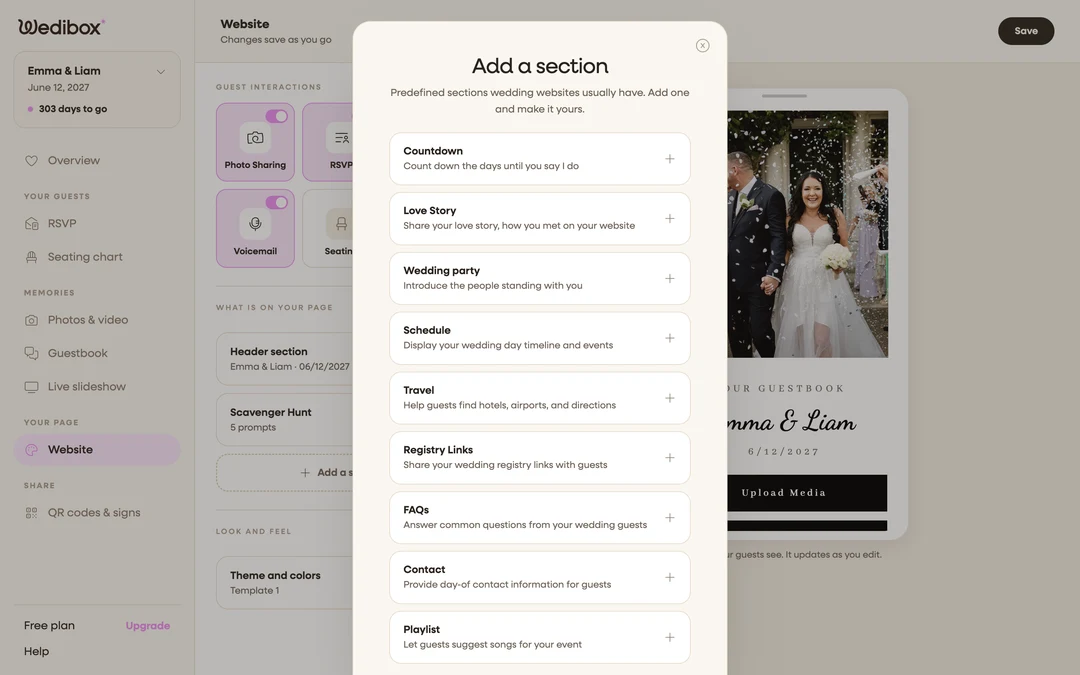
Add the Scavenger Hunt section. Under “What is on your page”, click the Scavenger Hunt card. If it isn’t listed yet, click Add a section and pick Scavenger Hunt (“Fun photo challenges for your guests to capture”).
-
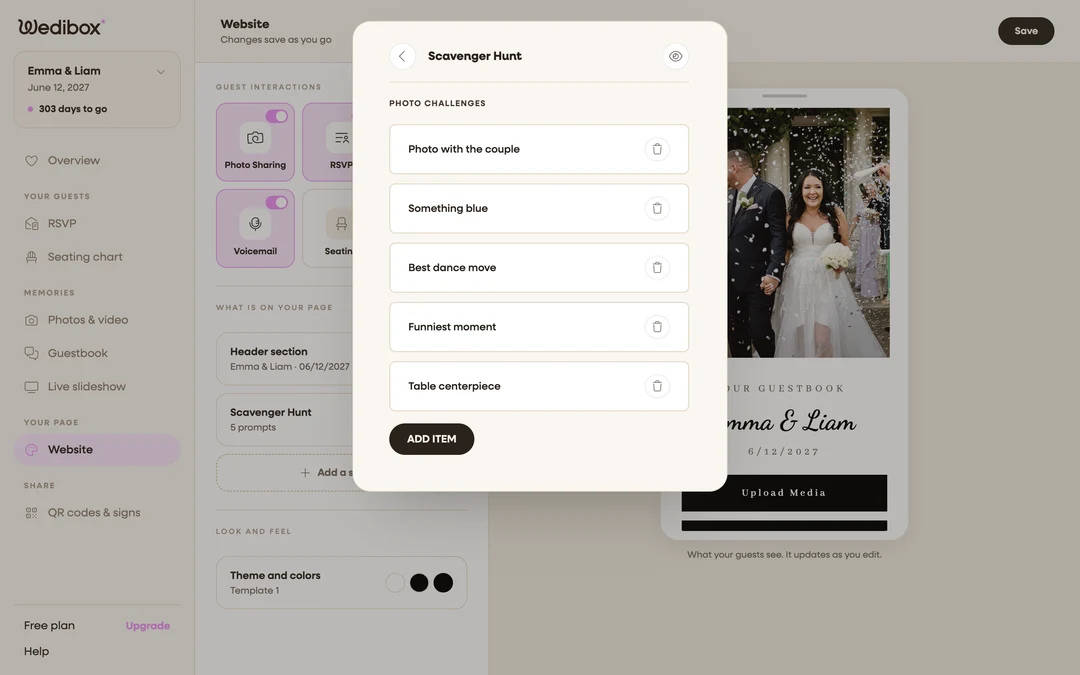
Review the prompt list. The editor opens on your PHOTO CHALLENGES list. You may find five starter prompts already there (Photo with the couple, Something blue, Best dance move, Funniest moment, Table centerpiece), ready to keep, edit, or replace.
-
Edit a prompt. Click a prompt and type over it; the field hints “e.g. Photo with the couple”. Click anywhere else when you’re done.
-
Remove a prompt. Click the trash icon on its row.
-
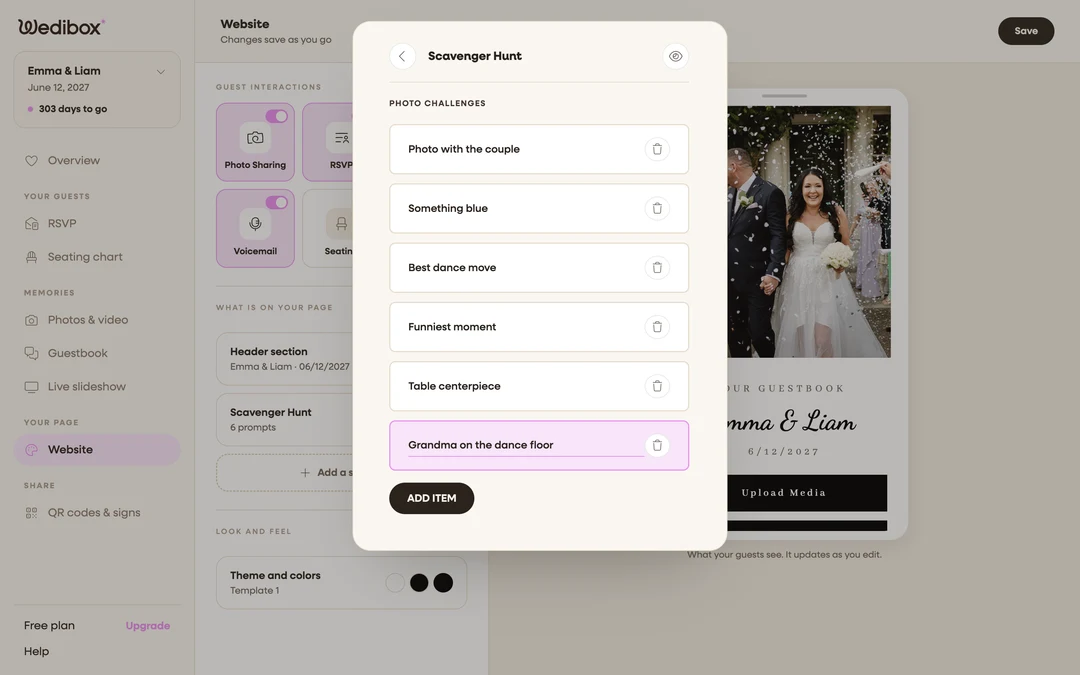
Add your own. Click ADD ITEM and type the new challenge. Repeat until the list feels like your wedding.
-
Check the section is visible. Back on the section list, the Scavenger Hunt card shows its prompt count and its switch should be on. That’s what puts it on your page. The live preview on the right shows it exactly as guests will.
What you should see
On your page, guests get a “Scavenger Hunt” section (“Capture these moments and share them with us!”) with a numbered card per challenge. Tapping a card opens the upload window, so playing the game and filling your gallery are the same motion.

If something goes wrong
- The section shows “No challenges yet” to guests. Your prompt list is empty. Open the editor and add at least one prompt.
- Guests tap a card and nothing uploads. Photo collection is off. Turn the Photo Sharing tile back on in the Website editor.