How to add a co-organizer
Getting startedAll plans
A co-organizer gets full access to your event (the page editor, the gallery, RSVP, everything) under their own login. It’s how couples split the work, and how a planner or maid of honor can run the slideshow on the day without ever touching your password. Free on every plan, with no limit that matters.
Plan: All plans · Where: Event sidebar → your event’s name → People
Before you start
- Have the person’s name and the email address they’ll use. The invite goes to that address, and their account will live on it.
Steps
-
Open your event. From Your events, click Open on the event you want to share.
-
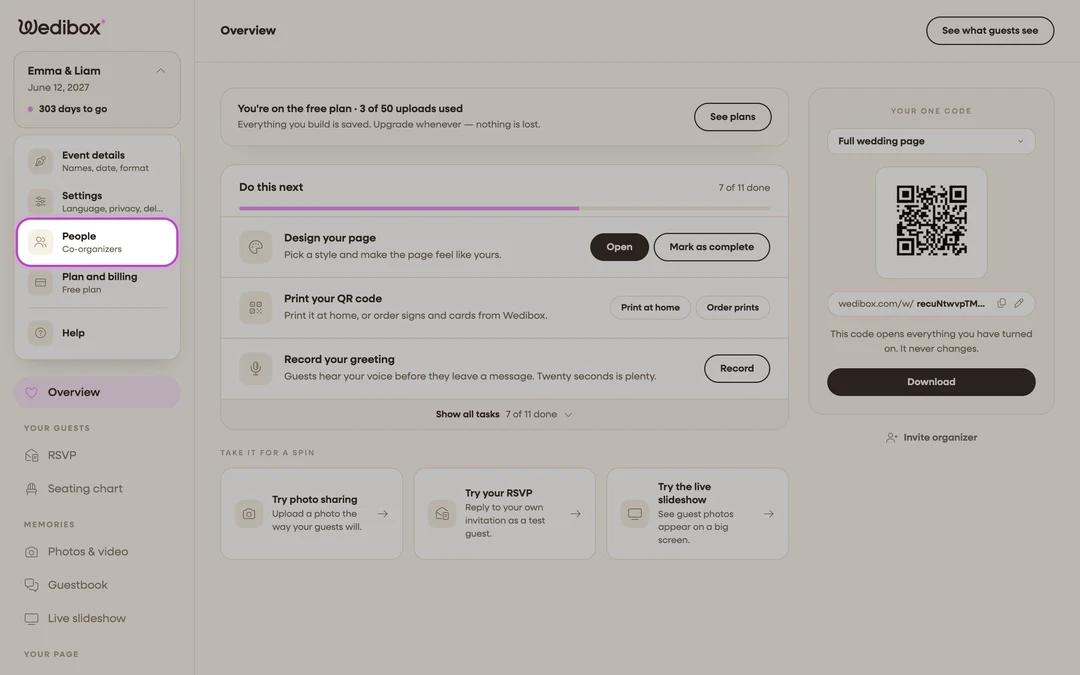
Open the event menu. Click your event’s name at the top of the sidebar, then click People (labeled “Co-organizers”).
-
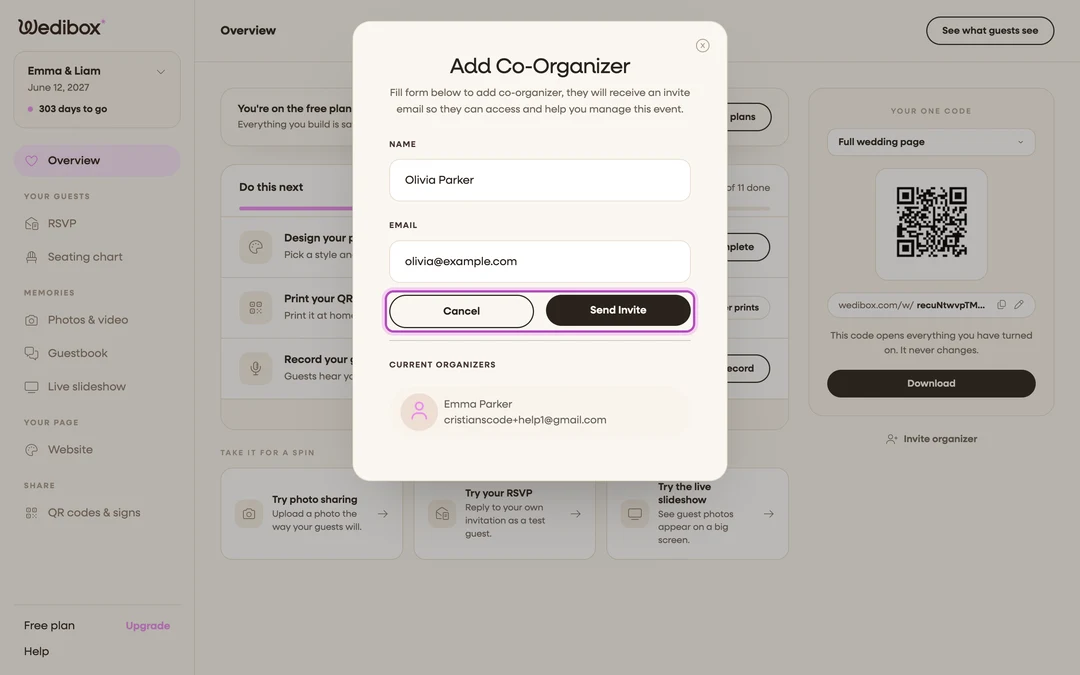
Fill in the invite. The Add Co-Organizer panel opens. Enter their NAME and EMAIL.
-
Click Send Invite. Wedibox emails them an invitation link. Their name appears under Current Organizers once things are set.
-
They accept. From the email, they follow the link, sign in or create an account, and see “Event Successfully Linked!” with a Login button. After logging in, your event appears on their home screen like their own.

What you should see
The person listed under Current Organizers in the People panel, and (once setup is further along) the Overview’s access card switches from Share the keys to “{their name} has access.” From their side, the event simply shows up in their account with the same dashboard you see.
Shortcut: the Overview’s right rail has an Invite someone button that opens the same panel, and the first-run setup wizard asks “Planning this together?”: same invite, different doorway.
If something goes wrong
- The invite email never arrived. Have them check spam, and re-send from the same People panel. Make sure the address is the one they’ll actually log in with.
- They accepted but don’t see the event. They may have logged into a different account than the invited address. Log out, log back in with the invited email.
- You want to remove someone. Contact support from the sidebar’s Help link; removal isn’t self-serve yet.