How to build a wedding-day timeline for your clients
For partnersPartner program
A timeline page replaces the PDF schedule you keep re-sending: build the day once, tag each moment with the vendors who own it, and share one link. When plans shift, you edit and save; everyone sees the change immediately.
Plan: Partner program · Where: Partner portal → Free tools → Build a timeline
Before you start
- Have the couple’s names, wedding date, and venue.
- Rough out the day’s moments; you can reorder freely, so a brain dump is fine.
Steps
-
Create the timeline. In Free tools, click Build a timeline. The editor opens on a fresh, unsaved timeline.
-
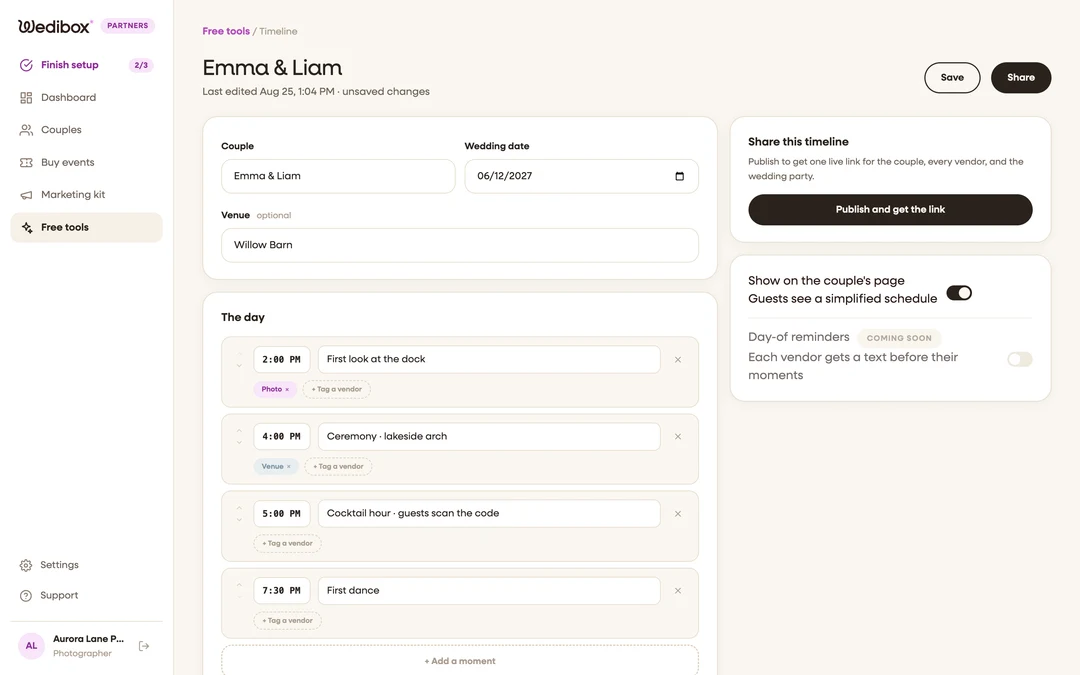
Fill in the wedding. Enter the Couple names, the Wedding date, and the Venue. The couple’s names become the page title.
-
Add the day’s moments. Click + Add a moment for each item. The time field is free text, so “4:00 PM” and “Sunset” both work; the title is the moment itself (“Ceremony · lakeside arch”). Use the up and down arrows to reorder.
-
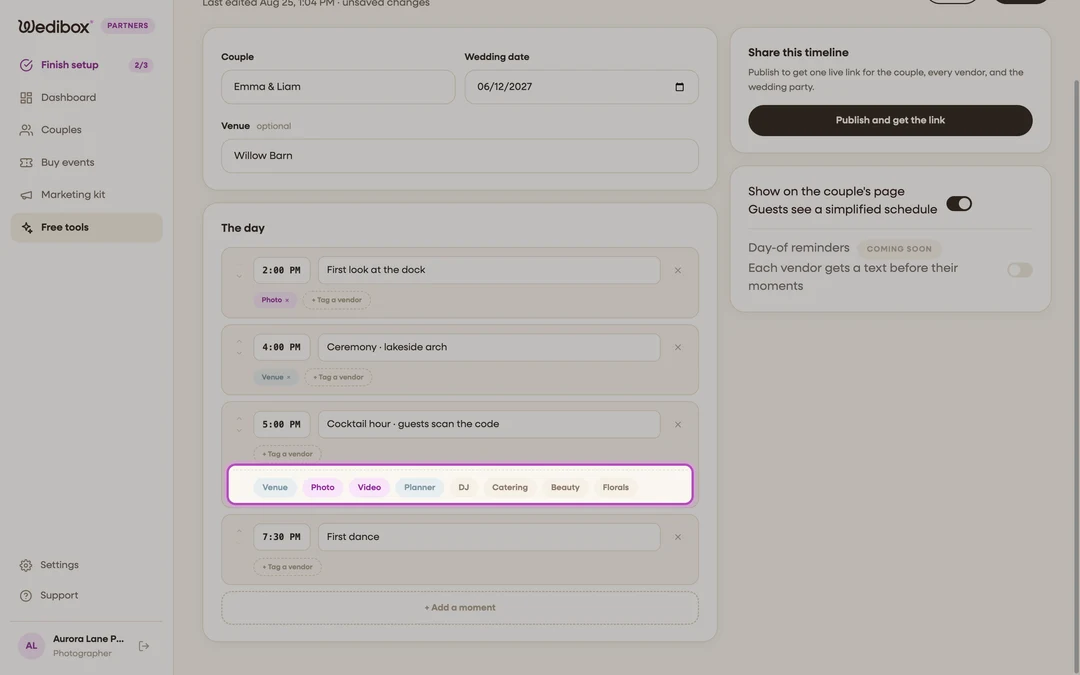
Tag the vendors. Under a moment, click + Tag a vendor and pick from Venue, Photo, Video, Planner, DJ, Catering, Beauty, and Florals. Tags show as chips on the public page, so every vendor can scan for their own moments.
-
Save your work. Click Save in the header; the sub-line tracks “unsaved changes” so you always know where you stand.
-
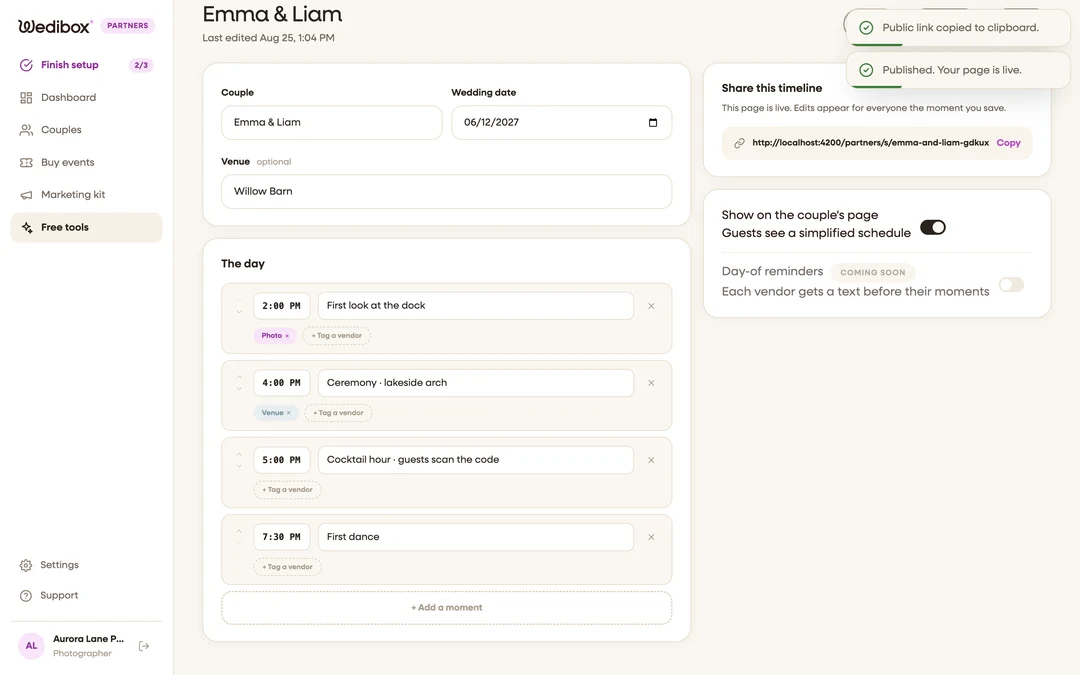
Publish and share. In the right rail, click Publish and get the link. The page goes live at its own private link with a Copy button next to it. From now on, the Share button in the header copies that link too.
-
Optional: show it to guests. Leave Show on the couple’s page switched on and guests see a simplified schedule; switch it off to keep the timeline vendors-only.


What you should see
The public page lists the day in order, with the couple’s names, date, and venue up top, tag chips on each moment, and “Timeline by {your business}” at the bottom. Open Preview in the editor header to check it anytime.
If something goes wrong
- The couple’s plans changed. Edit the moments and click Save; the public page updates the moment you do. No new link needed.
- You deleted a moment by accident. There’s no undo in the editor; re-add the moment before saving, or leave without saving to discard all unsaved changes.