How to deliver a photo gallery to your couple
For partnersPartner program
A delivery page hands over your finished photos under your own name: your logo up top, a clean grid, a download button, and a tab that jumps to the couple’s guest uploads. It reads like part of your service, not a file-transfer link.
Plan: Partner program · Where: Partner portal → Free tools → Create a delivery page
Before you start
- Export the finished photos as JPG, PNG, or WebP. Wedibox optimizes each one for web delivery on upload, so exporting at full size is fine.
- If the couple redeemed your code, start from their page in Couples instead (Create a delivery page in their action list); their names, date, and gallery link prefill.
Steps
-
Open the delivery editor. In Free tools, click Create a delivery page.
-
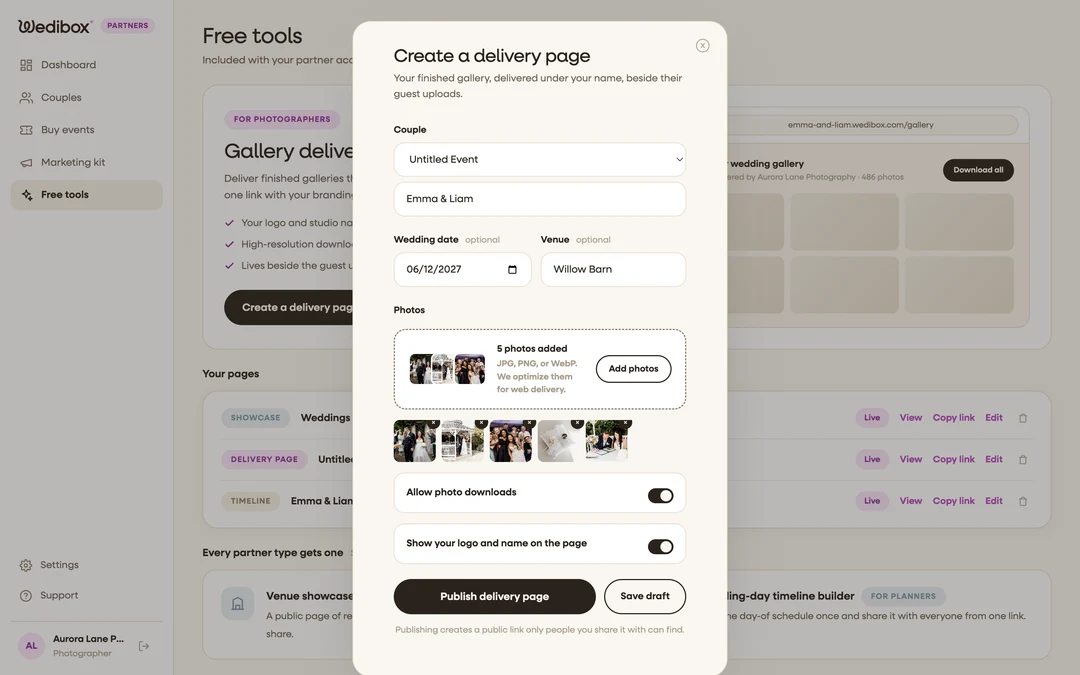
Pick the couple. Choose them from the Couple dropdown if they’re one of your Wedibox couples, or leave it on “Not one of my Wedibox couples” and type their names. Add the Wedding date and Venue if you like; they render under the names on the page.
-
Add your photos. Click the upload zone and select everything at once. The counter ticks through “Uploading {done} of {total}…” as they land; the first photo becomes the page’s cover, and you can remove any thumbnail with its ×.
-
Set the two toggles. Allow photo downloads gives the couple a Download all button plus full-size opens; Show your logo and name on the page keeps your branding on the delivery. Both start switched on.
-
Publish. Click Publish delivery page (it stays disabled until there’s a couple name and at least one photo, and every upload has finished). The public link is copied to your clipboard automatically; Save draft parks it instead.
-
Send the link. Paste it into your delivery email, or use Send the pre-wedding email template from the couple’s detail page. The link is private: only people you share it with can find it.
What you should see
The page opens on a full-bleed cover with the couple’s names and “{count} photos · delivered by {your business}”. Below, a Photographer gallery tab shows your grid, and for Wedibox couples a Guest uploads tab links straight to their event page, your finished work and their guests’ photos, side by side.

If something goes wrong
- “{count} photos failed to upload. Try adding them again.” Re-add just those files; the ones already uploaded are kept.
- The Publish button stays gray. Check the three requirements: a couple name, at least one photo, and no upload still in progress.
- The couple can’t download. Open the page in the editor and check Allow photo downloads is on, then publish again.