How to track couples and approve redemptions
For partnersPartner program
The Couples tab is your client list inside Wedibox: everyone who redeemed your code, plus the invites still out. Its one job that needs you: approving new redemptions so you know your events only go to real clients.
Plan: Partner program · Where: Partner portal → Couples
Steps
-
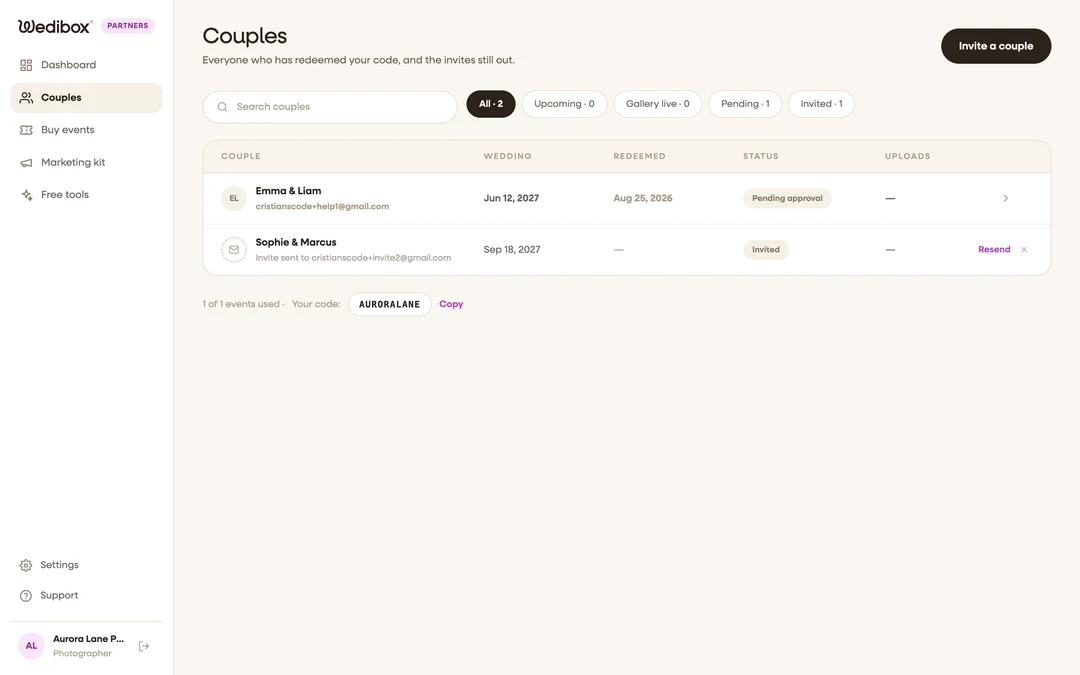
Open the Couples tab. The table shows each couple, their wedding date, when they redeemed, a status chip, and their guest upload count. The footer keeps score: “{used} of {cap} events used”, with your code and a Copy button.
-
Read the status chips.
- Invited: you sent an invite; they haven’t redeemed yet.
- Pending approval: they redeemed and are waiting on you.
- Upcoming / Wedding week: approved, wedding ahead (within 7 days for Wedding week).
- Gallery live: approved and the wedding has happened; their gallery is collecting photos.
- Declined: you rejected the redemption.
-
Filter and search. The pills above the table (All, Upcoming, Gallery live, Pending, Invited) carry live counts; the search box matches names and emails.
-
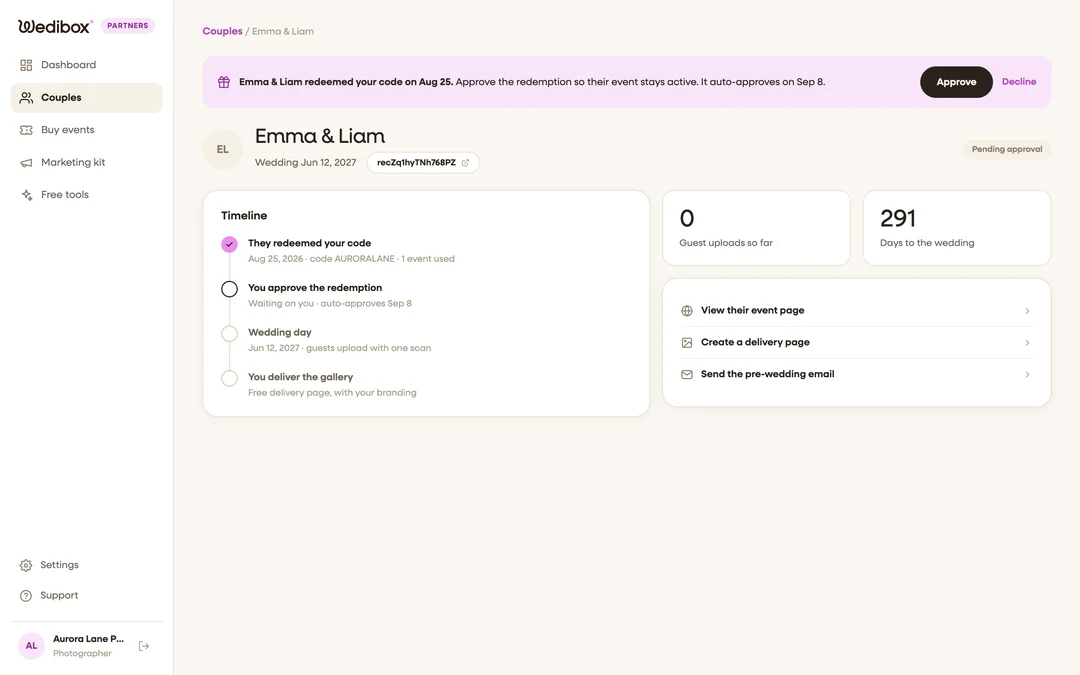
Open a couple’s page. Click any row. You’ll see their timeline (invite sent, code redeemed, approval, wedding day, gallery delivery), their upload count, days to the wedding, and quick actions: View their event page, Create a delivery page, and Send the pre-wedding email.
-
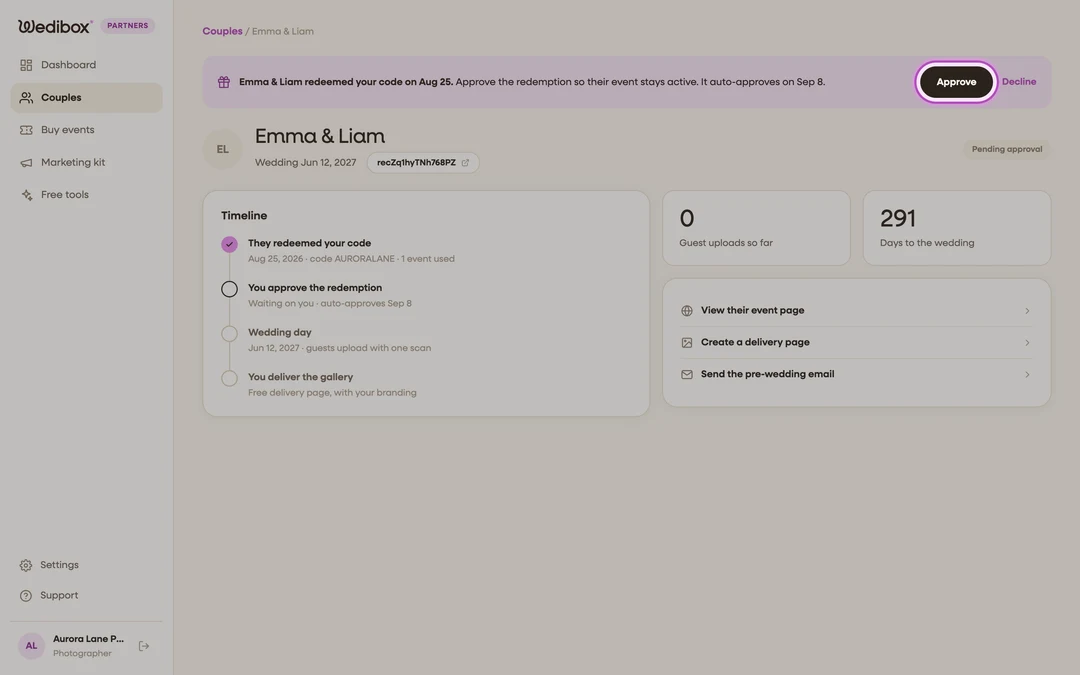
Approve or decline new redemptions. A pending couple shows a banner: “{Couple} redeemed your code on {date}.” Click Approve if they’re your client. If you don’t recognize them, click Decline; they’ll be told they need to pay normally, and the event returns to your balance.
-
Or let it approve itself. Any redemption you don’t act on auto-approves after 14 days, so a busy season never leaves your couples in limbo. The timeline then reads “Auto-approved” with the date.


What you should see
Every approved couple moves through the chips on its own as the wedding approaches: Upcoming, then Wedding week, then Gallery live. The Uploads column tells you when a gallery is worth a look (and worth a delivery page).
If something goes wrong
- You declined by accident. Declines are manual to reverse; contact hello@wedibox.com and the team can restore the redemption.
- A couple redeemed with a different email than the one you invited. The invite row stays under Invited; remove it with the X once you’ve matched them up.