How to delete your event or account
AccountAll plans
Deleting an event erases it completely: photos, videos, messages, voicemails, albums, and the page itself. It cannot be undone, which is why the flow makes you type a confirmation phrase instead of just clicking a red button. Read the alternatives below first; most “I want to delete” moments are really “I want it offline” or “I want my files” moments.
Plan: All plans · Where: Event menu → Settings
Before you start
- Download your memories first. Once deleted, nothing is recoverable (not by you, not by support). If there’s any chance you’ll want the photos, request the ZIP first: how to download everything.
- Deletion removes the event for co-organizers too.
- Consider the alternatives in the last section; they cover the common reasons people reach for delete.
Steps
-
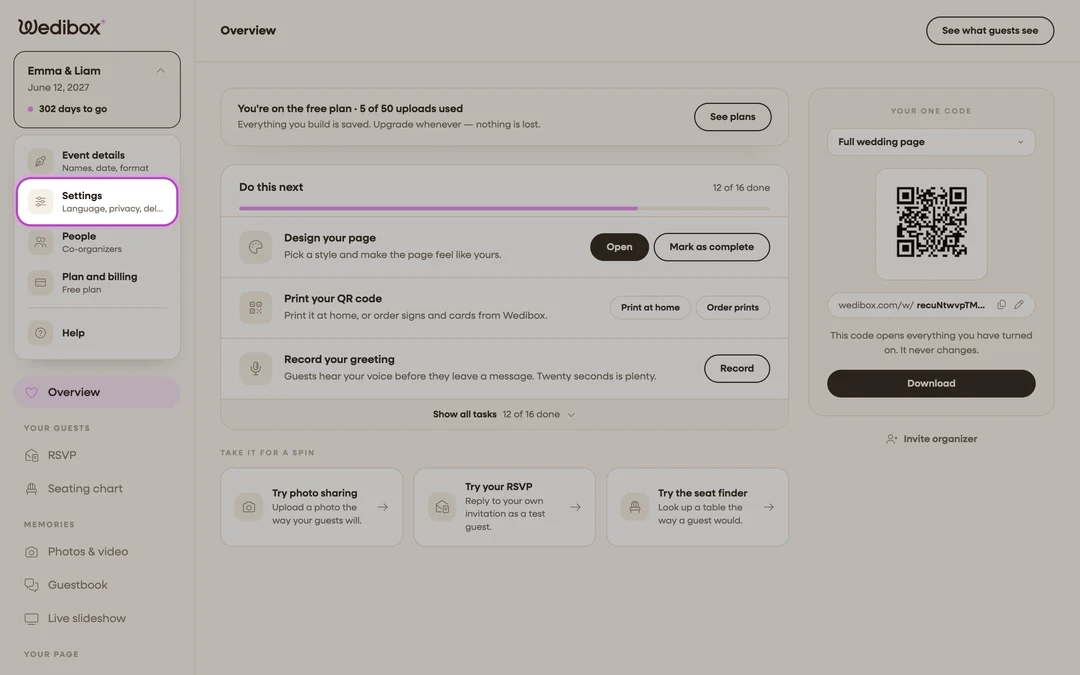
Open the event menu. Inside your event, click your event’s name at the top of the sidebar, then click Settings (the entry labeled “Language, privacy, delete”).
-
Scroll to the bottom of the settings. In the Configure Event Settings popup, the Delete Event button sits at the end, past the language and privacy options, deliberately out of the way.
-
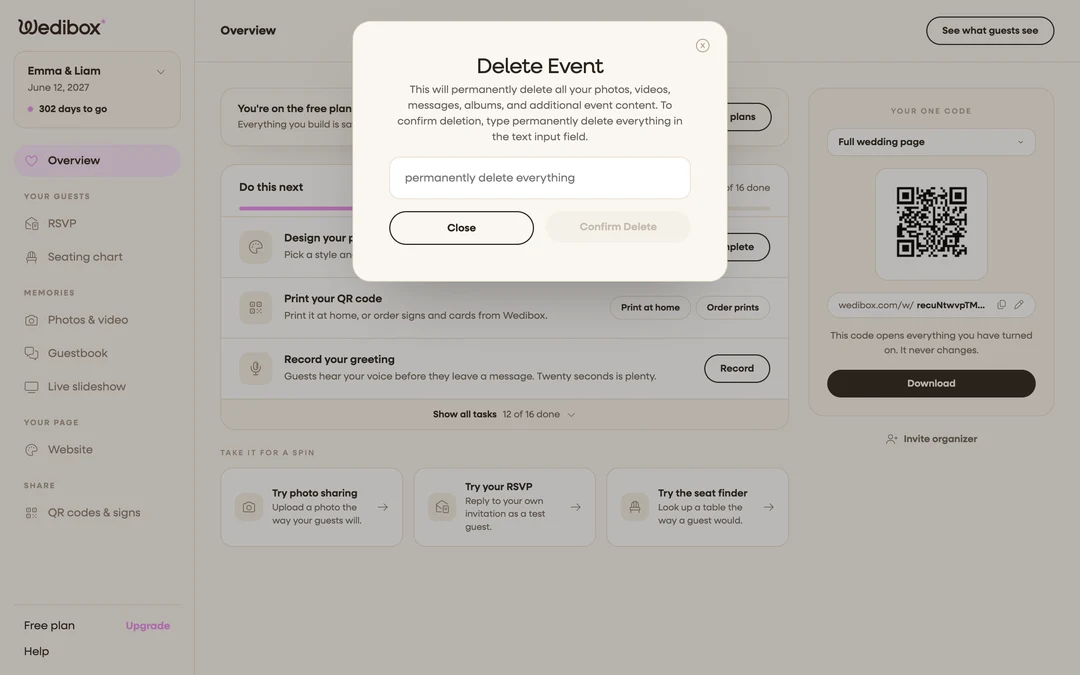
Click “Delete Event”. A confirmation popup opens and spells out the stakes: “This will permanently delete all your photos, videos, messages, albums, and additional event content.”
-
Type the confirmation phrase. In the text field, type exactly:
permanently delete everything. The Confirm Delete button stays disabled until the phrase matches. That’s the safety catch. -
Click “Confirm Delete”. The event and everything in it is deleted. Old links to the event resolve to a clear “this content has been deleted” page rather than an error, so guests who scan a leftover card aren’t left confused.
What you should see
The event disappears from your events list, and its page and QR code stop working. This is permanent.
Deleting your whole account
There’s no self-serve account deletion in the app. To delete your account and its data, contact support: in the sidebar, click Help and send a request through Contact Us from the email address on the account. Delete or download your events first. It makes the request unambiguous.
The gentler alternatives
- You want your files, not deletion: request the ZIP download and keep the event.
- You want it offline: hide what guests can see instead. Turn on Hide live feed from guests, or hide individual albums. See privacy on Wedibox.
- Storage is ending anyway: when your storage period nears its end, Wedibox emails you a storage management link with three choices: Extend storage (paid), download everything as a ZIP (paid), or Delete everything (free and confirmed with a checkbox). If your goal is just “wrap this up,” that email is the tidy way out. See your storage-expiry options.
If something goes wrong
- “Confirm Delete” stays grayed out: the phrase must match exactly:
all lowercase,
permanently delete everything, no extra spaces. - You deleted and immediately regret it: deletion is irreversible; recovery isn’t possible. This is why the ZIP download comes first in this guide.