What happens when your storage expires (your three options)
Plans & billingAll plans
Your photos are never deleted silently. As your storage period nears its end, your Overview tells you well in advance: a banner reads “Your storage ends in 7 days. Extend it to keep browsing, or download everything first,” and your task list adds a Download your content reminder so you can save every photo, video, and message while storage is active. You have three options, and all of them live inside the app.

Option 1: Extend storage
Keeps everything online and browsable.
- Click “Extend” on the Overview banner.
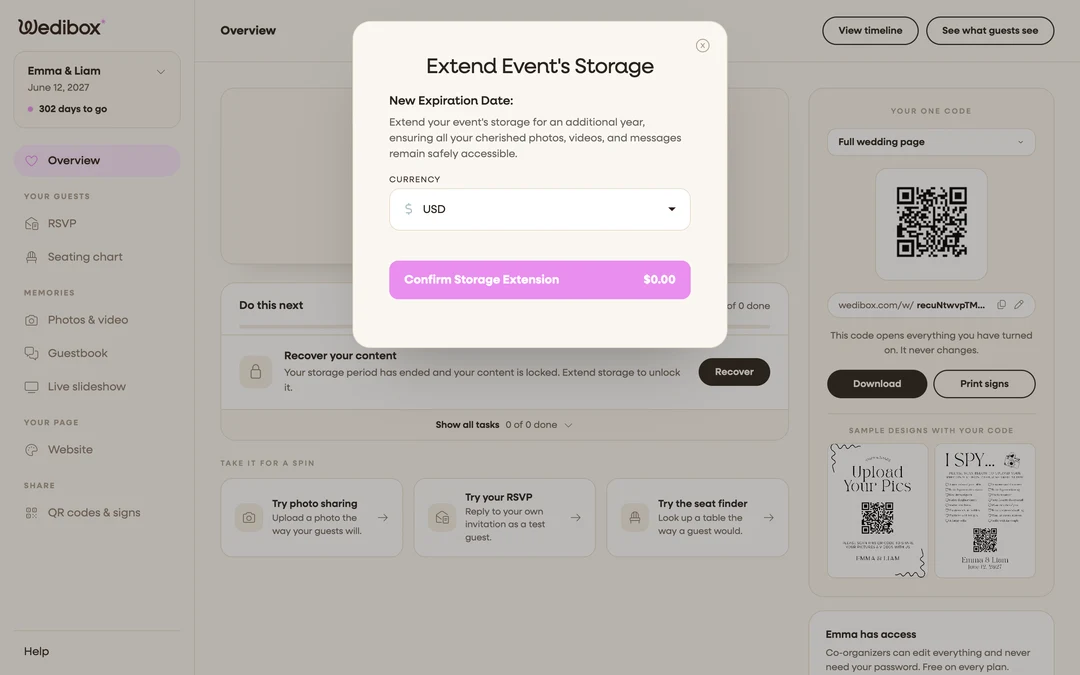
- Review the new date. The Extend Event’s Storage window shows your New Expiration Date: one additional year.
- Pick your currency, enter your card details, and confirm.
Your gallery stays live and the new date appears in your View timeline popup.
Option 2: Download everything as a ZIP
A permanent backup, delivered to your inbox. Do this while storage is still active. Open Photos & video, request your ZIP download, and you’ll receive an email link once it’s ready. The full steps are in How to download all your wedding photos and videos.
Option 3: Delete the event
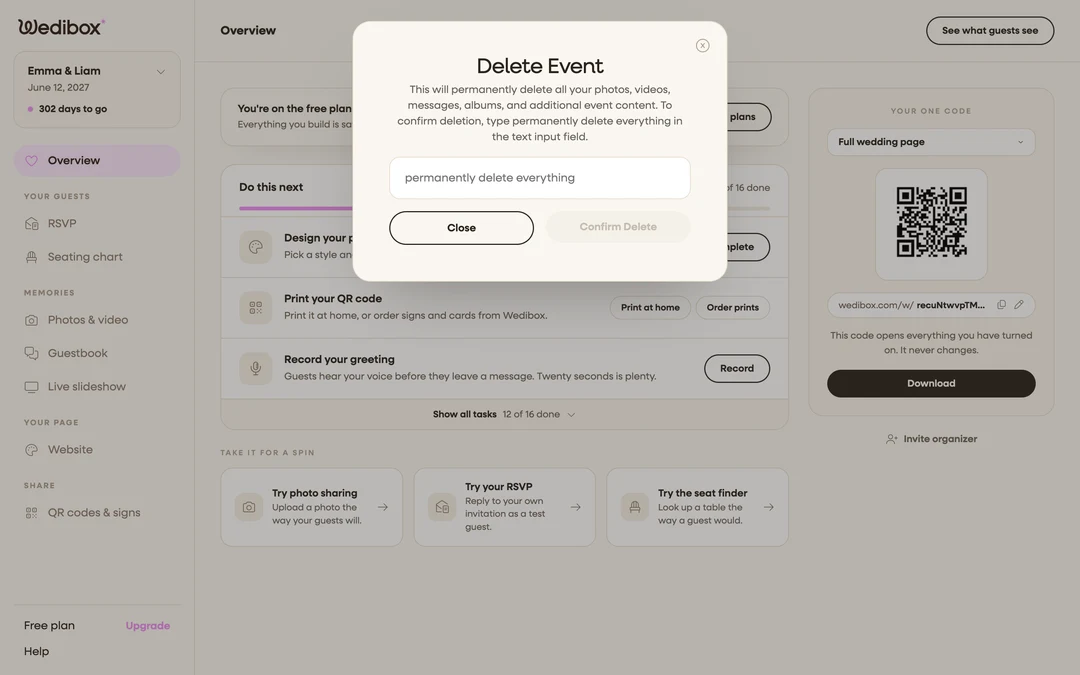
Free, immediate, and irreversible. Open your event’s Settings, click Delete Event, and confirm by typing permanently delete everything in the confirmation window. This removes all photos, videos, messages, albums, and event content for good.
If your storage has already run out
Your gallery is archived, not gone: browsing is paused, but everything is intact. Your Overview keeps an extend prompt after expiry, and Photos & video shows an Extend Storage button. Either one opens the same Extend Event’s Storage window, and extending brings everything back online exactly as it was. If you’re not sure where your event stands, check View timeline on your Overview, or contact support and they’ll sort it out with you.