How to extend your storage
Plans & billingAll plans
Extending storage keeps your gallery online (browsable, shareable, and downloadable) for one more year, counted from the day you extend. It’s a one-time payment, and it works both before your storage ends (to avoid any pause) and after (to bring an archived gallery back online, exactly as it was).
Plan: All plans (paid events) · Where: Overview → “storage ending” banner → Extend
Before you start
- Nothing is deleted when storage ends: your gallery is archived and intact. You can extend whenever you’re ready.
- If you’d rather have a permanent offline copy than more online time, see What happens when your storage expires for the ZIP option.
Steps
-
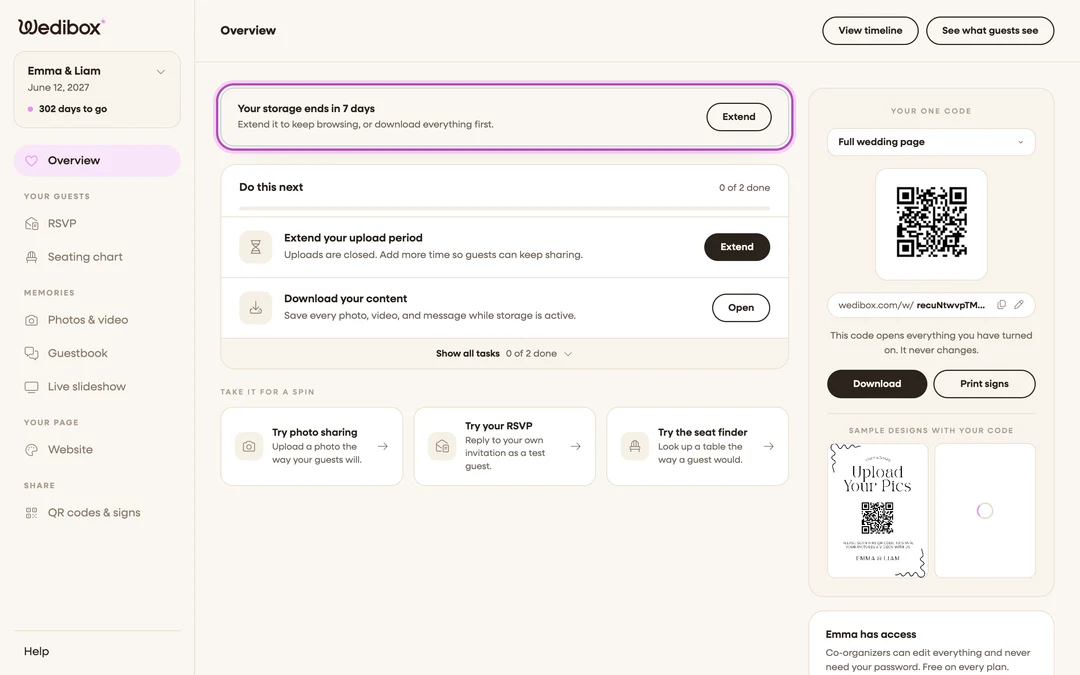
Open your event’s Overview. In the sidebar, click Overview.
-
Click the storage prompt. Depending on where you are in the lifecycle, the banner reads “Your storage ends in {X} days” with an Extend button, or, if storage has already ended, “Your gallery is archived, not gone” with a Bring it back button. Click it.
-
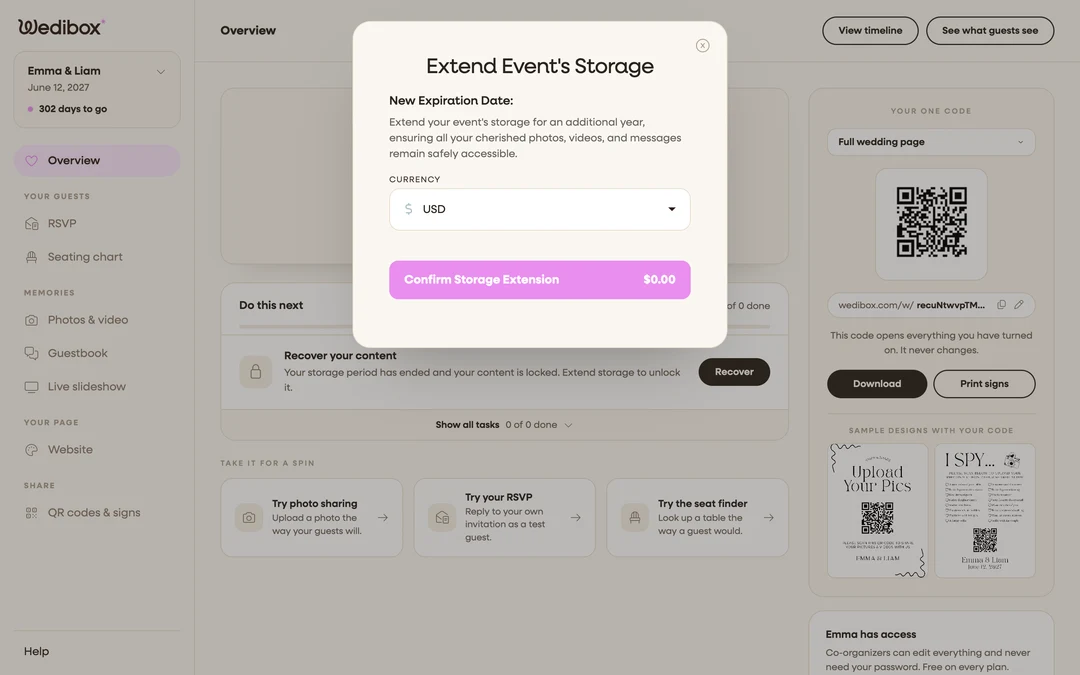
Review the new expiration date. The Extend Event’s Storage window opens and shows the New Expiration Date: one year from today.
-
Pick your currency. Use the Currency dropdown: USD, EUR, GBP, CAD, AUD, MXN, INR, or TRY.
-
Enter your card details and confirm. Fill in the secure Stripe form and click Confirm Storage Extension. The price is shown on the button.

Other places you can extend from
- Photos & video: if your storage has expired, the page shows “Your Storage Has Expired” with an Extend Storage button (“One-time payment — no subscription required.”).
What you should see
Your gallery is online (or back online) with everything intact: photos, albums, messages, and voicemails. The storage end date on your Overview reflects the new year. If you extended from the emailed page, you’ll see the confirmation “You’ve extended your storage. Your photos are safe.”
If something goes wrong
- You extended but the gallery still shows as archived: give it a minute and refresh; the payment confirmation can take a moment to process.
- The payment fails: the Stripe form shows the reason inline. Fix the details and click Confirm Storage Extension again.