How to extend your upload period
Plans & billingAll plans
Photos keep arriving long after the last dance: honeymoon shots, the photographer’s gallery, that one uncle who finally found his cable. If your upload window is closing before everything is in, you can extend it: a one-time payment adds three more months of uploading, counted from the day you extend.
Plan: All plans (paid events) · Where: Overview → “uploads ending” banner → Extend
Before you start
- This applies to activated (paid) events. On the Free plan you’d activate with a plan instead.
- The extension runs from today, not from your old end date, so extend when you actually need the time, close to your current expiry.
Steps
-
Open your event’s Overview. In the sidebar, click Overview.
-
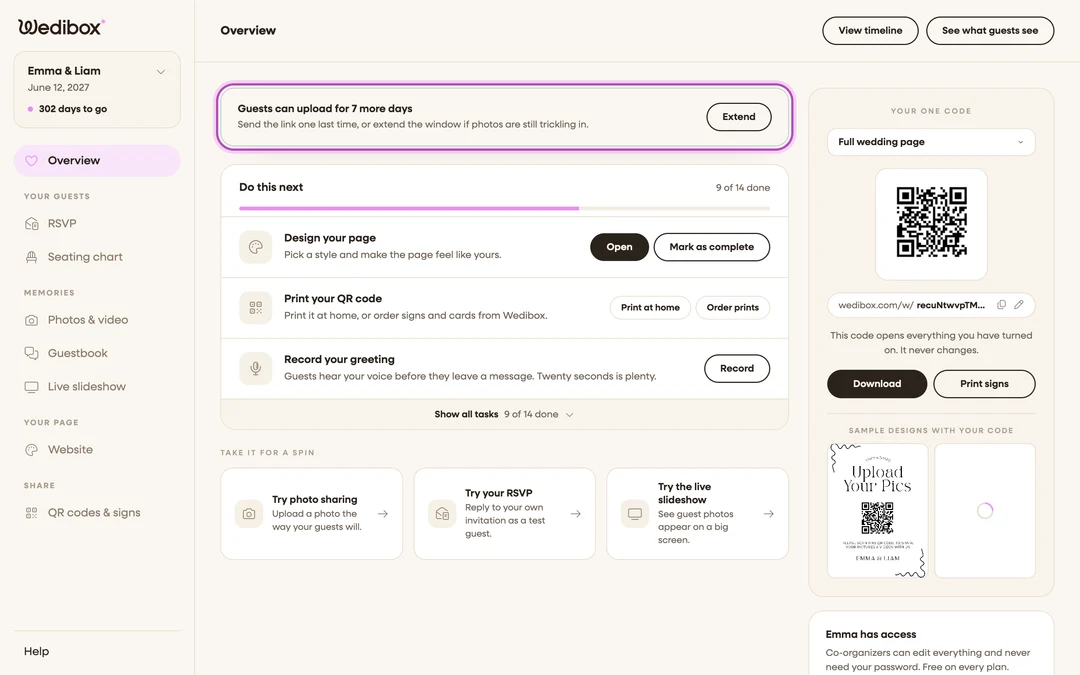
Find the uploads-ending banner. As your window nears its end, the banner reads “Guests can upload for {X} more days” with the suggestion to send the link one last time, or extend. Click Extend.
-
Review the new expiration date. The Extend Event’s Uploading Period window opens and shows the New Expiration Date: three months from today. This is the date guests will now have until.
-
Pick your currency. Use the Currency dropdown if you don’t want to pay in USD: EUR, GBP, CAD, AUD, MXN, INR, and TRY are available.
-
Enter your card details and confirm. Fill in the secure Stripe form and click Confirm Upload Extension. The price is shown on the button.

What you should see
Your upload window now ends on the new date, and guests can keep uploading from the same QR code and link. Nothing needs to be reshared or reprinted. Your storage schedule adjusts alongside it so the gallery never expires before your new upload window ends.
If something goes wrong
- You don’t see an Extend button: the banner appears as the end of your upload window approaches. If uploads have already closed and you want to reopen them, contact support.
- The payment fails: the Stripe form shows the reason inline (wrong number, bank declined, 3-D Secure). Fix and click Confirm Upload Extension again.